


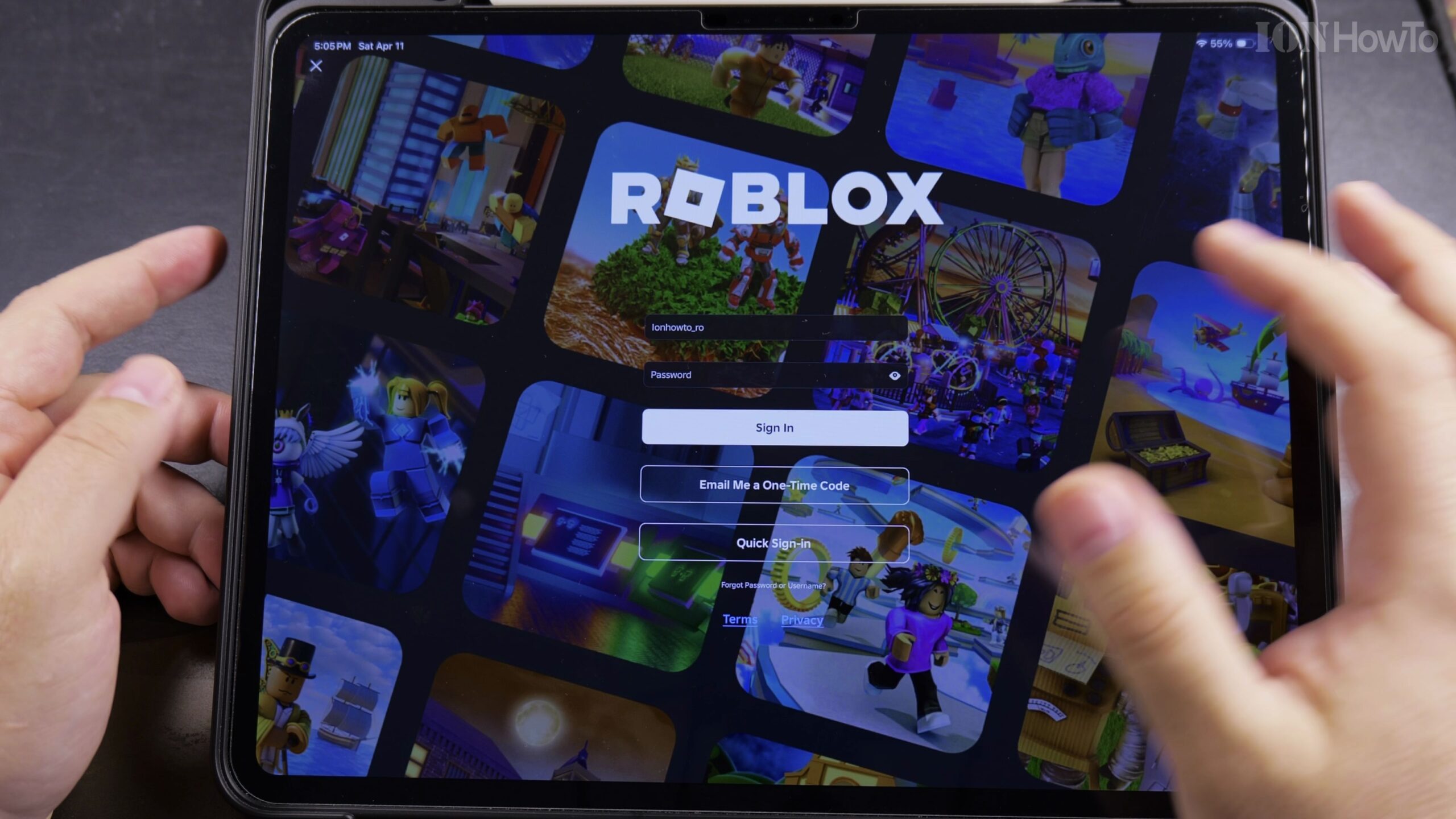
If multiple family members share an iPad or mobile device, or if you maintain an alternate Roblox account, the built-in Account Switcher feature lets you hop between accounts seamlessly without typing passwords every time. Here is how to add and switch accounts in the Roblox mobile app.

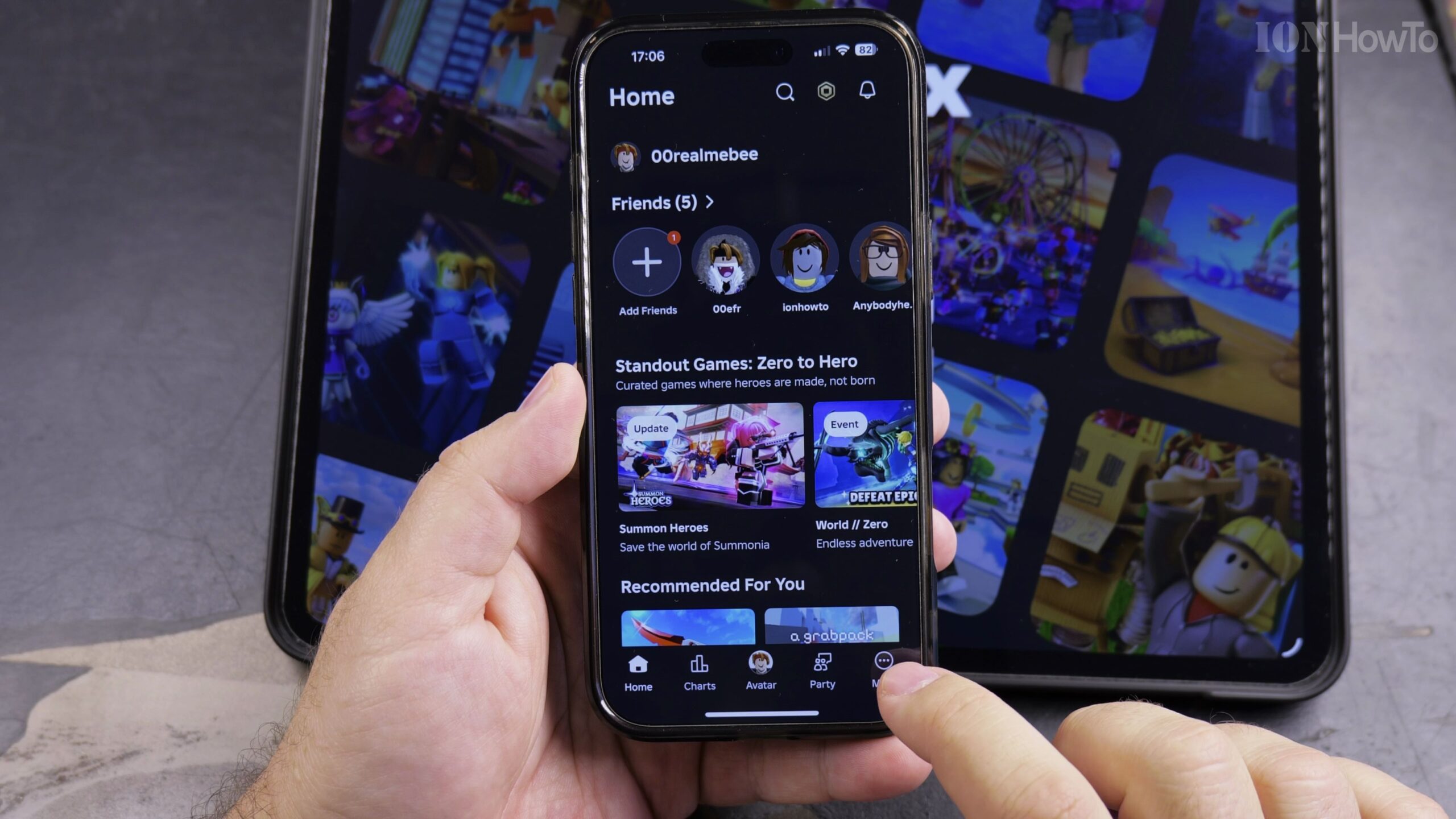
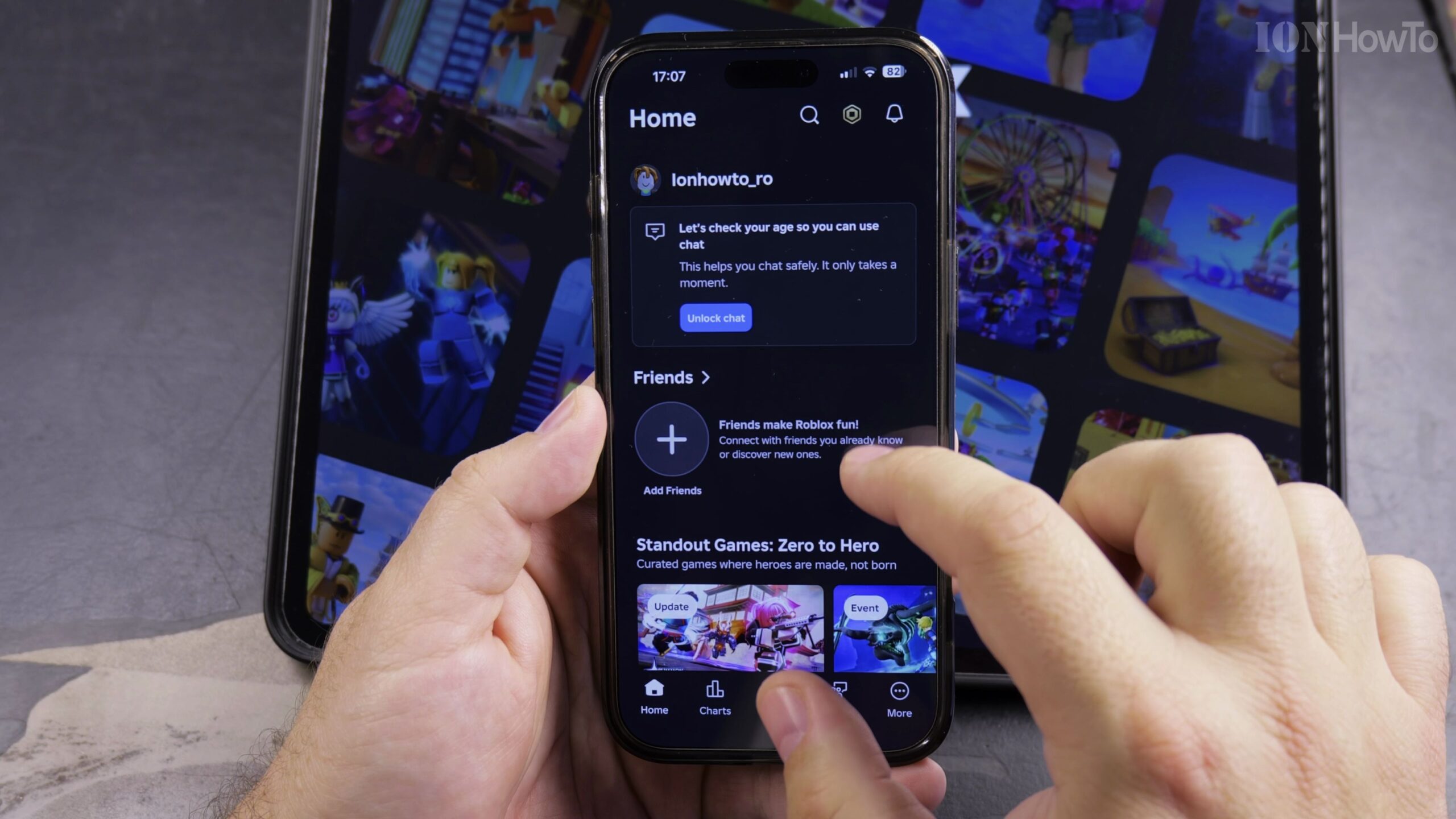
Open Roblox on Your iPad or Mobile Device and Tap More
Launch the Roblox application and tap the three-dot More icon located in the bottom navigation bar to open the account management menu.
Scroll Down and Tap the Switch Account Option
Scroll through the menu options until you locate Switch Account right above the Log Out button. Tap it to open the multi-account manager.
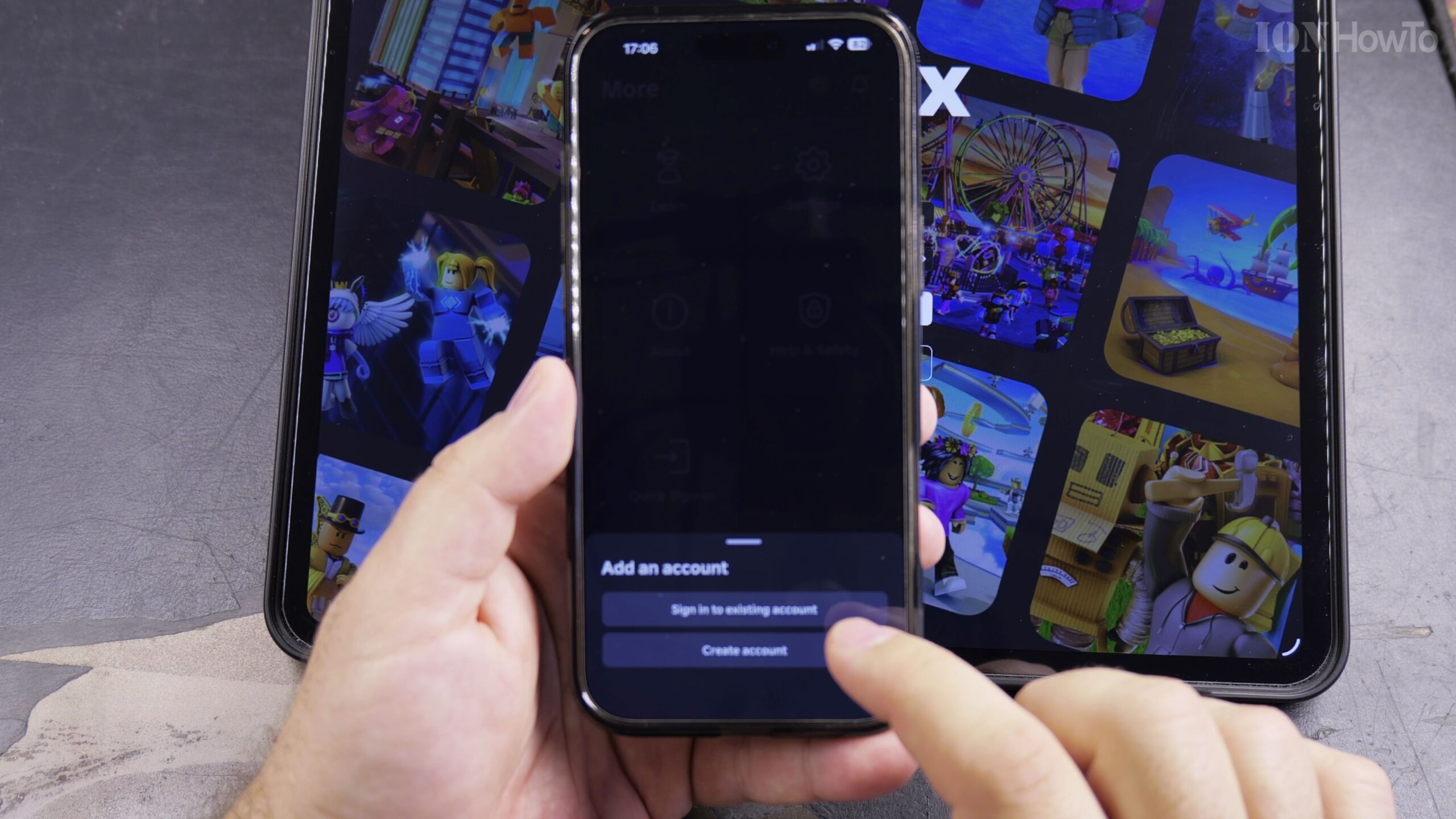
Tap Add Account and Enter Your Alternate Credentials
Tap the Add Account button. Enter the username and password (or use Quick Log In via QR code) for your second Roblox profile, then tap Log In to store it securely.
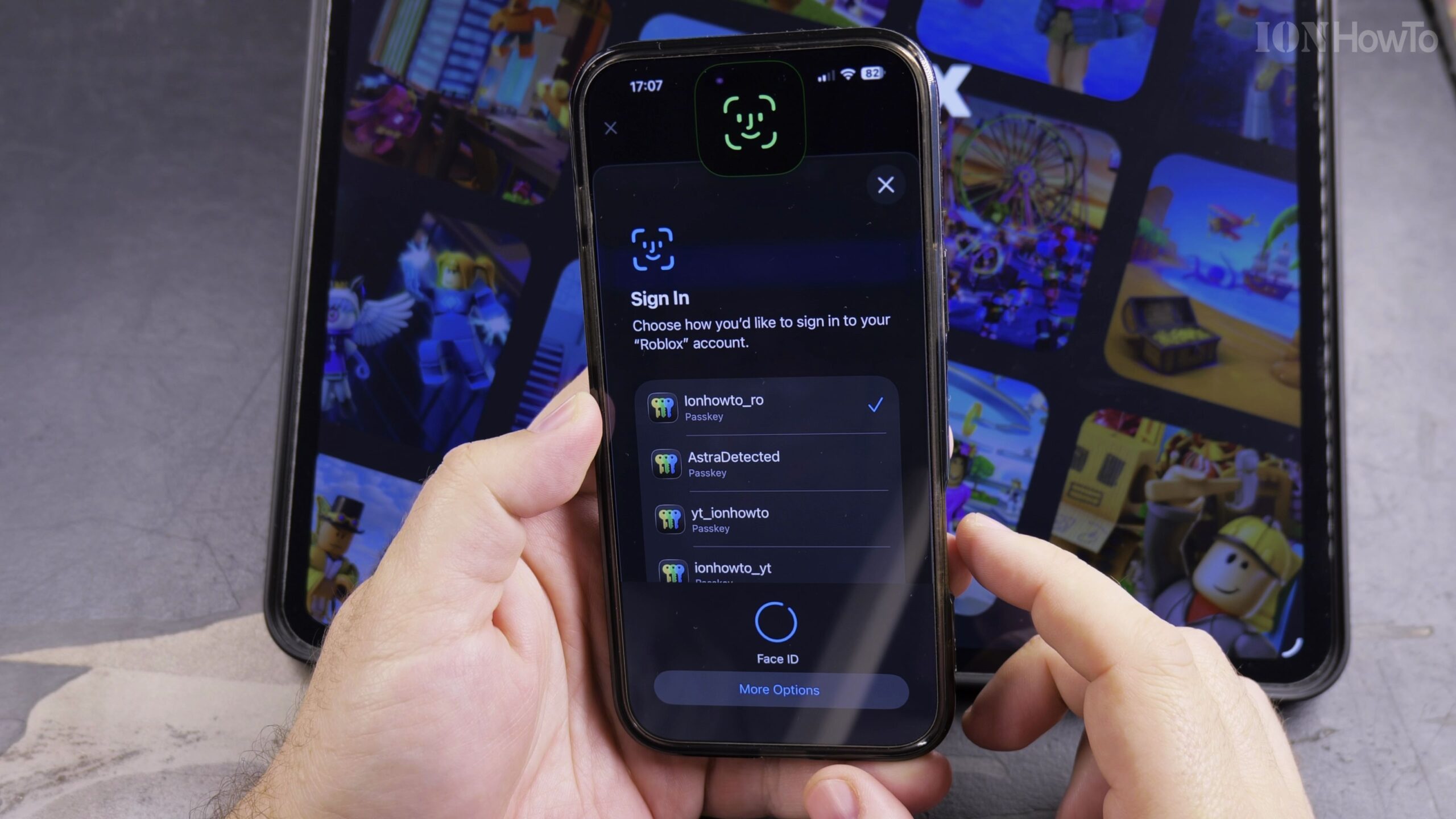
Select Any Saved Profile to Switch Instantly
Once added, both profiles appear in your Switch Account list. Simply tap on any profile picture to switch into that account immediately without re-authenticating.
Sign Out Cleanly When Needed
If you want to remove an account from a shared iPad, open the Switch Account screen, tap the settings gear or edit icon, and remove the profile to keep your account safe.
Helpful Tips and Related Guides
Roblox allows up to five accounts saved on a single mobile device using the Account Switcher. For more helpful tips, browse our Roblox How-To Guides, check out our Apple iPad category, or read our tutorial on Installing Roblox on MacBook Air M5.
Leave a Reply Cancel reply