


Because Android requires a background layer on the Home Screen and Lock Screen, removing an unwanted photo wallpaper means replacing it with a minimalist solid color or dark background. Demonstrated on a Samsung Galaxy S23 Ultra running Android 16 and One UI 8, here is how to clean up your display.

Touch and Hold Any Empty Space on Your Home Screen
Unlock your Samsung Galaxy phone and press and hold your finger on a blank area of the Home Screen for one second until the customization menu zooms out.
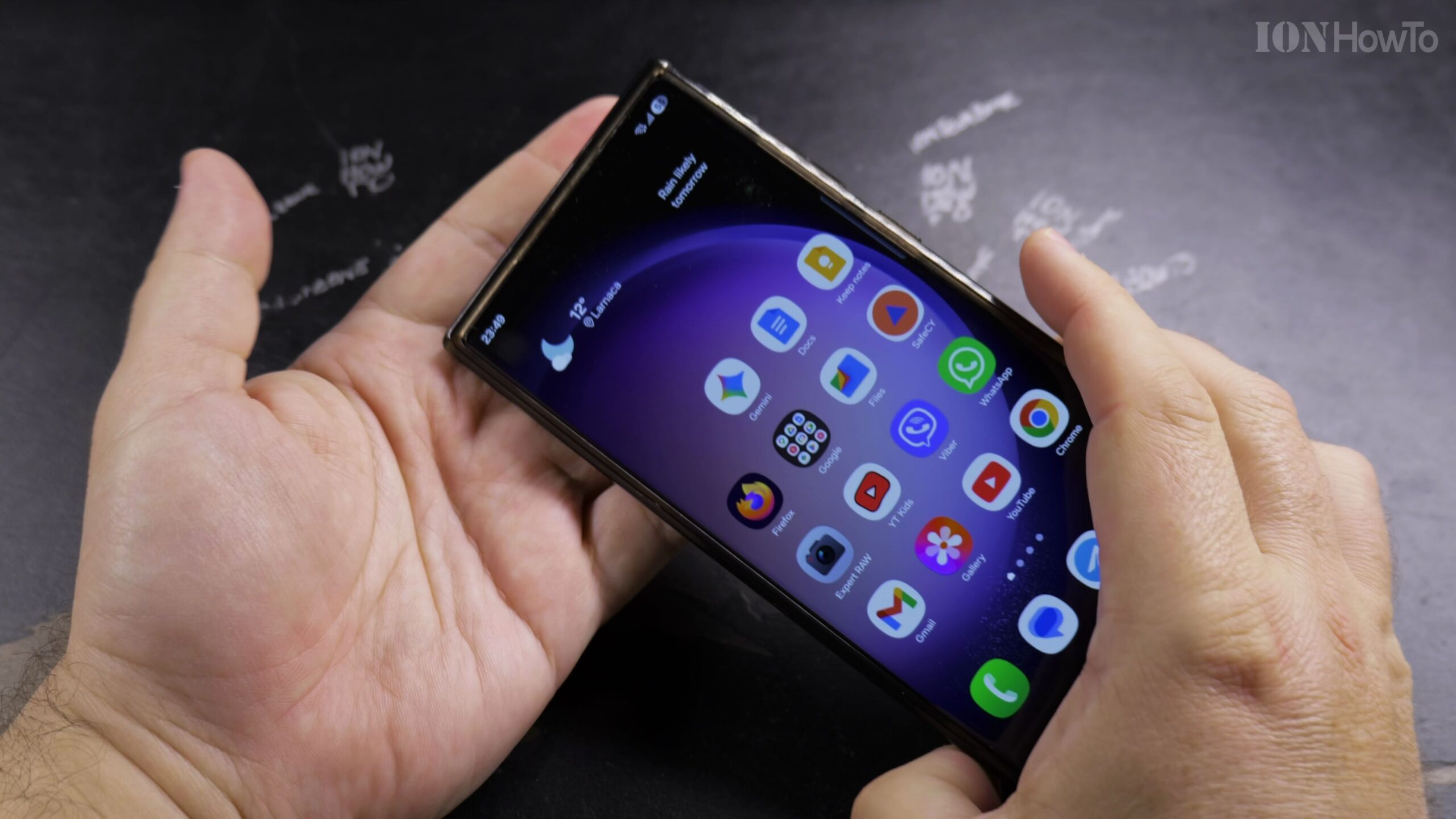
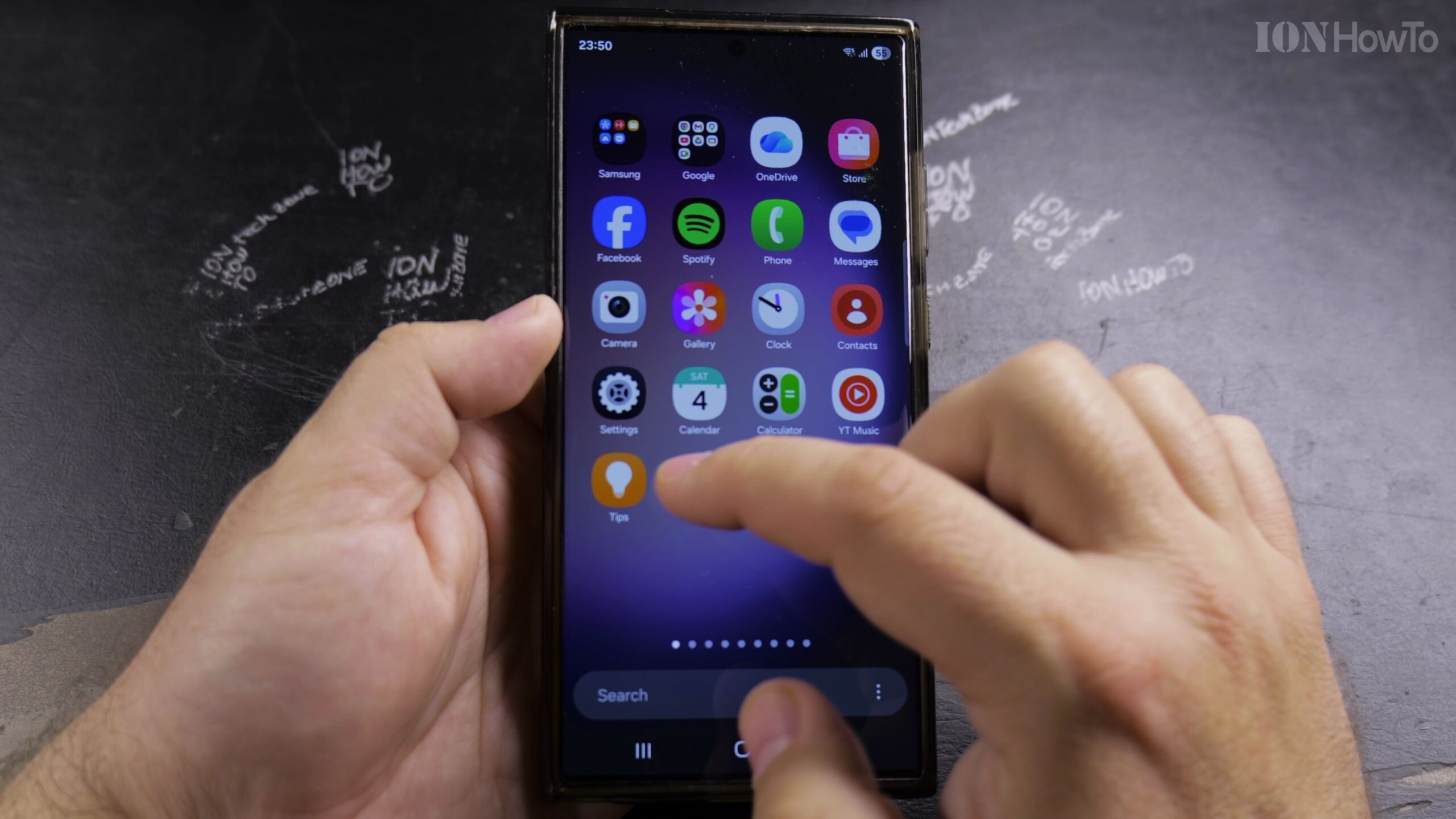
Tap Wallpaper and Style in the Bottom Toolbar
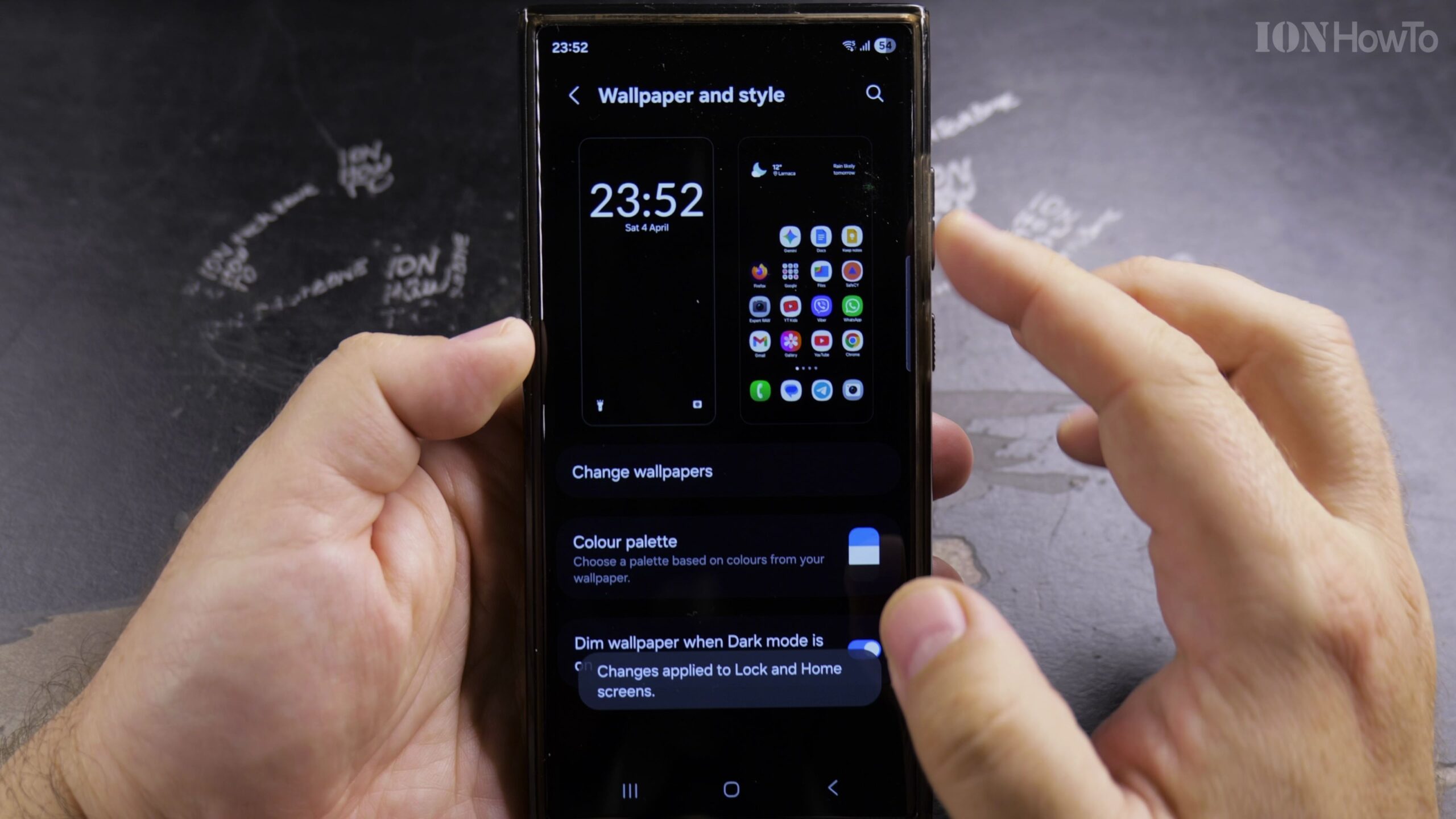
In the bottom-left corner of the editing screen, tap Wallpaper and style to open the Samsung One UI wallpaper customization dashboard.
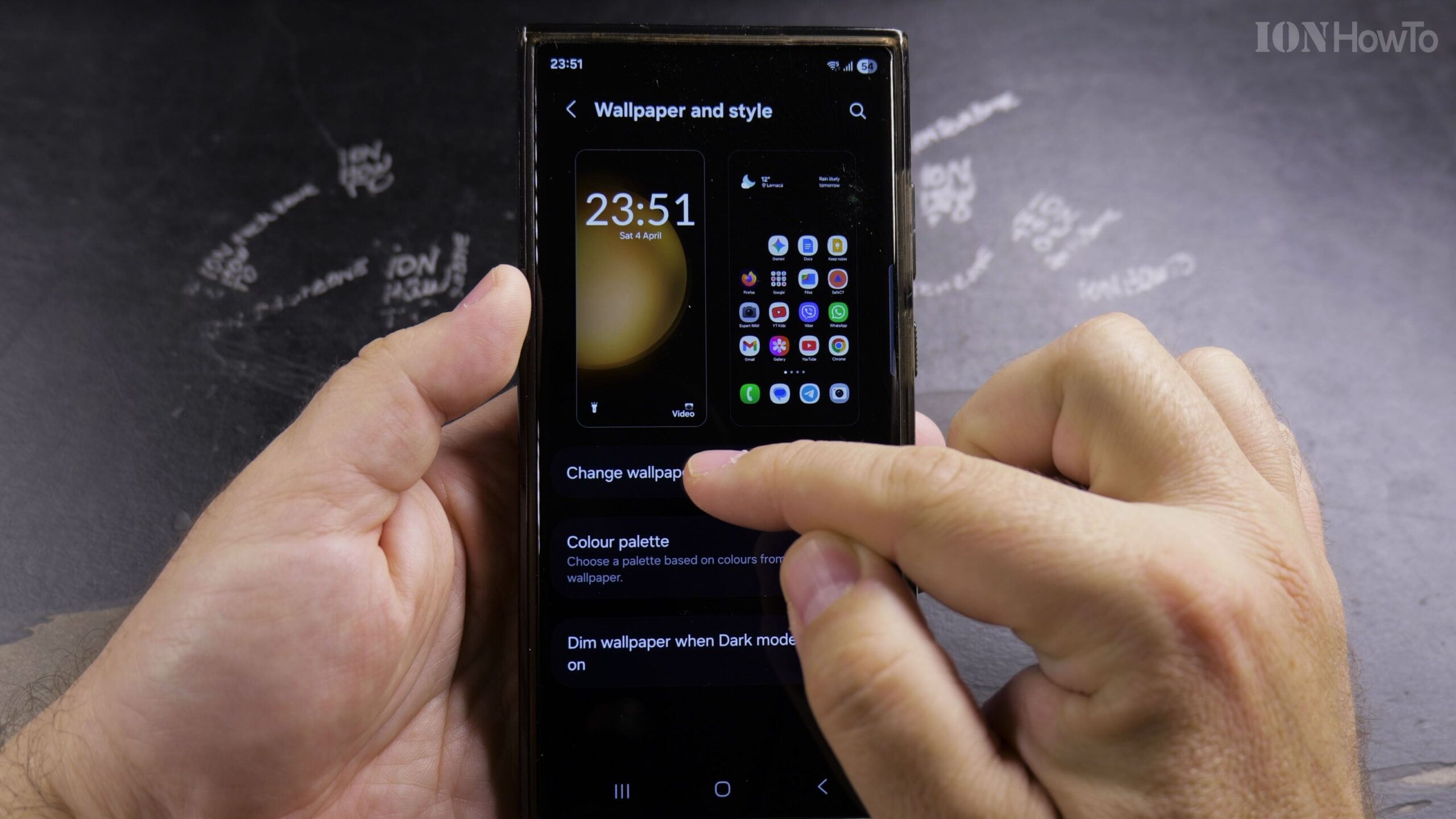
Tap Change Wallpapers and Select Colors
Tap Change wallpapers at the top. Scroll past featured photos and gallery albums to find the Colors category, which offers clean solid and subtle gradient swatches.
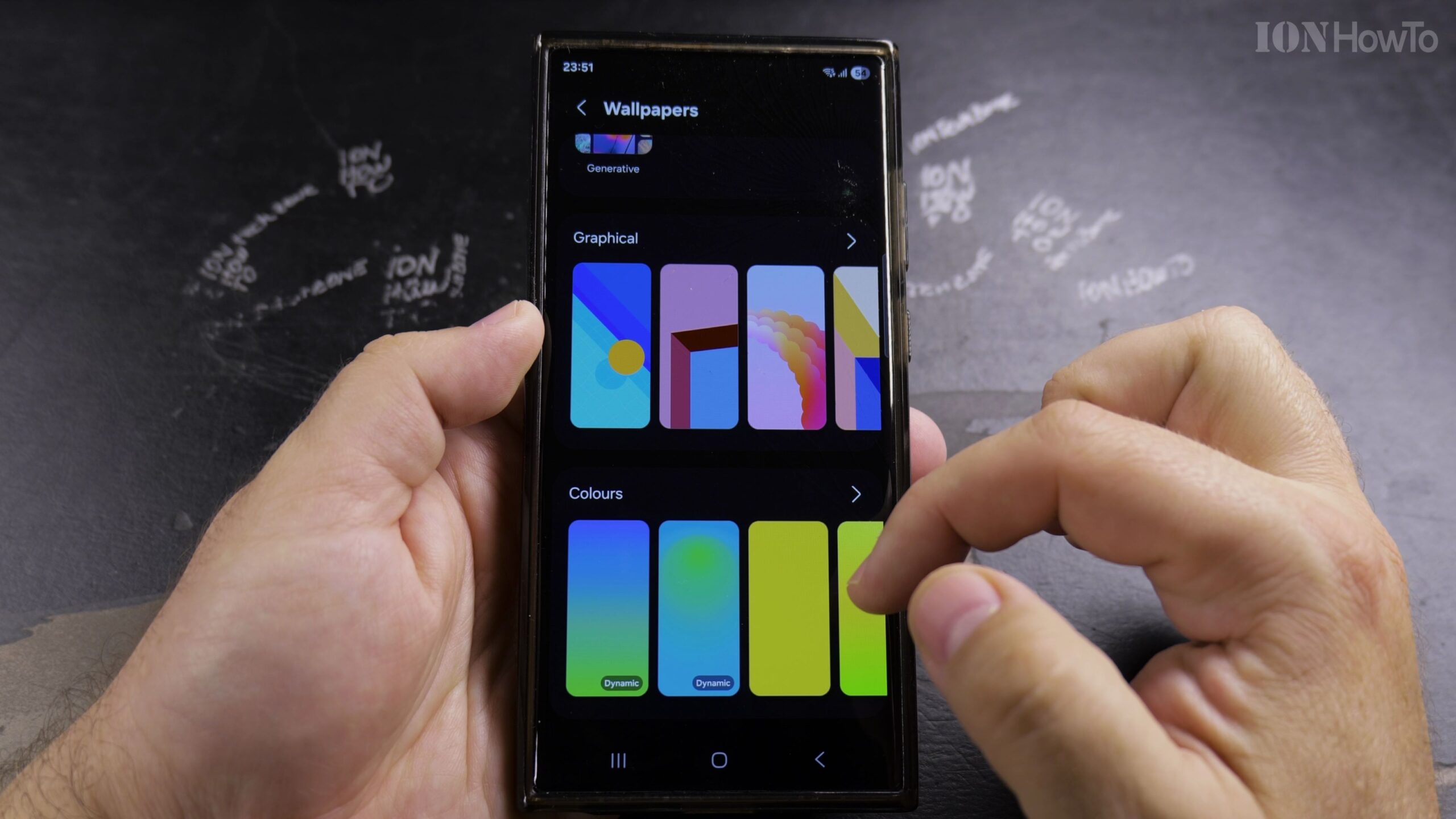
Choose a Pure Black or Minimal Solid Color
Select a solid black or dark neutral swatch. Using a true black background on Samsung AMOLED displays saves battery power and makes app icons and text stand out clearly.
Apply to Home Screen and Lock Screen and Tap Done
Choose If you want the clean solid color applied to your Home Screen, Lock Screen, or both, review the preview, and tap Done in the top-right corner to save.
Helpful Tips and Related Guides
Using a dark solid wallpaper reduces OLED power consumption and eliminates distracting visual clutter behind your app shortcuts. Explore more Samsung guides in our Samsung Galaxy S23 Ultra section, check our Samsung Long Press Shortcut Guide, or visit Android Tips.
Leave a Reply Cancel reply