


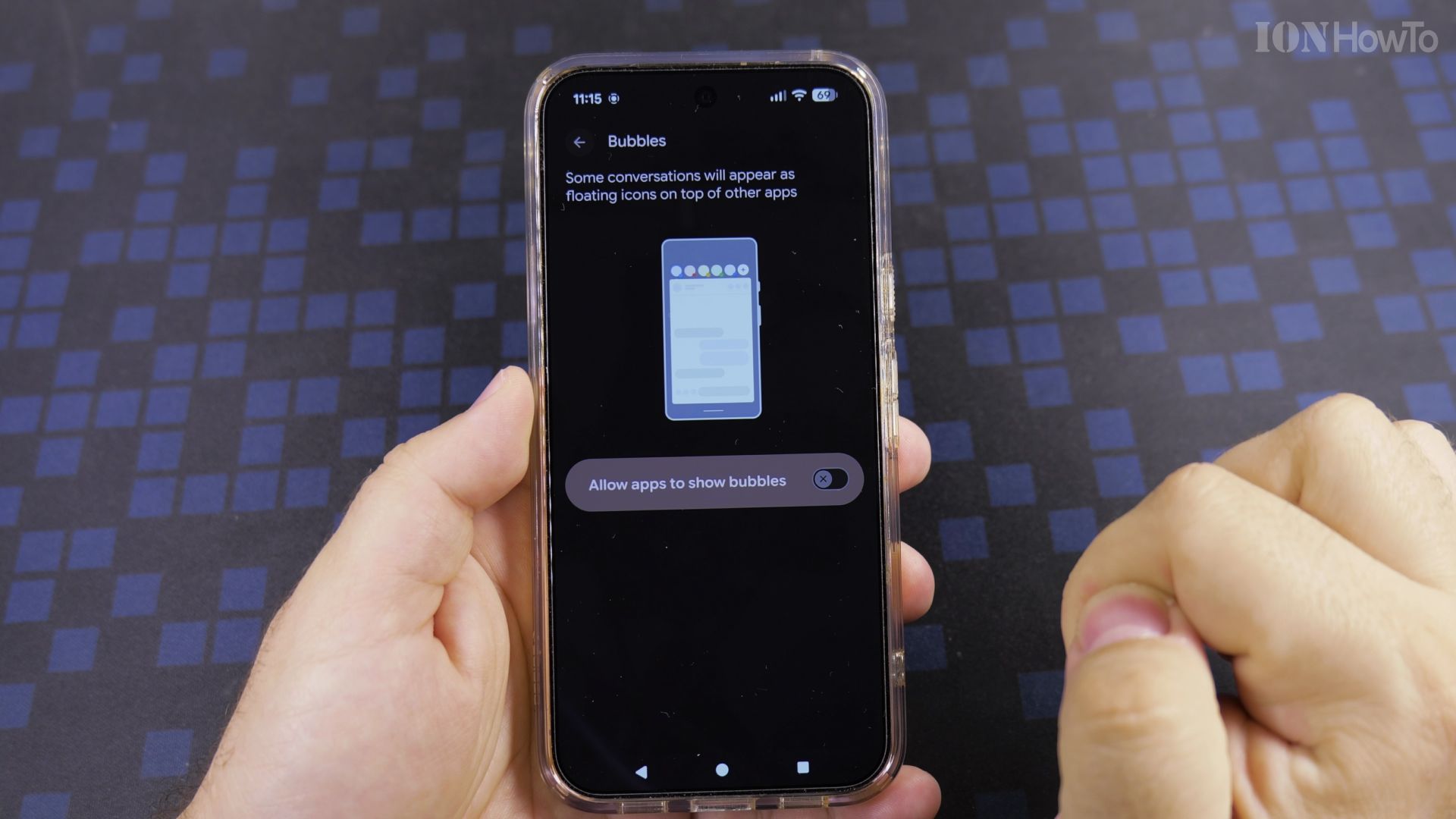
Those little chat circles floating over your apps are called bubbles, and they can get in the way fast. Here is how to switch them off for good, in about a minute.

Pick your step
Recommended Amazon Gear and Accessories
Disclosure: This article contains Amazon affiliate links. As an Amazon Associate, we earn from qualifying purchases at no extra cost to you.
- Phone Accessories
- Android Phone Case
- USB-C Charger
- USB-C Cable
- Wireless Charger Stand
- Wireless Car Charger
1. Open Settings and look for Notifications
Open the **Settings** app on your Pixel. Scroll a little until you see **Notifications** with the small bell icon, then tap it.

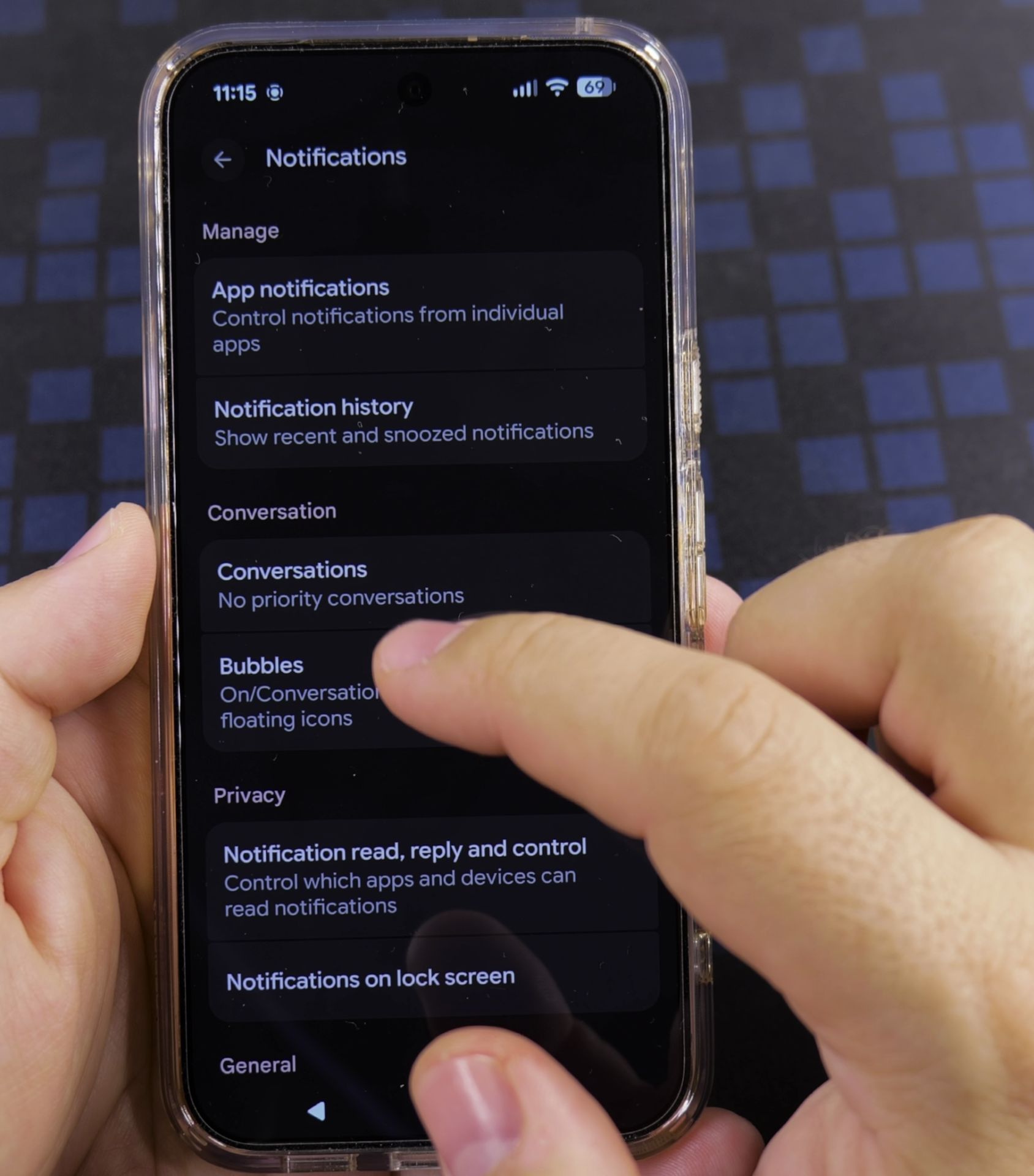
2. Find the Bubbles setting
Under the **Conversation** heading you will spot **Bubbles**. It says On, because conversations can pop up as floating icons. Tap it.
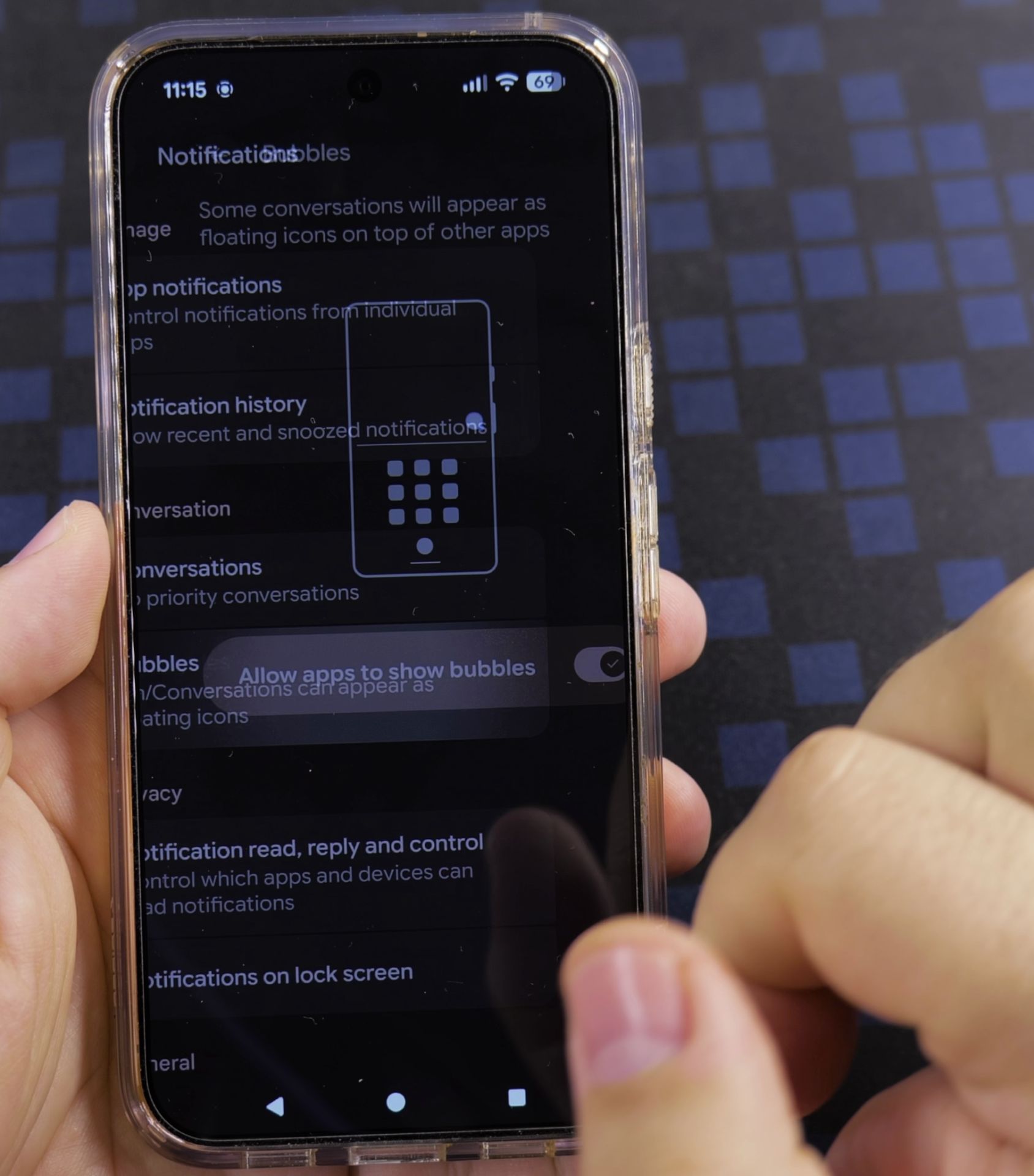
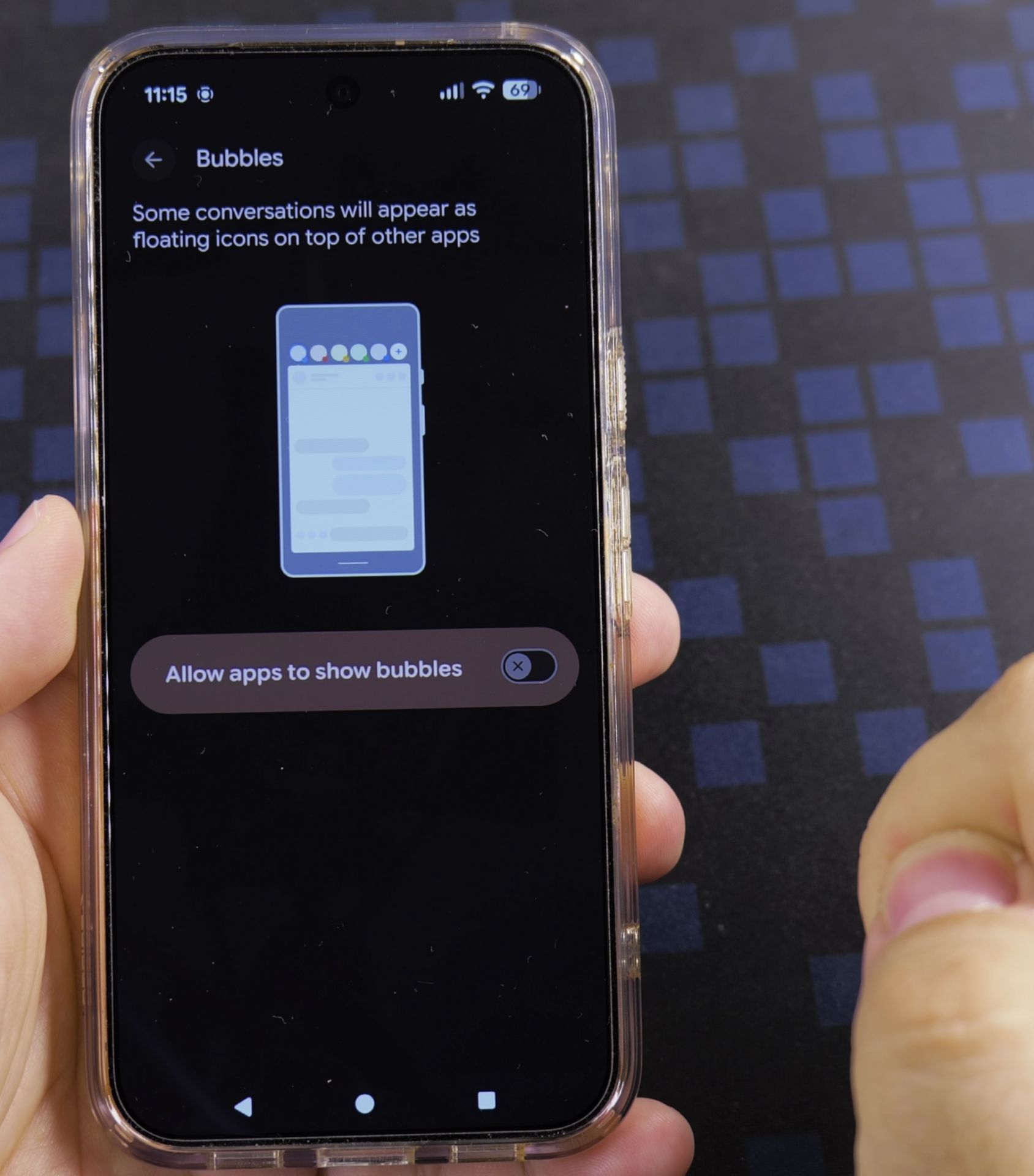
3. Turn the bubbles switch off
Tap **Allow apps to show bubbles** so the switch slides to the left. The checkmark disappears and the switch turns dark.
Helpful Tips
- Bubbles only come from chat-style apps like Messages, so you will not lose normal alerts.
- Changed your mind? Come back to the same switch and tap it again.
Related Guides
- Disable Bubble Notifications on Android – How to Disable Bubble Notifications on Android Phones and Tablets.
- Disable Android Notifications at Night use Do Not Disturb – How to Disable Android Notifications at Night Using the Do Not Disturb Mode.
- Change Sound for Messages and Notifications on Android – How to Change Sound for Messages and Notifications on Android Devices.
- Android & Mobile Guides – Browse more tutorials and practical guides in this section.
Leave a Reply Cancel reply