


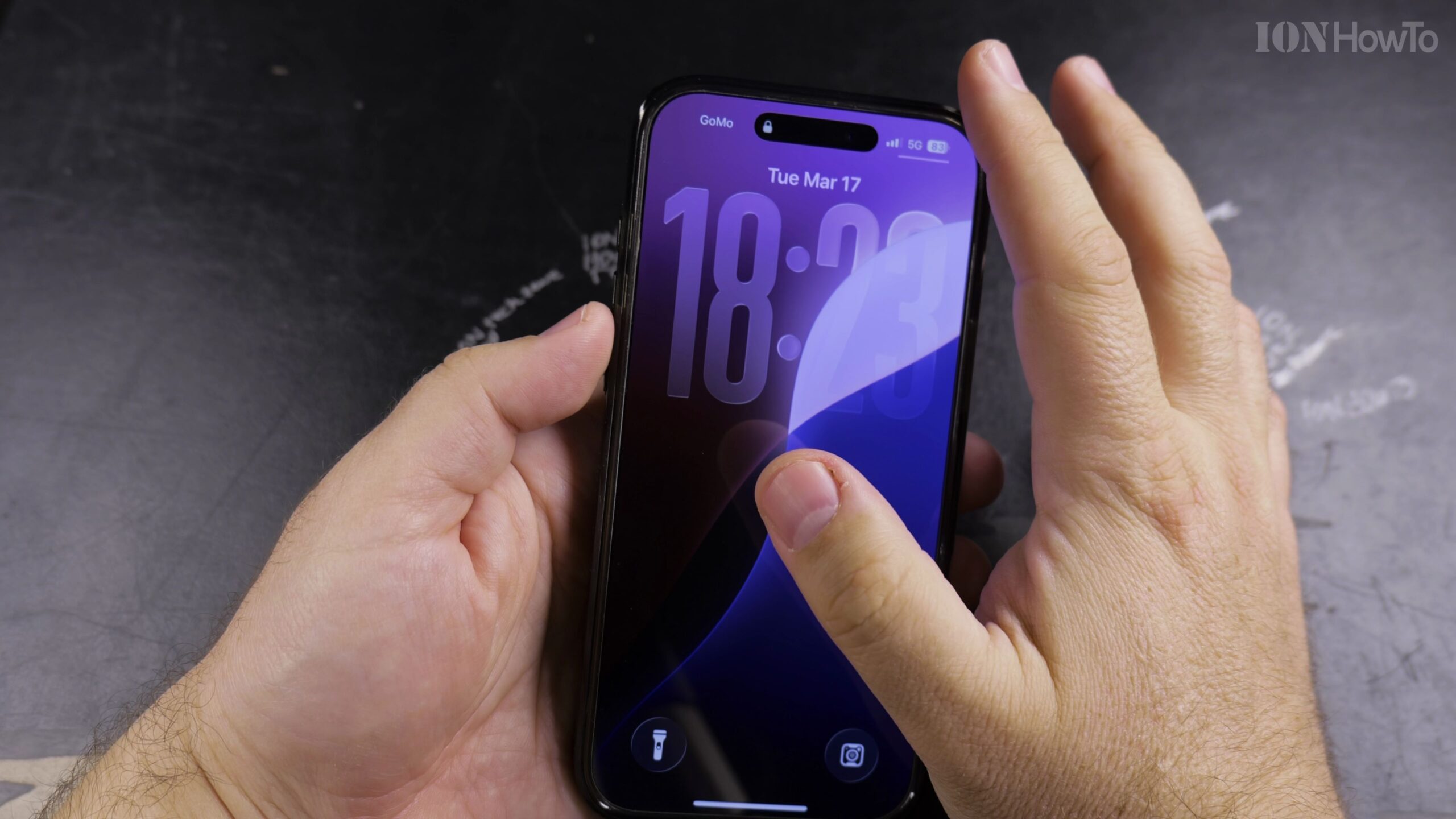
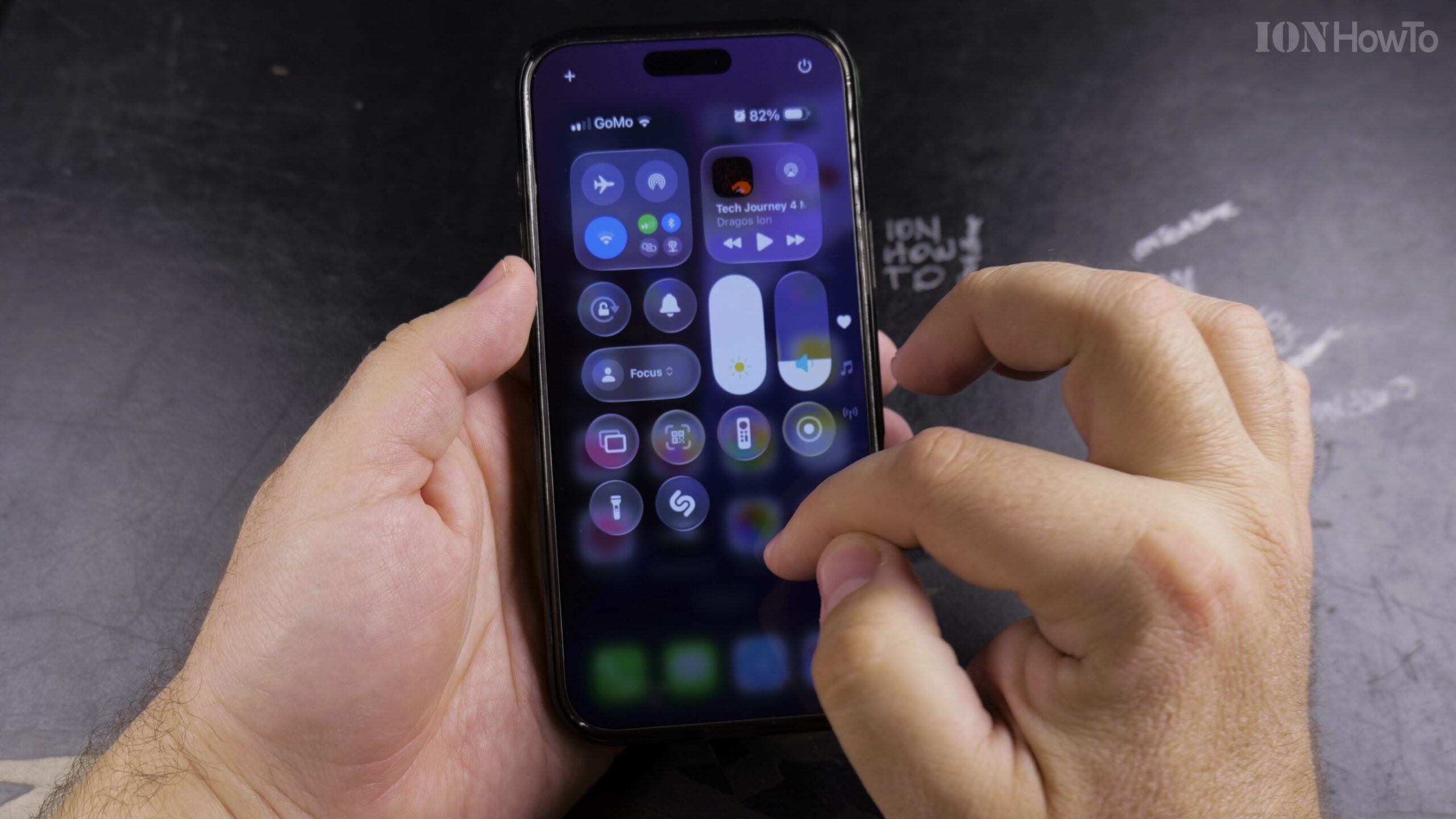
When a thief steals an iPhone, their first instinct is to swipe down the Control Center and toggle on Airplane Mode so the phone cannot be tracked via Find My. In this guide, I’ll show you how to disable Control Center on the Lock Screen and enable Stolen Device Protection to keep your iPhone secure.

Open iPhone Settings and Select Face ID & Passcode
Unlock your iPhone, open the Settings app, and scroll down to tap Face ID & Passcode (or Touch ID & Passcode on home-button models). Enter your six-digit passcode to open the menu.
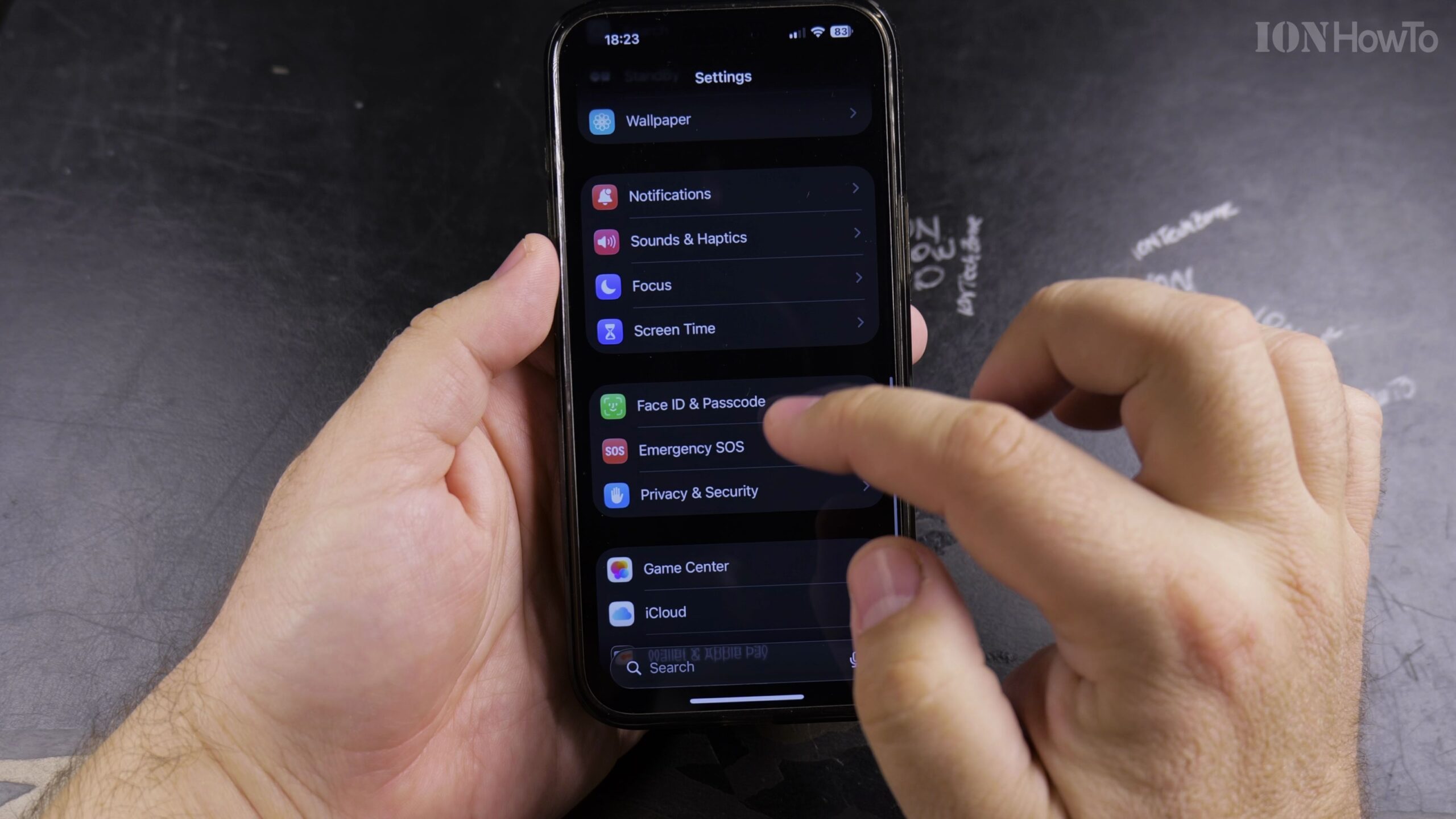
Scroll Down to Allow Access When Locked
Scroll down past your enrolled biometrics until you reach the section titled Allow Access When Locked, which controls what features anyone can access without unlocking the phone.
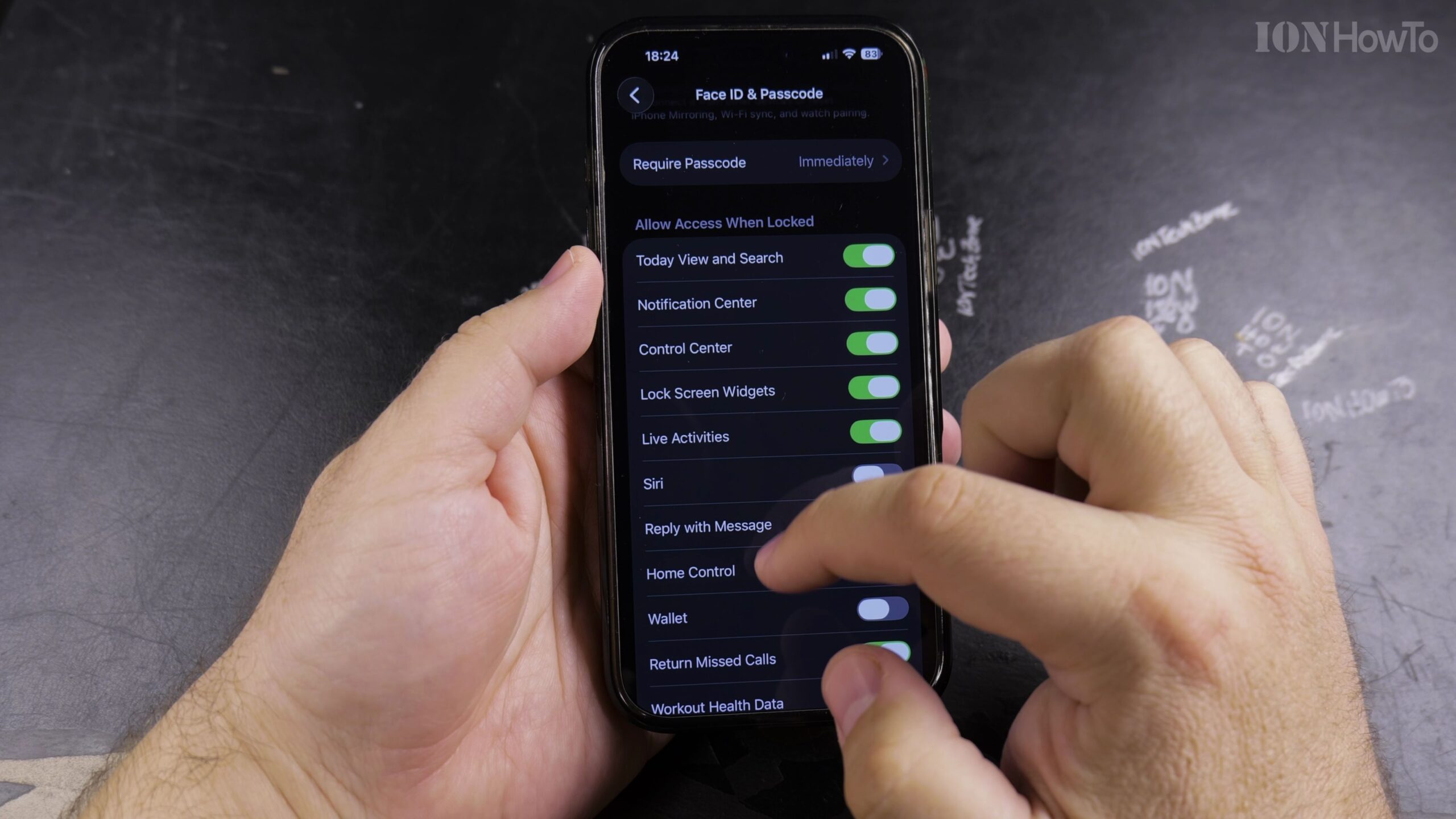
Toggle Off Control Center on the Lock Screen
Find the Control Center toggle switch and turn it off. With this switch disabled, swiping down from the top-right corner of the Lock Screen will no longer open Control Center or expose the Airplane Mode button.
Turn On Stolen Device Protection for Enhanced Security
Scroll back up to Stolen Device Protection and turn it on. This Apple security feature enforces biometric authentication and introduces a security delay when attempting to change sensitive account settings away from familiar locations.
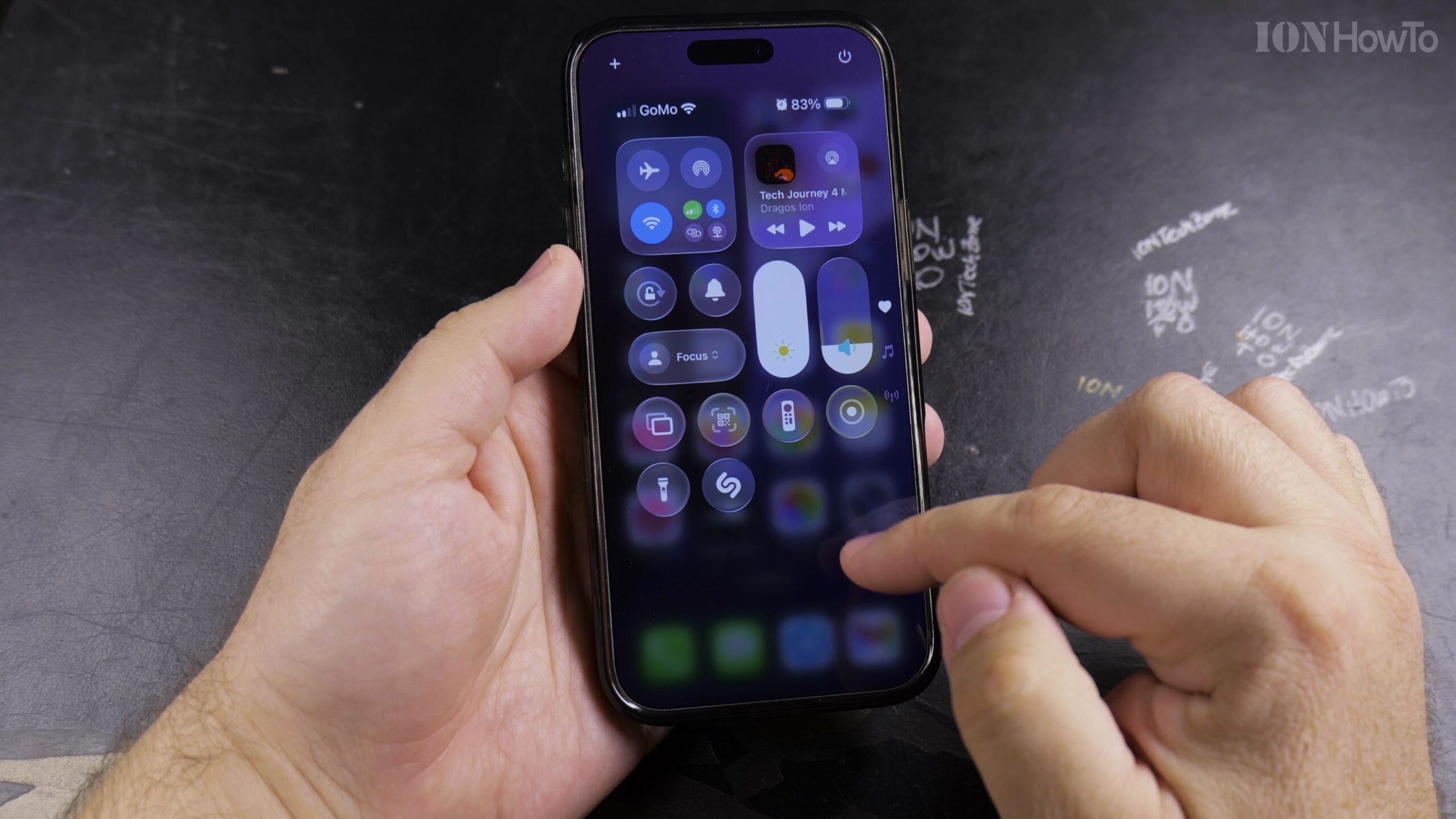
Lock Your iPhone and Test Control Center Access
Press the side button to lock your screen. Look away so Face ID does not unlock the device, then try swiping down from the top right corner; the Control Center will remain locked and inaccessible.
Helpful Tips and Related Guides
Disabling Control Center and Siri on the Lock Screen guarantees that an unauthorized person cannot take your iPhone offline or interact with phone settings without your face scan. For more iOS security guides, visit our Apple iPhone section, explore our Guide to Removing Passkeys from iPhone, or check our Apple category.
Leave a Reply Cancel reply