


Having Siri speak the name of an incoming caller out loud through your iPhone speaker or connected Bluetooth headphones can be disruptive in quiet rooms or public settings. Here is how to turn off the Announce Calls feature in iOS Settings.

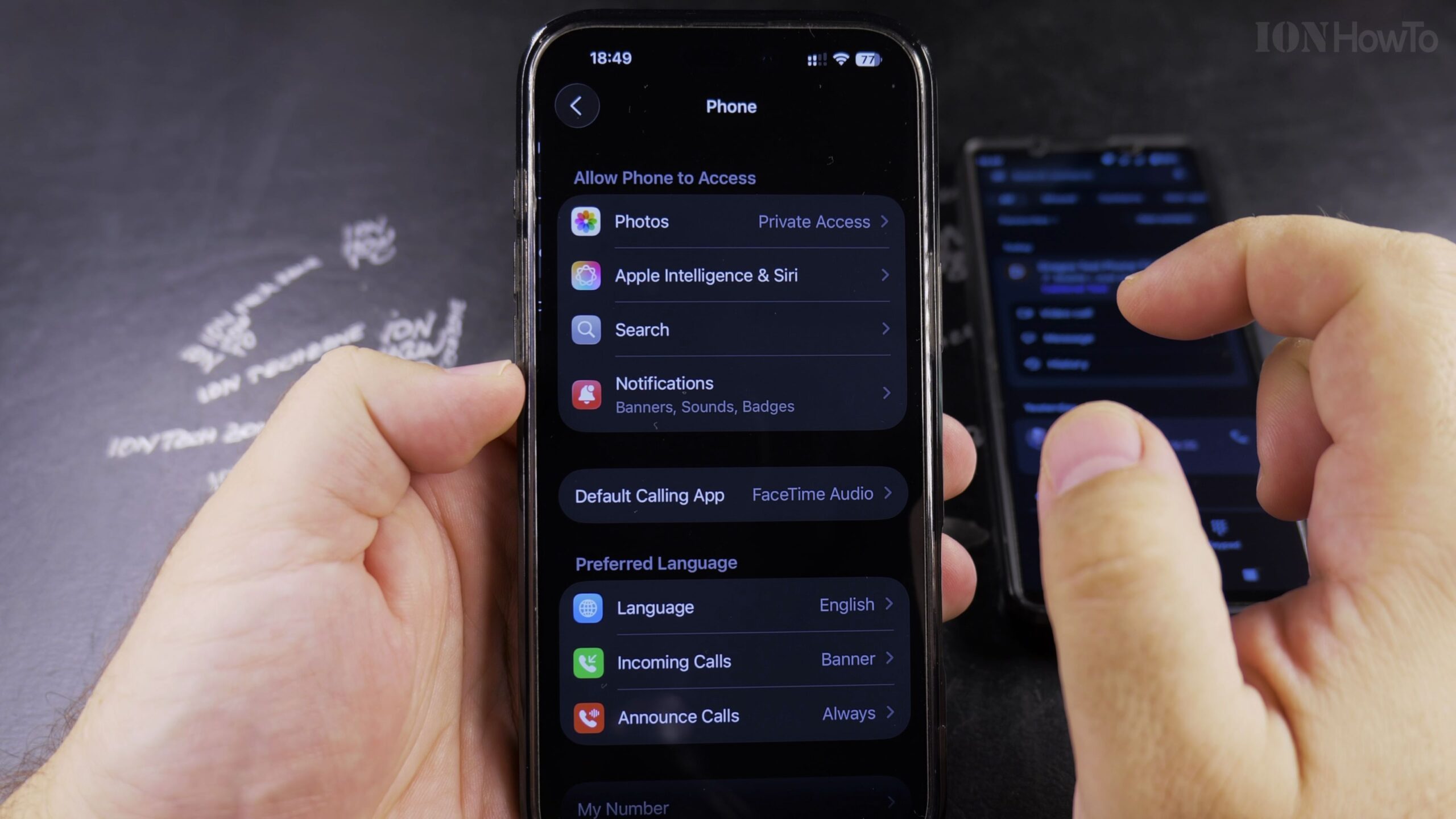
Open Settings on Your iPhone and Scroll to Phone
Unlock your iPhone and open the Settings app. Scroll down the settings list and tap Phone (or Siri & Search in newer iOS releases).
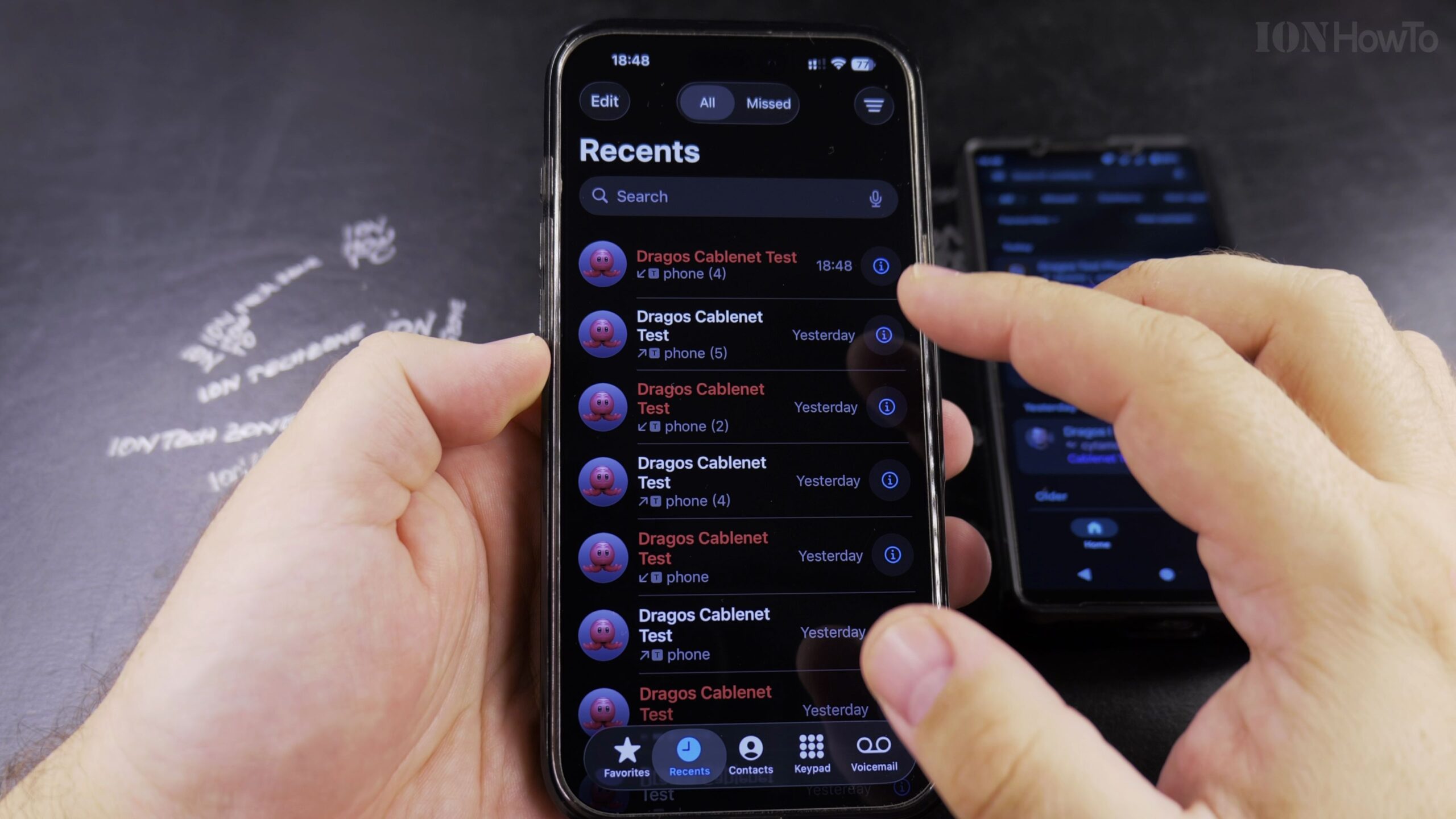
Locate and Tap the Announce Calls Setting
Under the Calls section, tap Announce Calls. This menu manages how Siri alerts you to incoming phone and FaceTime calls.
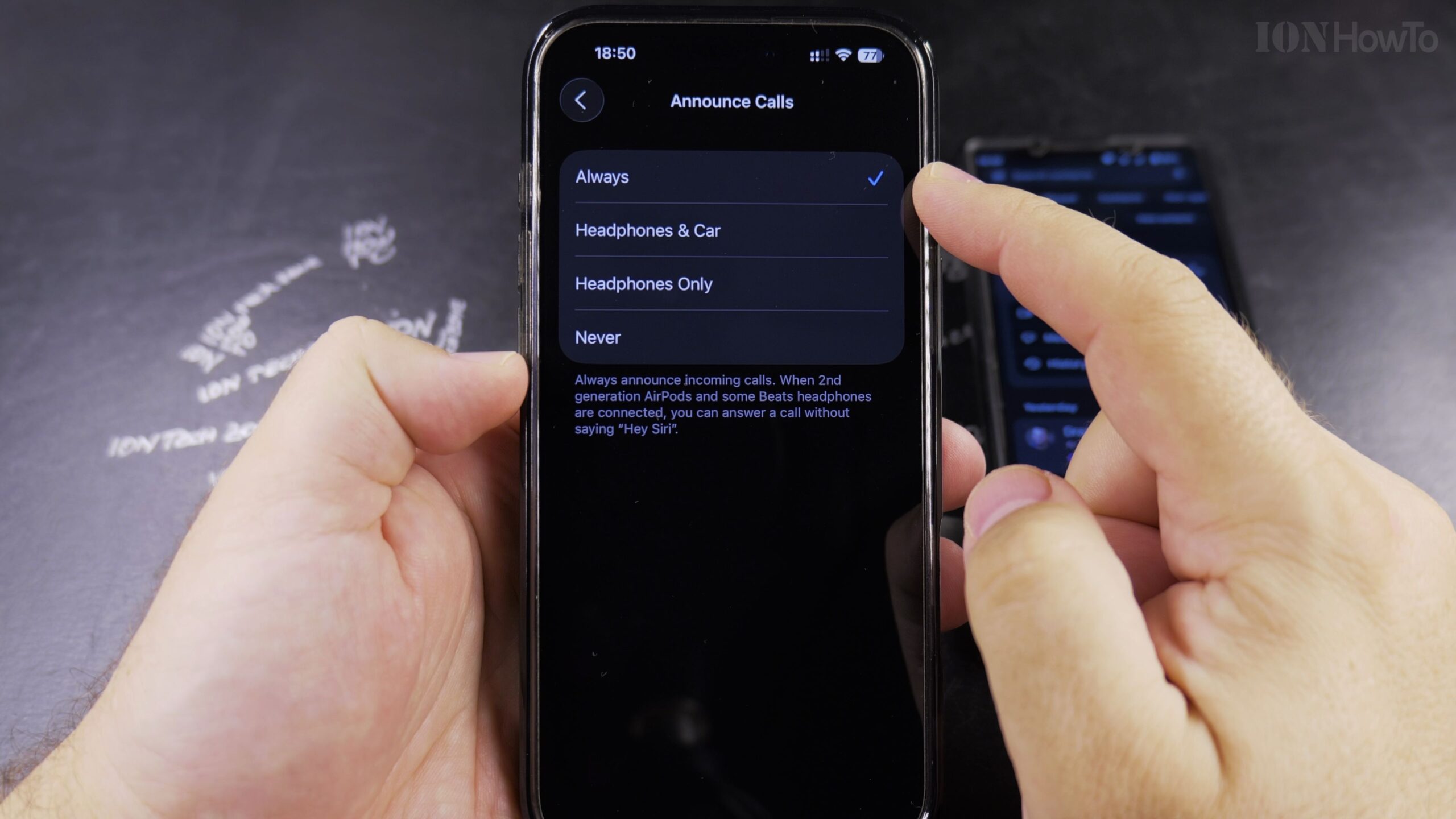
Select Never to Turn Off Siri Caller Announcements Completely
Change the checkmark selection from Always, Headphones & Car, or Headphones Only to Never. This stops Siri from announcing caller names in all situations.
Optional: Restrict Announcements to Headphones Only
If you still like hearing who is calling while working out or driving with AirPods, choose Headphones Only so your iPhone speaker never broadcasts caller names out loud.
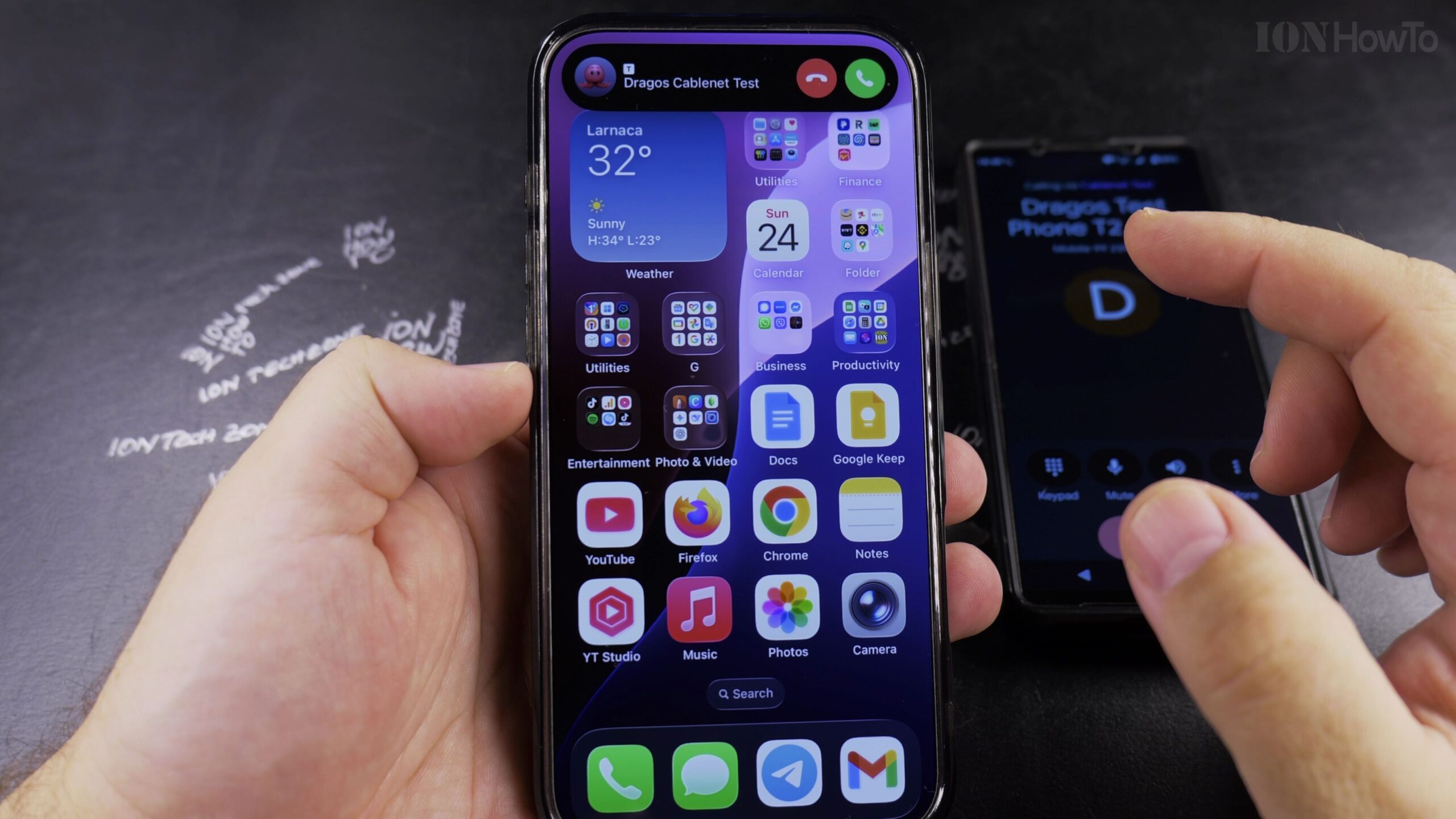
Test by Receiving an Incoming Call
Have a friend call your number or send a test call; your iPhone will ring and vibrate normally with the caller name on the screen without Siri speaking the name.
Helpful Tips and Related Guides
You can also adjust notification announcements under Settings > Notifications > Announce Notifications if Siri reads incoming text messages. Explore more tips in our Apple iPhone section, check our guide on Adding App Icons to the iPhone Home Screen, or browse Apple.
Leave a Reply Cancel reply