


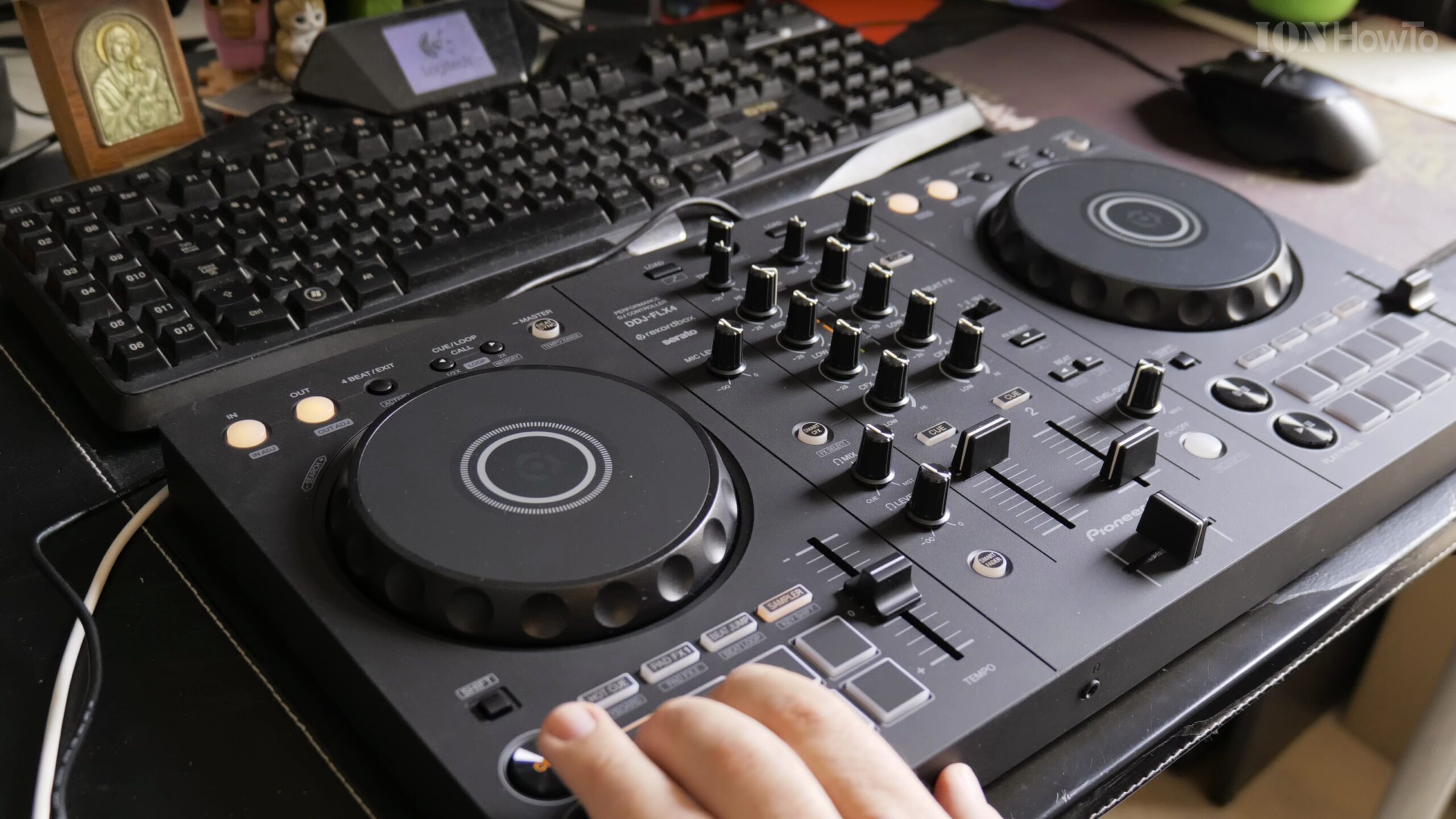
The AlphaTheta Pioneer DJ DDJ-FLX4 hardware unlocks Rekordbox Performance Mode, allowing you to map real-time stem separation (vocals, drums, and instruments) directly to the controller’s tactile performance pads. In this detailed guide, I’ll show you how to enable stems in Rekordbox and configure pad modes for live remixing.

Connect the DDJ-FLX4 and Launch Rekordbox in Performance Mode
Connect your Pioneer DJ DDJ-FLX4 to your Mac or PC using USB-C cables for data and power. Open Rekordbox, ensure your hardware is recognized, and switch to Performance Mode.
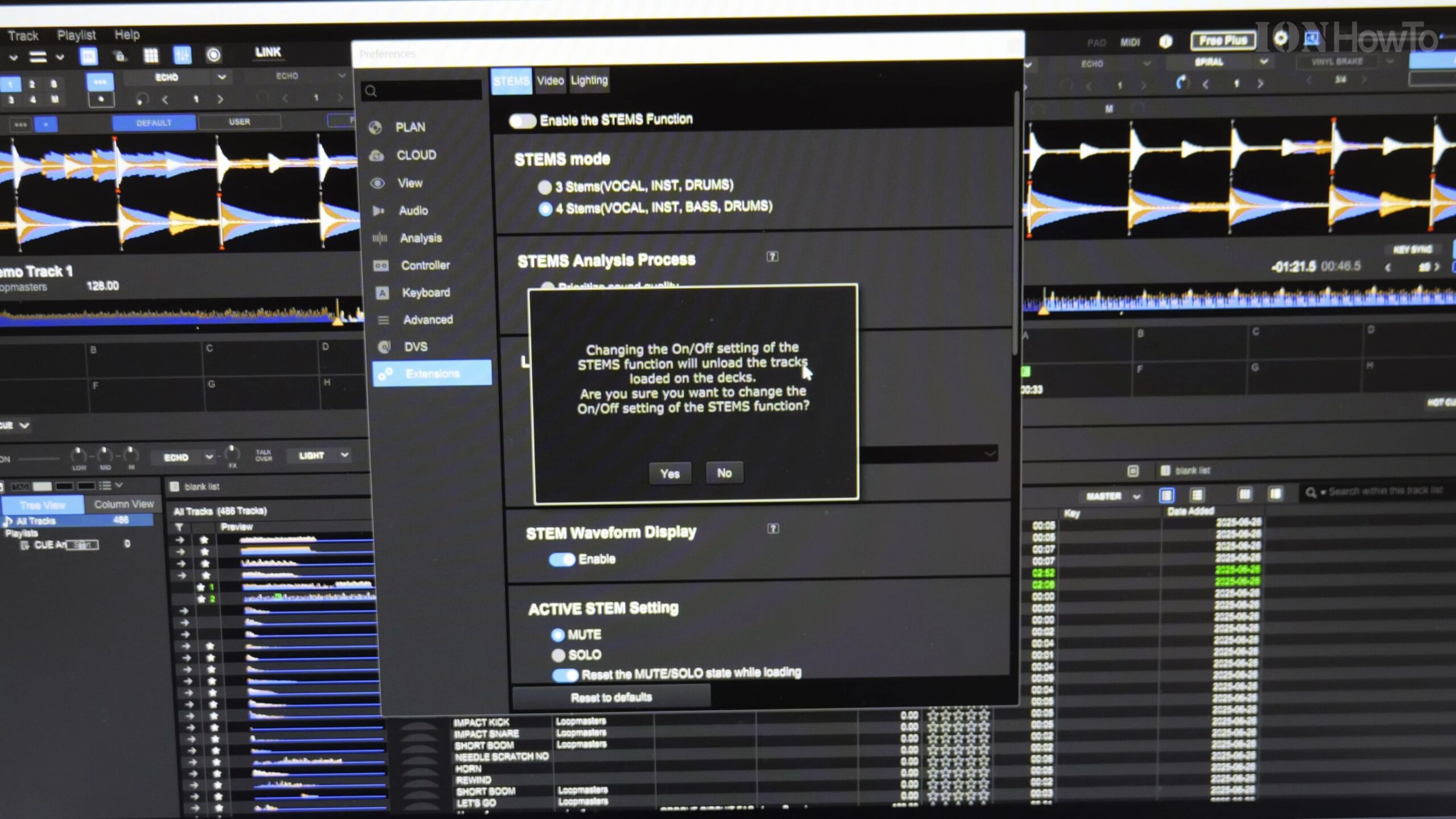
Open Rekordbox Preferences and Navigate to the Extensions Tab
Click the gear icon in the top-right corner of the Rekordbox window to open Preferences, then click on Extensions (or Stems) in the left sidebar.
Enable the Track Separation (Stems) Checkbox
Check the box to enable track separation functionality. Rekordbox will analyze loaded songs on the fly, breaking audio down into separate vocal, instrumental, and drum stems.
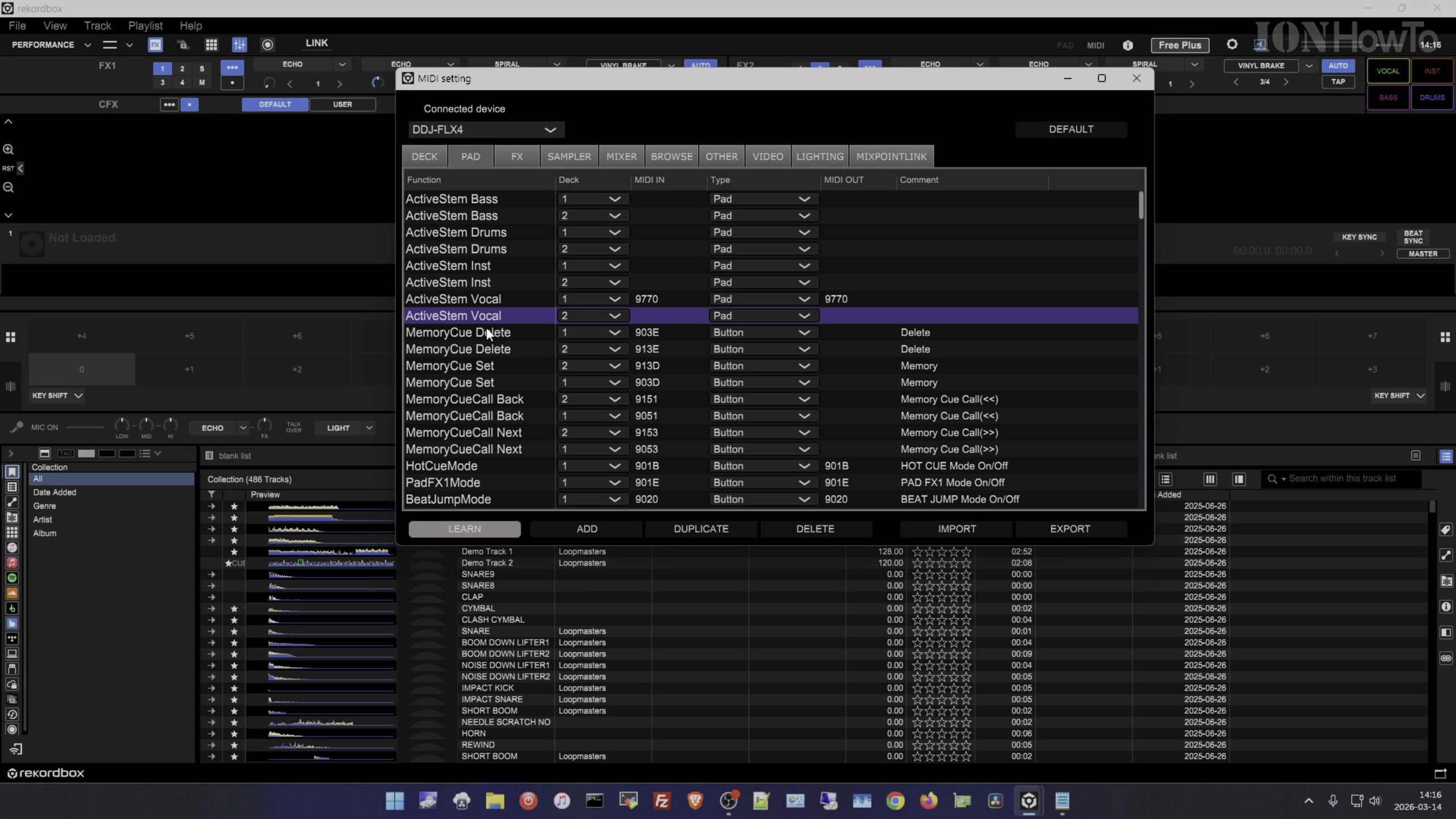
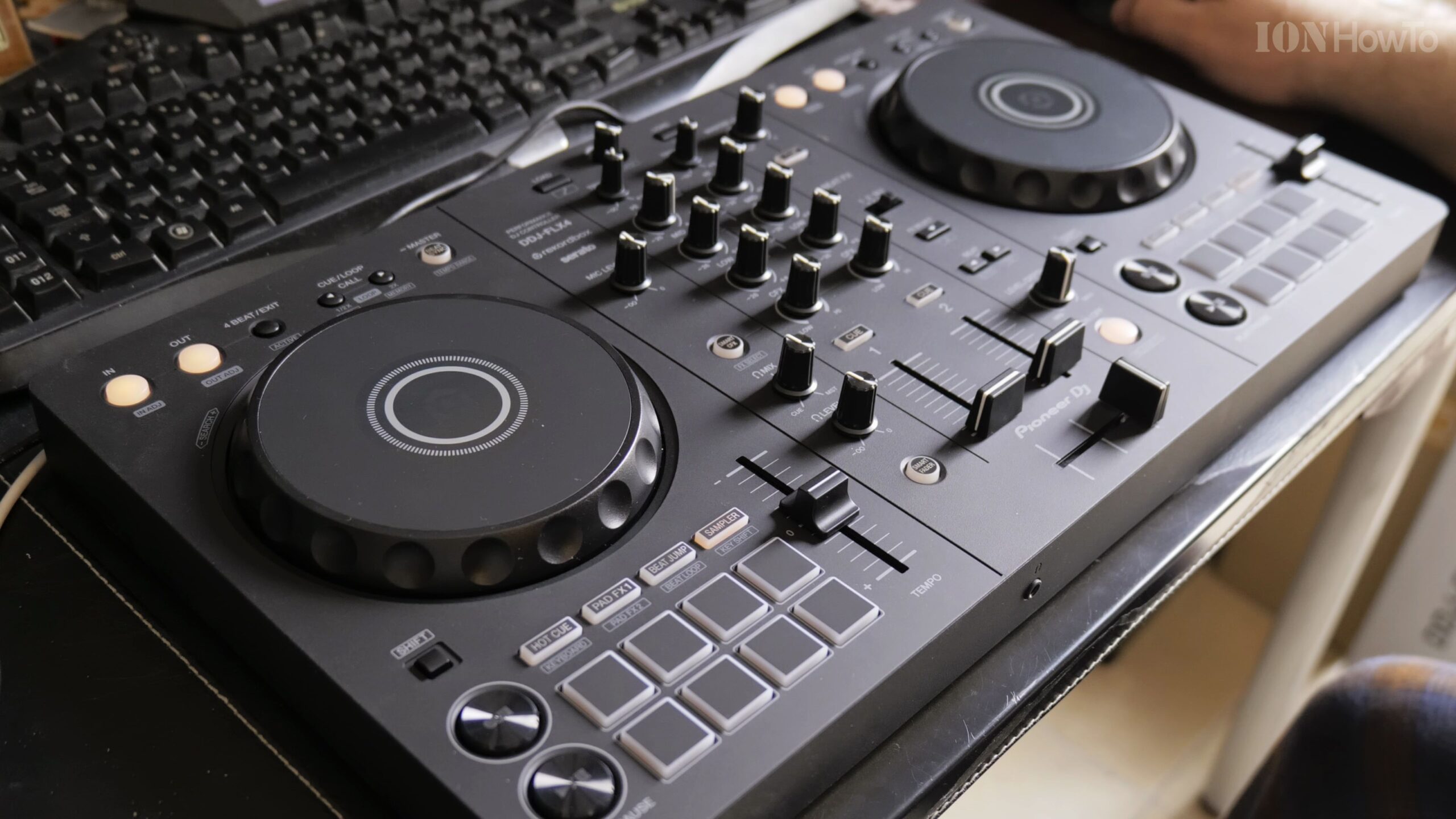
Configure Pad Mode on DDJ-FLX4 for Stem Mute and Solo
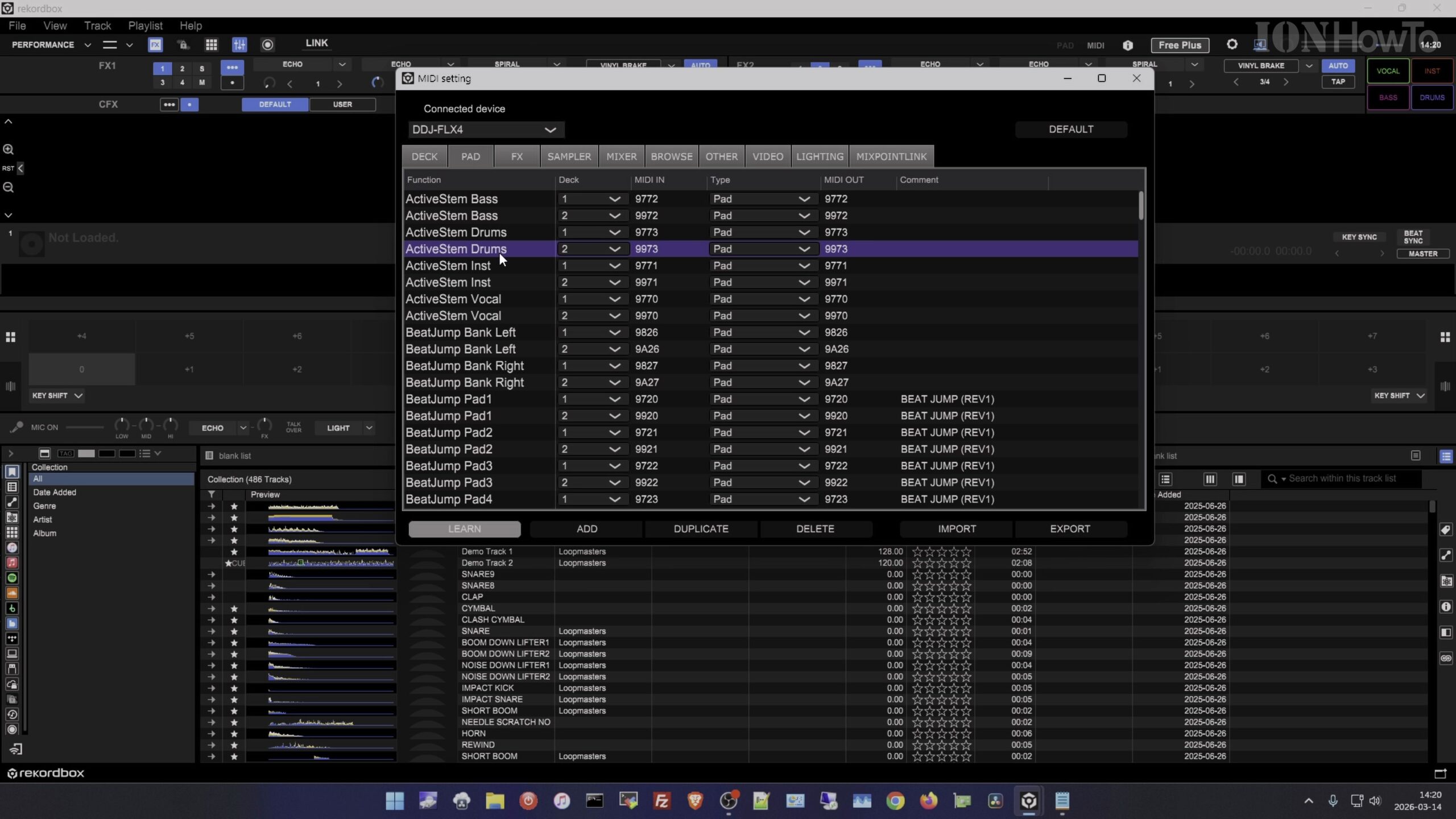
Select Pad Mode in Preferences and assign Stems to the secondary layer of your performance pads (e.g., Pad FX or Sampler), enabling pads 1, 2, and 3 to mute or solo Vocals, Drums, and Melody in real time.
Test Live Stem Isolation with a Loaded Track
Load a song onto Deck 1, press Play, and tap the performance pads on your DDJ-FLX4 to instantly drop out the beat while letting the vocal ride over the mix, confirming smooth live stem control.
Helpful Tips and Related Guides
Running Rekordbox stems requires moderate CPU power, so close unused background applications on your laptop for the lowest latency during live sets. Read more in our Audio Gear category, explore DJ Mixes, or check our guide on Connecting Pioneer DDJ-FLX4 to MacBook Air M5.
Leave a Reply Cancel reply