


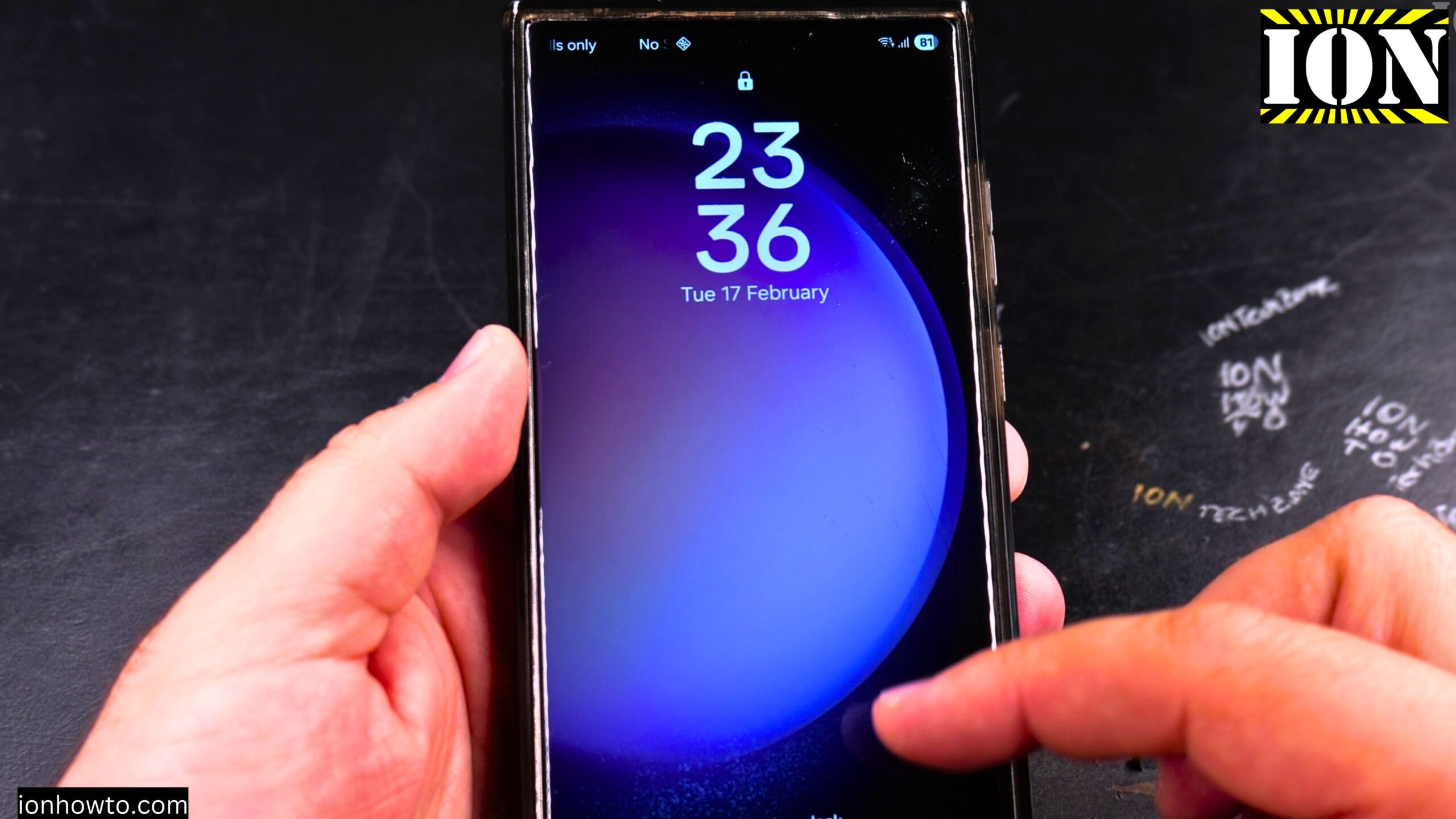
How to Power Off Samsung Galaxy Without Using the Power Button.
Learn how to power off your Samsung Galaxy phone when the power button is broken or not working. If your physical power button has stopped working, you might be wondering how to shut down your device safely. I will show you how to turn off your Samsung Galaxy using alternative methods that do not require the hardware button.
This guide works for a Samsung Galaxy S23 Ultra running Android 14 and OneUI 6.1. The steps are the same for most modern Samsung Galaxy phones.
Why You Might Need This Method
There are a few reasons why you would want to power off your phone without the power button:
- The power button is broken or stuck
- The power button is unresponsive
- You need to shut down the phone to send it in for repair
- You want to power it off temporarily without stressing a already damaged button
How to Power Off Samsung Galaxy Without the Power Button

This method uses a virtual power button that lives inside your phone’s software. It works the same way as pressing the physical power button.
Step-by-step instructions
- Swipe down from the very top of your phone screen to open the Quick Settings menu
- Swipe down one more time to see the full Quick Settings panel with all the icons
- Look for the power button icon in the Quick Settings menu – it looks like a small circle with a vertical line inside (the standard power symbol)
- Tap on that virtual power button icon
- A menu will appear on your screen with options including “Power off” and “Restart”
- Tap “Power off” to shut down your phone
Your phone will then power down just like it would if you had used the physical power button.
How to Restart Your Samsung Galaxy Without the Power Button
The same method works for restarting your phone. Follow the steps above to open the Quick Settings menu and tap the virtual power button. When the menu appears, tap “Restart” instead of “Power off.”
Important Things to Know
Turning the phone back on is different – This method only works for powering off or restarting your phone. Turning the phone back on without a working power button is much harder. You may be able to do it by plugging the phone into a charger, but this does not always work. On most Samsung Galaxy phones, you still need a working power button to start the phone up from a powered off state.
This works without the physical button – The virtual power button in Quick Settings uses software only. You do not need your physical power button to work at all for this method to function.
Other options exist but are less convenient – You could also ask Google Assistant or Bixby (Samsung’s voice assistant) to power off the phone for you. But the Quick Settings method is much faster and does not require talking to your phone.
A Note About Broken Power Buttons
If your power button is broken, this method lets you shut down your phone so you can send it for repair. However, you may have trouble turning the phone back on after it is powered off. If you plan to take your phone to a repair shop, leave the phone on if possible. Only power it off using this method right before handing it over for repair.
Summary
Here is the whole process in one quick list:
- Swipe down twice from the top of the screen to open the full Quick Settings menu
- Find the virtual power button icon in the menu
- Tap it to open the power options menu
- Tap “Power off” to shut down your phone
- Tap “Restart” if you just want to reboot the phone instead
Learn how to power off your Samsung Galaxy without the power button using just the software on your phone. This is a simple and safe way to turn off your device when the hardware button is no longer working. Just remember that starting the phone back up may still require a functional power button or a trip to the repair shop.
Leave a Reply Cancel reply