


How to Set Up a Third-Party Tracker in Find My App Using Add Other Item.
Learn how to set up and use the Lidl Silvercrest Smart Tag Finder. This is a 3-pack of Bluetooth trackers that work as an affordable alternative to similar devices. I show you how to set them up, get them connected to your phone, and see if they are right for you.
This guide is based on iOS 26 Beta 7 on an iPhone 16 Pro Max Titanium Black 256 GB version Global model A3296 – MYWV3ZD/A.
Price Difference
The Silvercrest trackers cost 12 Euros for 3 smart tags in the box. That works out to 4 Euros each.
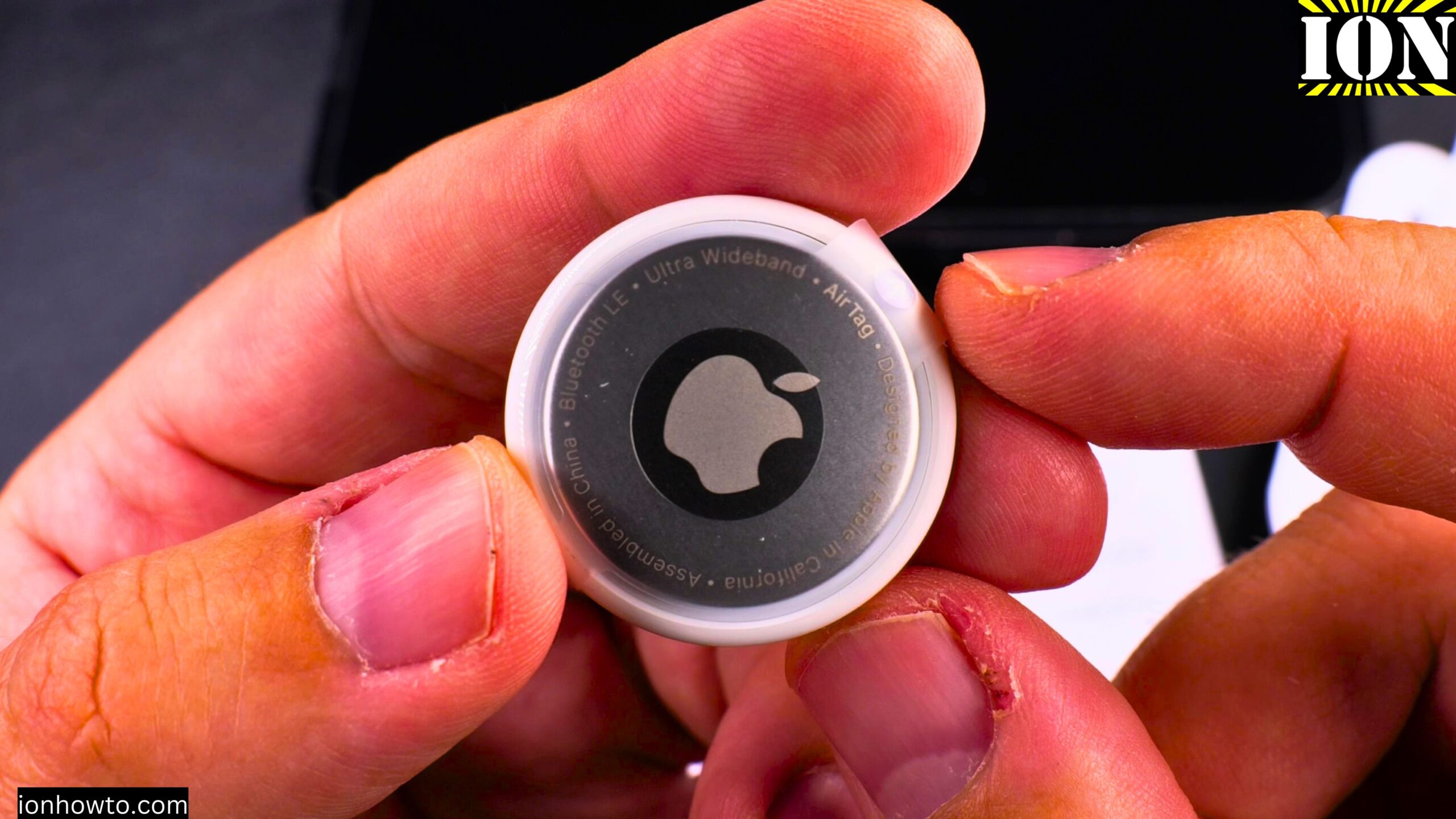
The Apple AirTag cost me 29.9 Euros for a single tag.
That is a big price difference. The AirTag has much better build quality and more features, but the Silvercrest is a solid budget option.

Product Model Information
- Lidl Silvercrest Smart Tag Finder pack of 3
- Model No. HG12823 Version 01/2025
- IAN 502773_2407 – SSTS3 A1
- EAN Barcode 40529165000095
- Made in China by OWIM Germany
What You Get in the Box
Each Silvercrest Smart Tag Finder pack includes:
- 3 Bluetooth tracking tags
- A silicone lanyard for each tag (flexible and easy to attach to keys or bags)
How to Set Up a Silvercrest Tracker in Find My
These trackers work with the Apple Find My network. You do not need to install any separate app. Here are the steps:
Step 1: Power On the Tracker
- Remove the plastic tab from the tracker. This disconnects the battery and powers the device on.
- You should hear a beep to confirm it is powered up.
- If you do not hear a beep, do not worry – it may still be working. Sometimes they only beep at certain times.
Step 2: Open the Find My App
- Open the Find My app on your iPhone
- Tap the plus sign (+) in the top right corner
Step 3: Choose Other Item
- Tap “Add Other Item” from the menu
- The app will start searching for nearby trackers
Step 4: Connect to the Tracker
- Your iPhone will find the tracker. It will show a default name like “SSTS3 A1”
- Tap “Connect”
Step 5: Name Your Tracker
- Give your tracker a name. For example, “Camera Bag” or “Keys”
- Choose an emoji to help identify it
- Tap “Continue”
Step 6: Link to Your Apple Account
- You will see a notification that the tracker will be linked to your Apple ID and phone number
- Read the warning about tracking people without consent
- Tap “Agree”
Step 7: Finish Setup
- Tap “Finish”
- Your tracker will now appear in the Items tab of the Find My app
How to Play a Sound to Find Your Tracker
Once set up, you can make the tracker beep to help you find it:
- Open the Find My app
- Go to the Items tab
- Tap on your Silvercrest tracker
- Tap “Play Sound”
- The tracker will beep
The beeping works well when you are nearby and need to hear where your keys, wallet, or bag is hiding.
How to Change the Battery
The Silvercrest tracker uses a CR2032 battery (3 volts). Here is how to replace it:
- Use a prying tool to open the tracker case
- You will see the battery inside
- Remove the old battery
- Insert a new CR2032 battery, making sure to align the hole in the battery with the metal contact inside
- Close the case – you should hear it click back into place
Battery life is about 8 months on a fresh battery.
Safety Note about CR2032 Batteries
Keep these batteries away from children. CR2032 batteries are dangerous if swallowed. If you use trackers around children, use electrical tape to tape the smart tag closed so it is harder to open.
What Features Are Missing Compared to AirTag
The Silvercrest tracker does not have the precise nearby location feature. With an Apple AirTag, your iPhone can show you an arrow and exact distance in centimeters. The Silvercrest only gives you a general location on a map and the “Play Sound” option.
The range is also shorter. The tracker needs an iPhone within about 10 meters to update its location.
What Still Works Well
The tracker does these things fine:
- Shows its location on the Find My map
- Plays a sound when requested
- Works with the Apple Find My network (no separate app needed)
- Shows battery level in the Find My app
- Can be shared with others
- Supports lost mode notifications
- Can alert you when you leave it behind
How to Silence the Speaker
If you want to disable the beeping sound, you can. Open the battery compartment and put a small piece of tape on the Piezo speaker terminals. This stops the beeping while the tracker still works for location tracking.
How to Remove the Tracker from Your Account
If you want to reset the tracker or give it to someone else:
- Open the Find My app
- Go to the Items tab
- Tap on the Silvercrest tracker
- Scroll all the way down
- Tap “Remove Item”
- Tap “Remove” to confirm
- The tracker will beep twice to confirm removal
After removal, you or someone else can set it up again using the same steps.
Important Legal Warning
When you add a tracker, Apple shows this warning: Using this item to track people without their consent is a crime in many countries and regions around the world. The item is designed to be detected by people you are tracking. They will get a notification on their iPhone if an unknown tracker is moving with them.
Only use these trackers for your own belongings – keys, bags, bikes, camera gear, and similar items.
Battery Modification Option
If you want much longer battery life for something like a car, bicycle, or motorcycle, you could potentially modify the tracker to work with AA NiMH rechargeable batteries. This is not a standard feature, but it is possible with some DIY work.
Final Thoughts
The Silvercrest Smart Tag Finder is not as polished as the Apple AirTag. It feels cheaper and has fewer features. But at 4 Euros each versus 30 Euros, that is expected.
The biggest win is that it works with the Apple Find My network. That network is huge and does not require any extra apps or subscriptions.
If you need precise finding down to centimeters, get an AirTag. If you want to track many items on a budget, the Silvercrest is worth trying.
I hope this helps you set up your Silvercrest smart trackers on your iPhone. If you have any questions, let me know in the comments below.
Leave a Reply Cancel reply