


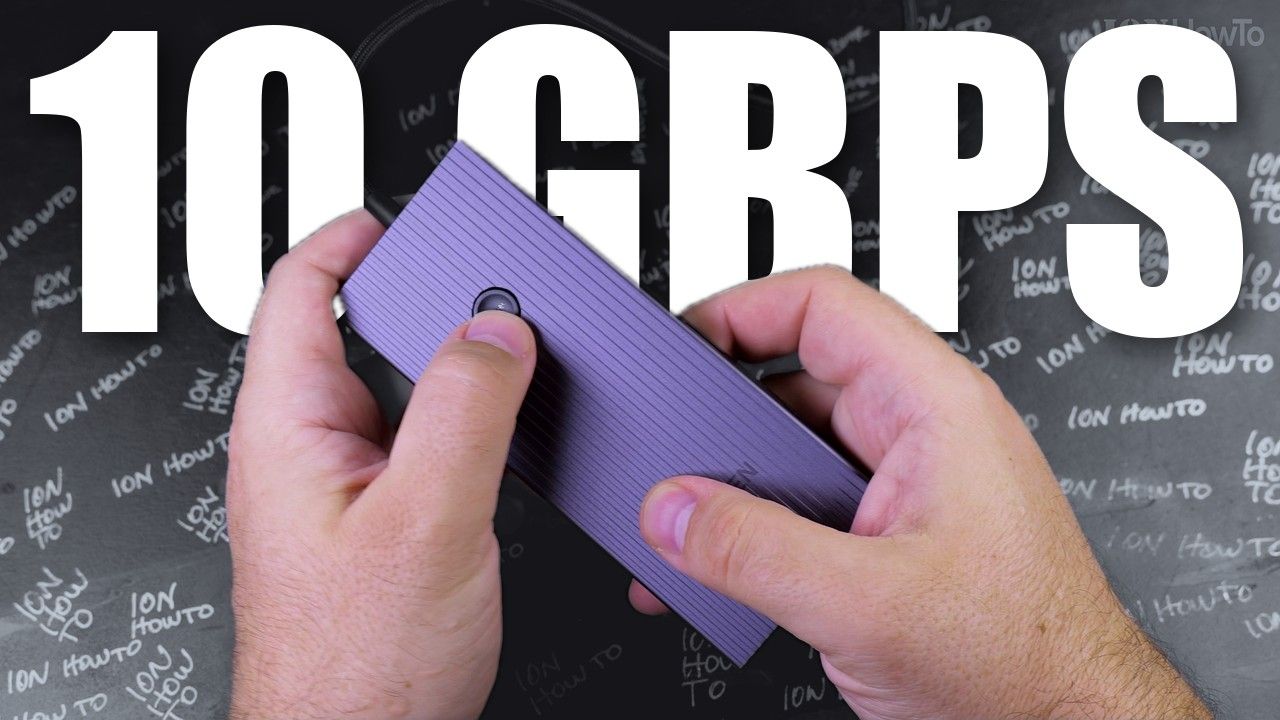
Ugreen packs nine connections into this Revodok hub, model CM885 (part 75028). I opened it to check what each port really does, which speeds are printed on the box, and where it falls short.

What you will do
- Open the box from the pull tab
- Check the leaflet against the box
- Find the HDMI on/off button
- Connect it to the computer
Recommended Amazon Gear and Accessories
Disclosure: This article contains Amazon affiliate links. As an Amazon Associate, I earn from qualifying purchases at no extra cost to you.
- Ugreen USB-C Hub 9-in-1
- MicroSD Card 128GB
- Cat 6 Ethernet Cable
- HDMI Cable 4K 60Hz
- USB-C Extension Cable
Port by port
- HDMI: up to 4K at 60Hz.
- USB-C data x2: 10Gbps each.
- USB-A: one at 10Gbps, one at 5Gbps.
- Ethernet (RJ45): 1 gigabit.
- Card slots: SD and TF (microSD), rated up to 170 MB/s.
- Power Delivery in: USB-C, up to 100W. The label lists 5 to 20 V, 5 A maximum.
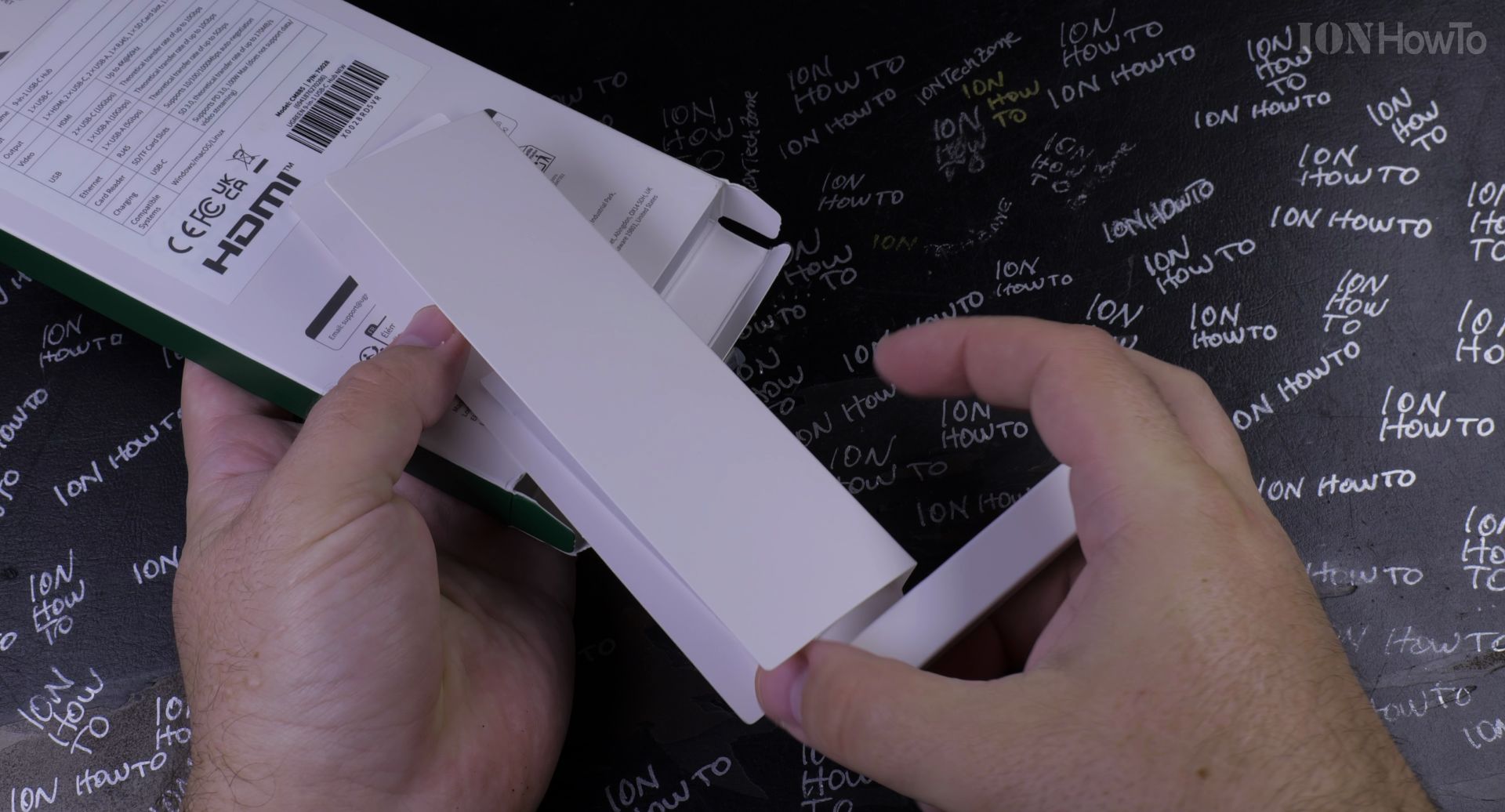
1. Open the box from the pull tab
The plastic cover comes off with a pull tab. I started at the wrong end, so look for the tab first. Inside are the hub, a spacer and a leaflet.

2. Check the leaflet against the box
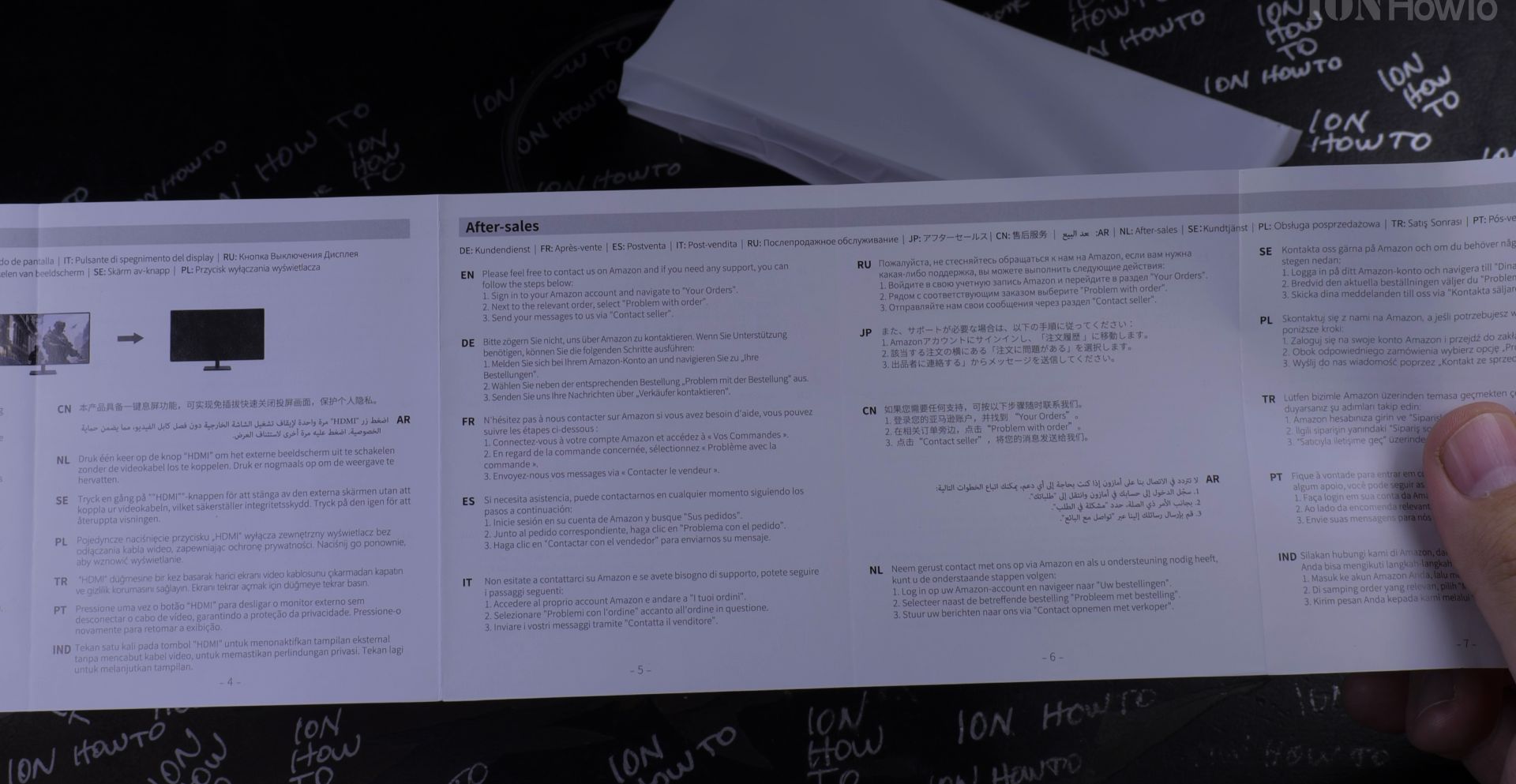
The specification table in the manual usually adds detail missing from the packaging. Here it matched the box exactly.

3. Find the HDMI on/off button
One feature I didn’t expect: a small button that turns the HDMI output off and back on, without unplugging the monitor.

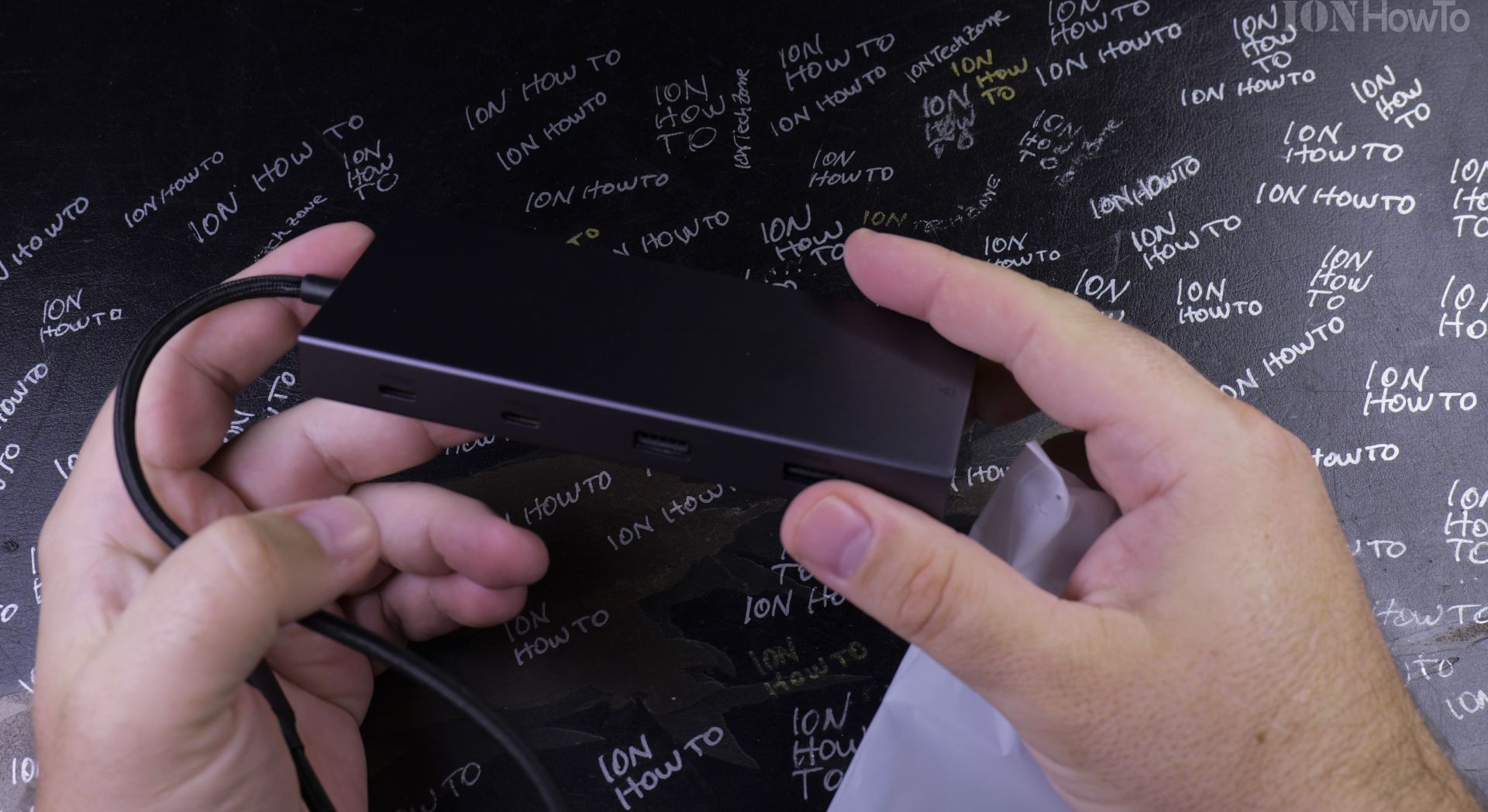
4. Connect it to the computer
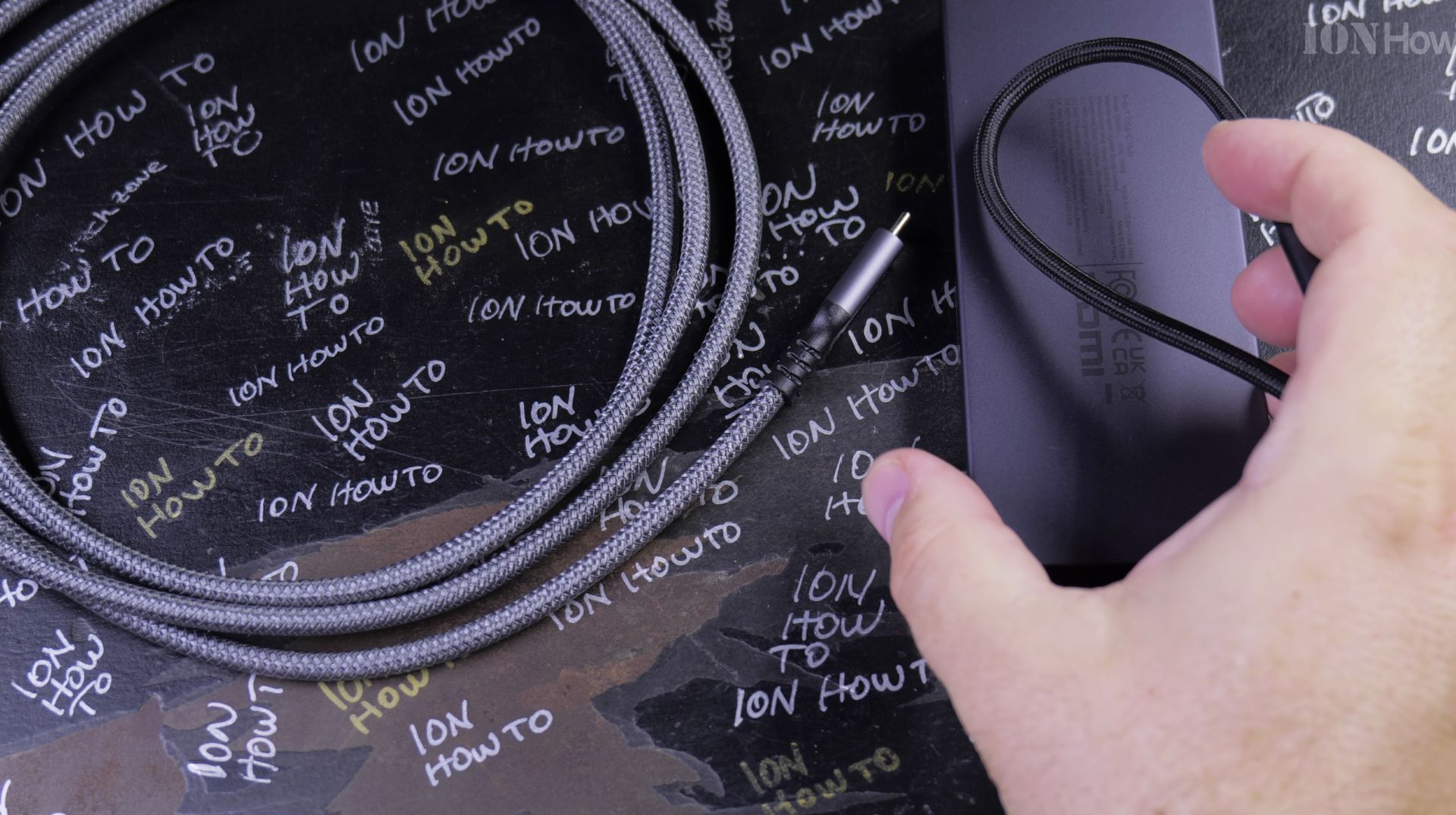
The hub has a fixed USB-C lead. My desktop needs a USB-C to USB-A adapter, or a 2 m USB-C extension if the hub has to reach the desk. Keep that run as short as possible and use a good cable.

Where it falls short
The Ethernet port tops out at 1 gigabit. A hub at this price could have offered 2.5 gigabit.
On a MacBook, hubs like this mirror the same picture to every HDMI output instead of extending the desktop, so a second screen needs another solution.
It is also bulky. I keep a much smaller hub for the MacBook Air and will leave this one on the desk as a card reader for my video files.
Related Guides
- Ugreen Revodok USB-C 3.2 Hub 6 in 1 PD – Unboxing Ugreen Revodok USB C 3.2 Hub 6 in 1 PD.
- How to Connect iPad to Ethernet Cable Using USB-C Hub – If your home Wi-Fi is spotty or drops out during video calls, plugging your iPad into a wired internet cable gives you…
- How to Connect an iPad to Wired Ethernet Internet Using a USB-C Cable – When Wi-Fi is spotty or you need zero-latency internet for gaming, video calls, or large file transfers, connecting your…
- USB-C & Fast Charging – Browse more tutorials and practical guides in this section.
Leave a Reply Cancel reply