
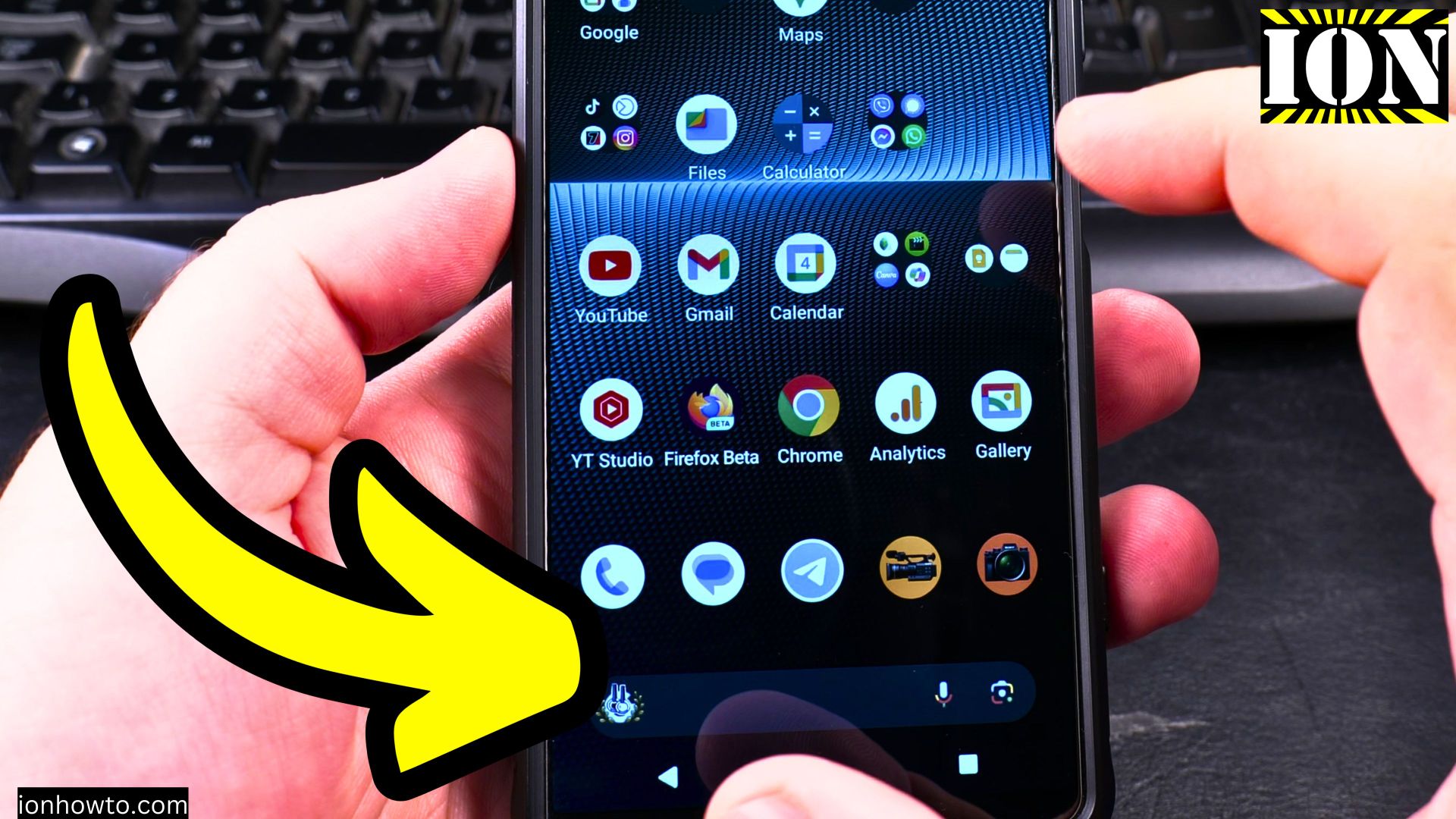
How to Switch from Gesture to Button Navigation on Android.
Learn how to change your Android phone’s navigation style from gestures back to traditional buttons. I’ll show you the steps to make this switch on any Android device, including Samsung and Google Pixel models.
Amazon links
As an Amazon Associate I earn from qualifying purchases:
- Phone Accessories
- Screen protectors
- Phone Cases
- Mobile Tripods
- Usb-c charger
- Usb-c cable
- Docking stations
- Wireless car chargers
- Wireless charger stand
- SIM card removal tool
- SIM card holder
Why Switch to Button Navigation?
Some people prefer buttons because:
- They’re more familiar if you’ve used older Android phones
- Buttons can feel more precise than swipe gestures
- You might accidentally trigger gestures less often
- Some apps work better with button navigation
Steps to Change Navigation Style
- Open your Settings app
- Scroll down and tap Display
- Select Navigation bar or Navigation type (this might be under “System” on some phones)
- Choose 3-button navigation or Button navigation
- Exit settings – your new buttons will appear immediately
Where to Find the Setting on Popular Brands
Samsung Galaxy Phones
- Settings > Display > Navigation bar
- Select “Buttons” instead of “Swipe gestures”
Google Pixel Phones
- Settings > System > Gestures > System navigation
- Choose “3-button navigation”
Other Android Phones
Look for similar options under:
- Settings > System > Navigation
- Settings > Display > Navigation bar
- Settings > Accessibility > Navigation controls
What the Buttons Do
The three buttons are:
- Back button (triangle): Returns to the previous screen
- Home button (circle): Takes you to your home screen
- Overview button (square): Shows your recent apps
Troubleshooting Tips
If you can’t find the navigation settings:
- Try searching “navigation” in your Settings app
- Some manufacturers hide it in accessibility settings
- Restart your phone if changes don’t appear right away
Final Thoughts
Now you know how to switch from gestures to buttons on your Android phone. Try both options to see which you prefer – you can always change back later if you want to give gestures another try.
Have questions about Android navigation? Ask in the comments below!


Leave a Reply