
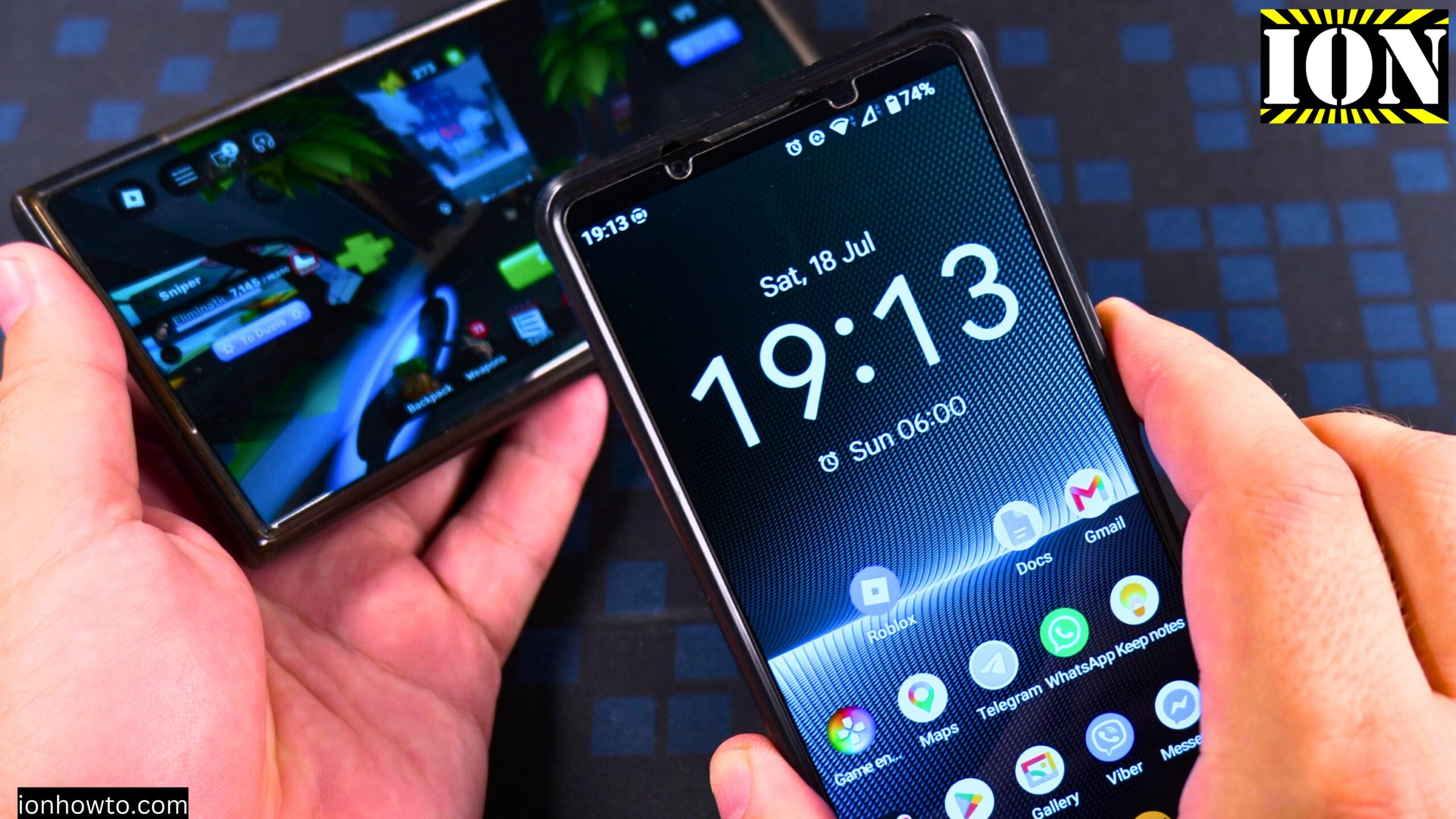
How to Fix Fix Roblox Rivals Device Integrity Checks Error Code 317 and Error Code 319.
In this video guide I show you the Roblox Rivals error codes 317 and 319 and how I fixed them on my Android phone.
How to Fix Roblox was not able to verify the game integrity Error Code 317 and Error Code 319.
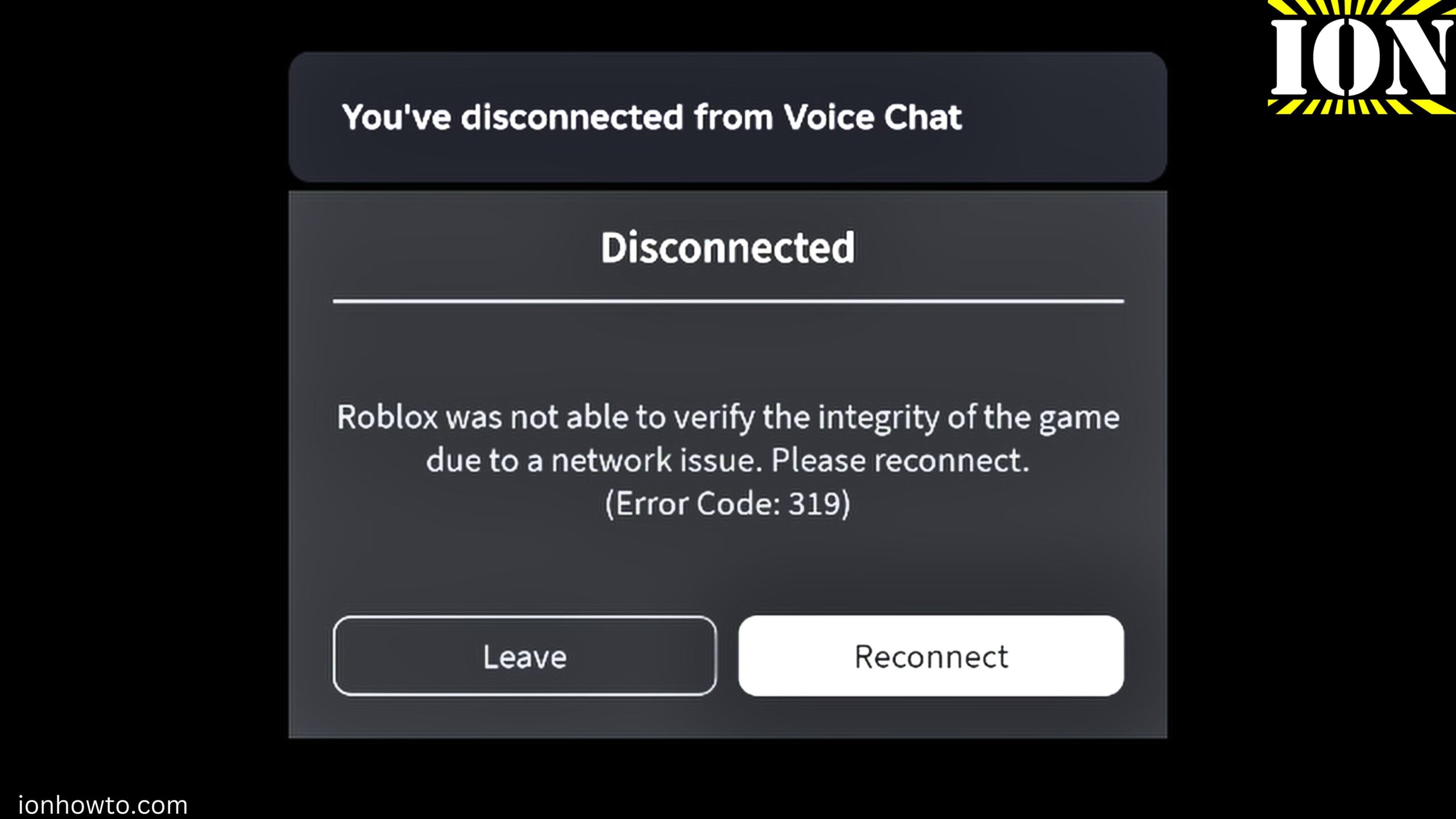
This is the Error Code 319 you get when starting a Roblox Rivals game on Android and probably other devices too.
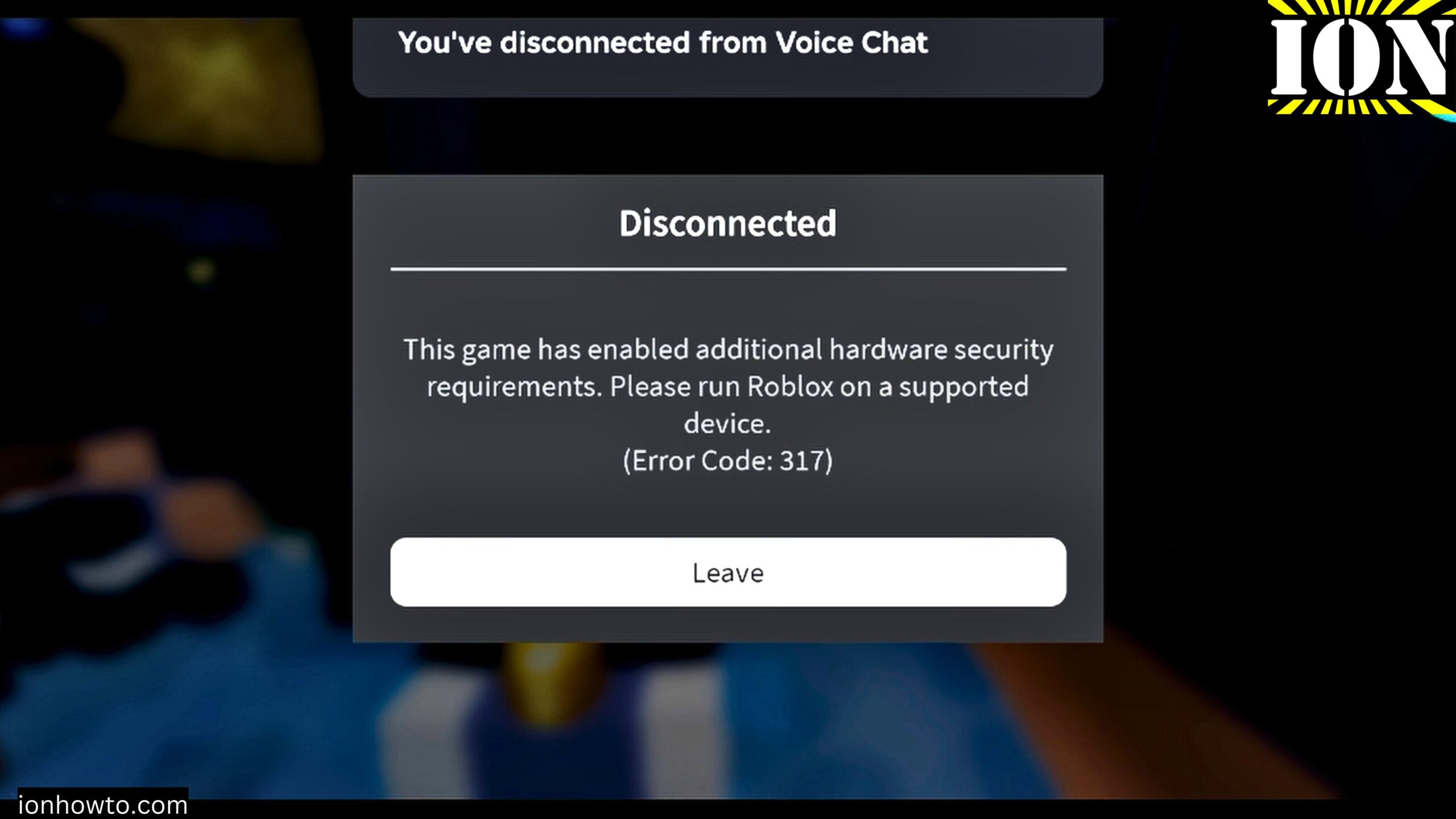
This is the Error Code 317 you get when starting a Roblox Rivals game on Android.
Update your Android Phone to the latest System update and most important also update the Google Play Security Update to the latest available then try again.
If you watch the video you will see both error codes are coming up one after the other.
First you get error 319 and the option to retry then you get the error 317 without any retry option.
This fixes both errors for the supported devices.
If your device is not supported to get the latest Google Playstore security update, it won’t work but you can try to update to the latest Google Security update level and see if it works.
For me this worked and it also fixed problems with Google Wallet or Google Pay.
The Complete error message received when opening a game in Roblox – Roblox Rivals Errors:
Disconnected
Roblox was not able to verify the integrity of the game due to a network issue. Please reconnect.
(Error Code: 319)
Options: Leave Reconnect
Pressed Reconnect and got the folling error:
This game has enabled additional hardware security requirements. Please run Roblox on a supported device.
(Error Code: 317)
Options: Leave
After you update the Google Play Store Security updates, restart your android phone and open Roblox again then open Roblox Rivals again. it should work now 🙂


Leave a Reply