
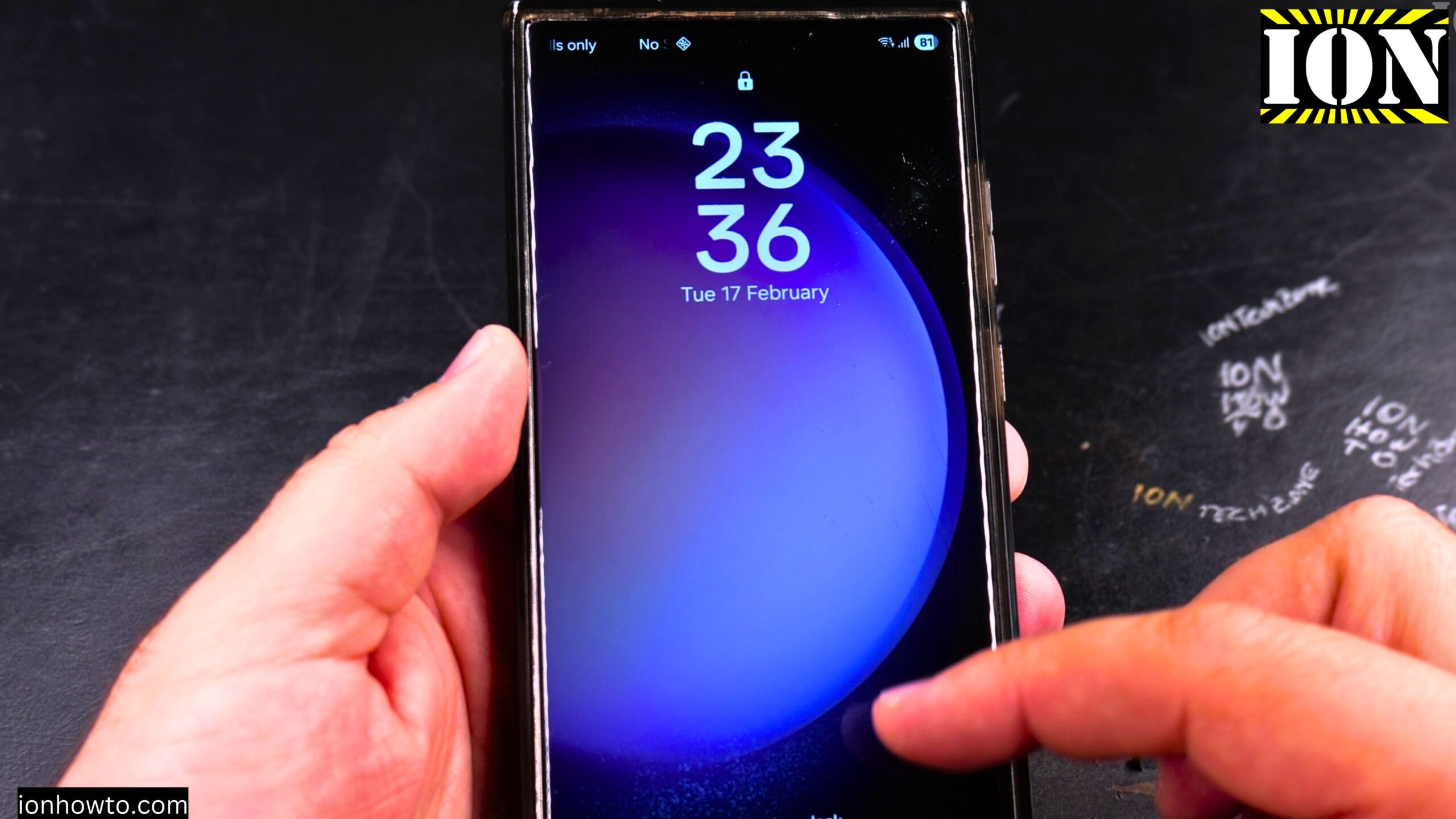
How to Add Flashlight to Lock Screen on Samsung Android Phones.
Learn how to add a flashlight shortcut to your lock screen on Samsung Android phones. This is a really useful feature that lets you quickly turn on the flashlight without unlocking your phone. I will show you the steps so you can easily enable this on your own device.
Amazon links
As an Amazon Associate I earn from qualifying purchases:
- Phone Accessories
- Screen protectors
- Phone Cases
- Mobile Tripods
- Usb-c charger
- Usb-c cable
- Docking stations
- Wireless car chargers
- Wireless charger stand
- SIM card removal tool
- SIM card holder
This guide works for a Samsung Galaxy S23 Ultra running Android 14 and OneUI 6.1. The method works for most Samsung Galaxy phones including the S25, S23, and other models.
Why This Is Handy
Being able to turn on your flashlight from the lock screen saves time. You do not have to unlock your phone, find the flashlight app, or swipe down the notification panel. One quick swipe from your lock screen and the light turns on.
How to Add Flashlight to Your Lock Screen
The lock screen shortcuts are easy to customize from the Wallpaper and Style menu. Here is how to do it.
Step-by-step instructions
- Long press on an empty area of your home screen (where there are no app icons)
- A menu will appear at the bottom of the screen
- Tap on “Wallpaper and style”
- Look for the lock screen preview section and tap on it
- Find the two shortcut spots at the bottom left and bottom right of the lock screen preview
- Tap on the shortcut you want to change (for example, where the camera shortcut usually sits)
- A list of apps will appear. Scroll and look for “Torch” (this is what Samsung calls the flashlight)
- Tap on “Torch” to select it
- Tap “Done” to save your settings
You can keep the camera as one shortcut and add the torch as the other. Or you can replace both shortcuts with whatever apps you use most.
How to Use the Flashlight from Lock Screen
Once you have added the torch shortcut, using it is very simple.
- Turn off your screen to go to the lock screen
- Look for the torch icon at the bottom of the screen
- Press and hold on the torch icon, then slide your finger outward
- The flashlight will turn on immediately
To turn the flashlight off, do the same thing again. Press and hold the torch icon on the lock screen and slide. The light will turn off.
What Else Can You Add to Lock Screen Shortcuts
The same method works for other apps too. You can add any app you want to your lock screen shortcuts. Some popular choices include:
- Camera
- Voice recorder
- Calculator
- Any messaging app
- Any other app you use often without needing to unlock first
How to Remove or Change a Shortcut
If you want to remove a shortcut or change it to something else, just follow the same steps:
- Long press on the home screen
- Tap Wallpaper and style
- Tap on the lock screen preview
- Tap the shortcut you want to change
- Pick a different app or tap “None” to remove it completely
- Tap Done
Quick Summary
Here is the whole process in one list:
- Long press an empty spot on your home screen
- Tap Wallpaper and style
- Tap the lock screen preview
- Tap the shortcut you want to change
- Select Torch (flashlight) from the list
- Tap Done
- Lock your phone to test it
- Press and slide the torch icon to turn the light on and off
Final Thoughts
Learn how to add a flashlight to your lock screen on Samsung phones in less than a minute. This is one of those small tips that makes a big difference in daily use. You get quick access to your torch without unlocking your phone or searching through apps. Just remember to turn it off when you are done so you do not drain your battery.


Leave a Reply