


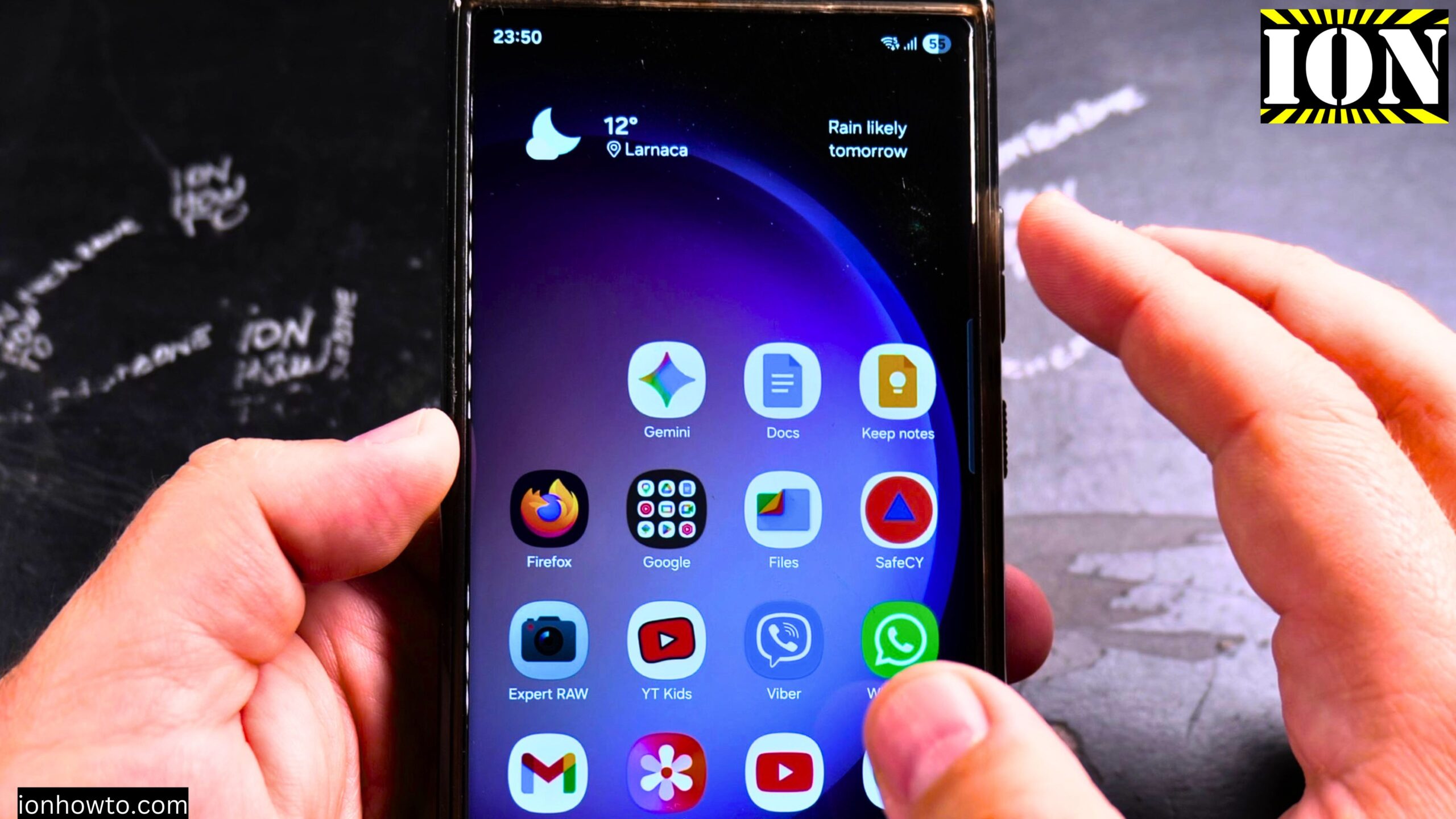
How to Check for the App Cloud on Your Samsung Galaxy Phone.
This is how to check if App Cloud is installed on your Samsung phone. I show you how to check for the App Cloud on your Samsung Galaxy.
I’m showing you this on a Samsung S23 Ultra running Android 16 with One UI 8.0.
If you have the AppCloud app on your Samsung phone or tablet, you can force stop it, restrict access for it, and then disable AppCloud on your Samsung phone.
Usually AppCloud is installed on lower tier Samsung phones like the A series, but you can check on any Samsung phone if App Cloud is installed on your phone.
What Is App Cloud?
I explain what the App Cloud typically refers to in the context of Samsung devices. The AppCloud is an app that will install other apps. It’s an installer from Samsung.
Not all Samsung devices have the AppCloud app installed, but you might want to check if you have that installed, and you might want to clear the cache or find a way to turn it off.
You might be able to remove the AppCloud app from your Samsung Galaxy Android phone if you have that using ADB commands, but that’s a bit of an advanced feature. But first, you want to check if you even have it at all.
How to check if your Samsung Galaxy Android phone has the App cloud installed Video

Step 1: Turn Off Your Internet Connection
The first thing to do would be to turn off the mobile internet or Wi-Fi. So you don’t do searches on the internet. It’s only going to do searches on the device itself.
Step 2: Open Settings and Go to Apps
Open the settings. In the settings, go to the app list. So you have apps here. Tap on apps. And here you will have the apps.
Step 3: Show System Apps
Tap on the filter. This is on One UI 8.0. In previous versions of One UI, you could tap on the three dot menu there to show the system apps.
Now you have here the option to tap here on this filter setting and you can filter. You can sort, change the sort order, and also you can enable show system apps. This is what I wanted to show you here. Then press okay.
Once you enable the show system apps option, you will have lots of apps here. Lots of things that you didn’t know you had. These are system apps. So don’t try to change anything that you don’t really want to change.
Step 4: Search for AppCloud
Then make a search and search for AppCloud.
So, AppCloud, one word.
I search it. No results found. And also, you might want to put AppCloud with the space in between. You might have an app called App Cloud here.
Step 5: Manage the AppCloud App If You Have It
If you have the app, you might be able to clear the cache. You can change the permissions. Try to reduce the permissions as much as possible. But if you have the app, probably it’s going to be able to do things that it needs without you being able to restrict it.
The AppCloud app is used to install programs and apps on your Samsung phone from Samsung and partners of Samsung. I’m not sure exactly how it works, but if you have the AppCloud, you might be able to clear the storage.
For example, for storage, you might be able to clear the cache. So you can clear data, clear cache for AppCloud, and you could try to remove the AppCloud app from your Samsung Galaxy Android phone using the ADB command.
My Result on the Samsung Galaxy S23 Ultra
On the Samsung Galaxy S23 Ultra, I don’t have this app. I don’t have it. So that’s fine for me.
And I will set back the setting. I don’t want to be uninstalling or changing any system apps by mistake that I don’t want.
So, this is how you search for the AppCloud app on your Samsung Galaxy Android phone to see if you have it. Then you can choose to clear the cache or even disable it if you can, or use ADB commands to uninstall it.
Checking Other Samsung Services
You can also check for Samsung Cloud, which is a common service for backing up your data. This method will show you everything. I also show you how to identify system apps that are pre-installed on your phone.
If you want to know what is installed on your phone or how to manage your device storage, this article is a guide to checking your phone’s software. You will know exactly how to verify if a specific app or service like App Cloud is present on your Samsung Galaxy.
Related Guides and Helpful Resources
If you found this guide helpful, check out these related step-by-step tutorials and category resources on ION HowTo:
- How to Add a Picture to a Contact on Android: Personalize your contacts with custom profile photos for caller identification.
- How to Disable 2G on Android: Enhance network privacy and prevent insecure 2G connections.
- Turn Off Automatic Updates on Samsung Android: Manage app and firmware updates to save battery and mobile data.
- Android Tips and Tricks: Explore our full collection of tutorials and step-by-step articles in this category.
Leave a Reply Cancel reply