


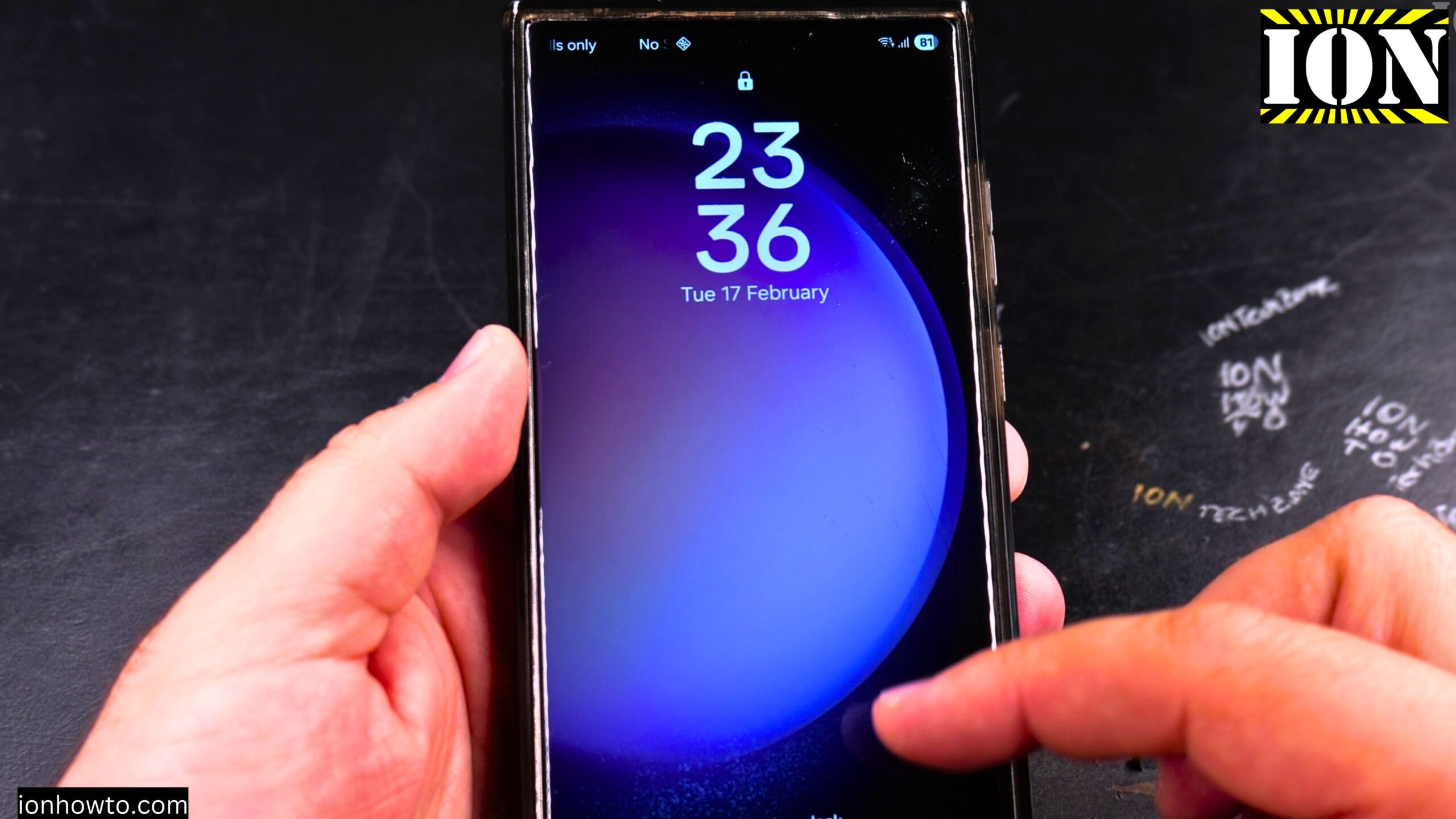
How to Get Predictive Text Back on Samsung Galaxy After an Update.
Did the predictive text bar on your keyboard disappear after a One UI update? I show you how to get the predictive text suggestions back on your Samsung Galaxy keyboard.
I’m showing you this on a Samsung S23 Ultra running Android 16 with One UI 8.0.
You have to download the predictive language model pack to make the text keyboard typing predictions work. I show you how to download the predictive text model on your Samsung device after updating to One UI 8 or One UI 7.
Why Predictive Text Disappears After an Update
In this article, I show you the steps to re-enable predictive text on your Samsung phone. This is a common issue after a software update changes your keyboard settings.
If you find the keyboard looks different after an update and want to know how to change it back, this guide will help you get your predictive text suggestions to reappear.
How to Get Predictive Text Back on Samsung Galaxy After an Update Video

Step 1: Open Your Keyboard Settings
In any text input, you have your keyboard here, the Samsung keyboard. Tap on the gear icon and you will get the popup.
Step 2: Download the Predictive Text Models
The popup will say to get predicted text, download the predictive text models for your keyboard languages. That’s how it works.
I could enable it for English and it’s downloading it now.
I could choose to download here and it’s going to download the models. This is the predictive text for two languages here.
Step 3: Test Your Predictive Text
Once I go back to the notes app, the Google Keep, and I type test, you see it’s already giving me predictions for the typing.
So this is how it works.
What If You Don’t See the Gear Icon
You have to go into the keyboard settings. If you don’t see it here, you can tap on this.
If you don’t see the gear icon here, you go back to this menu and then you tap on the gear icon.
Step 4: Turn Predictive Text On or Off for Each Language
You can choose predictive text and you can turn it on and off for each language you have. You can add languages if you want to, but this is for the existing languages if you don’t have the predictive text anymore.
Managing Your Samsung Keyboard Settings
Learn how to fix Samsung Keyboard settings if your auto correct is not working properly. I show you where to find the predictive text toggle and how to manage other keyboard features.
If you are looking for how to restore word suggestions or how to get your keyboard back to normal, this article covers the process. I also show you how to reset keyboard settings if the predictions are not accurate.
Learn how to manage your Samsung Keyboard settings and have your predictive text working again.
Related Guides and Helpful Resources
If you found this guide helpful, check out these related step-by-step tutorials and category resources on ION HowTo:
- How to Add a Picture to a Contact on Android: Personalize your contacts with custom profile photos for caller identification.
- How to Disable 2G on Android: Enhance network privacy and prevent insecure 2G connections.
- Turn Off Automatic Updates on Samsung Android: Manage app and firmware updates to save battery and mobile data.
- Android Tips and Tricks: Explore our full collection of tutorials and step-by-step articles in this category.
Leave a Reply Cancel reply