


I unbox the Chenlenic USB-C extension cable, a 2 meter braided cable sold as USB 3.2 Gen 2. I show you what comes in the bag and what to check before you buy one.

What you will do
- Check the package
- Read the warranty card
- Look at the female USB-C end
- Look at the male USB-C end
- Use the reusable cable tie
- Check the length and the braid
Recommended Amazon Gear and Accessories
Disclosure: This article contains Amazon affiliate links. As an Amazon Associate, I earn from qualifying purchases at no extra cost to you.
- USB-C Extension Cable 240W
- USB-C Cable
- USB-C to USB-A Adapter
- USB-C Hub
- Reusable Cable Ties
- USB-C Charger
1. Check the package
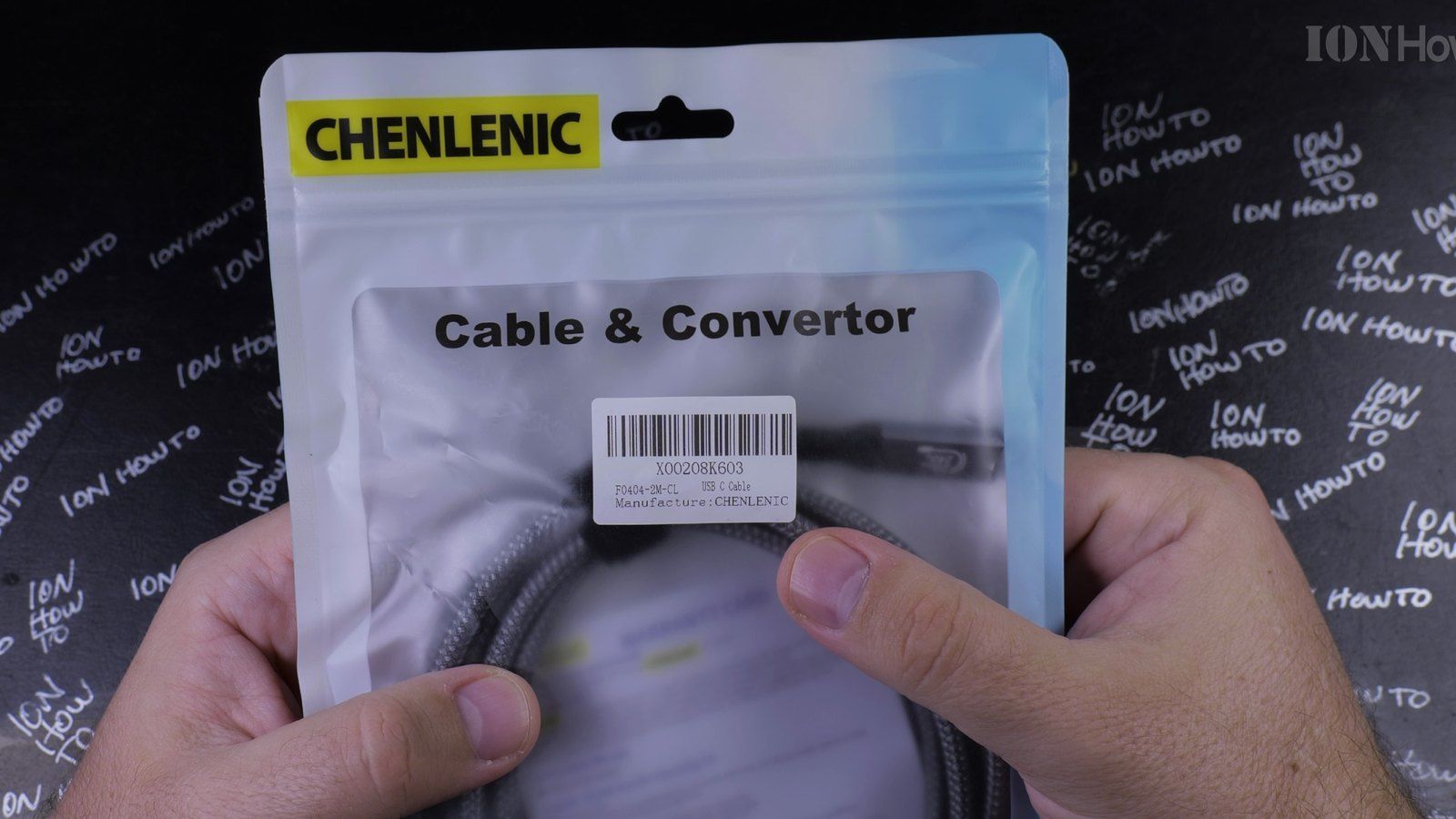
The bag has the Chenlenic name on the front and says Cable and Convertor. Read the label before you buy. Some USB-C extension cables do not carry every kind of signal, so look for data support on the package.

2. Read the warranty card
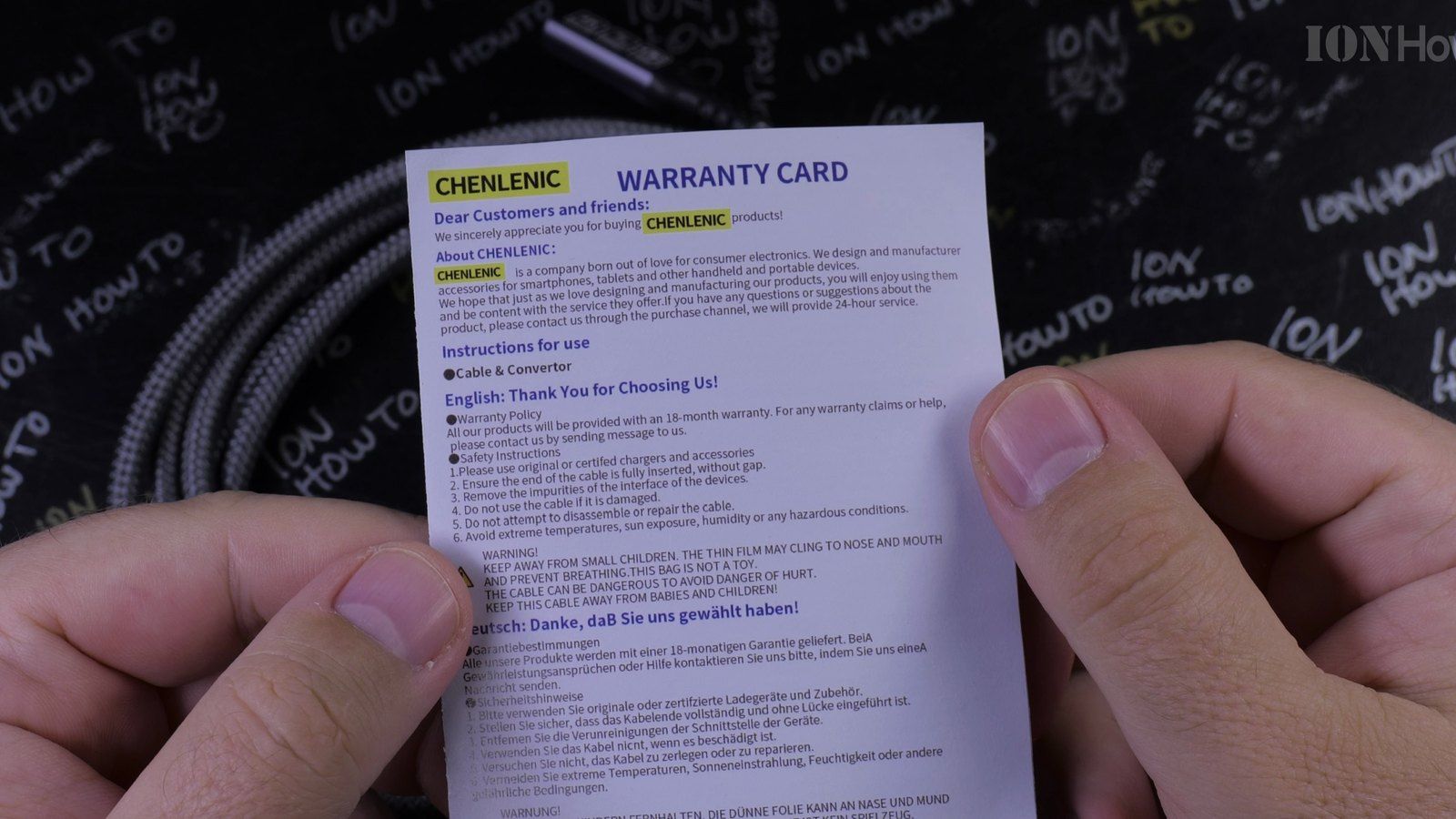
Inside the bag is a warranty card. It has the same text in several languages and lists a contact for Europe and the UK.
3. Look at the female USB-C end
One end of the cable is a female USB-C socket. You plug your normal USB-C cable or device into this end to make it longer.
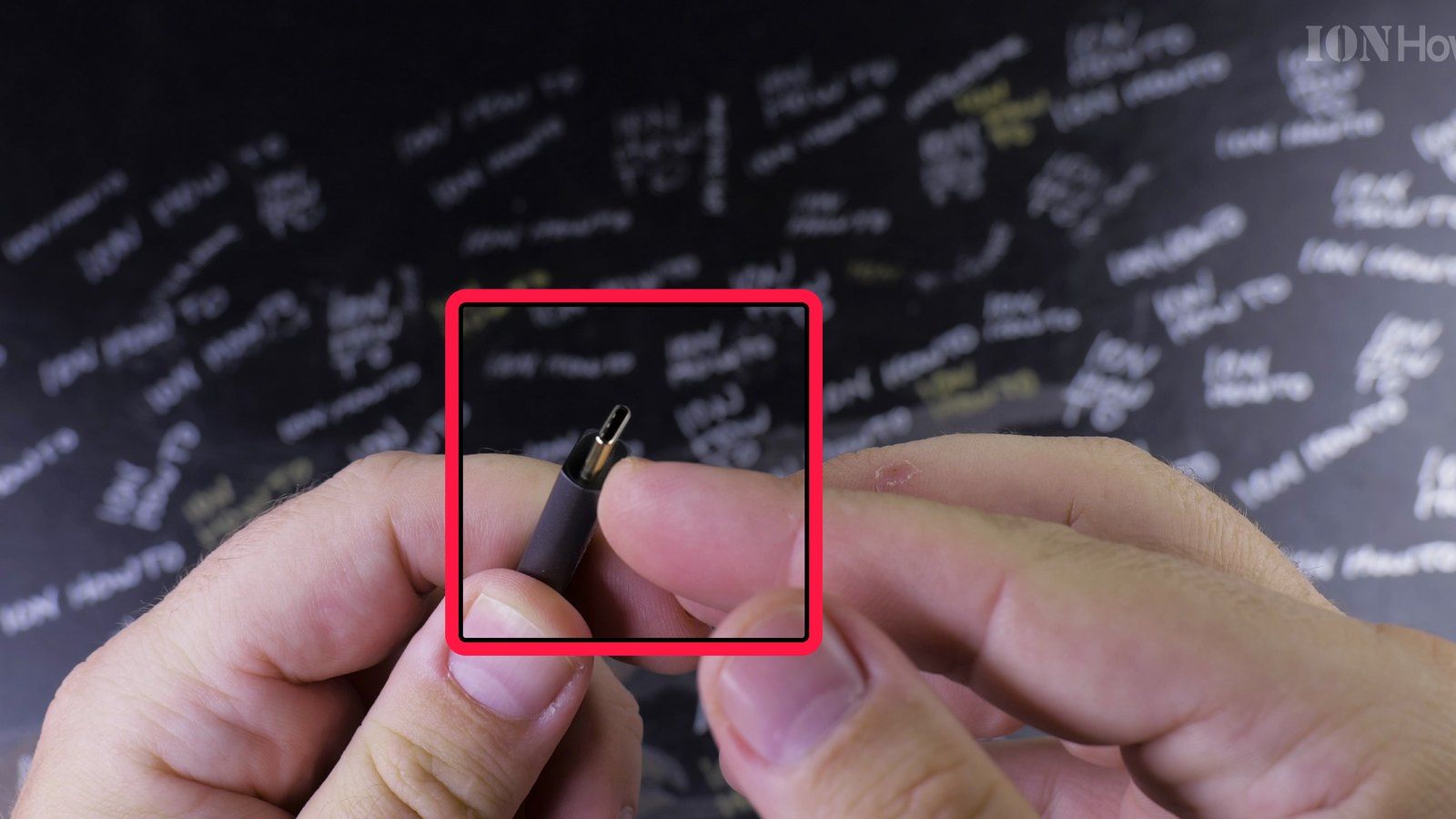
4. Look at the male USB-C end
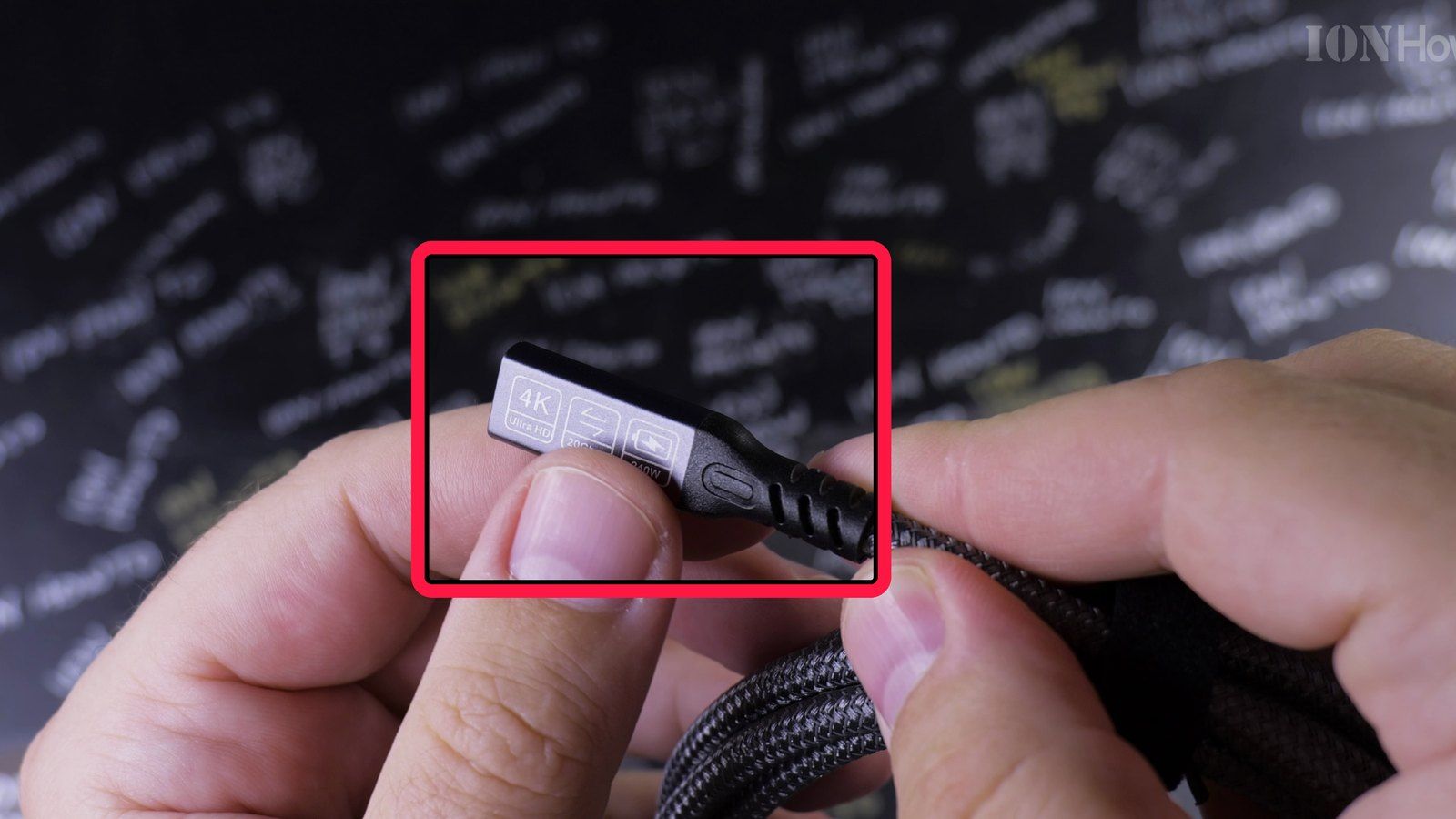
The other end is a regular male USB-C plug. Both ends are marked with 20Gbps, and the package claims 240W and 4K video support.
5. Use the reusable cable tie
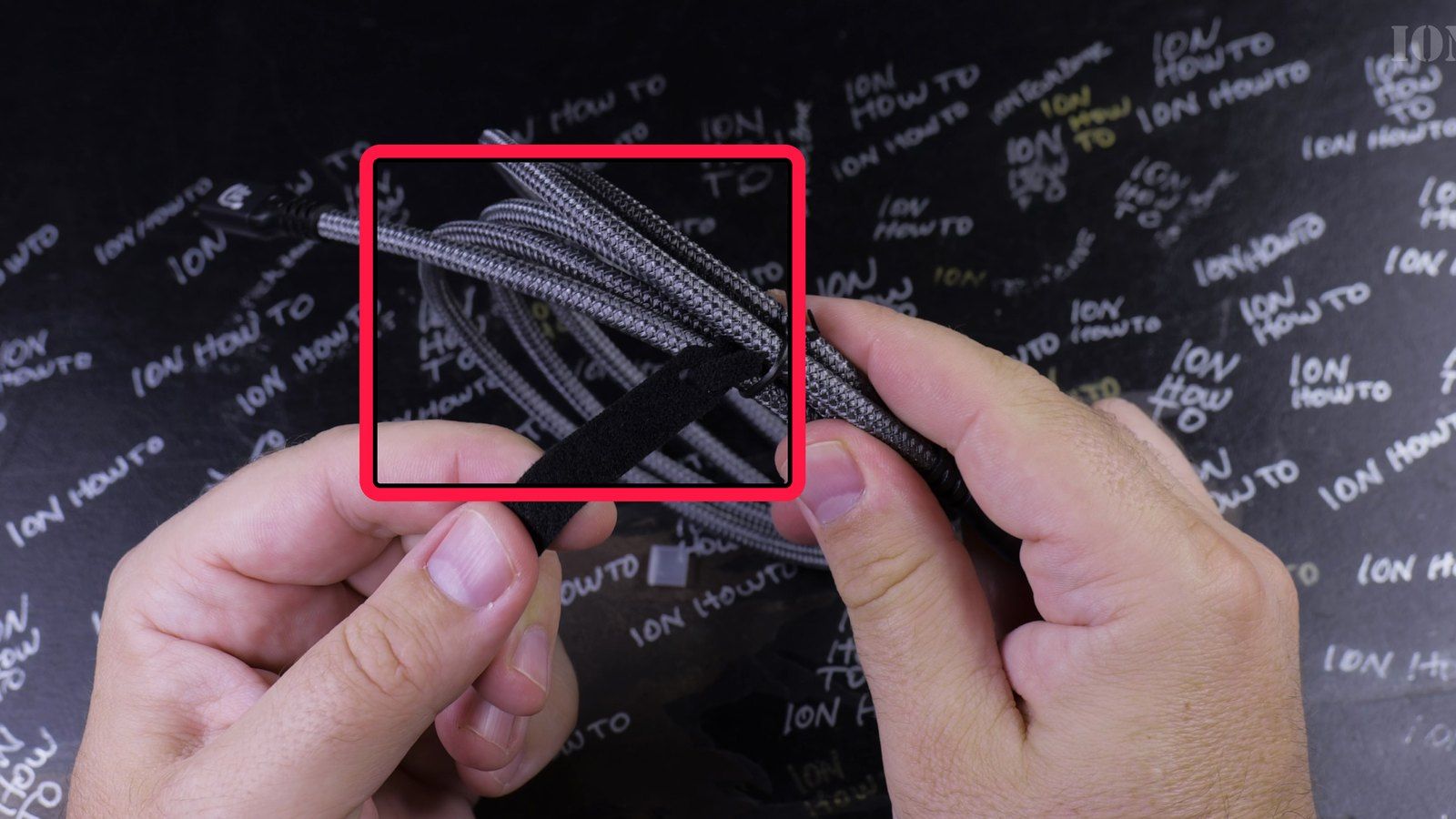
The cable comes with a small reusable tie, plus a throwaway one. It is a nice touch, and it keeps the cable tidy when you put it away.
6. Check the length and the braid
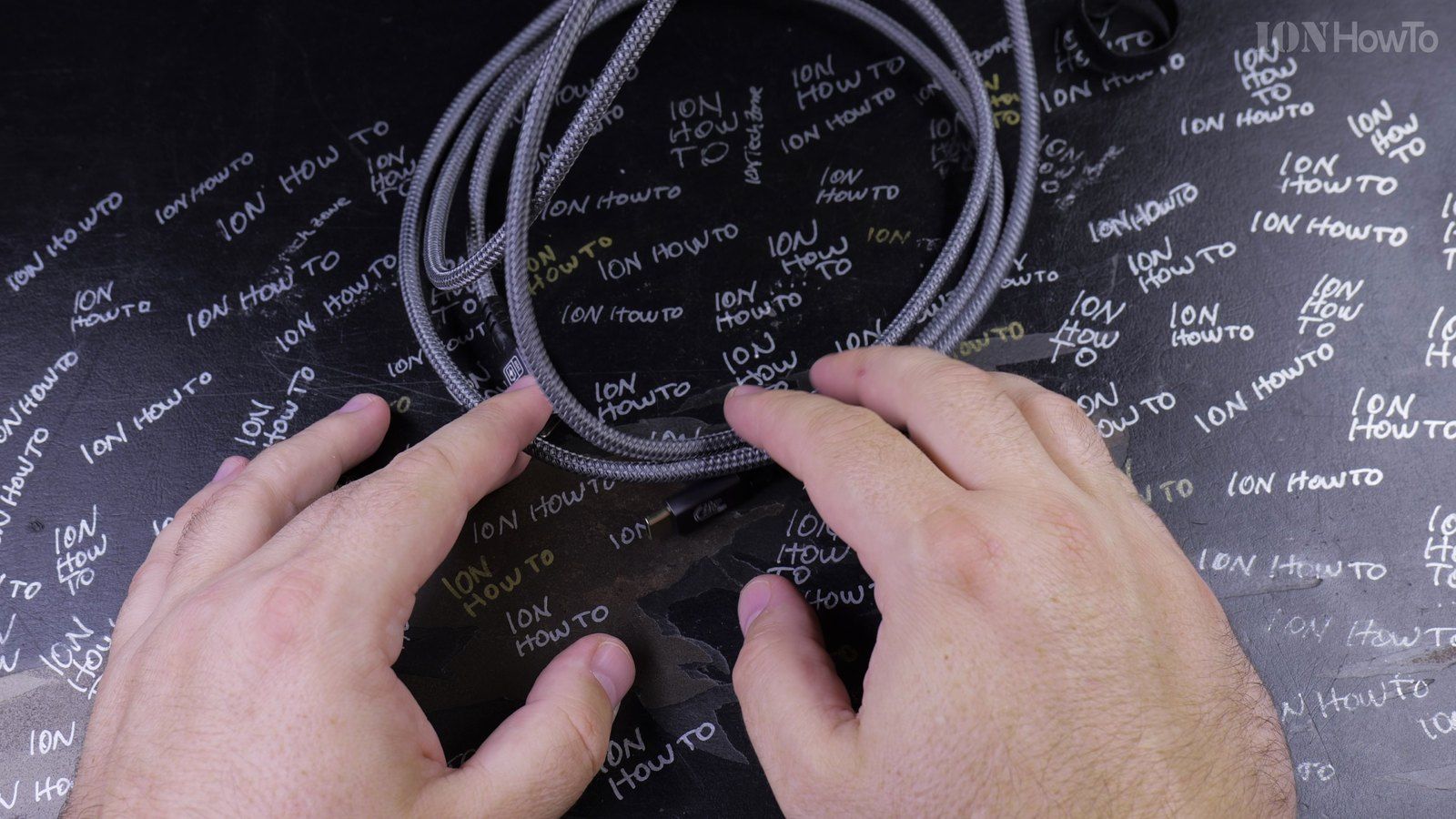
The cable is about 2 meters long and has a braided cover. It looks like good quality. I plan to use it with a USB-C to USB-A adapter on my computer.
Helpful Tips
- Check the label for data support before you buy any USB-C extension cable.
- A 240W rating only helps if your charger and your device support that much power.
- Keep the reusable tie on the cable so it does not tangle in your bag.
- Keep the package and the warranty card in case you need to return the cable.
Related Guides
- DIY USB Cable Extension – What to do with the old phone charger cables?
- How to Connect iPad to Ethernet Cable Using USB-C Hub – If your home Wi-Fi is spotty or drops out during video calls, plugging your iPad into a wired internet cable gives you…
- Connect Lightning Cable to USB C iPhone and iPad with Adapter – If you upgraded to a new iPhone or iPad with USB-C, you do not need to throw away your older Lightning cables.
- Cat 5E Ethernet Cable – Browse more tutorials and practical guides in this section.
Leave a Reply Cancel reply