


Amazon links
As an Amazon Associate I earn from qualifying purchases:
- iPhone Accessories
- iPhone Charger
- iPhone Cases
- iPhone Screen protector
- iPhone Magsafe
- iPhone Wallet
- iPhone Usb c cable
Learn how to extract text and scan QR codes directly from your iPhone photos using Apple’s built-in Live Text feature. This tutorial shows you how to easily copy text from any image in your camera roll.

Quick Steps and Scenarios Overview
| What You Need to Do | Quick Jump |
|---|---|
| What You Can Do With Live Text | Jump to Step 1 |
| How to Copy Text From Photos | Jump to Step 2 |
| Alternative Method Through Camera | Jump to Step 3 |
| How to Scan QR Codes in Photos | Jump to Step 4 |
| Tips for Best Results | Jump to Step 5 |
| Supported Devices and Languages | Jump to Step 6 |
Demonstrated on iOS 18.5 with iPhone 16 Pro Max Titanium Black 256GB (Global model A3296 – MYWV3ZD/A)
What You Can Do With Live Text
Your iPhone can automatically detect and select text in photos, if it’s:

- Screenshots
- Photos of documents
- Business cards
- Book pages
- Handwritten notes (in iOS 18)
- QR codes
How to Copy Text From Photos
Follow these simple steps to extract text:
- Open the Photos app and select any image containing text
- Press and hold on any visible text in the photo
- Adjust the selection handles if needed to highlight the exact text you want
- Choose Copy from the pop-up menu
- Paste the text anywhere (Messages, Notes, etc.)
Alternative Method Through Camera
You can also extract text directly through your camera:
- Open the Camera app
- Point at text you want to capture
- Tap the Live Text icon (appears when text is detected)
- Select and copy the text as needed
How to Scan QR Codes in Photos
For QR codes saved in your camera roll:
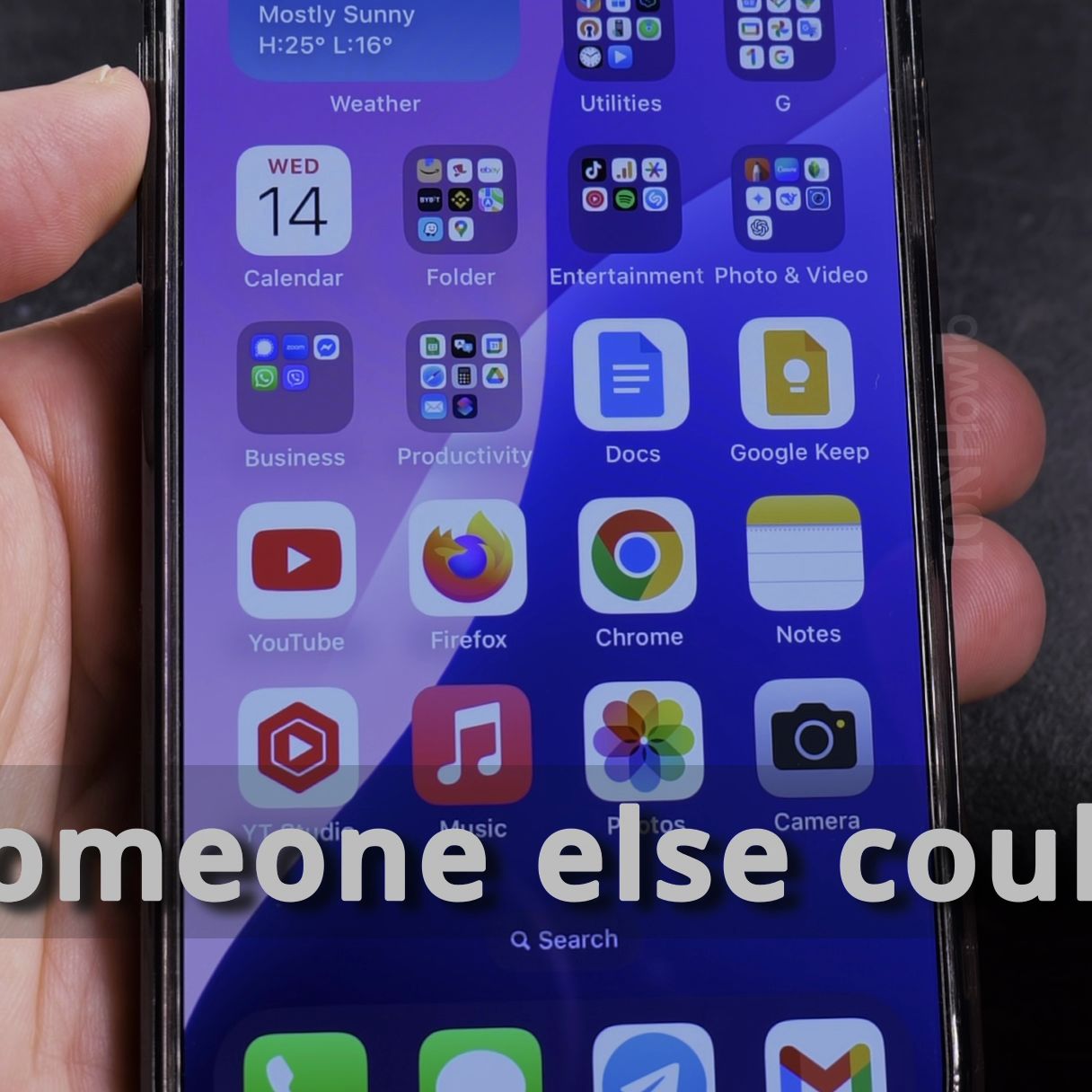
- Open the photo containing the QR code
- Your iPhone will automatically detect it
- Tap the yellow QR code notification that appears
- Follow the link or action that pops up
Tips for Best Results
- Make sure text is clear and well-lit in photos
- Hold your phone steady when capturing text
- For small text, zoom in before taking the photo
- Clean your camera lens for sharper images
- If text isn’t detected, try cropping the photo first
Supported Devices and Languages
This feature works on:

- All iPhone models running iOS 15 or later
- Multiple languages (English, Spanish, Chinese, etc.)
- Both printed and (in iOS 18) handwritten text
Troubleshooting
If Live Text isn’t working:
- Check that it’s enabled in Settings > Camera
- Make sure you’re running iOS 15 or later
- Try restarting your iPhone
- Ensure the text isn’t blurry or obscured
Now you can quickly extract text from any photo – no more manual typing! If you need to save a recipe, capture contact info, or scan QR codes, your iPhone has you covered.
iPhoneTips, LiveText, CopyTextFromPhotos, iPhoneHowTo, QRCodeScanner
Helpful Tips
Take your time and check the screen carefully after each tap so you can confirm the setting changed as expected. If an option appears in a slightly different spot on your device, watch the embedded video above for a closer look.
Related Guides
- How to Enable Predictive Text on iPhone Keyboard – If your iPhone keyboard stopped showing word suggestions above the keys, your predictive text option might be turned off.
- iPhone Undo and Redo Gestures in Text Editing Apps – If you accidentally delete text or want to restore typed words without shaking your phone, iOS includes built-in…
- Predictive Text Suggestions on iPhone – Predictive Text Suggestions on iPhone.
- iPhone How-To Guides – Browse more tutorials and practical guides in this section.
Leave a Reply Cancel reply