


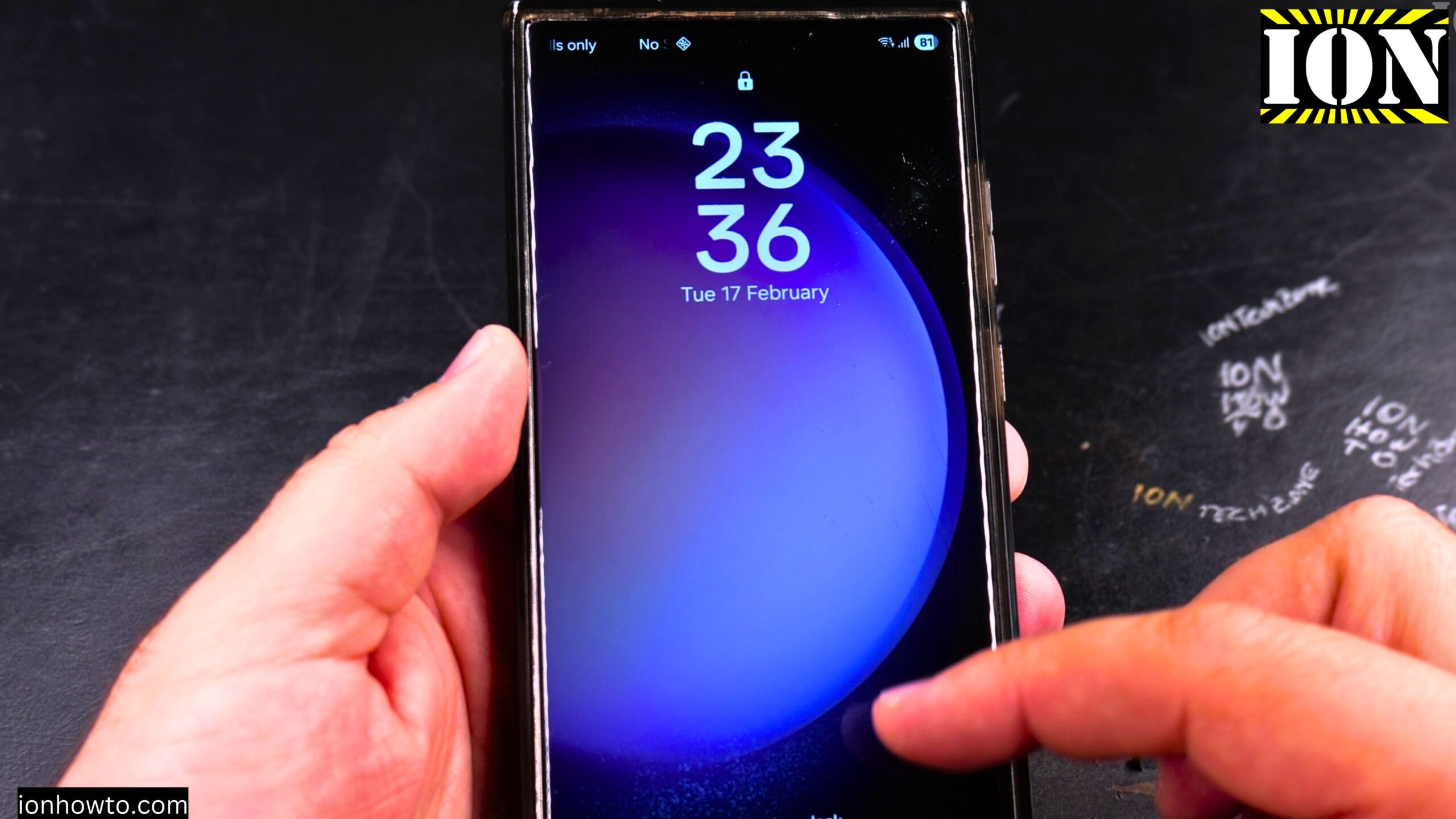
How to Enable Double Tap to Wake on Samsung Phones.
Learn how to turn on double tap to wake so you can wake up your Samsung phone without pressing the power button.
If you want to quickly see the time or check for notifications, double tap to wake is a handy feature. Instead of picking up your phone or reaching for the power button, you just tap the screen twice. You can also double tap to put the screen back to sleep.
This guide uses a Samsung Galaxy S23 Ultra running Android 14 with OneUI 6.1. The steps are very similar on most other Samsung Galaxy phones.
What Does Double Tap to Wake Do?
When you enable this feature, your screen turns on when you double tap it while the phone is asleep. This is useful when your phone is sitting on a desk or table. You do not need to pick it up or press any buttons.
Samsung also includes a second feature called double tap to sleep. This lets you double tap an empty area of your home screen to turn the display back off.
How to Enable Double Tap to Wake

Here are the steps to turn on this feature on your Samsung phone:
· Open the Settings app
· Tap on Advanced features
· Tap on Motions and gestures
· Look for Double tap to turn on screen
· Tap the toggle switch to turn it on
How to Enable Double Tap to Sleep (Optional)
While you are in the same menu, you can also turn on double tap to sleep. This lets you turn off your screen by double tapping an empty spot on your home screen.
Here is how to do it:
· Stay in Settings > Advanced features > Motions and gestures
· Look for Double tap to turn off screen
· Tap the toggle switch to turn it on
How to Test If It Is Working
Lock your phone by pressing the power button once. Then double tap anywhere on the screen. Your screen should wake up and show the lock screen.
If you also enabled double tap to sleep, go to your home screen and double tap on an empty area (not on an app icon). The screen should turn off.
Other Wake Options in the Same Menu
While you are in Motions and gestures, you might notice another useful option:
Lift to wake – This turns on your screen automatically when you pick up your phone. You do not need to tap anything. Just lift the phone and the screen lights up.
You can enable all three features or just the ones you like.
Why Use Double Tap to Wake?
Here are some good reasons to turn this feature on:
· You can check the time or notifications without picking up your phone
· It reduces wear on your power button over time
· It feels faster and more convenient when your phone is sitting on a desk
· You can turn the screen off just as easily with double tap to sleep
A Note About Accidental Wake Ups
Once you enable double tap to wake, your screen may turn on if something taps it twice while in your pocket or bag. Most Samsung phones use sensors to help prevent this, but it can still happen occasionally. If you find this annoying, you can always turn the feature back off using the same steps.
Leave a Reply Cancel reply