


When you try to replace an old credit or debit card on Roblox while you have an active Roblox Plus subscription, Roblox prevents you from deleting the old card until a new card takes over the recurring renewal. Here is the exact step-by-step process to add a replacement card, update your Roblox Plus renewal method, and remove the old card.

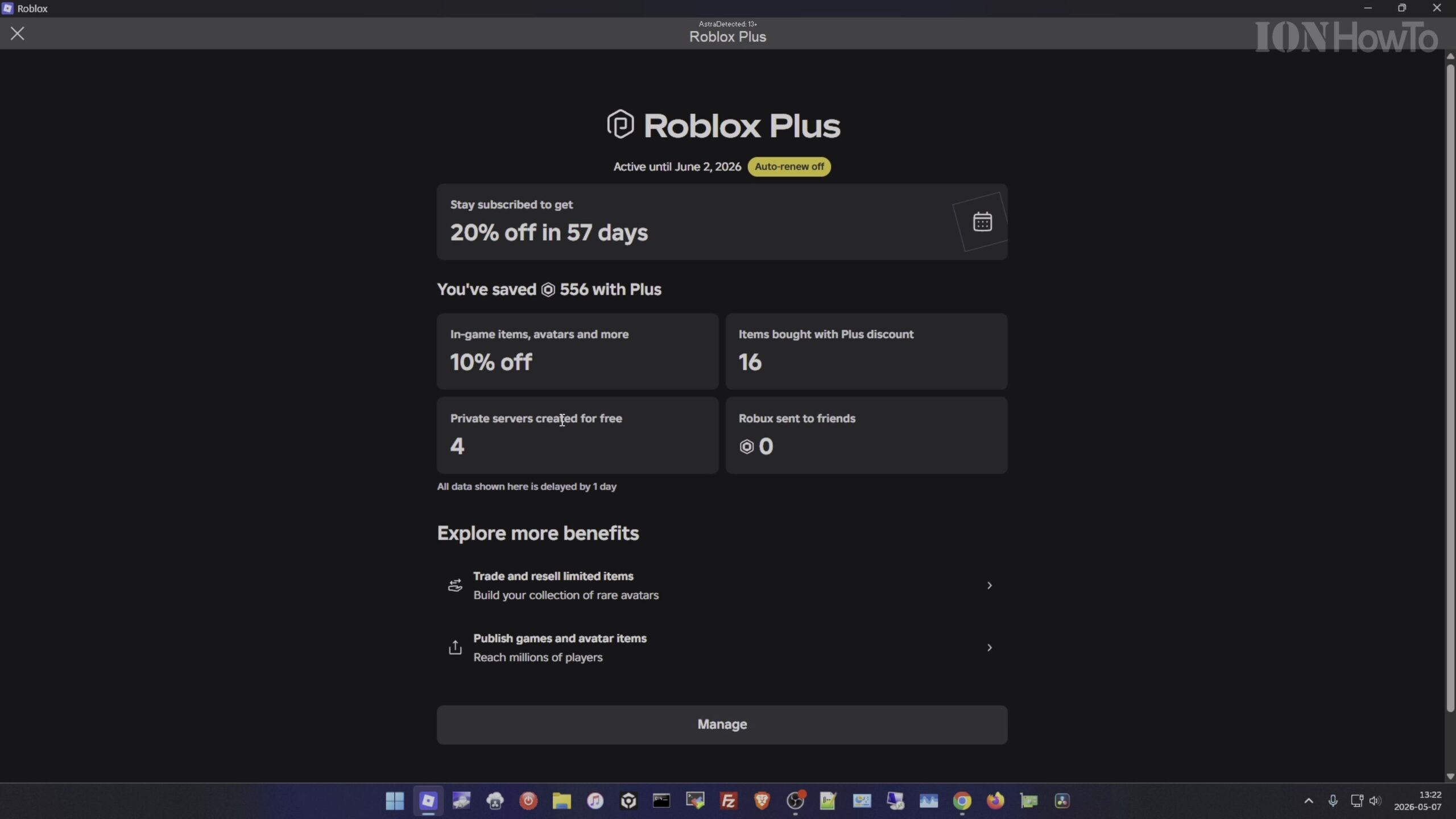
Open Roblox Settings and Go to Payment Methods
Sign in to your Roblox account, click the settings gear icon at the top-right corner, and choose Settings. Click Payment Methods in the left navigation menu to see your currently saved card.
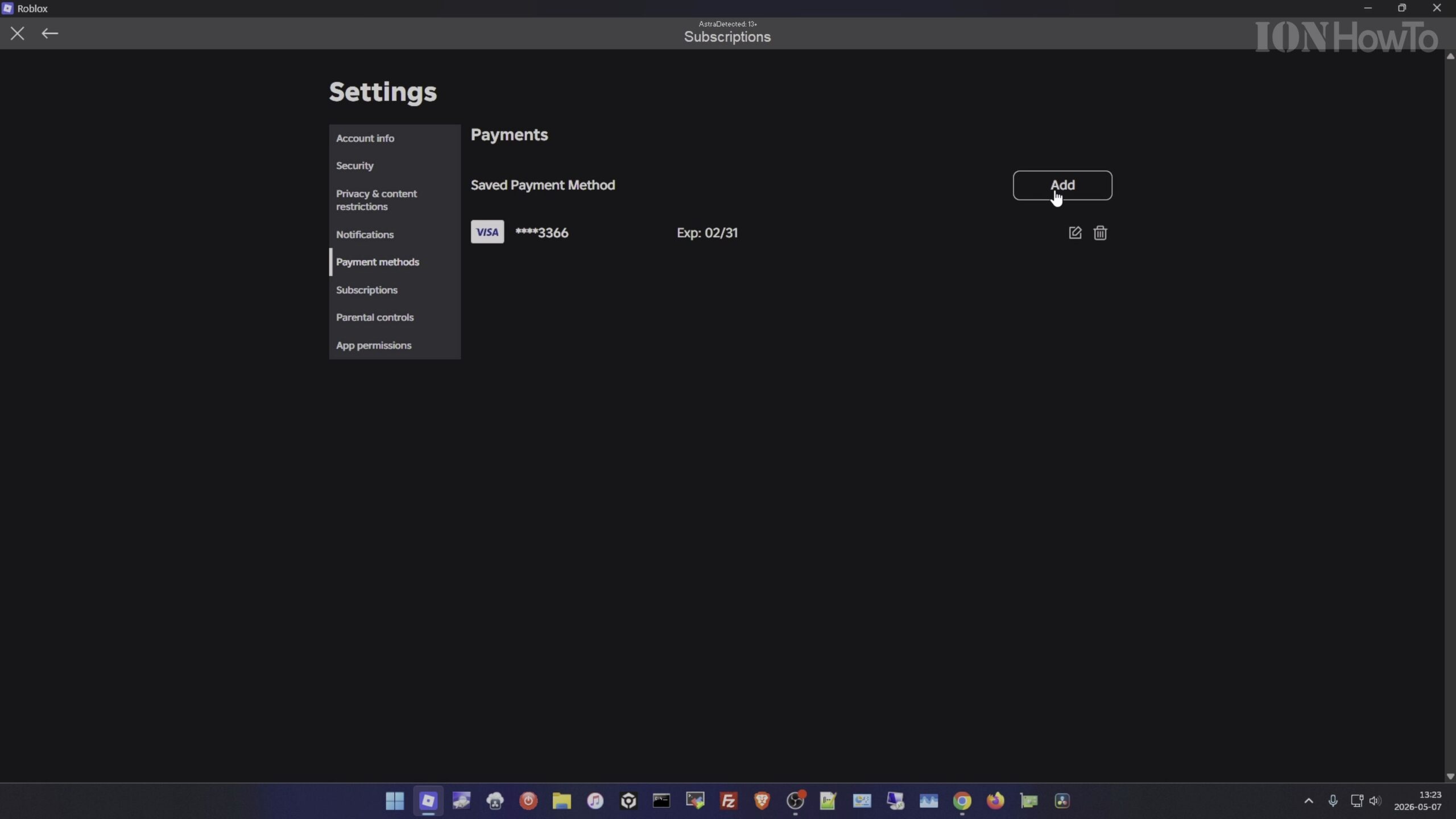
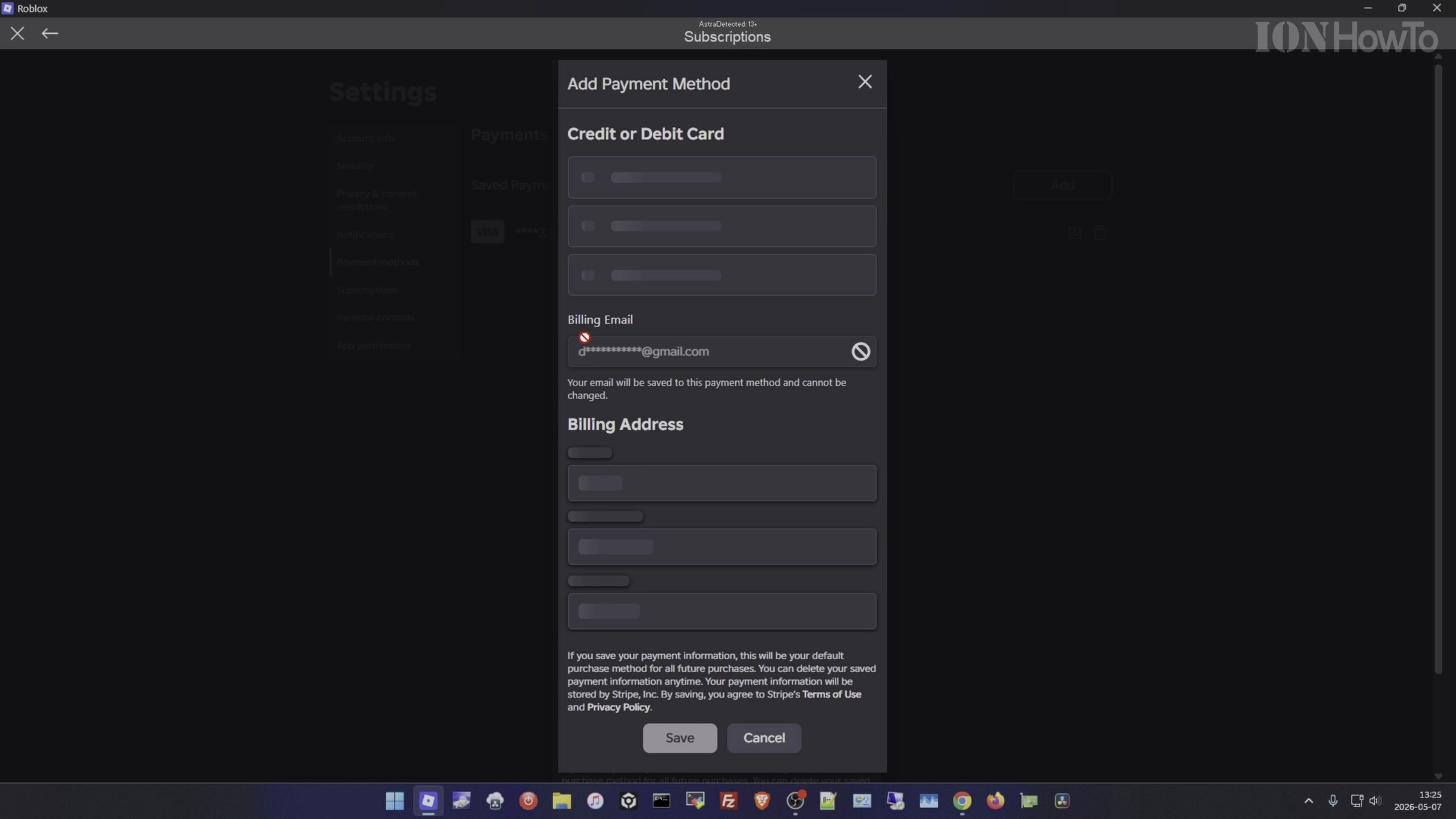
Add Your New Credit or Debit Card as a Second Payment Method
Click Add Payment Method and enter the card number, expiration date, security code, and billing zip code for your new card. Save the card so that both the old card and the new card appear in your Payment Methods list.
Open the Subscriptions Tab and Select Your Roblox Plus Plan
Navigate to the Subscriptions tab in the left sidebar and click on your active Roblox Plus (or Roblox Premium) membership to open its management details.
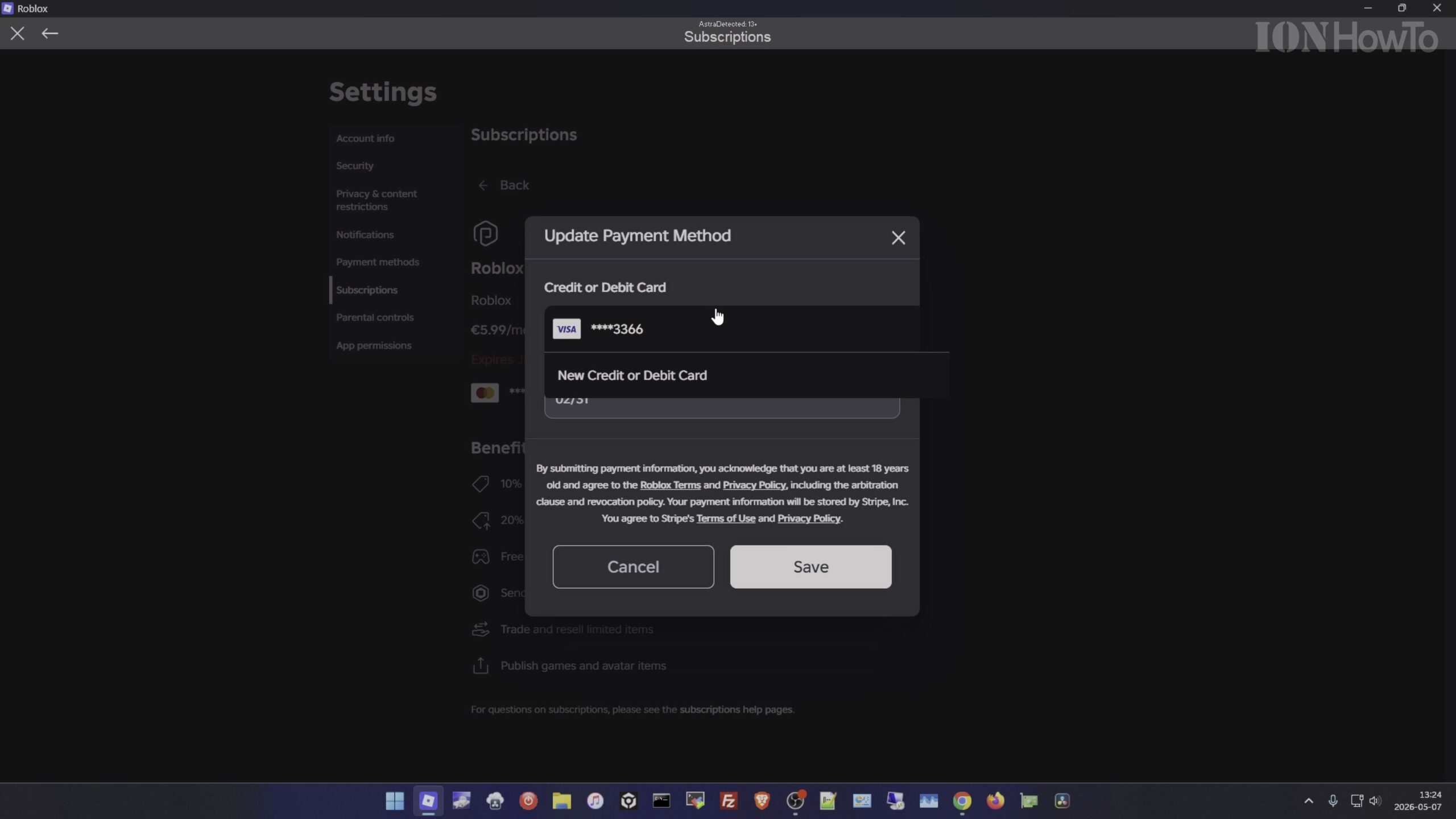
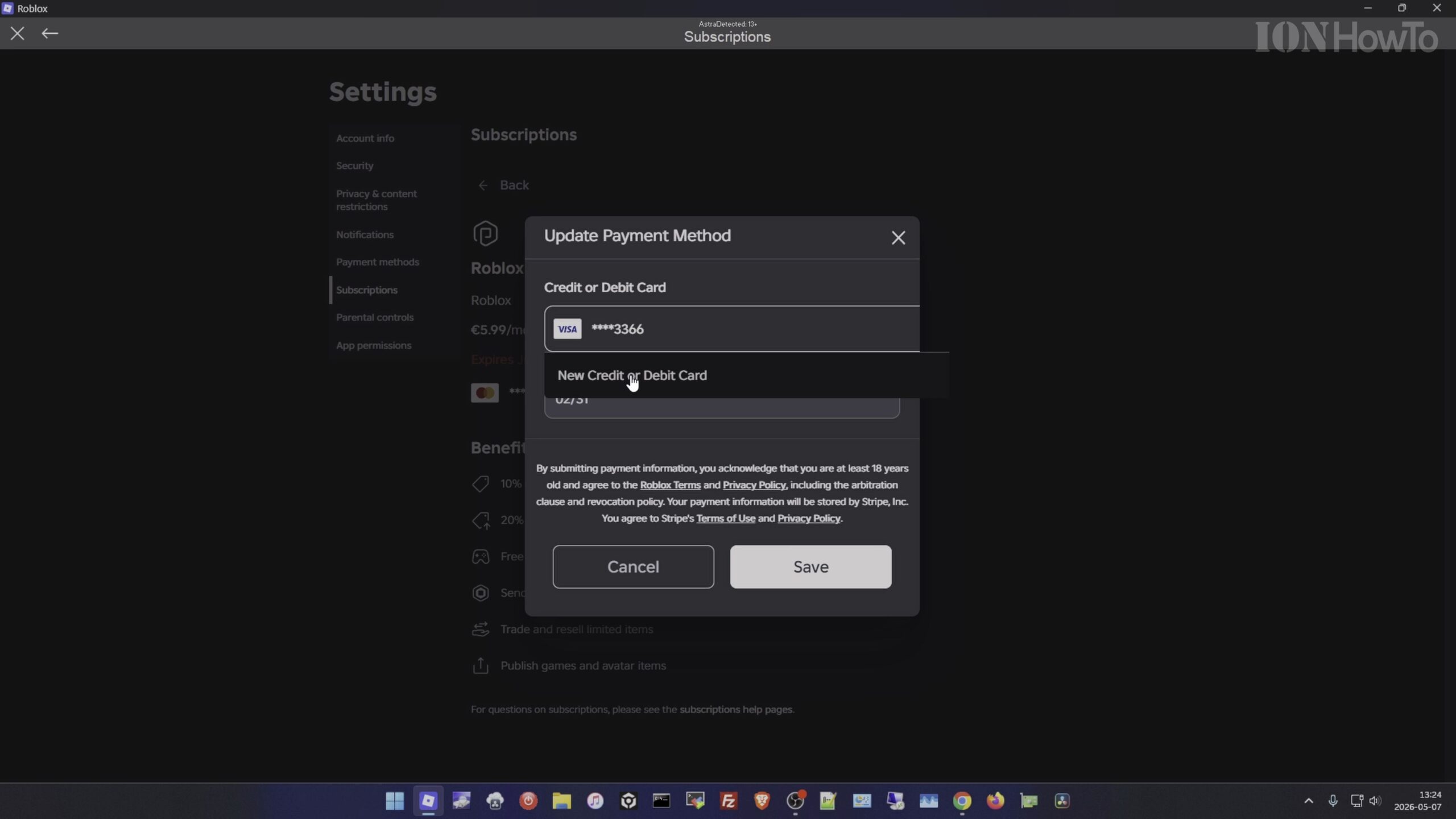
Update the Subscription Renewal Card or Cancel Free Trial Renewal
Change the designated renewal payment method to your newly added second card (or cancel the automatic renewal if you are on a Roblox Plus free trial and do not wish to continue).
Return to Payment Methods and Delete the Old Card
Head back to the Payment Methods tab and click the trash bin icon next to your old card. Because the old card is no longer tied to an upcoming subscription renewal, Roblox removes it cleanly, leaving only your new card on file.
Helpful Tips and Related Guides
Unlike the older Roblox Premium plans that granted fixed Robux stipends and bonus Robux on purchases, Roblox Plus focuses on item purchase discounts that scale the longer you stay subscribed. Read our related tutorials on Renewing a Cancelled Roblox Plus Subscription, Installing Roblox on MacBook Air M5, and our Roblox How-To Guides category.
Leave a Reply Cancel reply