


If you enabled a Passkey on your Roblox account for quick biometric sign-in but now want to switch back to logging in with a standard password, Roblox sometimes hides the password option once a Passkey is active. In this guide, I’ll show you how to safely remove the Passkey and create or restore your account password.

Open Roblox Settings and Go to Login Methods
Open Roblox in your web browser or mobile app, tap the gear icon, and select Settings. Under Account Info, look for Login Methods and click Manage.
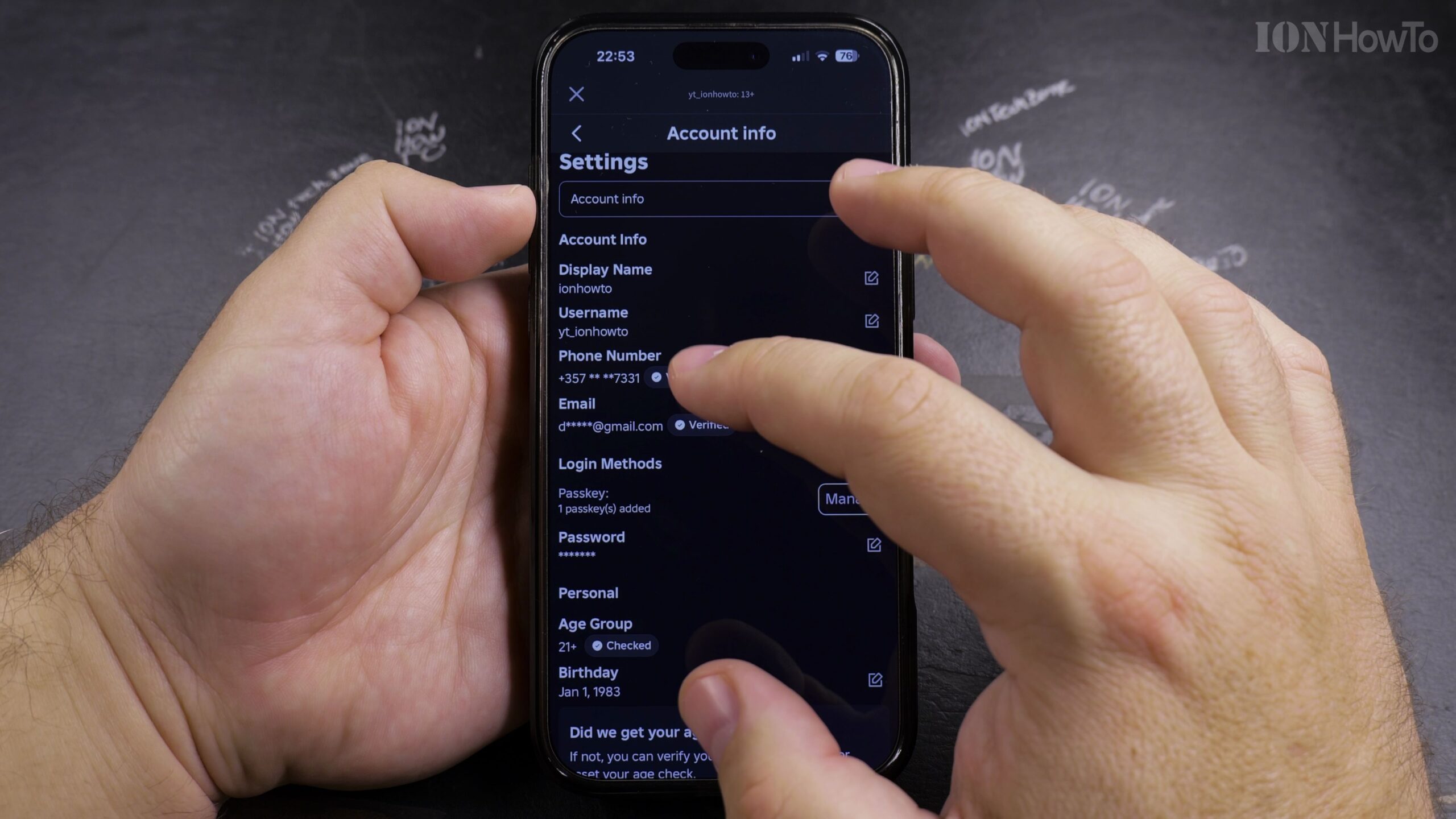
Locate the Passkey Section and Tap the Delete Icon
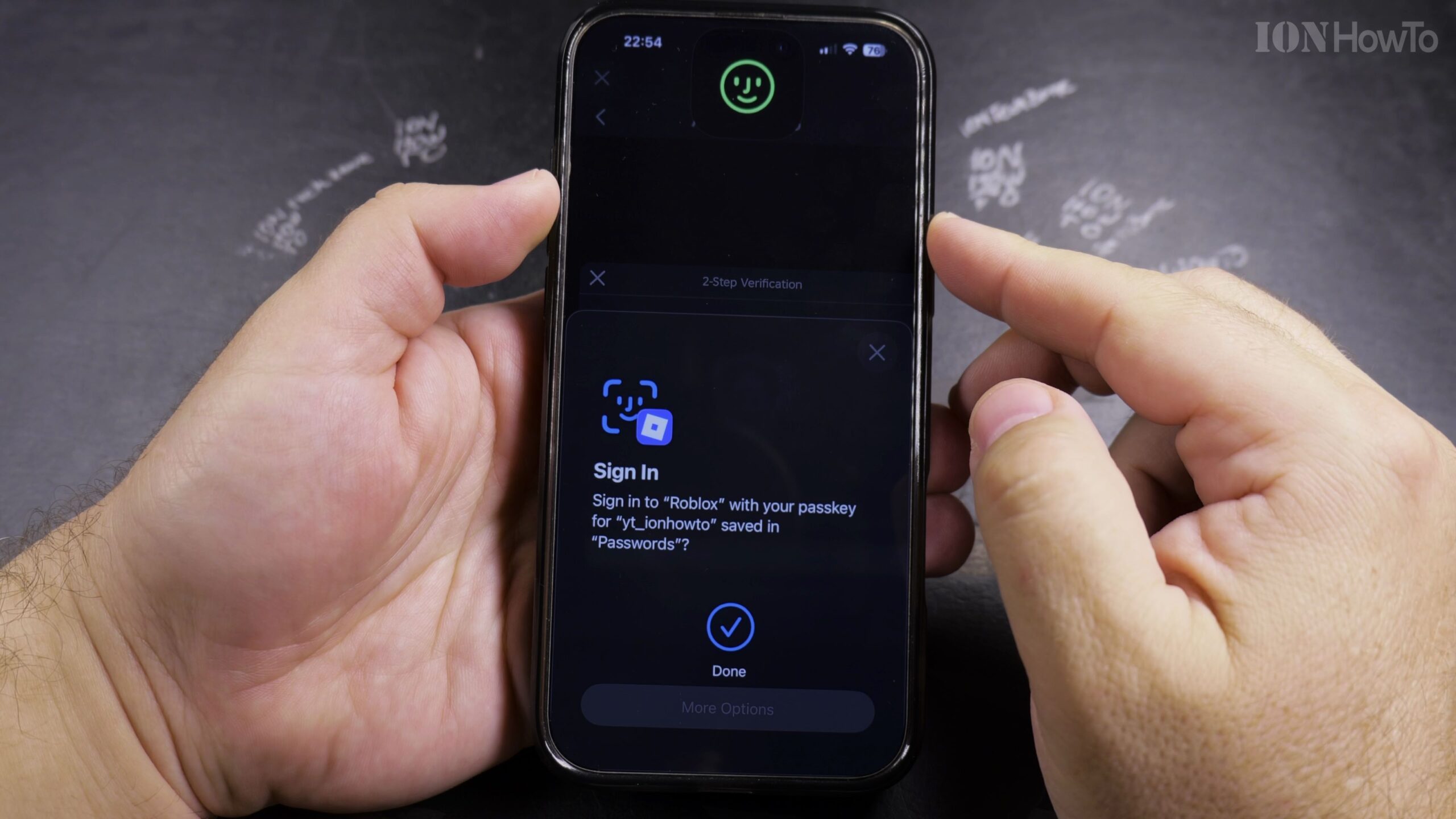
Find your registered Passkey entry and tap the trash bin or Remove icon. Your phone or browser will prompt you to verify your identity using Face ID, fingerprint, or your device PIN before removing it.
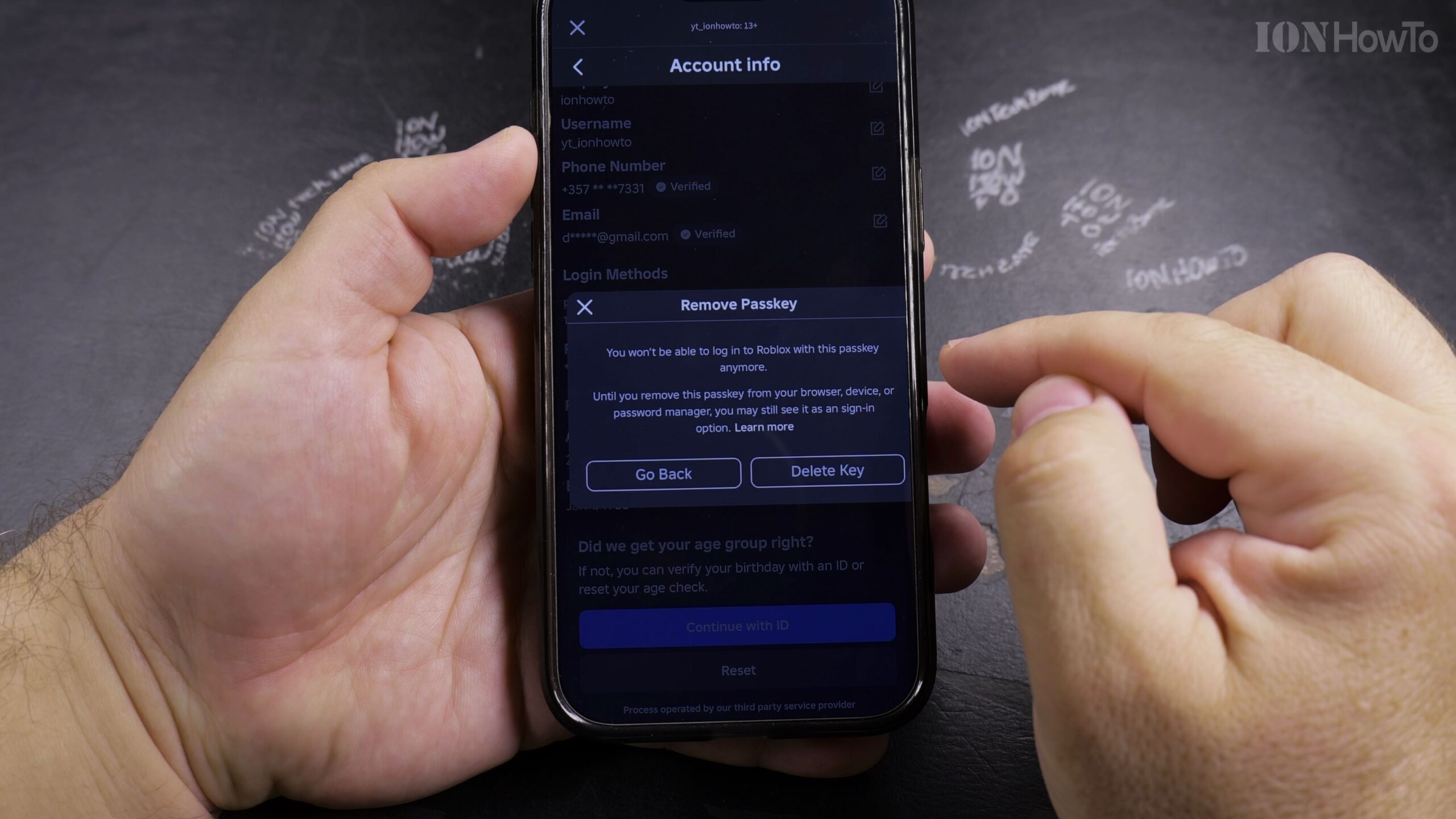
Confirm Passkey Removal and Return to Account Info
Once biometric verification is complete, the Passkey is deleted from your account. Head back to the main Account Info page to check your password status.
Add or Reset Your Roblox Account Password
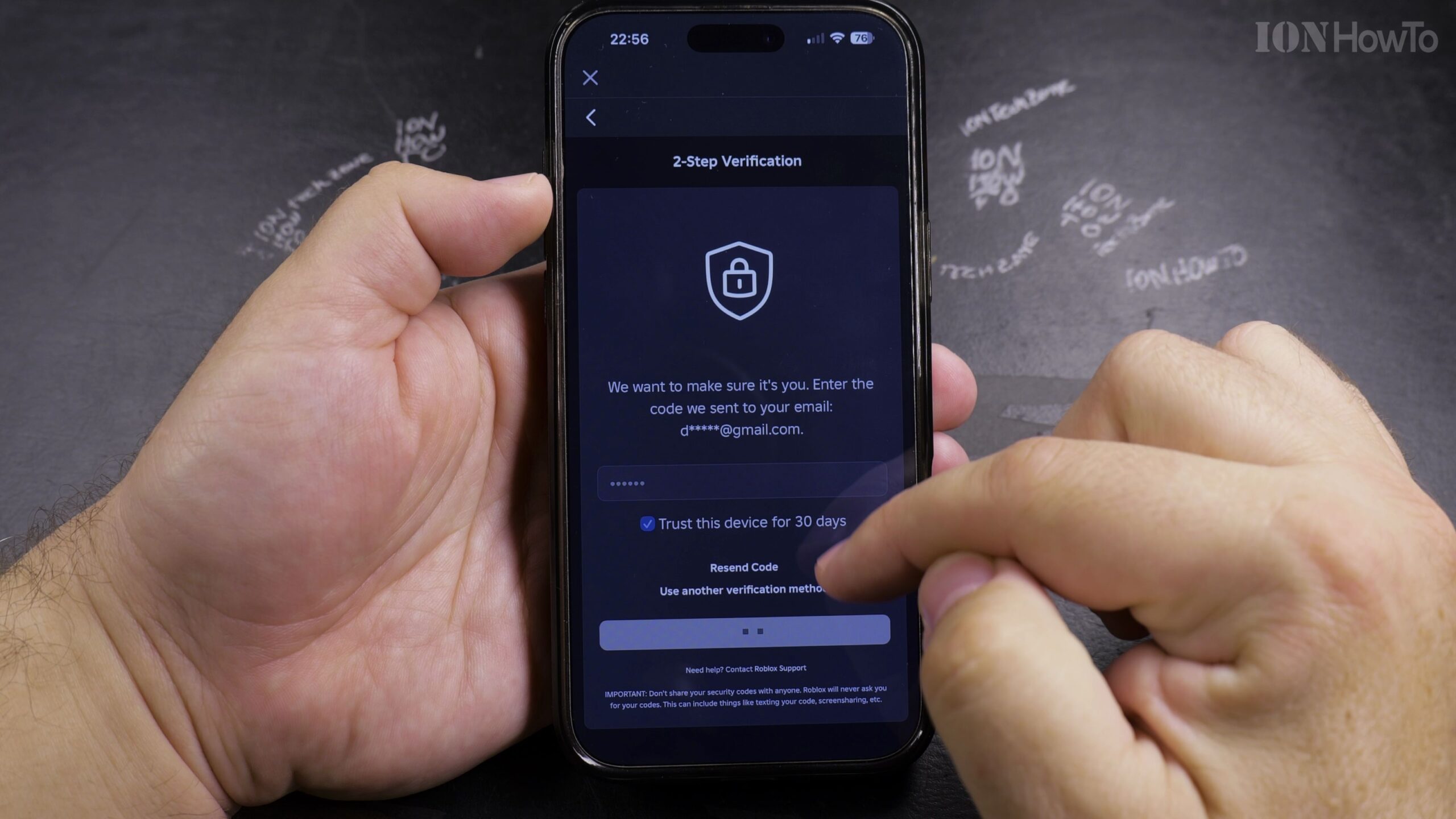
If your account has no password on file because you only set up a Passkey, click Add Password or use the Forgot Password link to create a strong new password via email verification.
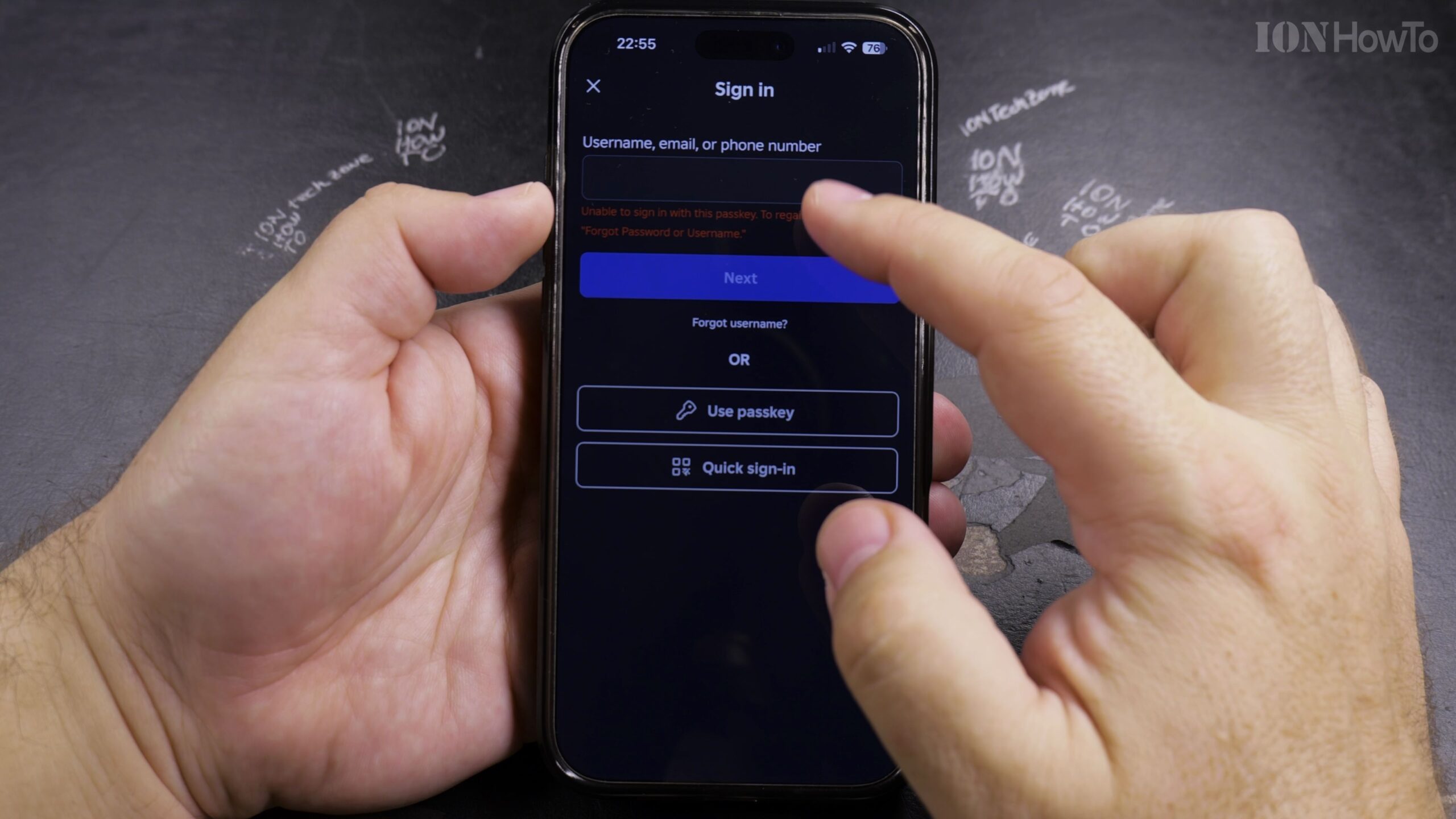
Log Out and Verify Logging In with Your New Password
Log out of Roblox completely, then enter your username and new password on the login screen to verify that password sign-in is working smoothly.
Helpful Tips and Related Guides
Keeping a verified email and phone number attached to your Roblox account ensures you can always recover your login if you change authentication methods. For more Roblox guides, explore our Roblox How-To Guides, check our tutorial on Removing Payment Methods from Roblox, or browse Roblox Games.
Leave a Reply Cancel reply