


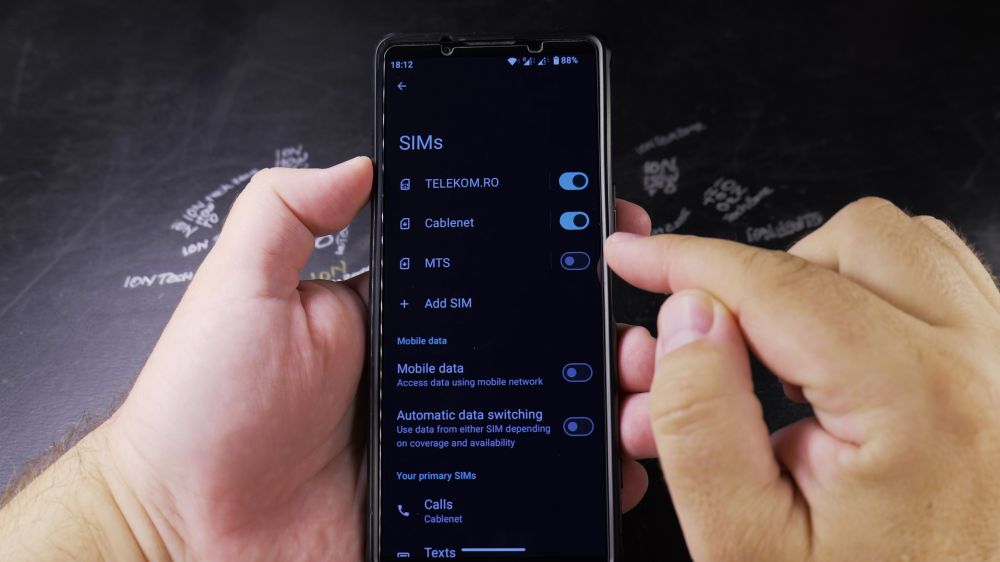
When your phone has two SIM cards from the same provider, confusing generic names like SIM 1 and SIM 2 can cause mistakes. I’ll show you how to rename your SIM lines and assign custom colors on Android.

1. Open SIM Settings
Open phone **Settings**, tap **Network & internet**, and tap **SIMs**.

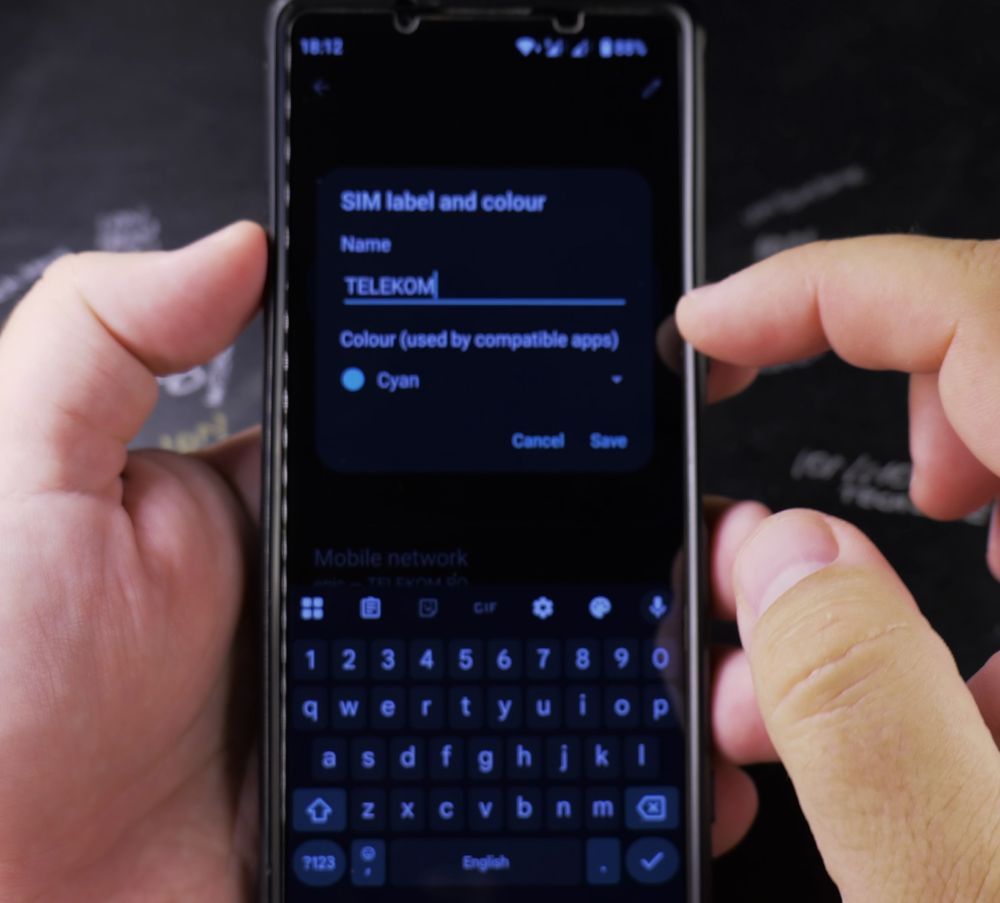
2. Choose the SIM Card
Tap on the carrier line you want to customize.
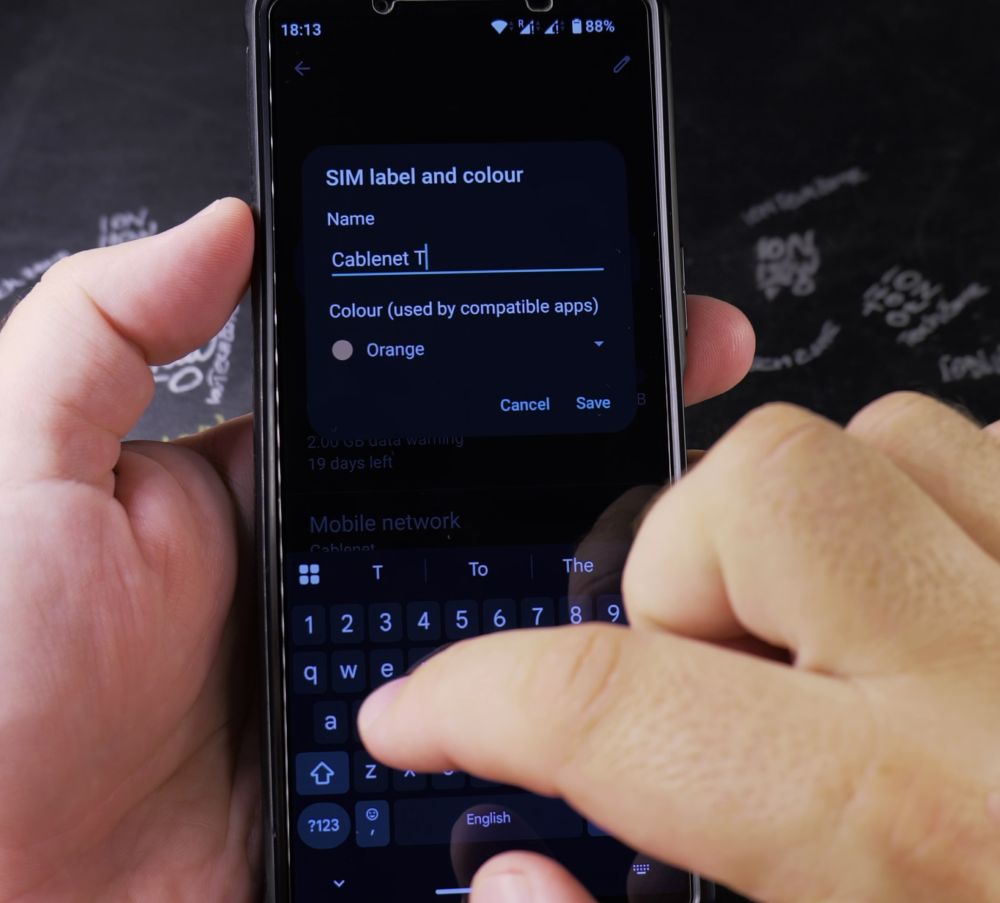
3. Tap the Pencil Icon
Tap the **pencil (Edit)** icon next to the SIM name at the top.
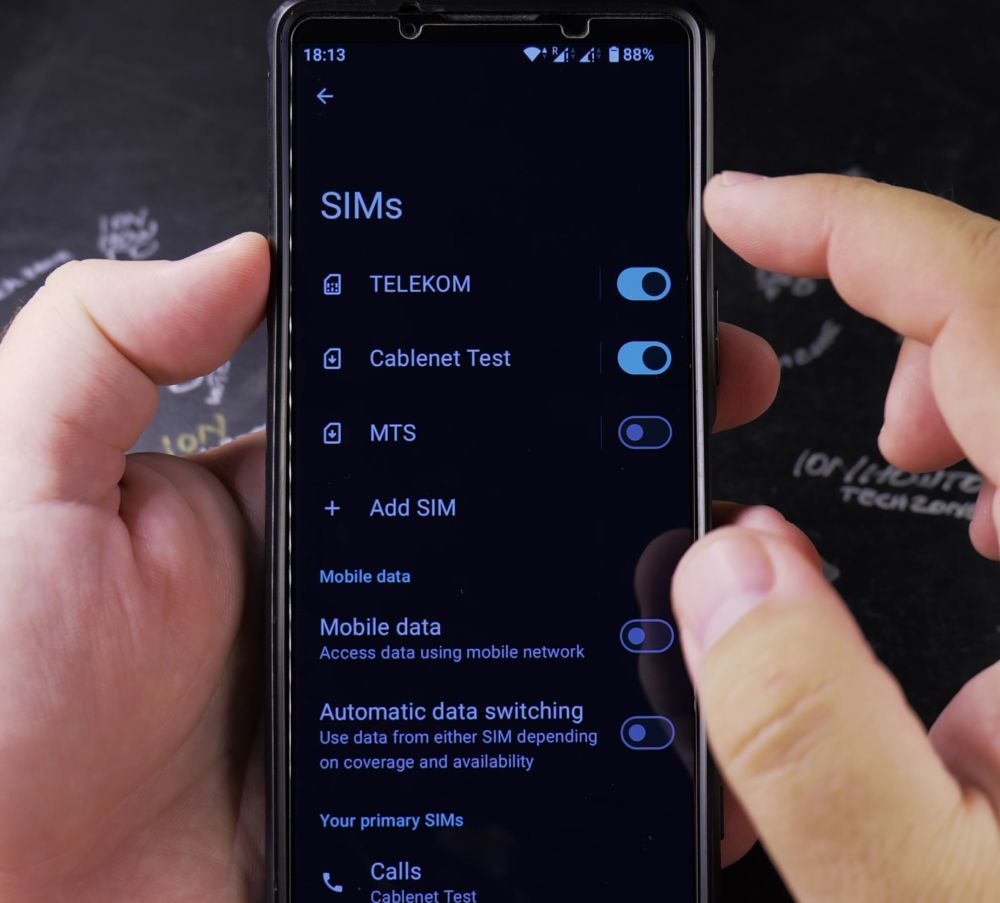
4. Type a New Name
Clear the default provider name and type a clear label (like *Personal*, *Work*, or *Travel*).

5. Pick a Color
Tap a color circle from the palette to tint dialer badges and text message indicators, then tap **Save**.
Helpful Tips
Color coding your SIM cards makes outgoing call prompts instantly identifiable at a glance. For more dual SIM advice, visit our Android Guides hub.
Leave a Reply Cancel reply