


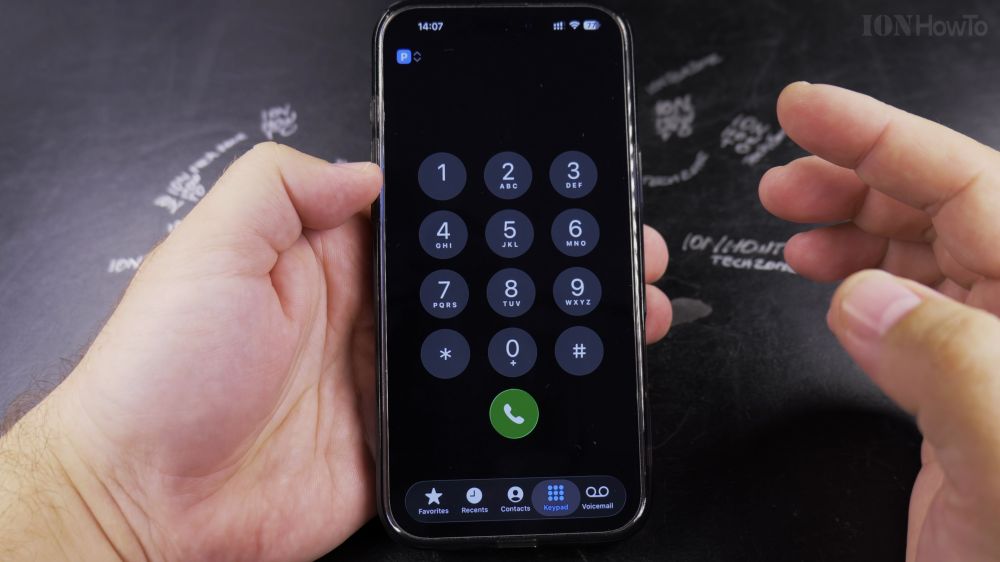
When someone shares their phone number with you, saving it right away ensures you can call or text them without hunting for scraps of paper. I’ll show you how to create a new contact on iPhone in a few simple taps.

1. Locate the Number
Open the **Phone** app and tap **Recents** (or type the number on the **Keypad** and tap *Add Number*).


2. Tap the Info Icon
Find the phone number you want to save and tap the small blue **i** (info) button on the right edge.
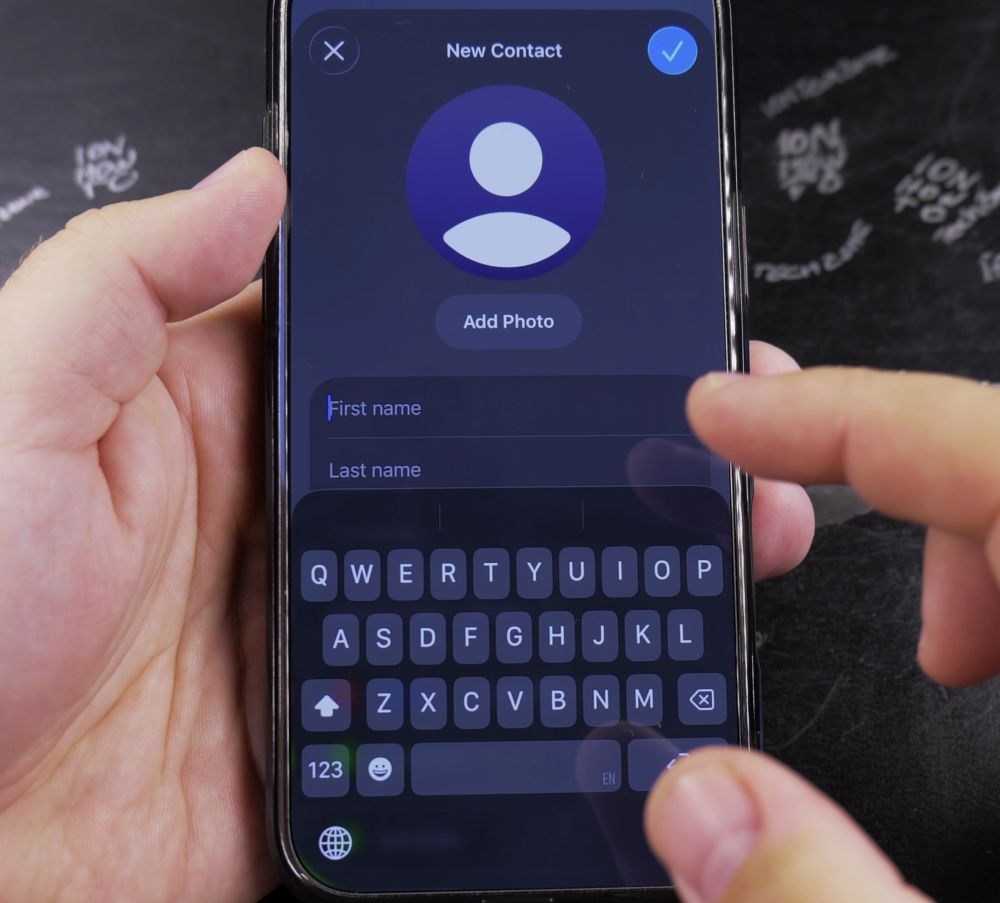
3. Tap Create New Contact
Scroll down and tap **Create New Contact**.
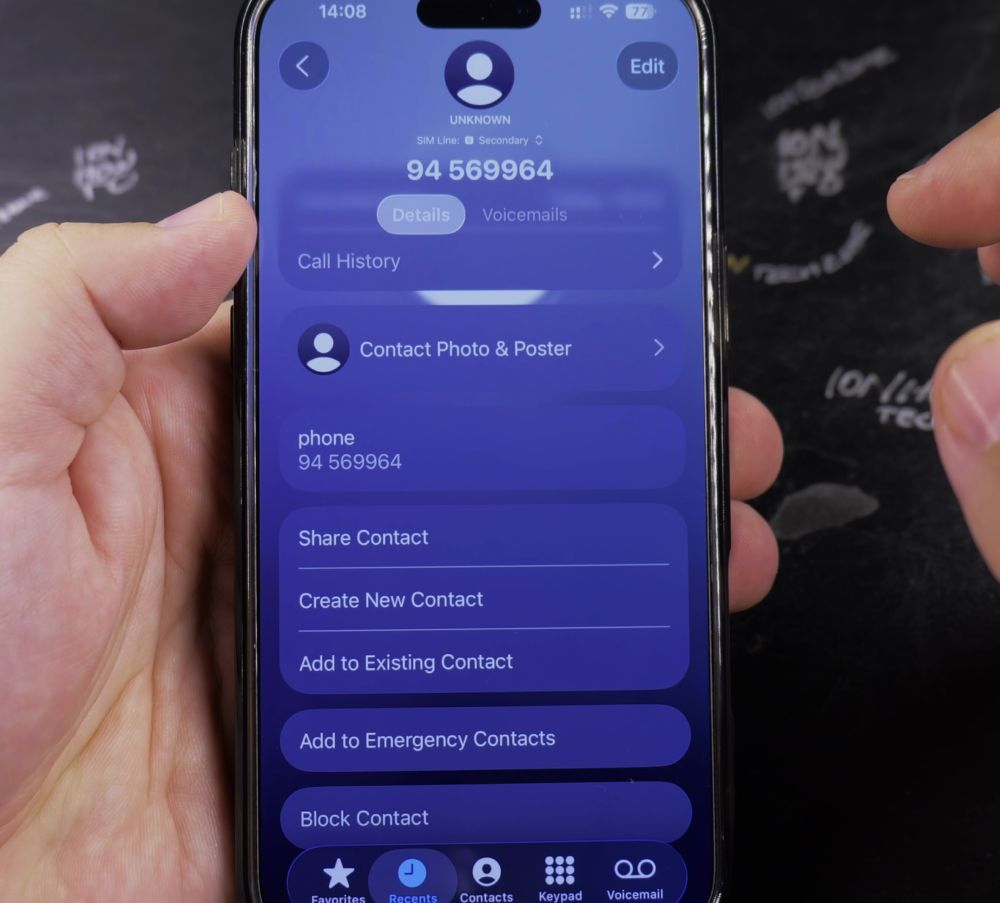
4. Enter Name and Details
Tap the **First name** field and type their name. You can also add their last name, company, or email address.
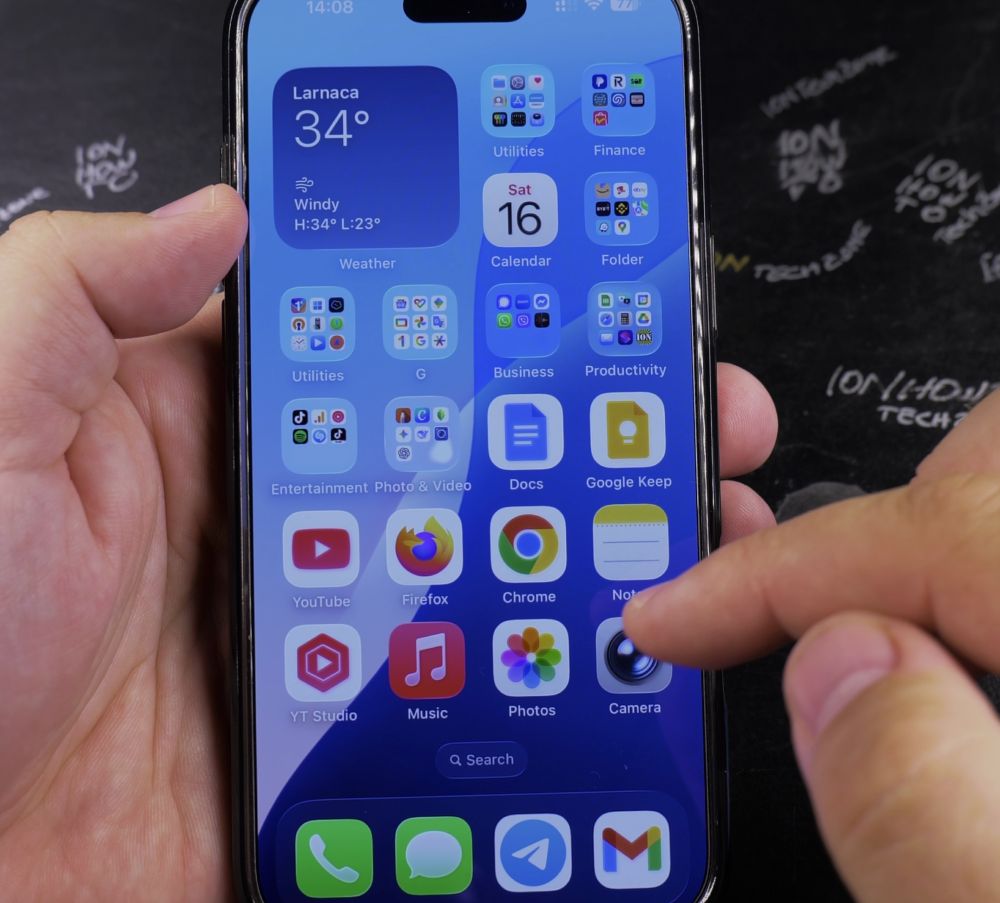
5. Save the Contact
Tap **Done** in the top-right corner to save the new contact to your iPhone.
Helpful Tips
If your iPhone is connected to iCloud, your new contact syncs automatically to your iPad, Mac, and Apple Watch within seconds. For more phone tutorials, explore our iPhone Guides collection.
Leave a Reply Cancel reply