


Safari sluggishness or stubborn website glitches on iPhone can be fixed either by clearing recent browsing data or wiping cache for one website at a time. Follow these easy step-by-step instructions to reach both Safari cache options inside iOS Settings without unnecessarily erasing every saved login.

What you will do
- Open iPhone Settings and Find Safari
- Choose Clear History and Website Data for Recent Hours
- Confirm Clear History
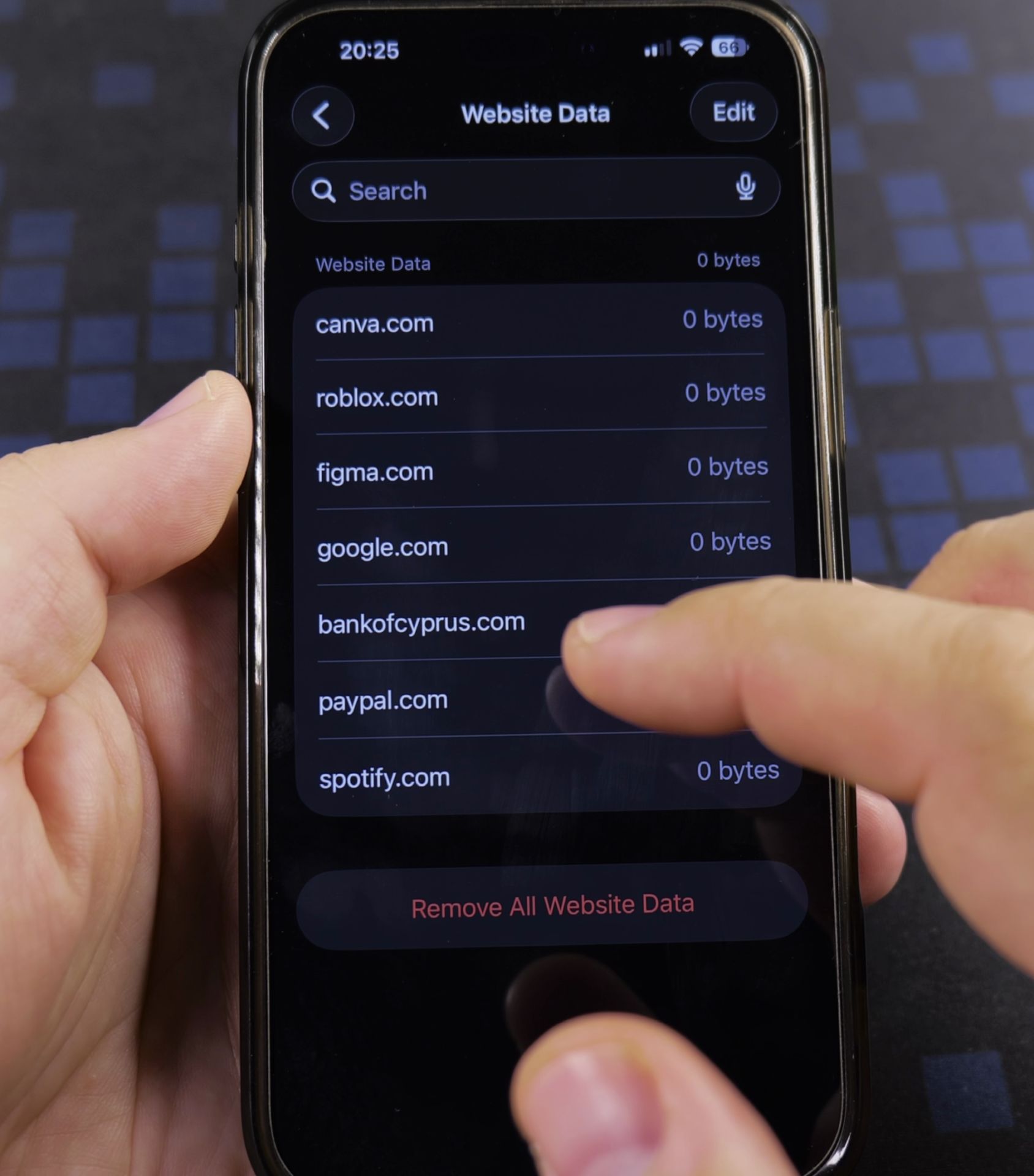
- Open Advanced and Website Data to Clean One Site Only
Recommended Amazon Gear and Accessories
Disclosure: This article contains Amazon affiliate links. As an Amazon Associate, we earn from qualifying purchases at no extra cost to you.
- iPhone Accessories
- iPhone Charger
- iPhone USB-C Cable
- iPhone MagSafe Accessories
- iPhone Case
- iPhone Screen Protector
1. Open iPhone Settings and Find Safari
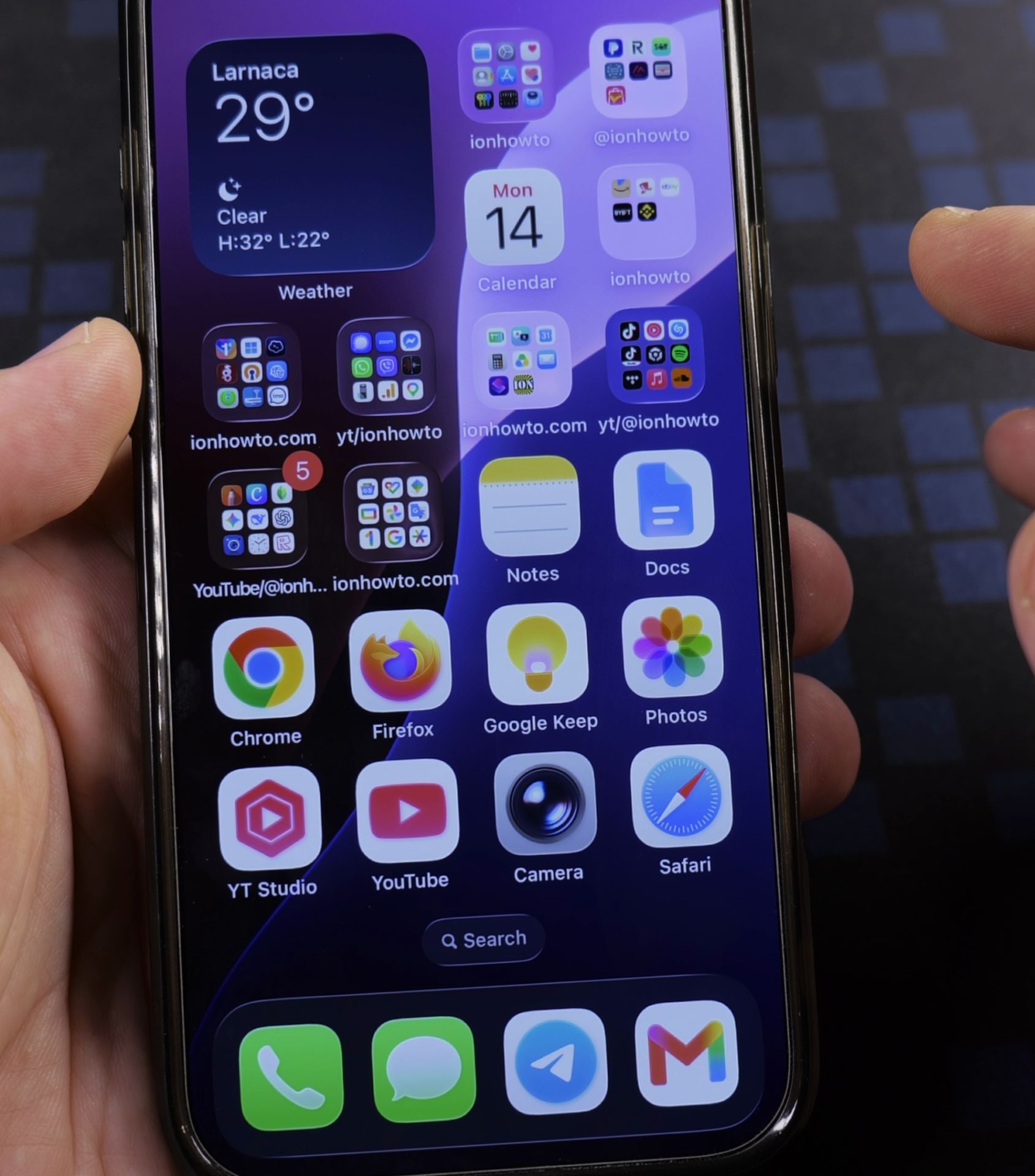
Open the Settings app on your iPhone and search for Safari (or find Safari under Settings, Apps, Safari) to open all Safari browser controls.

2. Choose Clear History and Website Data for Recent Hours
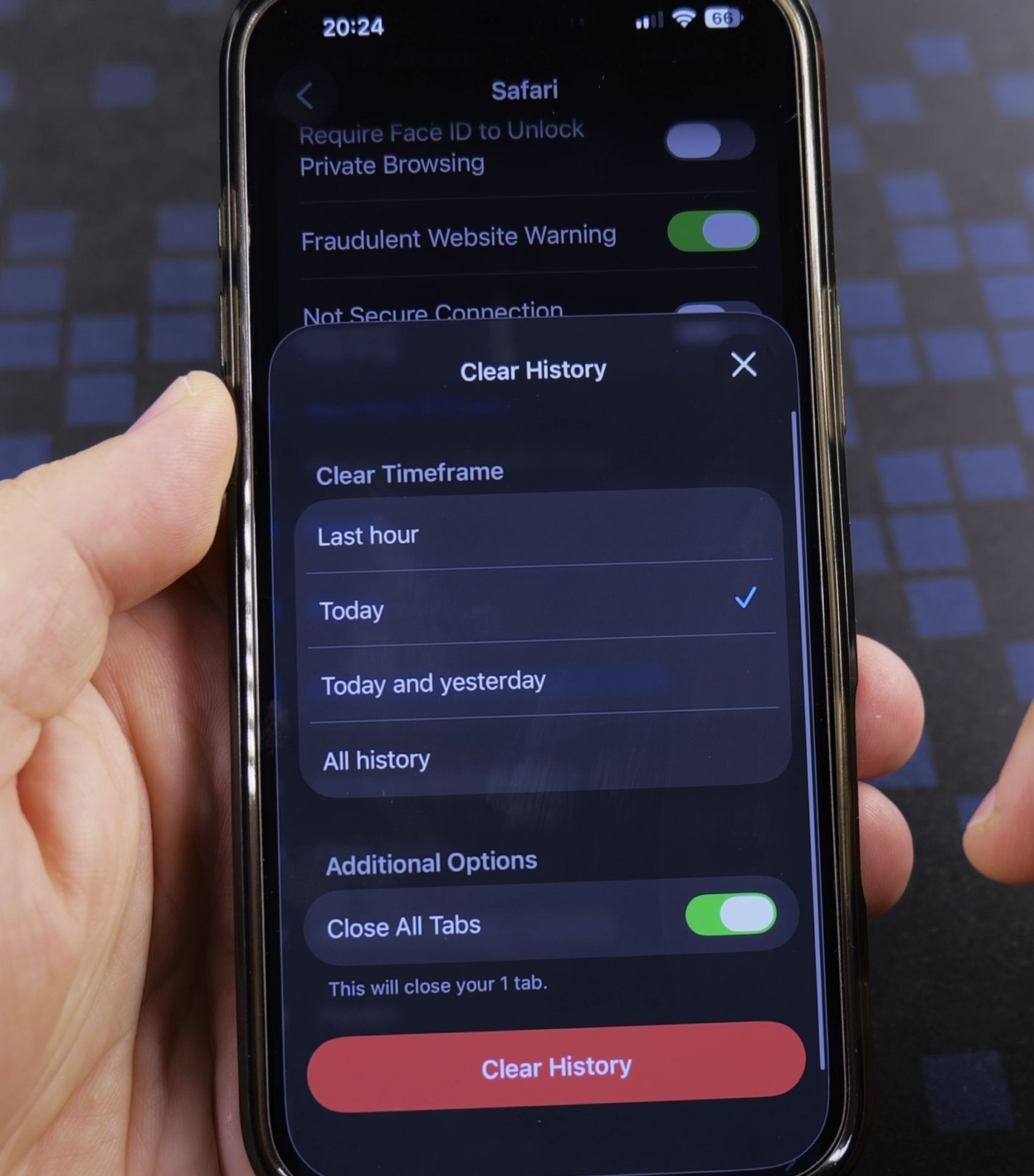
Tap Clear History and Website Data, pick a timeframe such as Today or Last Hour instead of All History if you want to minimize lost logins, and decide if you want to close all open tabs.

3. Confirm Clear History
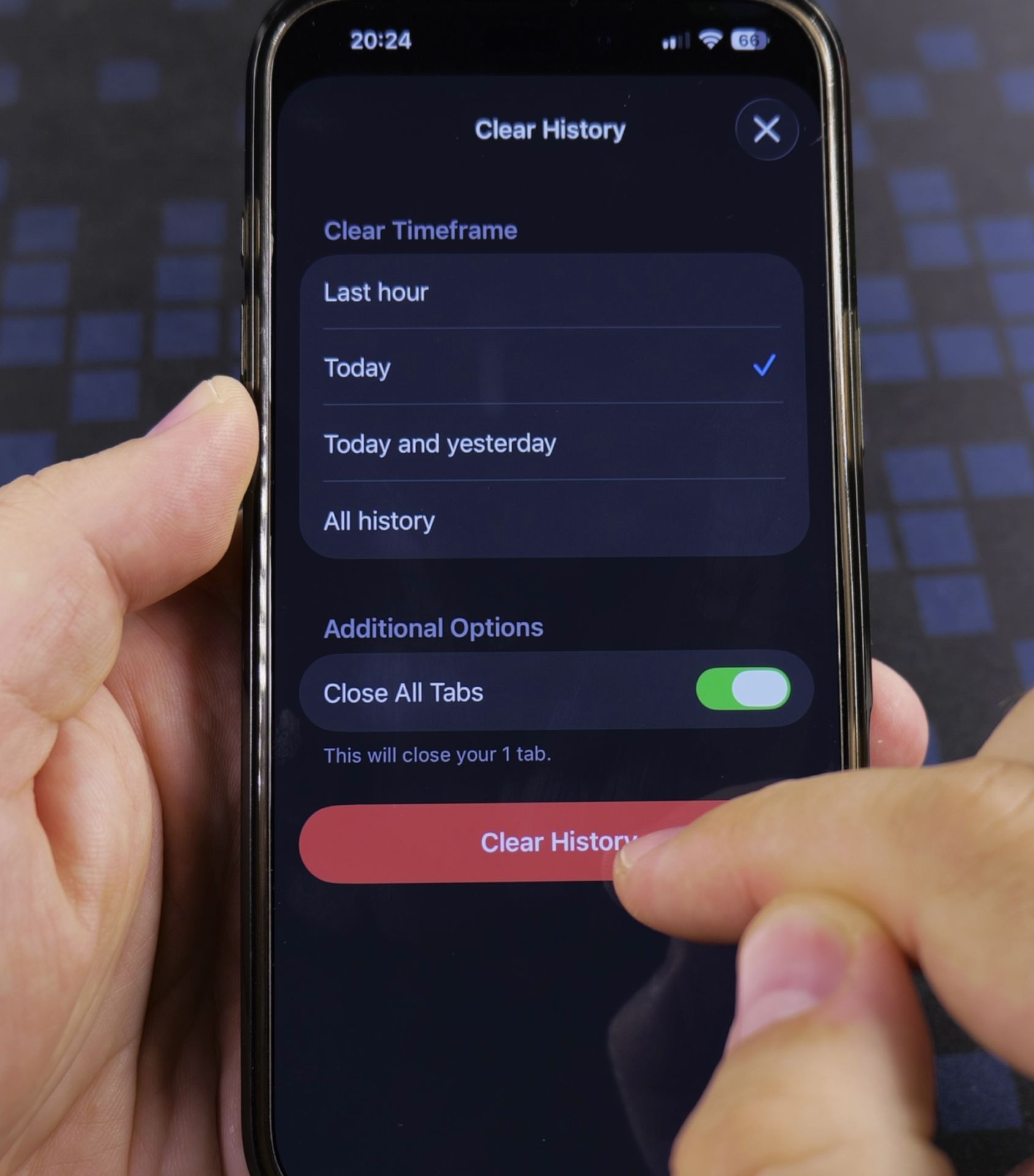
Tap the Clear History button to remove cached images, scripts, and history for the time window you selected.
4. Open Advanced and Website Data to Clean One Site Only
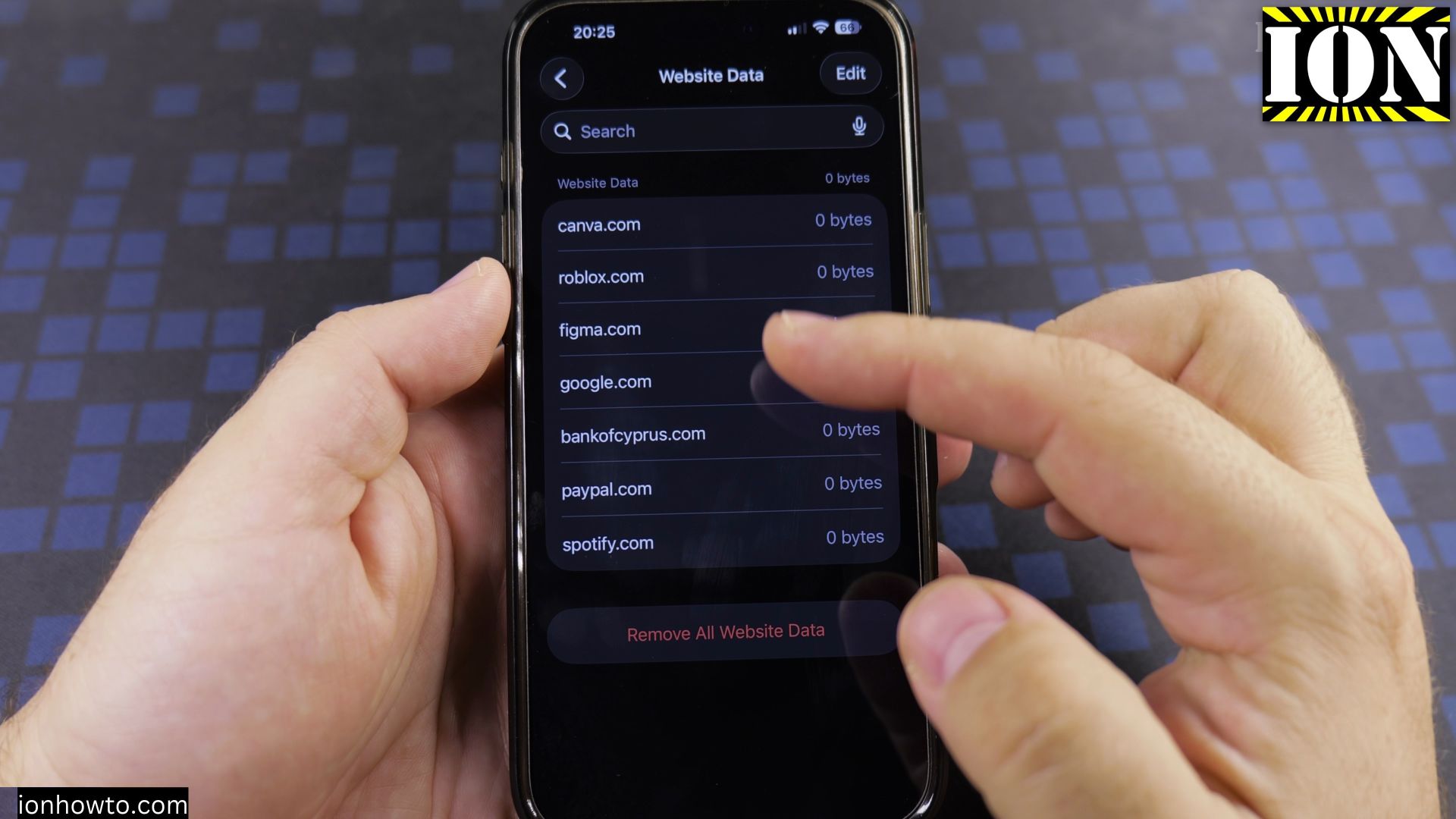
Scroll to the very bottom of Safari settings, tap Advanced, and choose Website Data. Swipe left or tap Edit to delete cached storage for one specific website while leaving all other sites intact.
Helpful Tips
- Deleting just one domain under Advanced, Website Data avoids signing out of unrelated websites.
- Picking Last Hour or Today protects older saved browsing sessions when troubleshooting a fresh page error.
Related Guides
- How to Clear Browsing History in iPhone Safari – How to Clear Browsing History in iPhone Safari Browser.
- Reset All Settings on iPhone Without Losing Data – How to Reset All Settings on iPhone Without Losing Your Data.
- How to Sign Out and Factory Reset Your iPhone Erase All Data Before Selling – If you’re selling, returning, or giving away your iPhone, you’ll want to wipe all your personal data first.
- iPhone How-To Guides – Browse more tutorials and practical guides in this section.
Leave a Reply Cancel reply