


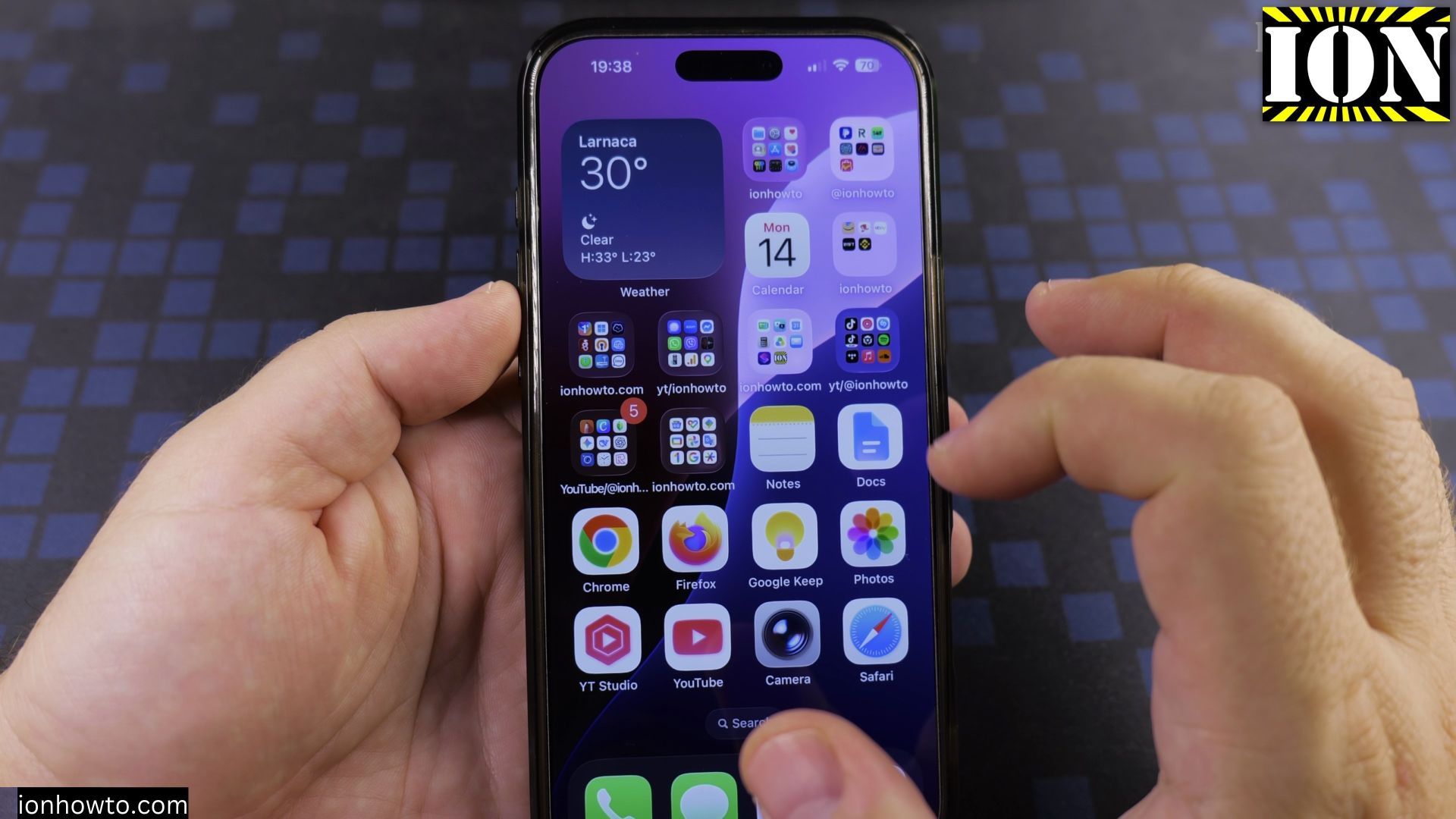
Having an app ask for Face ID or your passcode every single time you tap its icon gets annoying fast when you only locked it temporarily. Watch this easy step-by-step video guide to turn off Require Face ID from the iPhone Home Screen in just a couple of taps.

What you will do
- Press and Hold the Protected App Icon
- Tap Don't Require Face ID
- Confirm Once With Face ID or Passcode
- Tap the App Normally to Confirm Instant Opening
Recommended Amazon Gear and Accessories
Disclosure: This article contains Amazon affiliate links. As an Amazon Associate, we earn from qualifying purchases at no extra cost to you.
- iPhone Accessories
- iPhone Charger
- iPhone USB-C Cable
- iPhone MagSafe Accessories
- iPhone Case
- iPhone Screen Protector
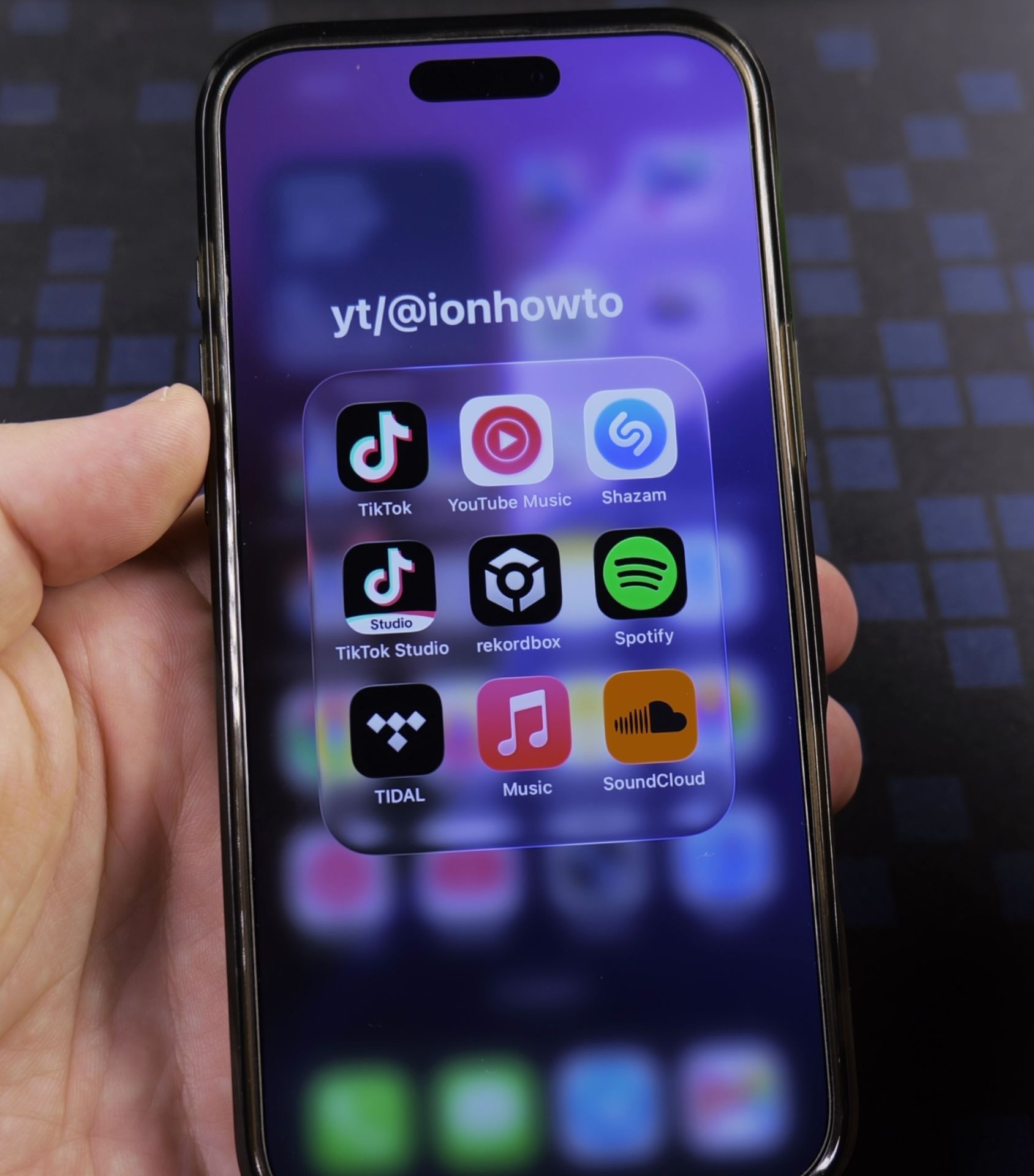
1. Press and Hold the Protected App Icon
Find the app that prompts for Face ID when opening, then press and hold its icon gently on your iPhone screen until the quick-action menu pops up.

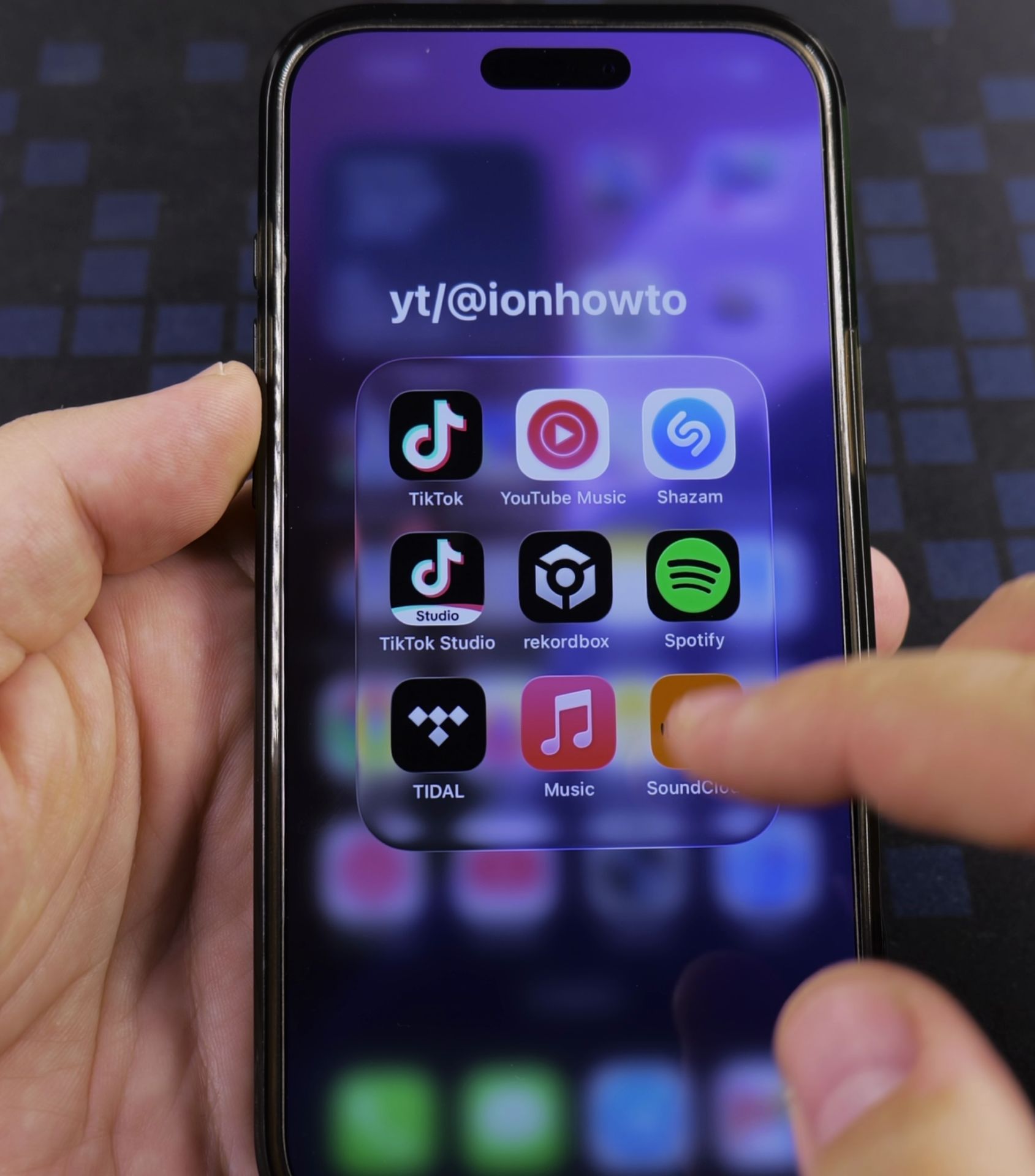
2. Tap Don’t Require Face ID
Look down the quick-action list and tap Don’t Require Face ID so iOS prepares to remove the extra lock on that app.

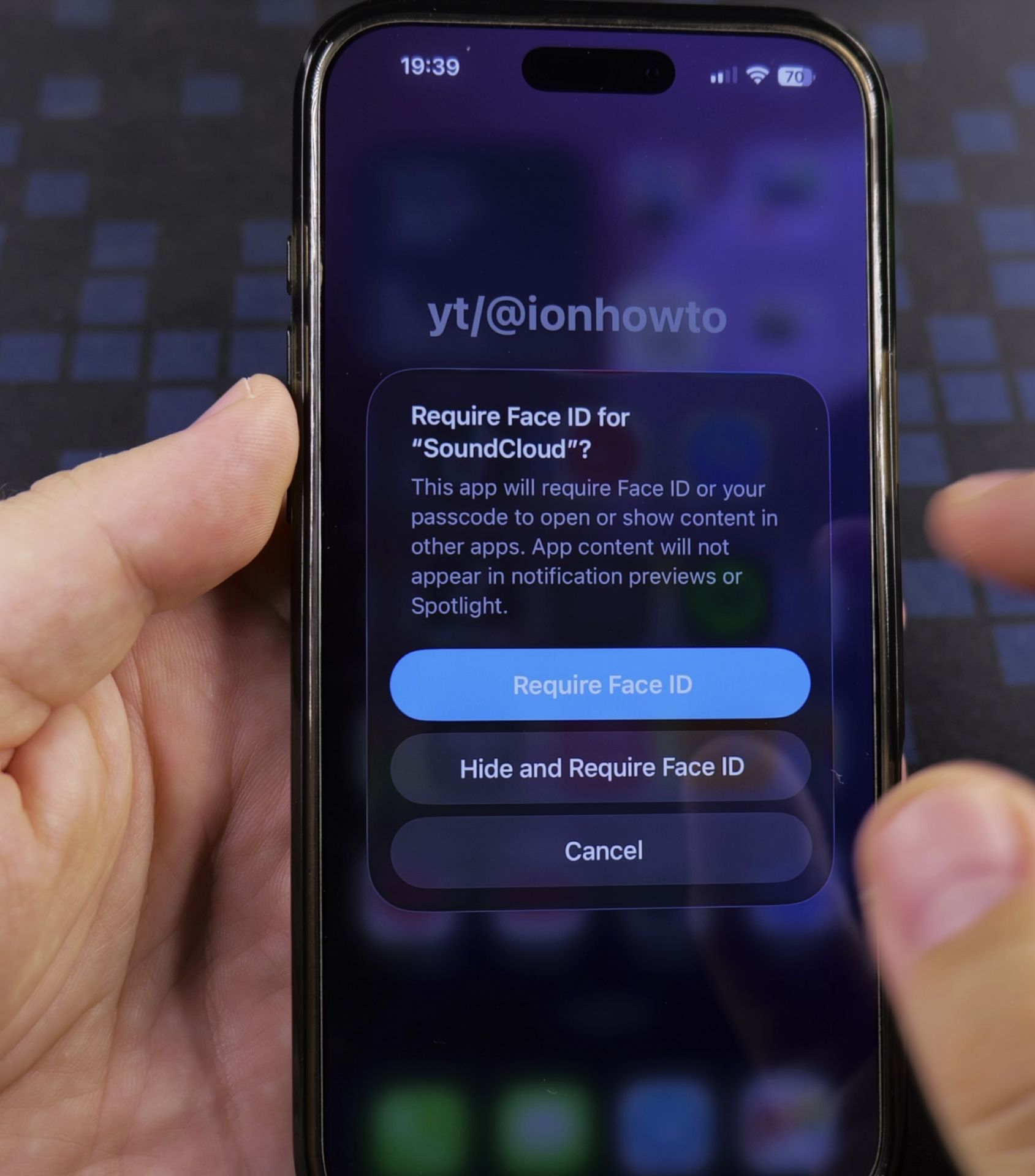
3. Confirm Once With Face ID or Passcode
Let Face ID scan your face (or enter your passcode if prompted) one last time to verify you own the phone before turning the lock off.
4. Tap the App Normally to Confirm Instant Opening
Tap the app icon again to confirm it opens immediately without Face ID. You can re-enable Require Face ID or Hide and Require Face ID anytime using the same long press.
Helpful Tips
- Certain banking or Apple system apps enforce their own internal security locks separately from iOS home screen locks.
- This works on iOS 18 and newer iPhone software versions supporting individual app locking.
Related Guides
- How to Add an App Icon Back to the Home Screen on iPhone – If an application icon disappeared from your iPhone Home Screen even though the app is still installed on your device, it is…
- Remove Website Shortcut from iPhone Home Screen – How to Remove Website Shortcuts from iPhone Home Screen iOS 18.5.
- Add Website Shortcut to iPhone Home Screen – How to Add a Website Shortcut to iPhone Home Screen iOS 18.5.
- iPhone How-To Guides – Browse more tutorials and practical guides in this section.
Leave a Reply Cancel reply