


Android: How to Edit Contact Information.
I show you how to edit an existing contact on your Android phone. This is useful for updating phone numbers, changing email addresses, or correcting information in your address book. Learn the steps to modify any contact’s details quickly and easily.
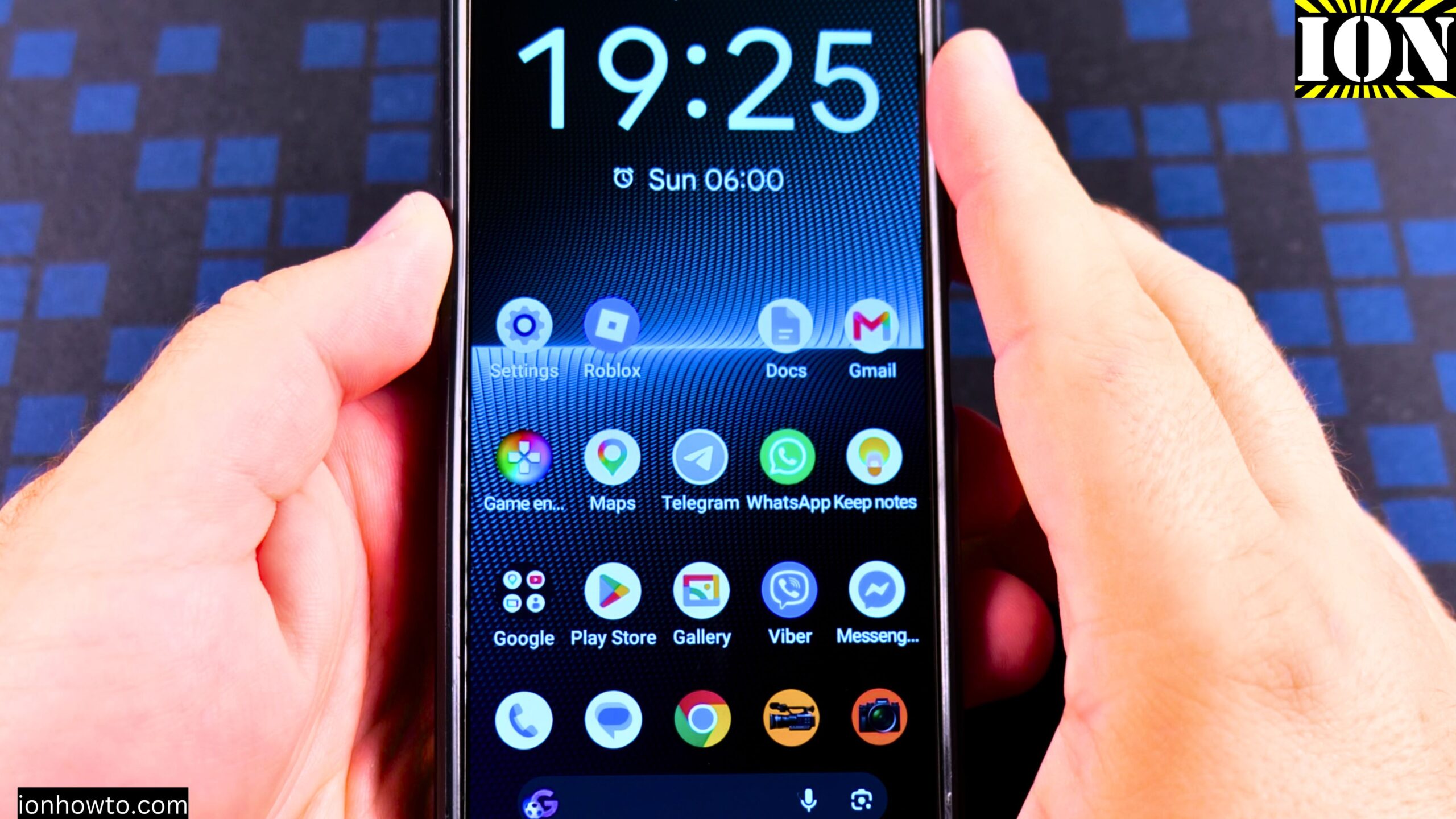
I’m showing you this on a Sony Xperia 1 V Global – EU Model XQ-DQ54 running Android 15.
How to Edit a Contact from the Phone App
- Open the Phone app on your Android phone.
- Go to your recent calls list. You will see the contact you want to edit.
- Tap on the contact to open it.
- Tap the pencil icon to start editing.
- Make your changes. You can change the name, phone number, email, address, and more.
- Tap Save when you are done.
How to Edit a Contact from the Contacts App
- Open the Contacts app.
- Search for the contact by name.
- Tap on the contact to open it.
- Tap the pencil icon to edit.
- Make your changes.
- Tap Save.
Android How to Edit a Contact Video

What You Can Change in a Contact
When you are in the edit screen, you can change a lot of things:
- Name – You can change the first name, last name, or any part of the name.
- Phone number – Update an existing number or add a new one.
- Email address – Add or change email addresses.
- Address – Add or update a physical address.
- Company – Add details about a company.
- Notes – Add any notes you want to keep about this contact.
- Photo – Change the contact’s photo.
- Ringtone – Set a specific ringtone for this contact.
How to Add More Fields to a Contact
- Open the contact and tap the pencil icon.
- Scroll down and look for the option to add more fields.
- You can add custom fields, a website, and lots of other things.
- You can also change which Google account the contact is saved to.
- Tap Save when you are done.
How to Change the Calling SIM for a Contact
If you have more than one SIM card, you can set which SIM to use for a specific contact. This is useful when you are traveling and one SIM card is in roaming. It makes sense to not use the roaming SIM card for a local contact.
- Open the contact.
- Look for the option to set the calling SIM.
- Choose the SIM card you want to use for this contact.
Other Things You Can Do from the Contact Screen
From the contact screen, you can also:
- See the contact history.
- Block the contact.
- Delete the contact.
- Change the ringtone.
A Note About Where Changes Are Saved
The edits you make here are only on your account on your phone. They will not change somewhere else on the other person’s phone. But if you are using the same Google account for that contact, it will update within the Google account on all your devices.
Quick Recap
- Open the Phone app or Contacts app to find the contact.
- Tap the pencil icon to edit.
- Change the name, number, email, address, or any other detail.
- Add notes or custom fields if you need them.
- Set a specific SIM card for the contact if you have more than one.
- Tap Save to keep your changes.
Related Guides and Helpful Resources
If you found this guide helpful, check out these related step-by-step tutorials and category resources on ION HowTo:
- How to Add a Picture to a Contact on Android: Personalize your contacts with custom profile photos for caller identification.
- How to Disable 2G on Android: Enhance network privacy and prevent insecure 2G connections.
- Turn Off Automatic Updates on Samsung Android: Manage app and firmware updates to save battery and mobile data.
- Android Tips and Tricks: Explore our full collection of tutorials and step-by-step articles in this category.
Leave a Reply Cancel reply