


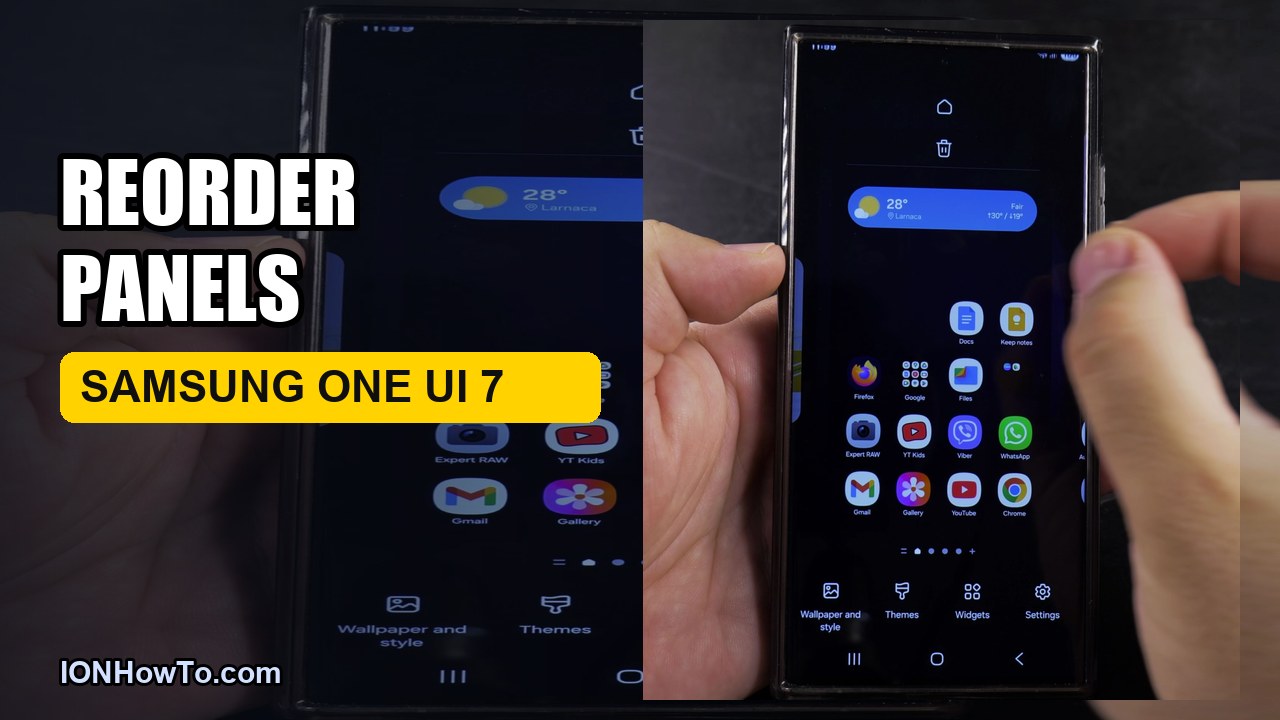
Want your most-used apps on the very first page when you unlock your Samsung Galaxy phone, or prefer to reorder your Home Screen pages?
Here is the quick way to move Home Screen panels around and choose your main Home page on Samsung One UI 7.

Quick Steps
- Pinch In on Your Samsung Home Screen
- Turn the Media Page On or Off
- Press and Drag a Panel to Reorder It
- Tap the Home Icon to Choose Your Main Page
1. Pinch In on Your Samsung Home Screen
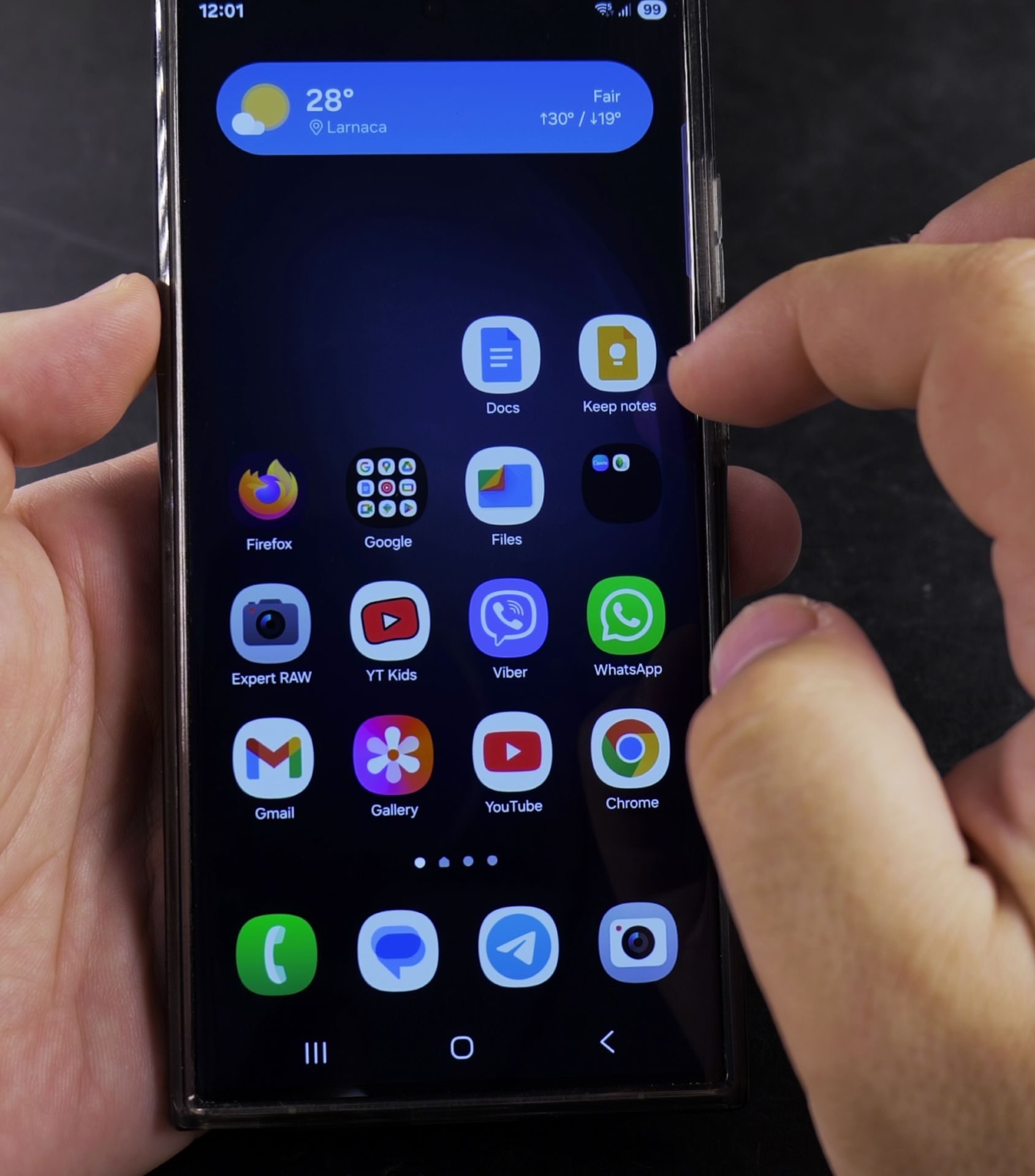
Place two fingers on an empty area of your Samsung Home Screen and pinch them together. Your Home Screen shrinks into smaller panels so you can see every page side by side.

2. Turn the Media Page On or Off
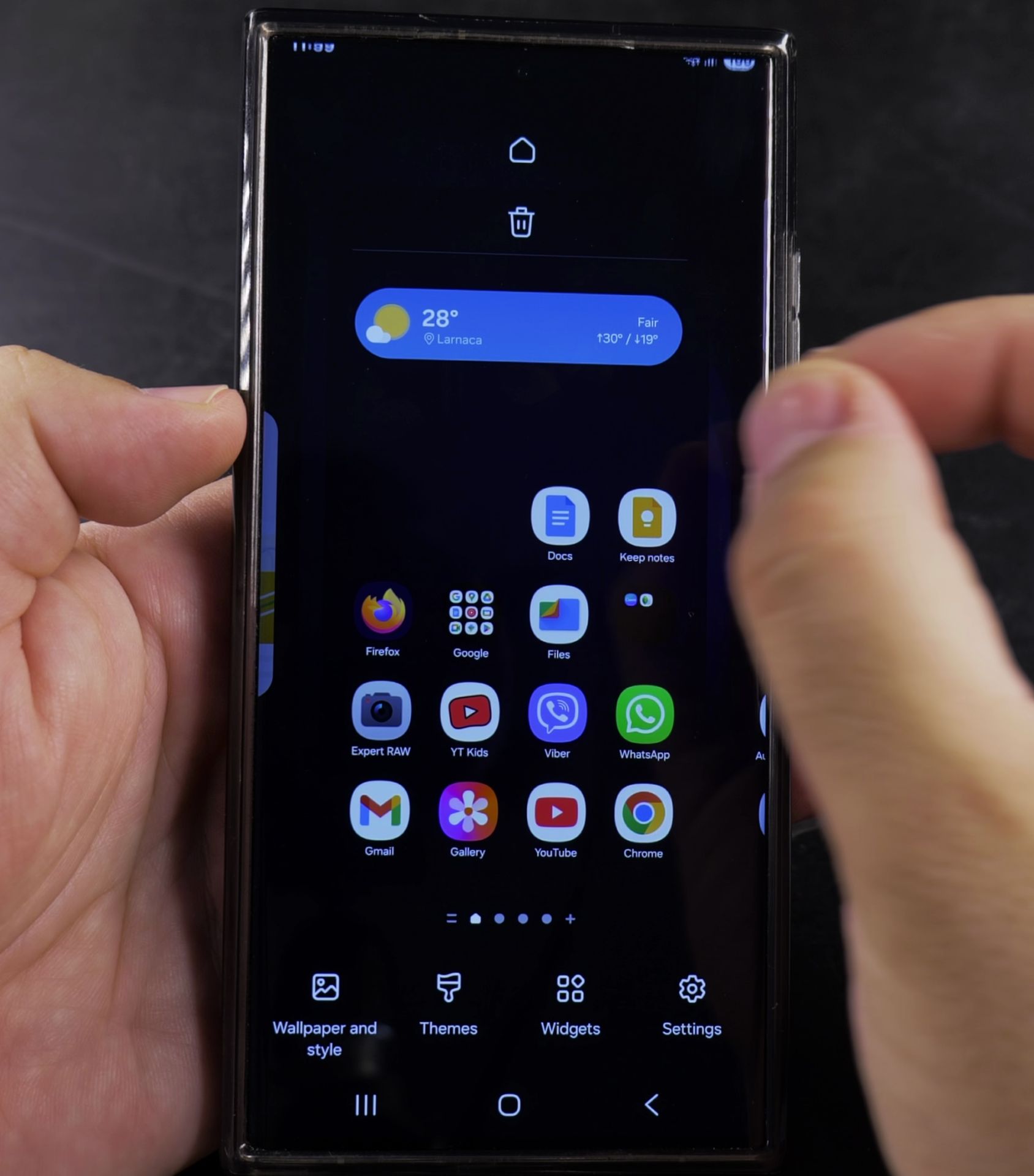
Swipe to the far-left panel to see the Media page (Google Discover). Tap the switch at the top of that panel to turn it off if you want a cleaner screen, or leave it on if you enjoy reading news there.
3. Press and Drag a Panel to Reorder It
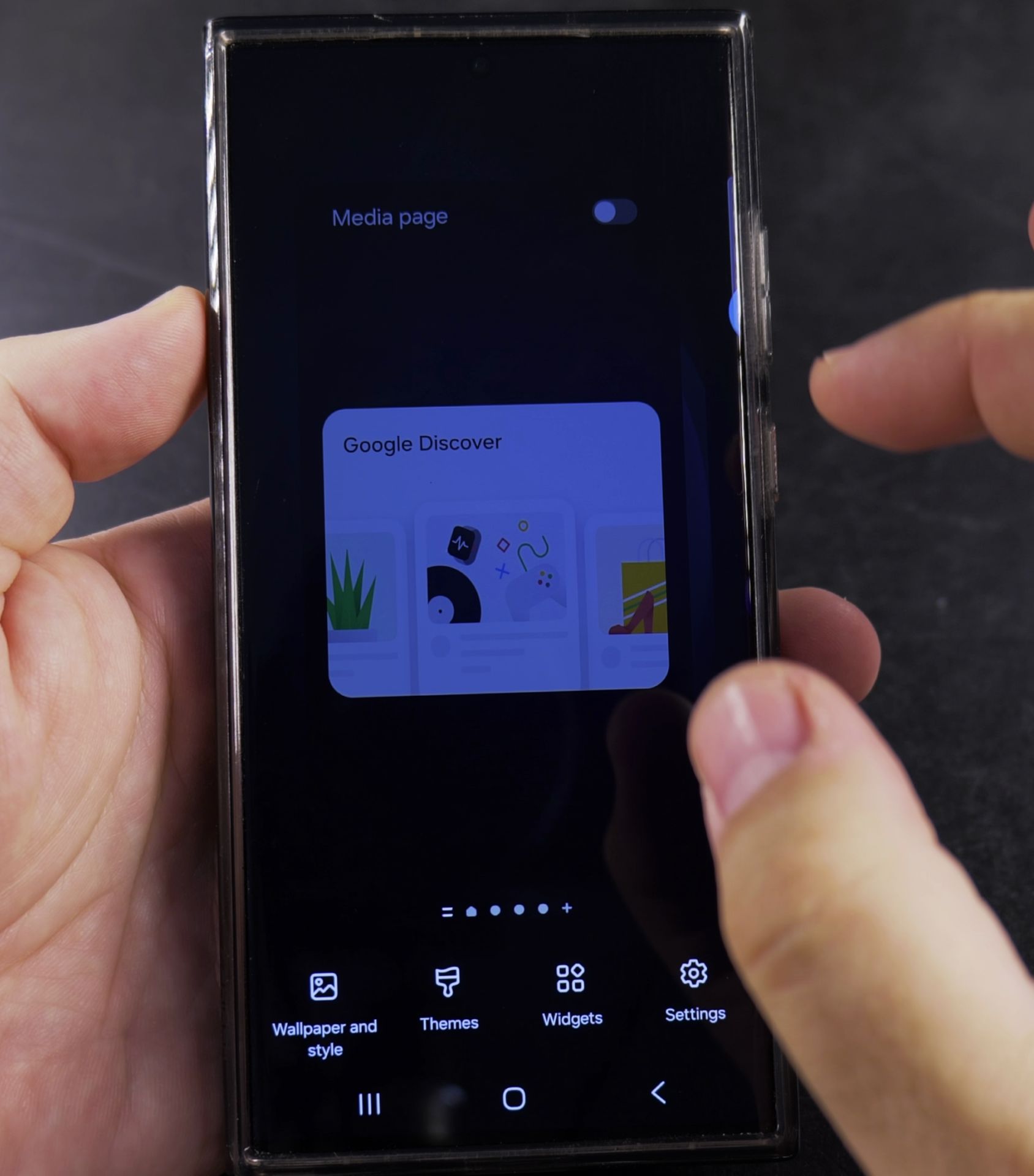
Press and hold any Home Screen panel, then drag it left or right to place it in the order you want. Lift your finger when it snaps into its new spot.

4. Tap the Home Icon to Choose Your Main Page
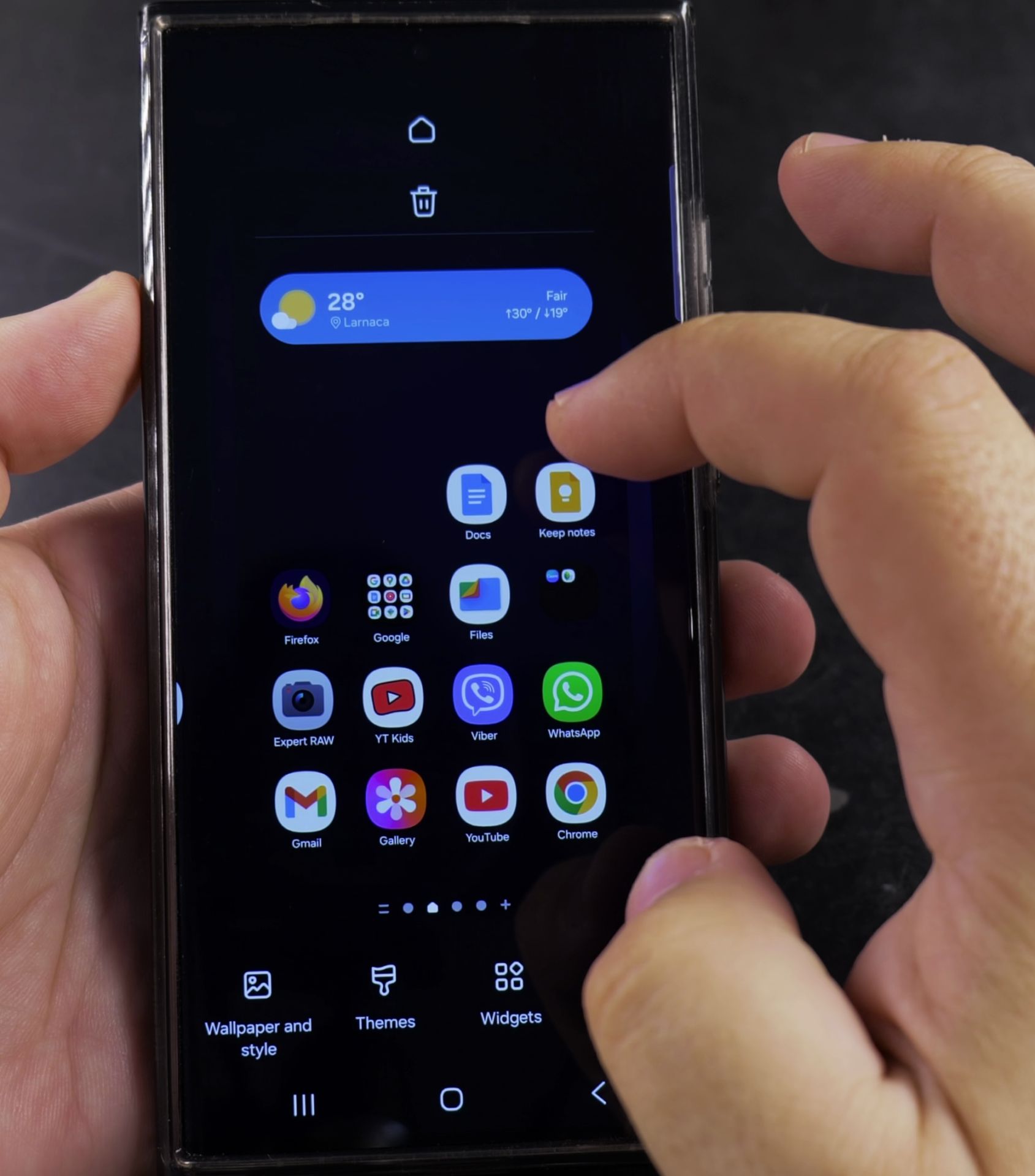
Look at the small Home icon at the top of each panel. Tap the Home icon above the page you want to see first whenever you press the Home button or swipe up.
Helpful Tips
- If you clear all apps off an extra panel, your apps are still safe inside your App Drawer (swipe up from the Home Screen to find them).
- You can also tap the trash icon above an empty panel to remove extra blank pages.
Helpful Accessories on Amazon
As an Amazon Associate I earn from qualifying purchases.
Related Guides
- Add Apps to Samsung Android Home Screen – How to Add Apps to Home Screen on Samsung Android.
- Remove App From Android Home Screen – How to Remove an App from Your Home Screen on Android.
- How to Add Weather Widget on Samsung Home Screen – How to Add a Weather Widget to Your Samsung Home Screen.
- Samsung Android Guides – Browse more tutorials and practical guides in this section.
Leave a Reply Cancel reply