


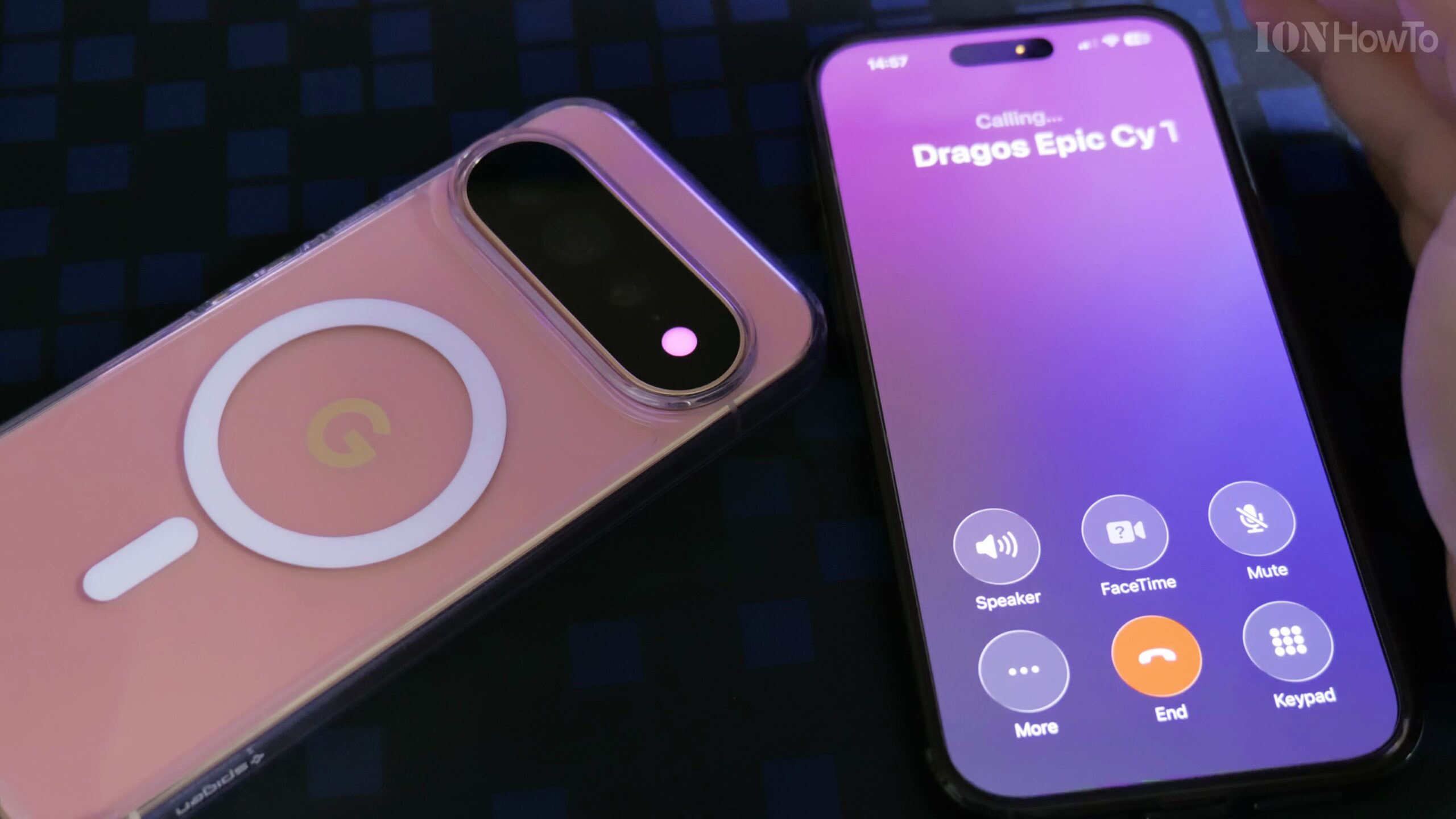
The Google Pixel 11 Pro XL introduces HiLight notification lighting, an intelligent perimeter glow that signals alerts and incoming calls. By assigning custom colors to specific family members or colleagues, you can tell who is calling across a room without checking the screen.

What Is HiLight on Google Pixel 11 Pro XL?
The Google Pixel 11 Pro XL introduces HiLight notification lighting, an intelligent perimeter glow that signals alerts and incoming calls. By assigning custom colors to specific family members or colleagues, you can tell who is calling across a room without checking the screen.
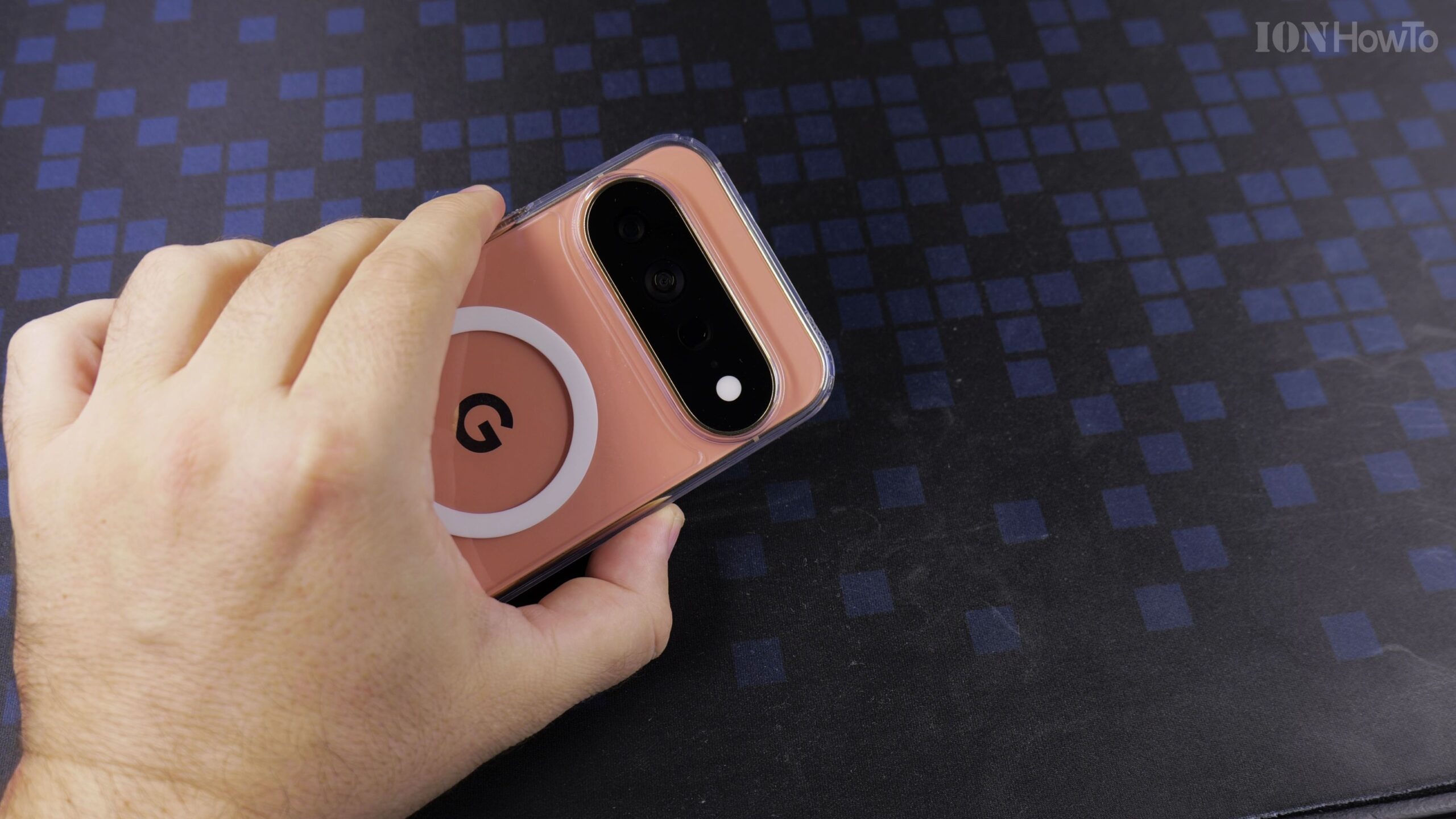
Step 1: Open Google Contacts
Launch the Contacts app on your Pixel 11 Pro XL. Find and select the individual contact you wish to assign a signature color to.
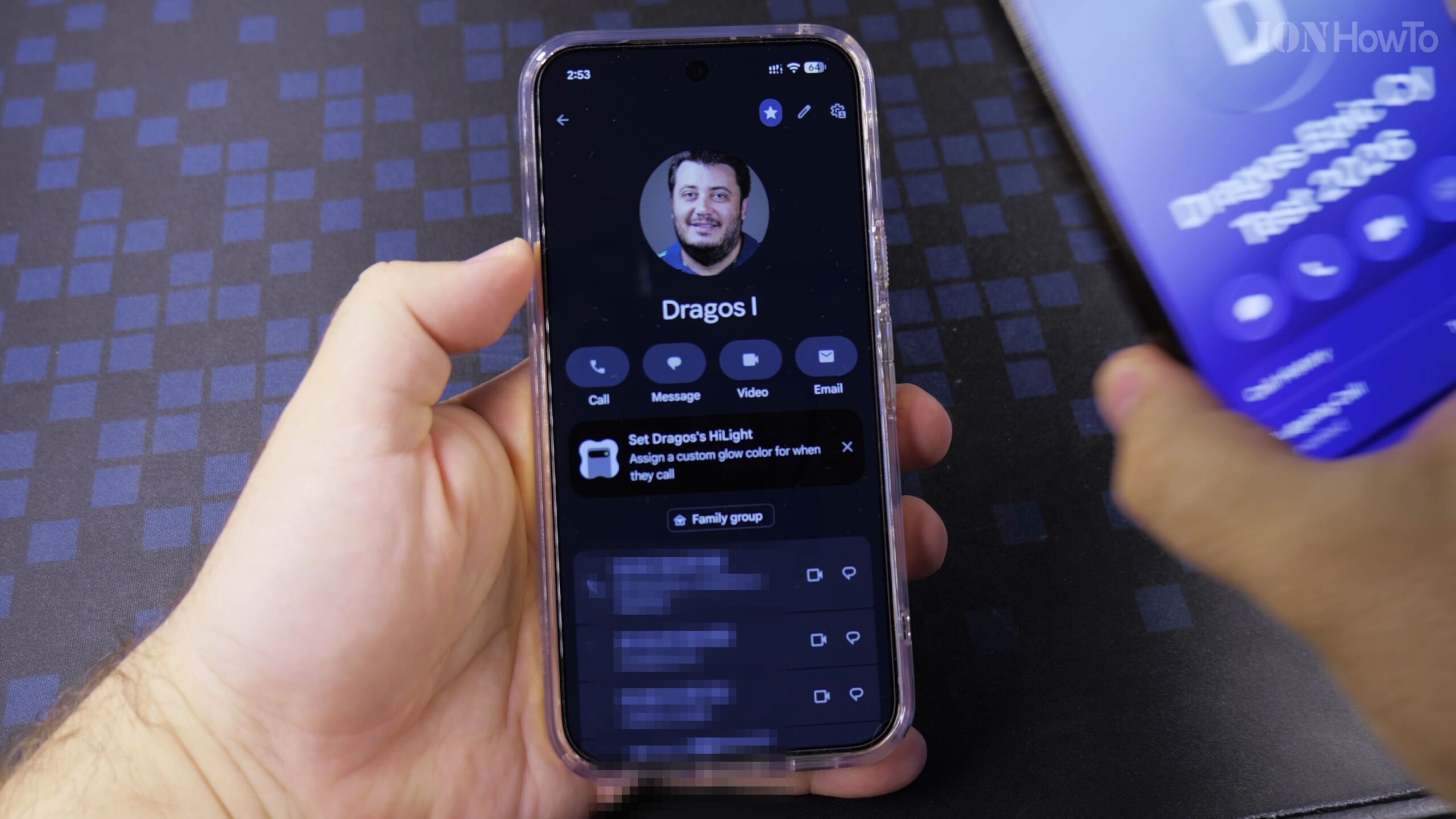
Step 2: Access Contact Notification Customization
Tap the three dots in the top-right corner or scroll down on their profile card to find Set Ringtone & HiLight.
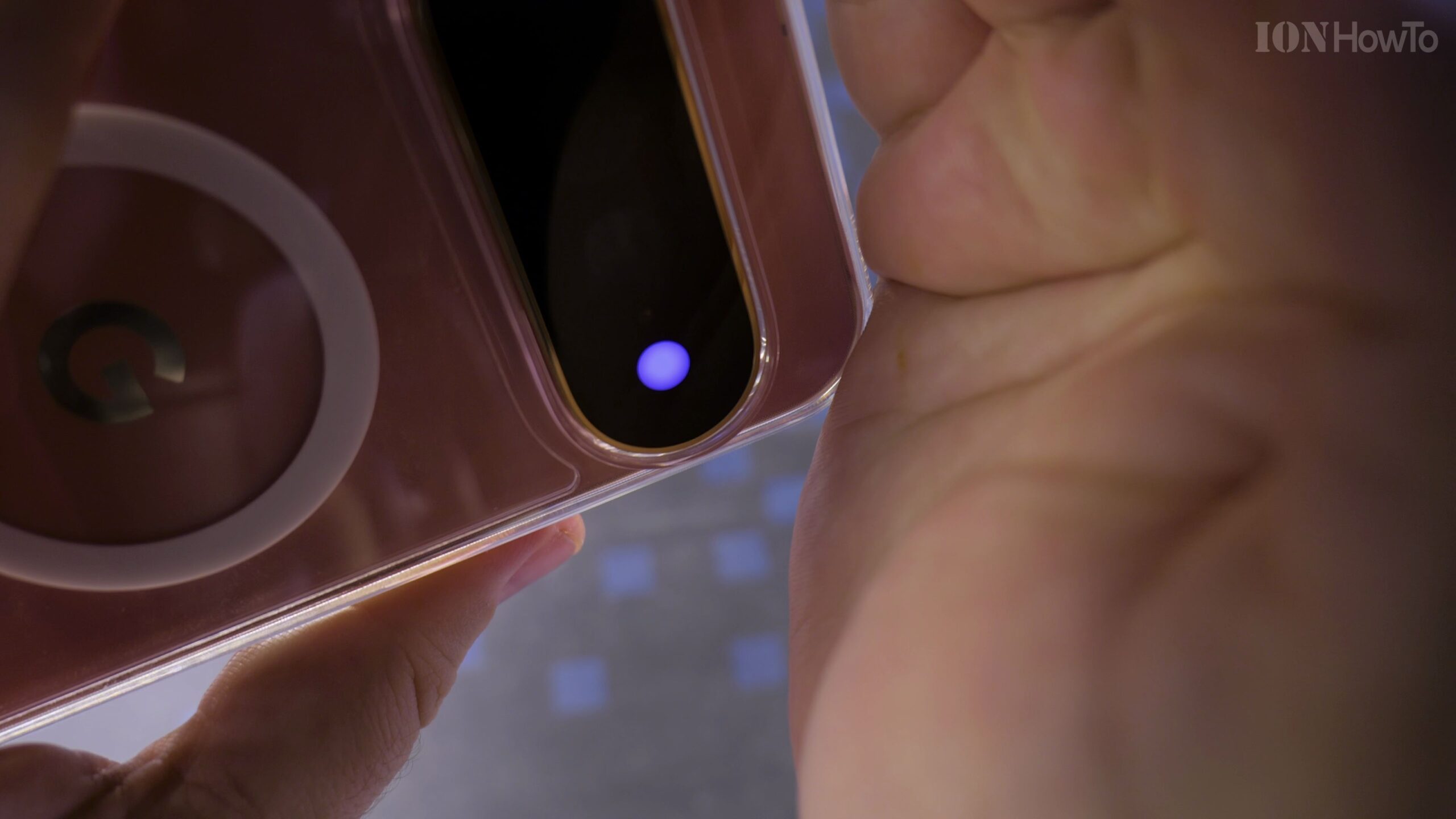
Step 3: Pick Your Signature Accent Color
Select from the vibrant palette of primary and pastel colors. You can preview how the camera ring or edge lighting illuminates when an incoming call arrives.
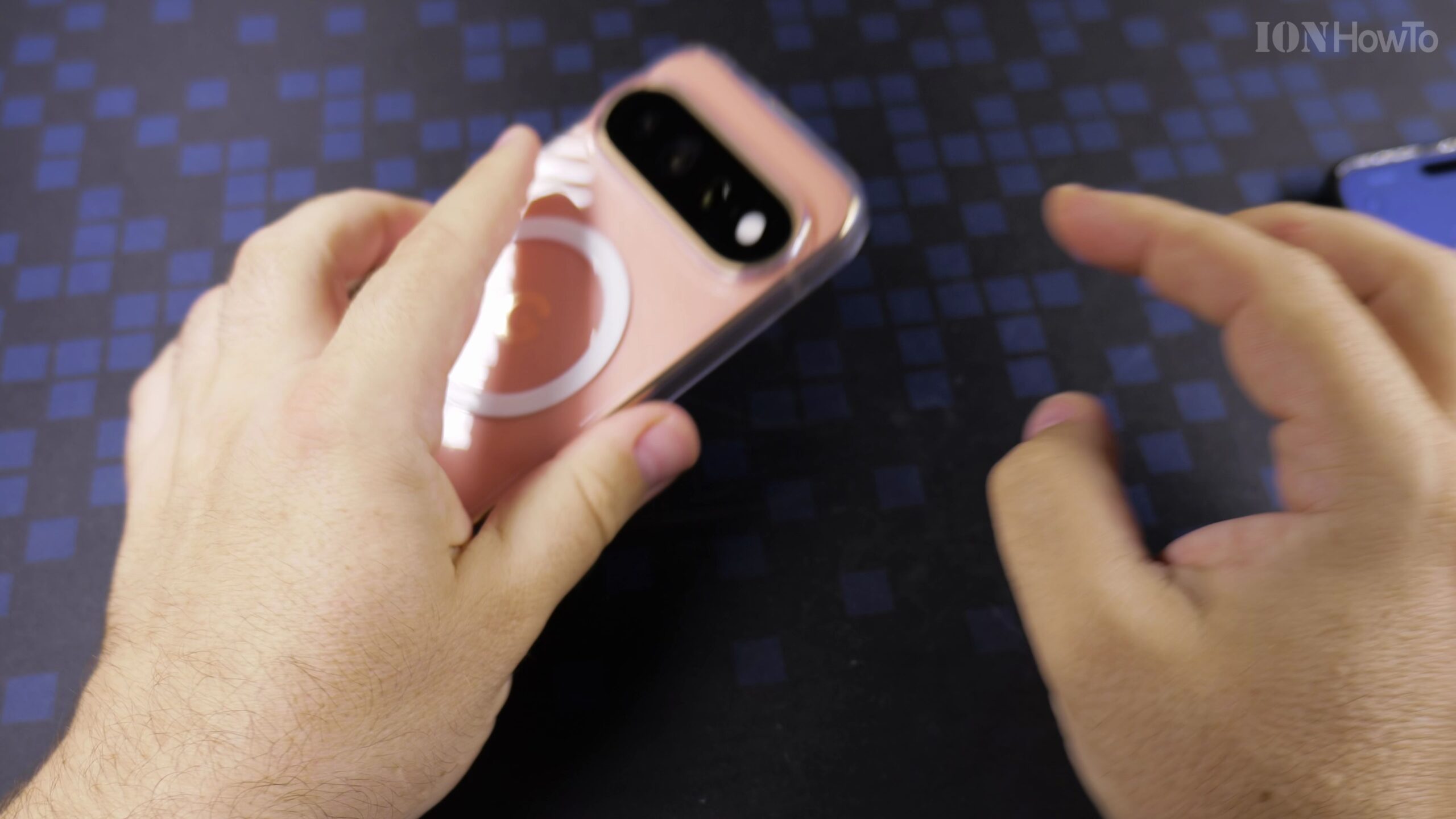
Step 4: Save and Test with a Live Call
Tap Save. Have the contact place a test phone call to verify that your Pixel illuminates with their personalized light signature.
Helpful Tips and Related Tutorials
For more practical tutorials and setup guides, discover how to how to add a picture to a contact on Android, explore how to answer phone calls on Android, or browse our complete collection of Android tips.
Leave a Reply Cancel reply