


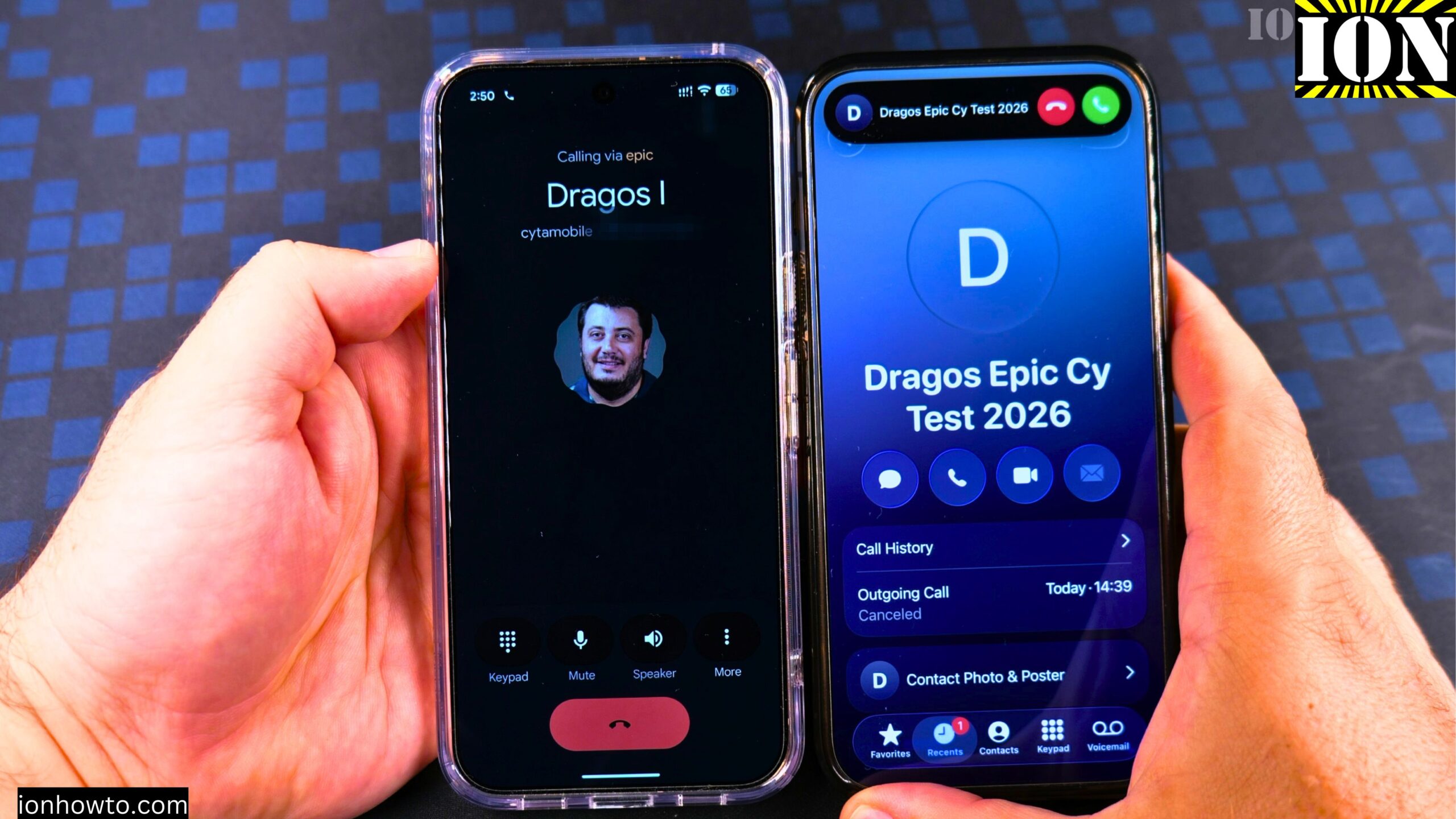
How to Answer Phone Calls on Android 17.
Learn how to answer phone calls on your Google Pixel Android phone. This guide uses the Google Pixel 11 Pro XL running Android 17 as an example.
The steps are simple, and I’ll show you exactly what to do when someone calls you.
Answering a Call When Your Phone Is Unlocked
If your phone is already unlocked and you’re using it, here is what happens when someone calls.
How to Answer Phone Calls on Android Video

Step 1: Look at Your Screen
When a call comes in, your phone screen will show you who is calling. You’ll see the caller’s name or number on the screen.
Step 2: Tap the Green Answer Button
To answer the call, simply tap the green answer button on the screen. That’s it. You’re now on the call.
What You Can Do During a Call
Once you’re on a call, you have several options available on the screen. I’ll show you what each one does.
Put the Call on Speaker
Tap the speaker button to put the call on speaker. This is handy if you want to talk without holding the phone to your ear. Just keep in mind that it might cause some feedback if the other person is nearby.
Mute Your Microphone
Tap the mute button to mute your microphone. This means the person on the other end can’t hear you. You can tap it again to unmute yourself.
Use the Keypad
Tap the keypad button if you need to enter numbers during a call. This is useful when you need to enter codes or navigate phone menus.
Add Another Call or Start a Video Call
You can also add another person to the call or switch to a video call. These options are available right on your call screen.
Put the Call on Hold
Tap the hold button to put the call on hold. When you do this, the other person will hear music while they wait. Tap it again to come back to the call.
Answering a Call When Your Phone Is Locked
If your phone is locked, the process is a little different. Here’s what to do.
Step 1: Look at the Lock Screen
When a call comes in while your phone is locked, you’ll see the caller information on your lock screen.
Step 2: Slide to Answer or Decline
You have two options here:
- Slide to the right to answer the call.
- Slide to the left to decline the call.
Step 3: Answer the Call
Slide to the right, and you’re now on the call. You can hear the other person, and they can hear you.
Ending a Call
When you’re finished with your call, here’s how to hang up.
Step 1: Tap the Red Button
Tap the red button on the screen to hang up.
Step 2: Call Ended
The call is now ended. That’s all there is to it.
Wrapping Up
And that’s how you answer phone calls on your Google Pixel Android phone. It’s really easy. If you miss a call, you can always call the person back. Thanks for reading.
Related Guides and Helpful Resources
If you found this guide helpful, check out these related step-by-step tutorials and category resources on ION HowTo:
- How to Add a Picture to a Contact on Android: Personalize your contacts with custom profile photos for caller identification.
- How to Disable 2G on Android: Enhance network privacy and prevent insecure 2G connections.
- Turn Off Automatic Updates on Samsung Android: Manage app and firmware updates to save battery and mobile data.
- Android Tips and Tricks: Explore our full collection of tutorials and step-by-step articles in this category.
Leave a Reply Cancel reply