


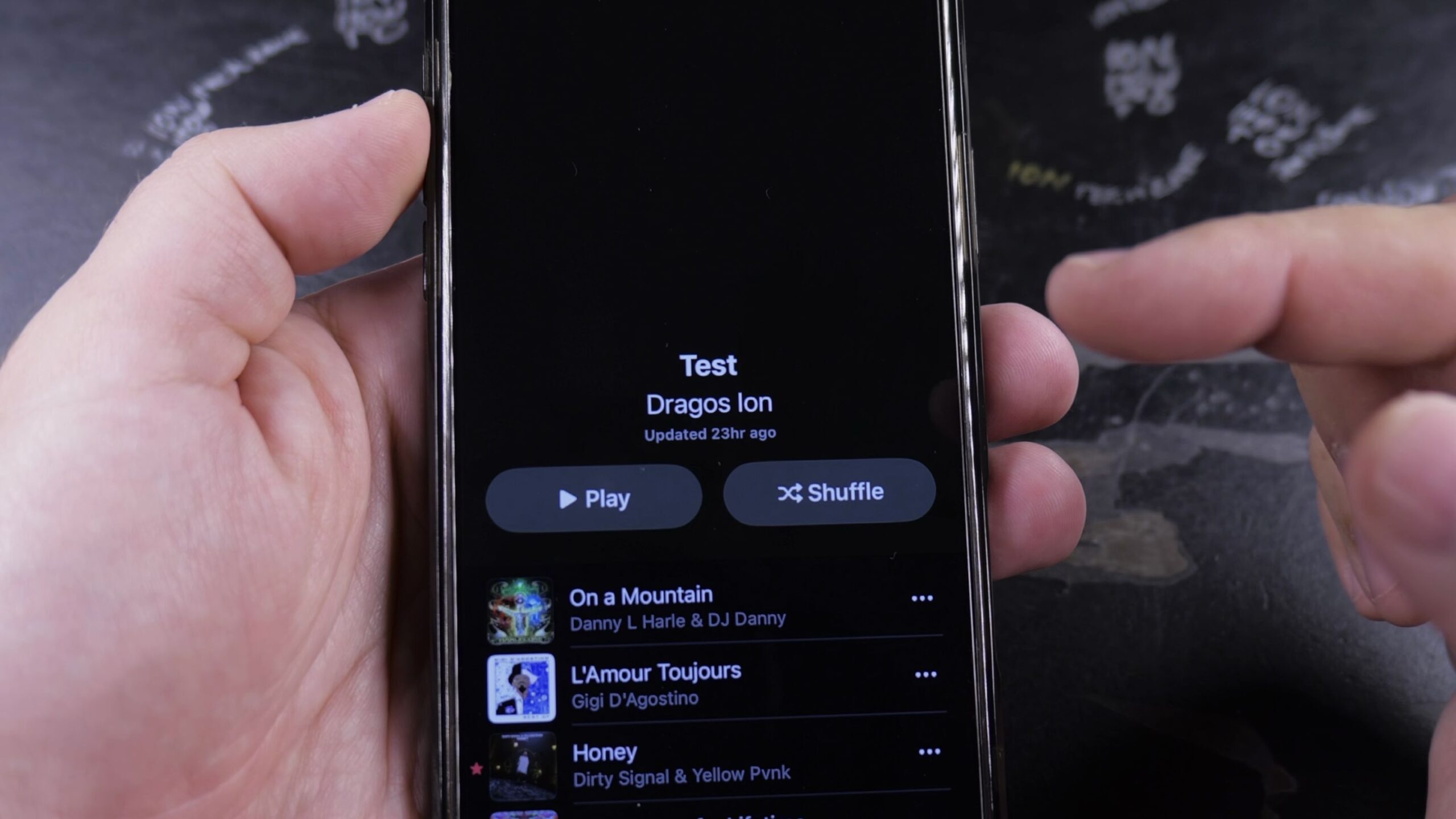
If your music stops playing when the last track finishes, setting your playlist to repeat keeps the songs looping continuously. I’ll show you how to repeat a playlist in Apple Music on your iPhone in just a few taps.

1. Select Your Playlist in Library
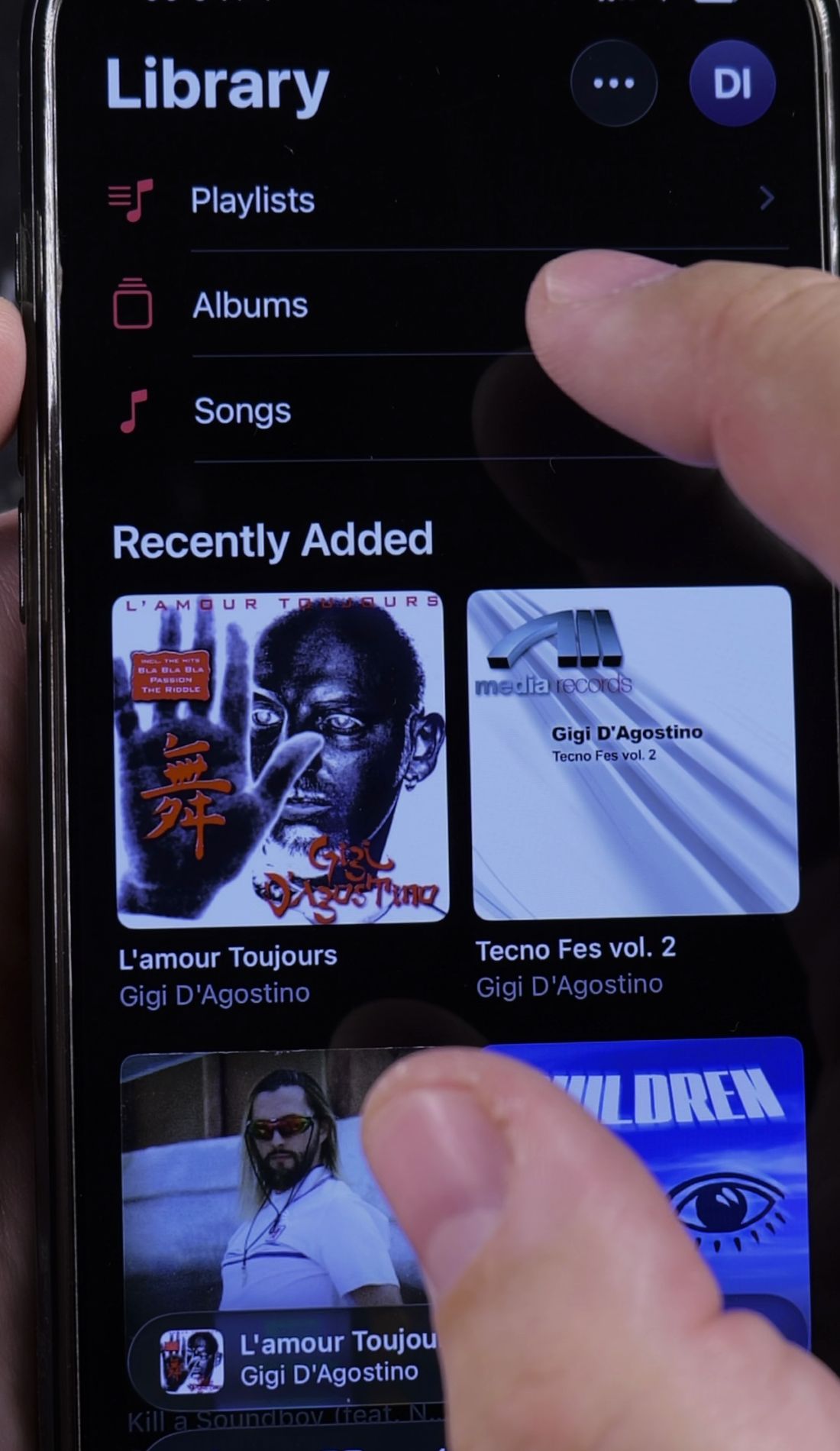
Open the Music app on your iPhone. At the bottom of the screen, tap the Library tab.
Near the top, tap Playlists to view your collections. Tap on the playlist or album you want to listen to, then tap the first track to start playing.

2. Open the Playing Next Queue
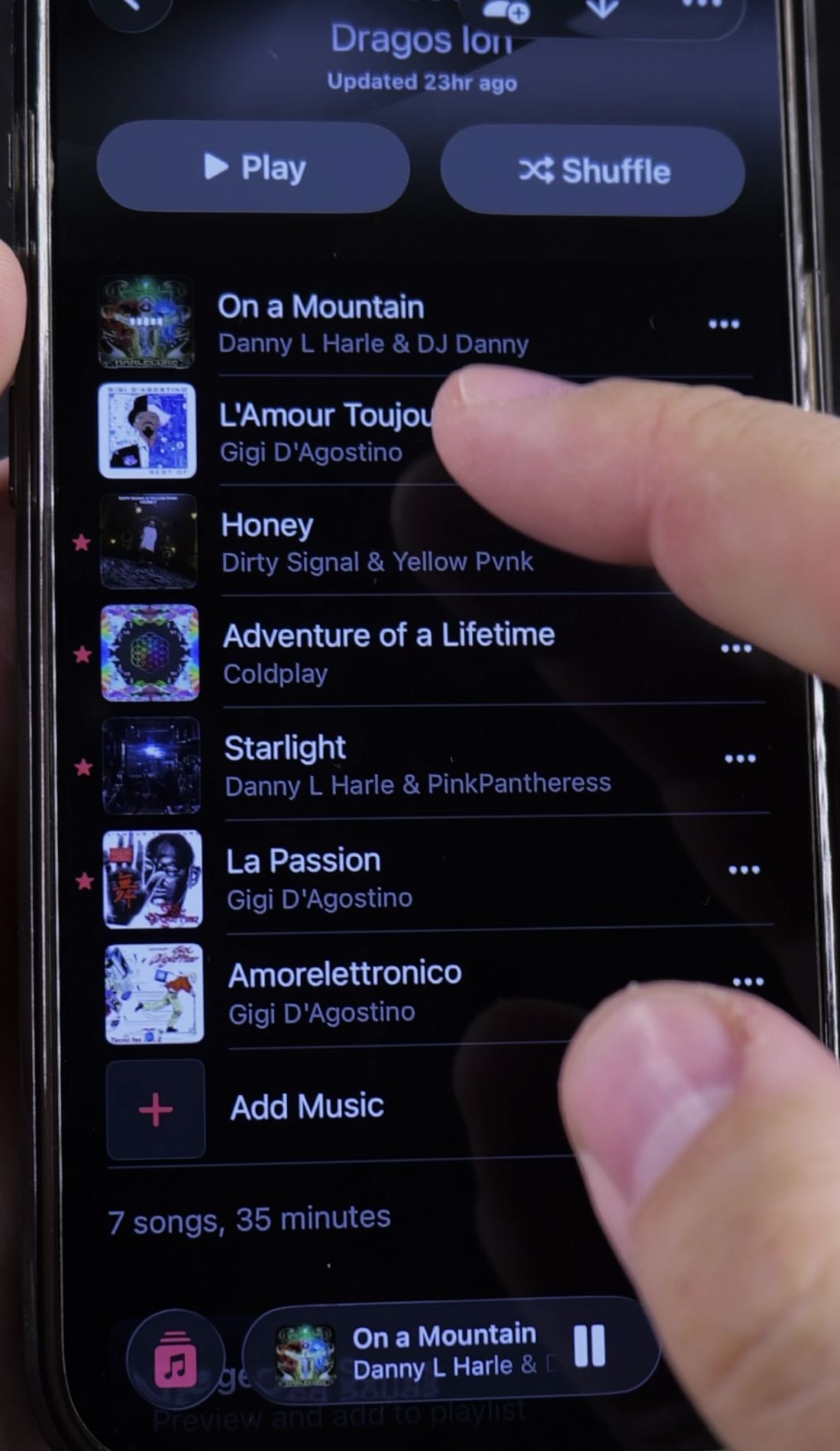
Tap the small player bar at the bottom of the display to expand the full Now Playing screen.
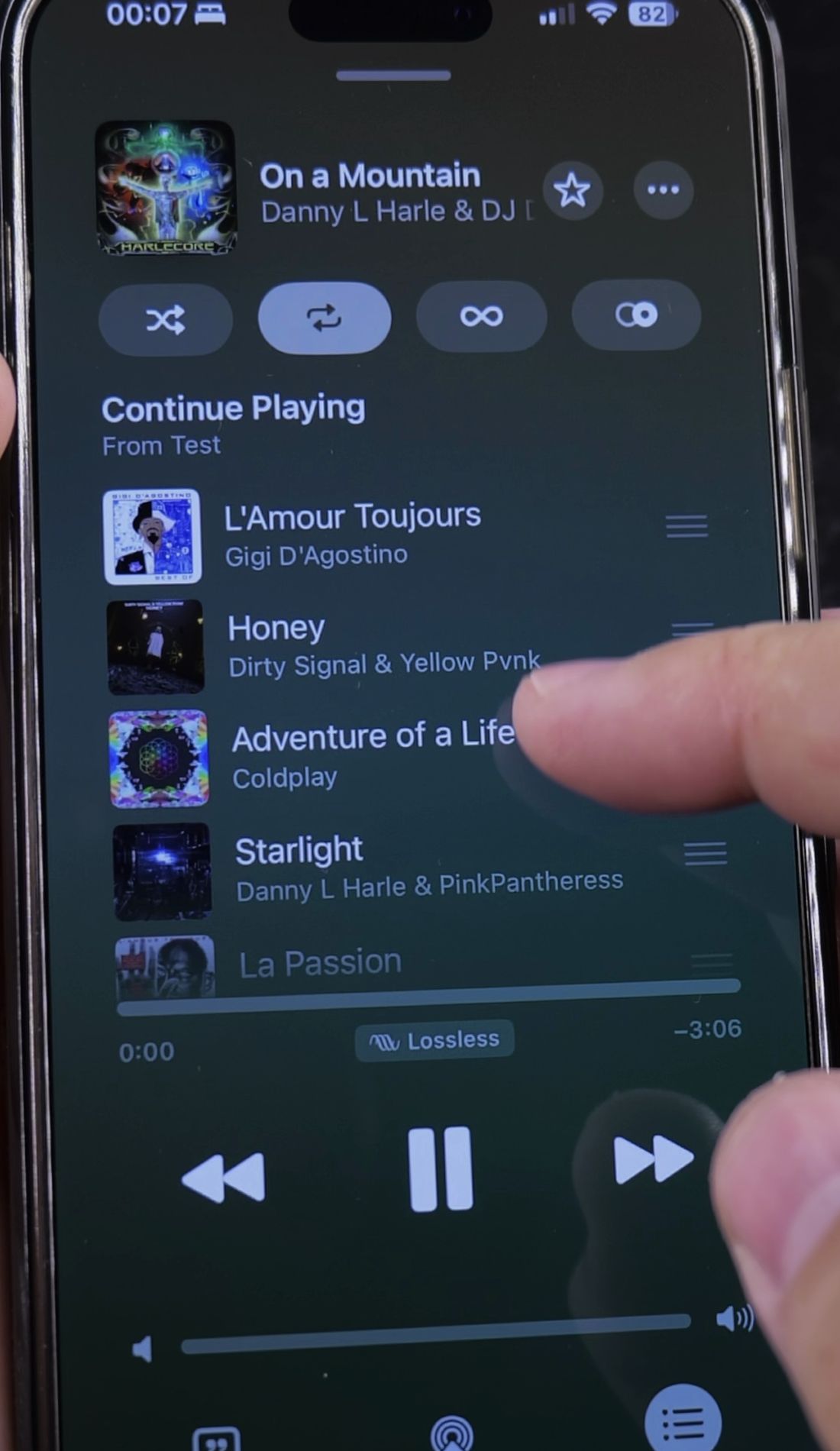
In the bottom-right corner of the player, tap the Playing Next queue button. It looks like three horizontal lines with small bullets beside them.
3. Tap the Repeat Button Once for All Songs
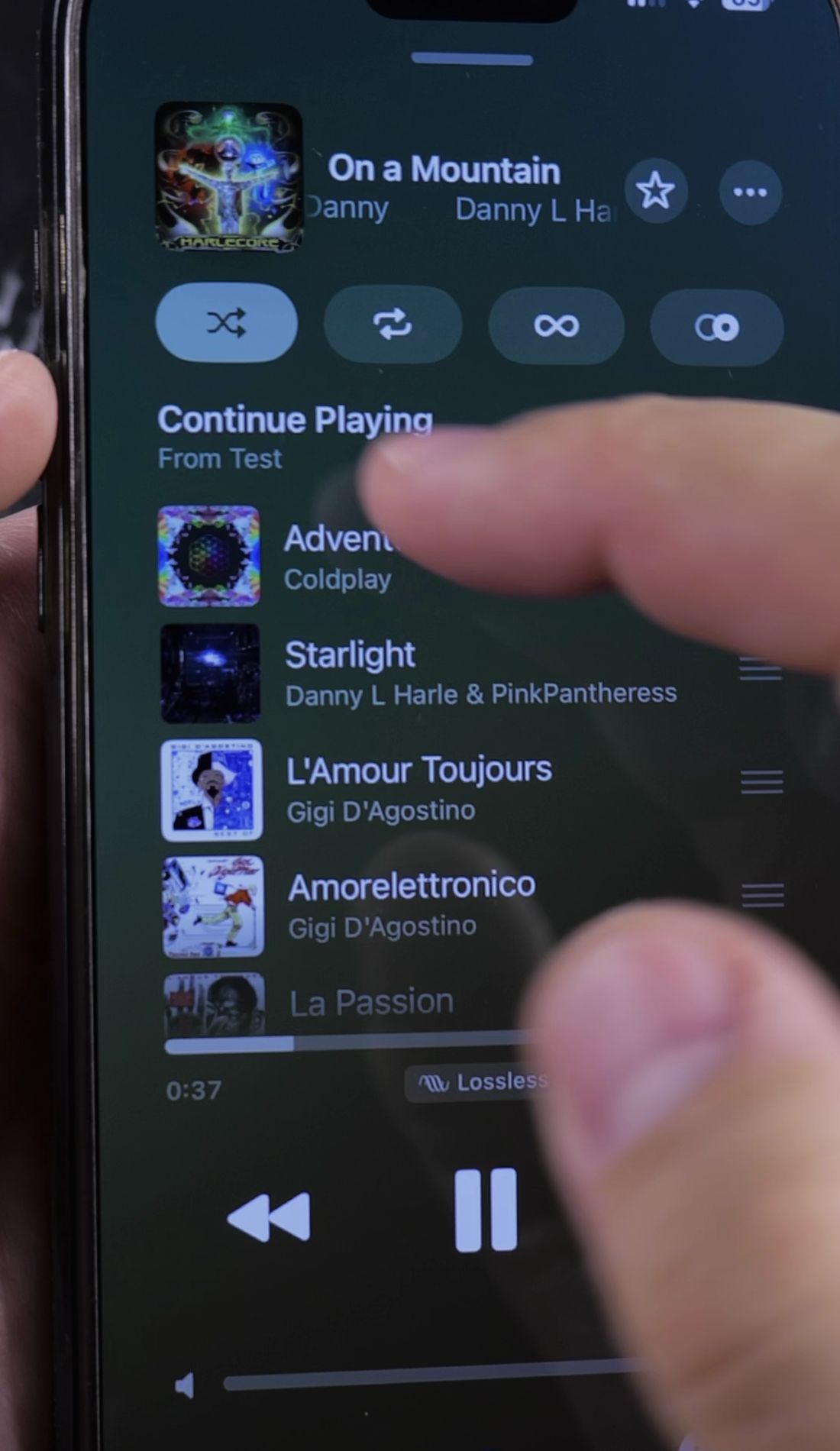
Near the top of the queue screen, look for the Repeat icon showing two looping arrows in a rectangle.
Tap the Repeat button once. The icon will highlight with a bright white background, meaning repeat is turned On. When the final song in your playlist finishes, playback immediately loops back to the very first song.
4. Tap Again to Repeat One Song
If you only want to listen to a single track over and over, tap the Repeat button a second time.
A small number 1 badge will appear inside the looping arrows. That specific song will now replay from the beginning continuously until you tap the icon again to turn it off.
Helpful Tips
If you also want variety while repeating your tracks, learn how to play random songs in Apple Music to shuffle the order every time it loops.
If you want continuous music recommendations after your playlist ends rather than repeating the same tracks, learn how to enable AutoPlay for continuous playback.
You can also check our guide on how to reorder songs in Apple Music playlists, or browse our complete library of Apple Music and audio tutorials.
Leave a Reply Cancel reply