


Switching between streaming platforms or backing up your curated song lists across music apps is straightforward when using official library export tools. In this tutorial, I’ll show you how to transfer your complete Apple Music library and personal playlists directly to YouTube Music.

1. Open Apple Data and Privacy or Platform Transfer Tool
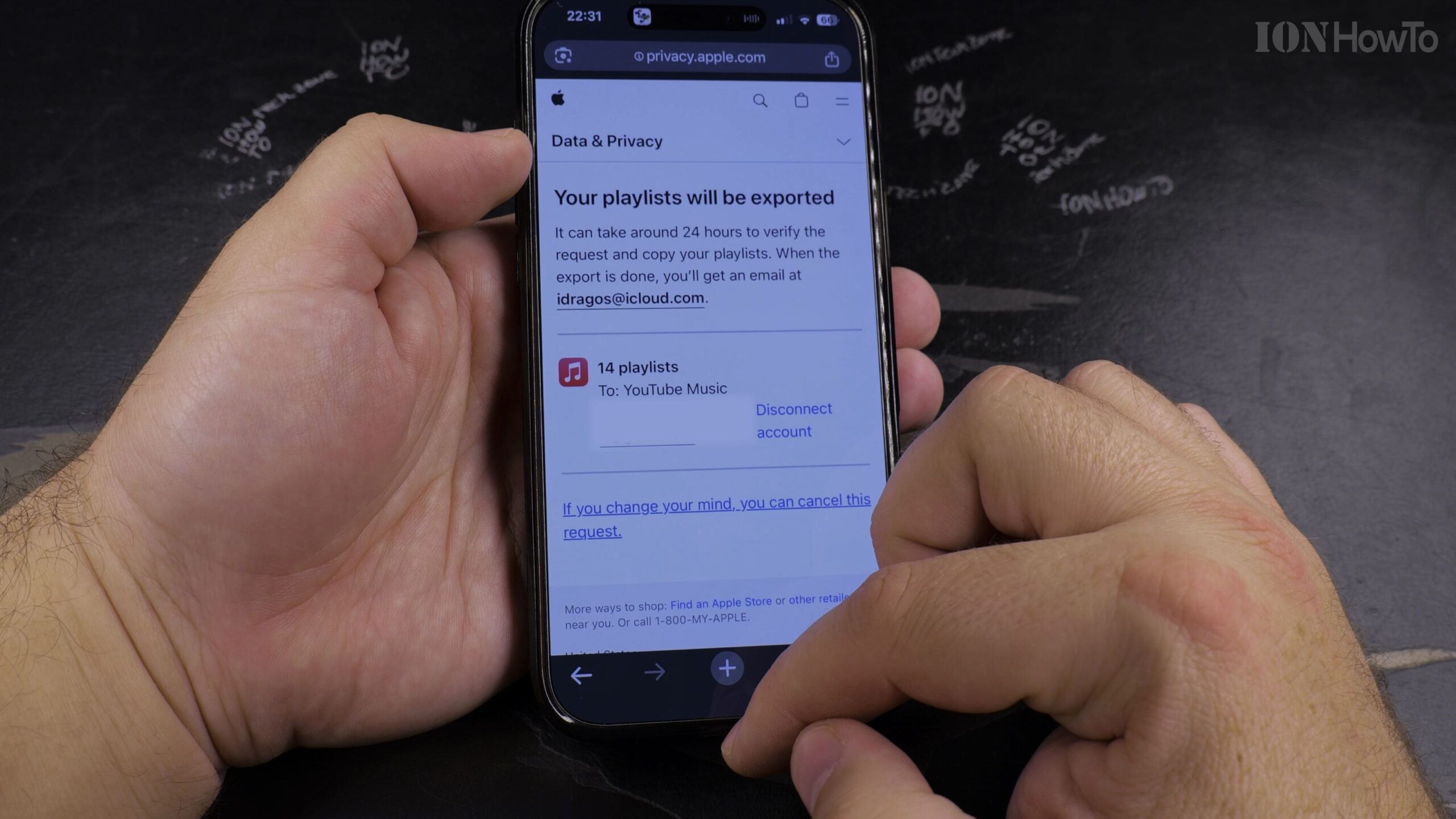
Open Safari on your device and navigate to Apple’s official privacy portal (privacy.apple.com) or your preferred playlist transfer service, then sign in with your Apple ID.
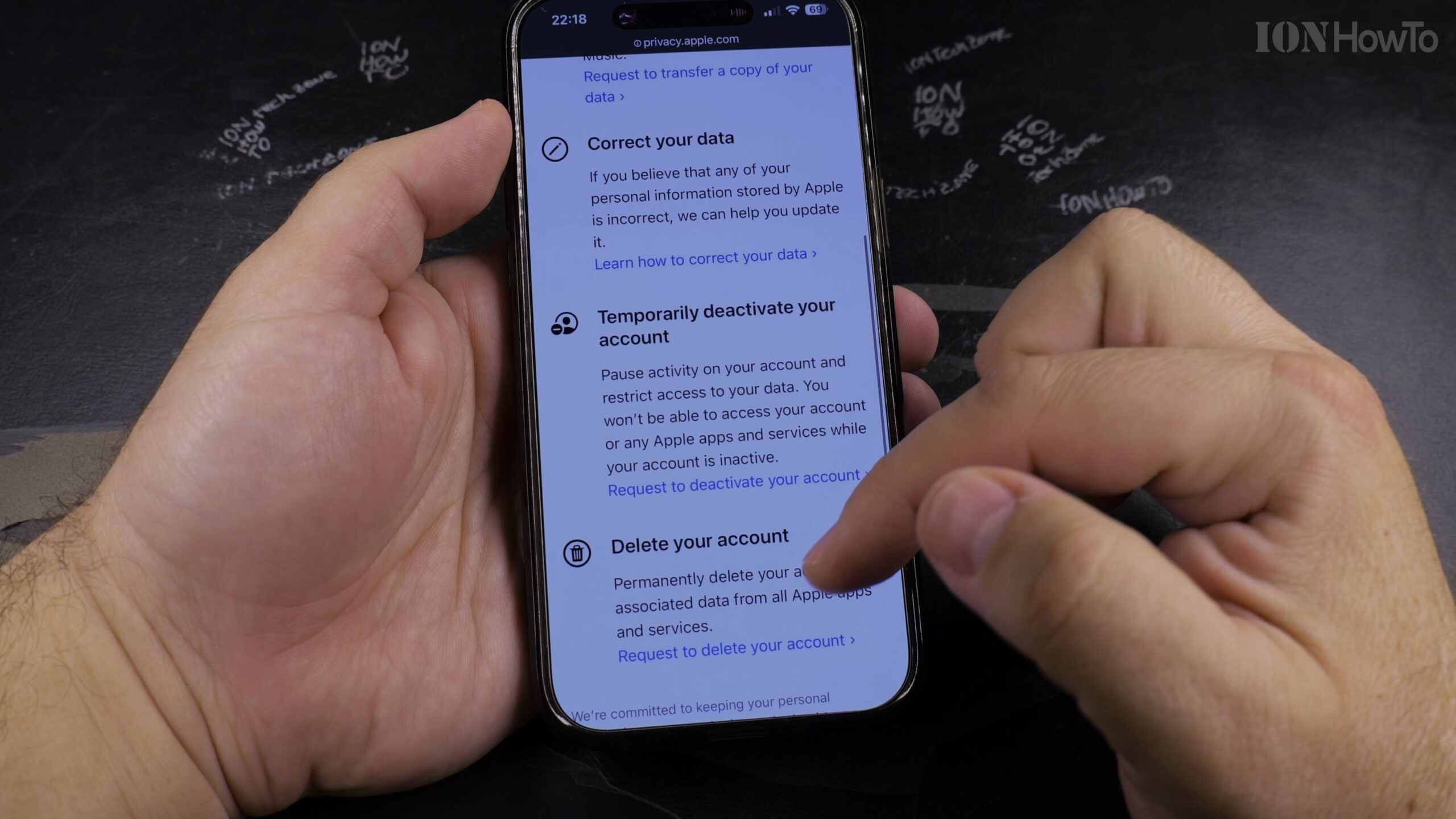
2. Select Transfer a Copy of Your Data for Apple Music
Under the transfer options, select ‘Request to transfer a copy of your data’ and choose Apple Music playlists and library tracks from the list of services.
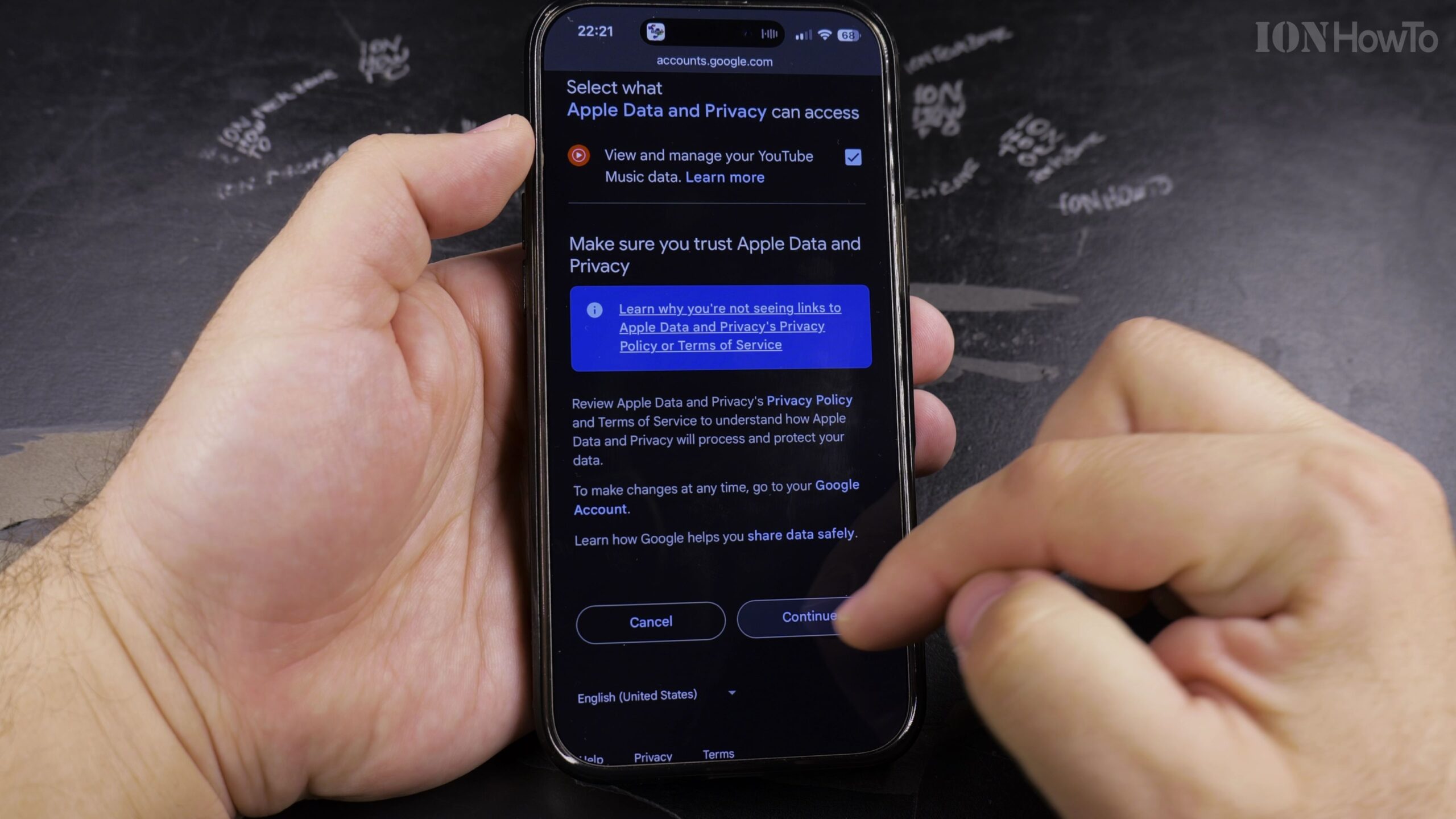
3. Choose YouTube Music as the Destination Platform
Select YouTube Music as the target streaming destination. You will be prompted to authenticate into your Google account and grant permission for playlist creation.
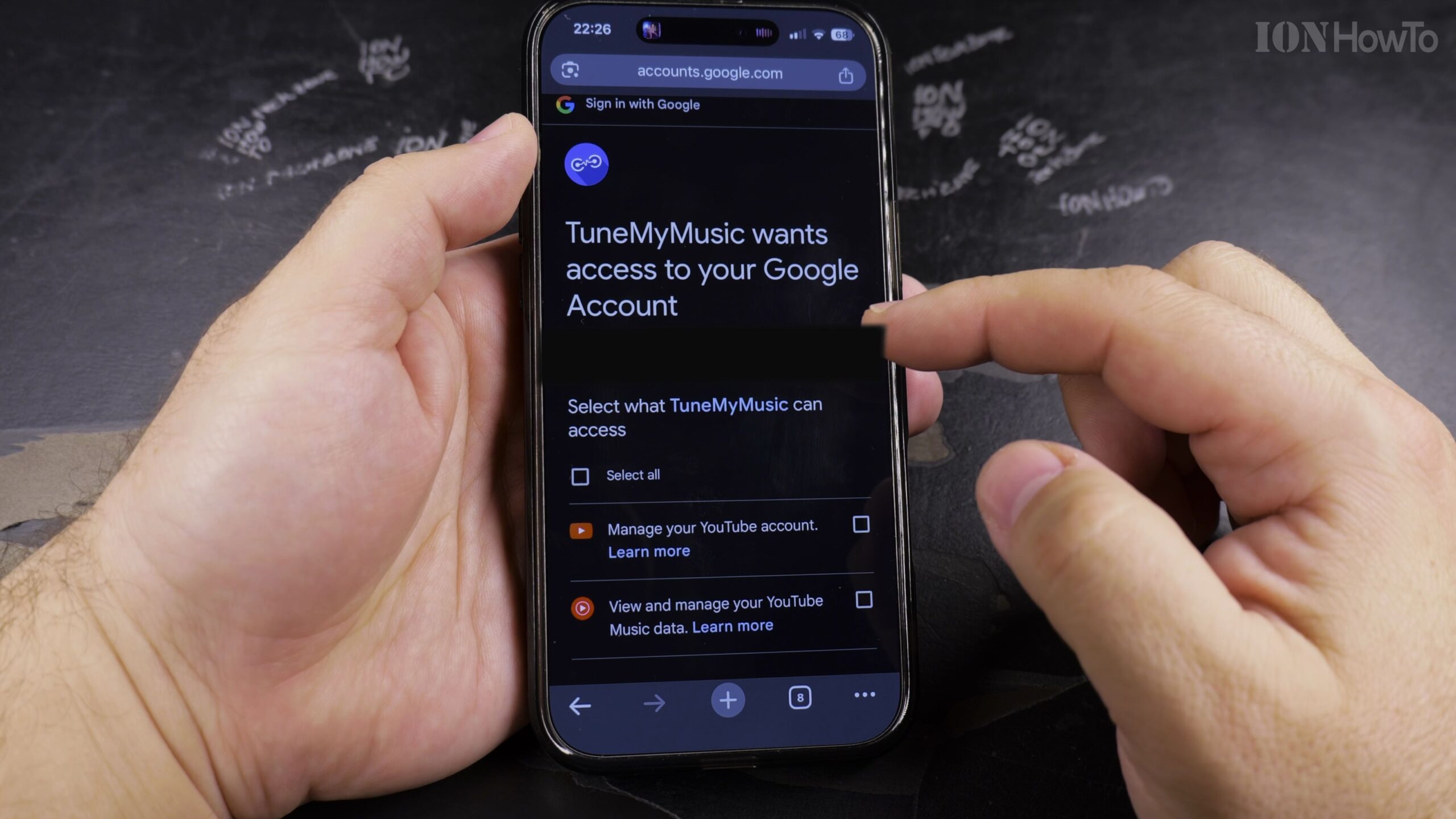
4. Review Matching Playlists and Song Selections
Verify the playlists, favorites, and albums included in the transfer package. The service analyzes catalog song IDs to match tracks accurately across both platforms.
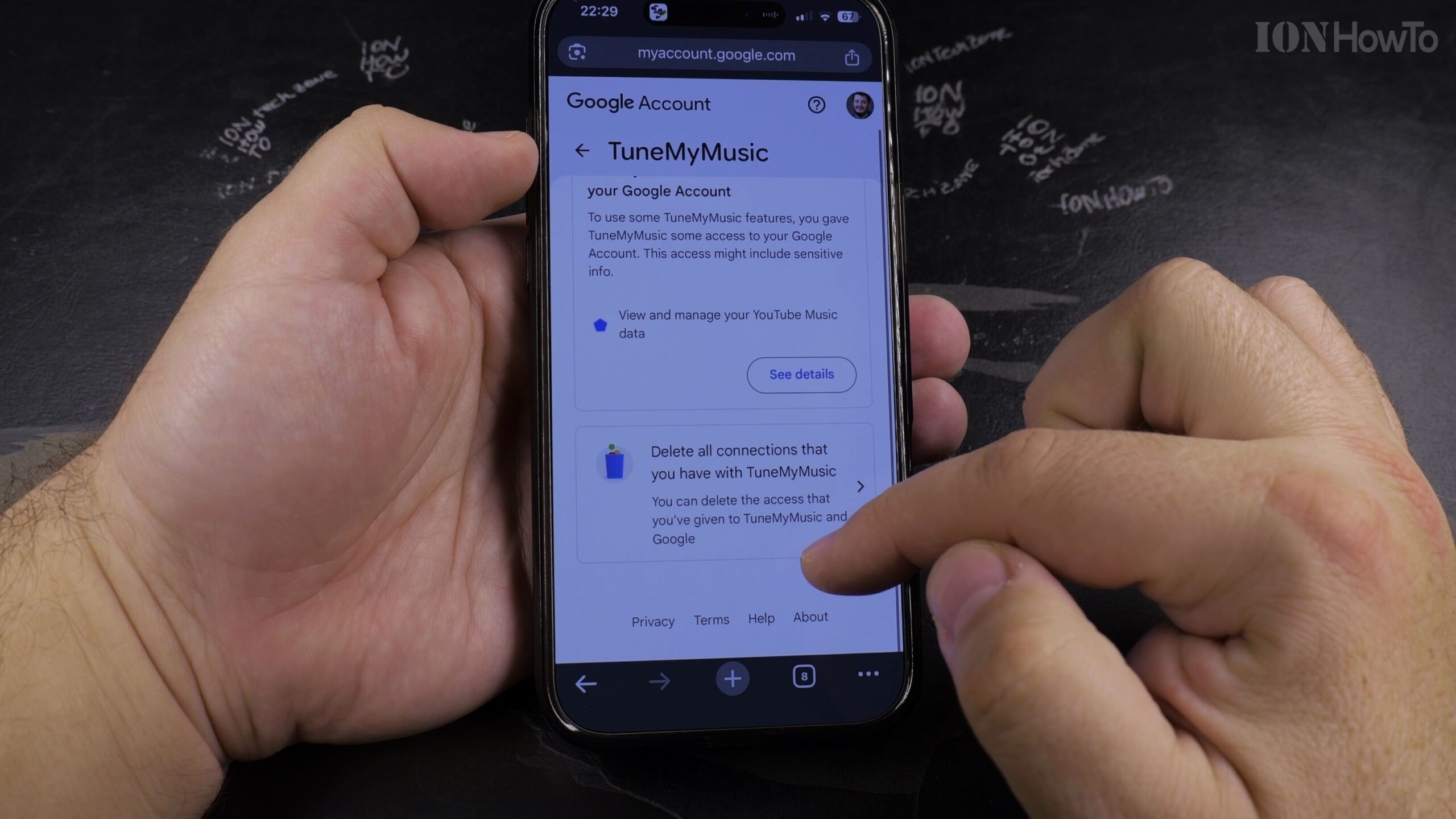
5. Confirm Transfer and Verify Songs in YouTube Music
Click confirm to begin processing. Once the transfer completes, launch YouTube Music and check your library tab to ensure all your playlists are imported and ready to play.
Helpful Tips and Related Guides
Any rare songs or local audio files not present in the YouTube Music streaming catalog will be listed in a summary report so you can manually upload them. For more Apple Music guides, explore our Apple Music & Audio category, check our tutorial on Finding Playlists in Apple Music, or browse How-To guides.
Leave a Reply Cancel reply