



How to Increase Text Size on Samsung Android Phones.
Learn how to make text bigger on Samsung phones. If you find it hard to read small text on your Samsung Galaxy device, this guide will help you make the text larger and easier to see. I will show you the steps to adjust the font size in the settings so you can customize your phone the way you want it.
Amazon links
As an Amazon Associate I earn from qualifying purchases:
- Phone Accessories
- Screen protectors
- Phone Cases
- Mobile Tripods
- Usb-c charger
- Usb-c cable
- Docking stations
- Wireless car chargers
- Wireless charger stand
- SIM card removal tool
- SIM card holder
This guide works for a Samsung Galaxy S23 Ultra running Android 14 and OneUI 6.1. The steps are the same for most modern Samsung Galaxy phones.
Why You Might Want Larger Text
There are a few reasons to increase your text size:
- The default text looks too small for you to read comfortably
- You find yourself holding the phone very close to your face
- You want to reduce eye strain when reading for long periods
- You simply prefer bigger text on your screen
How to Increase Font Size on Samsung Galaxy
The setting you need is found in the Display section of your phone settings. Here is how to get there and make the change.
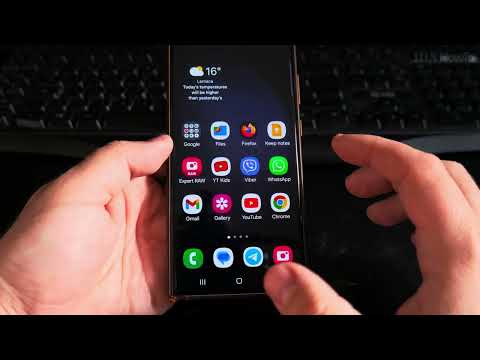
Step-by-step instructions
- Open the Settings app on your Samsung phone
- Scroll down and tap on “Display”
- Look for and tap on “Font size and style”
- You will see a font size slider at the bottom of the screen
- Drag the slider to the right to increase text size
- Drag the slider to the left to decrease text size
As you move the slider, you will see a sample sentence at the top of the screen change size. This lets you preview how the text will look before you commit to the change.
Optional: Make text bold
In the same Font size and style menu, you will also see an option to make text bold. Just toggle this on if you want thicker, darker text in addition to larger size.
What Changes When You Increase Text Size
When you adjust the font size slider, almost all text on your phone gets bigger. This includes:
- App names on your home screen and in the app drawer
- Settings menu text
- Text inside apps like Notes, Messages, and Email
- Weather information and widget text
Some things do not change much. For example, the keyboard letters stay roughly the same size because the keyboard needs to fit all the keys on the screen.
A Note About Different Fonts
In the Font size and style menu, you can also change the font style itself. Samsung offers several different fonts to choose from. Stick with the default or other easy-to-read fonts. Avoid hard-to-read fancy fonts because they can make text less clear even when the size is larger.
Quick Summary
Here is the whole process in one list:
- Open Settings
- Tap Display
- Tap Font size and style
- Drag the font size slider to the right to make text bigger
- Turn on Bold text if you want even better readability
- Preview the sample text as you adjust
- Exit settings when you are happy with the size
Final Thoughts
Learn how to increase text size on Samsung Android phones in just a few taps. This setting does not change anything else on your phone. It only affects how text appears on the screen. You can adjust it up or down at any time until you find the perfect size for your eyes. If you change your mind later, just go back to the same menu and move the slider again.
Leave a Reply Cancel reply