
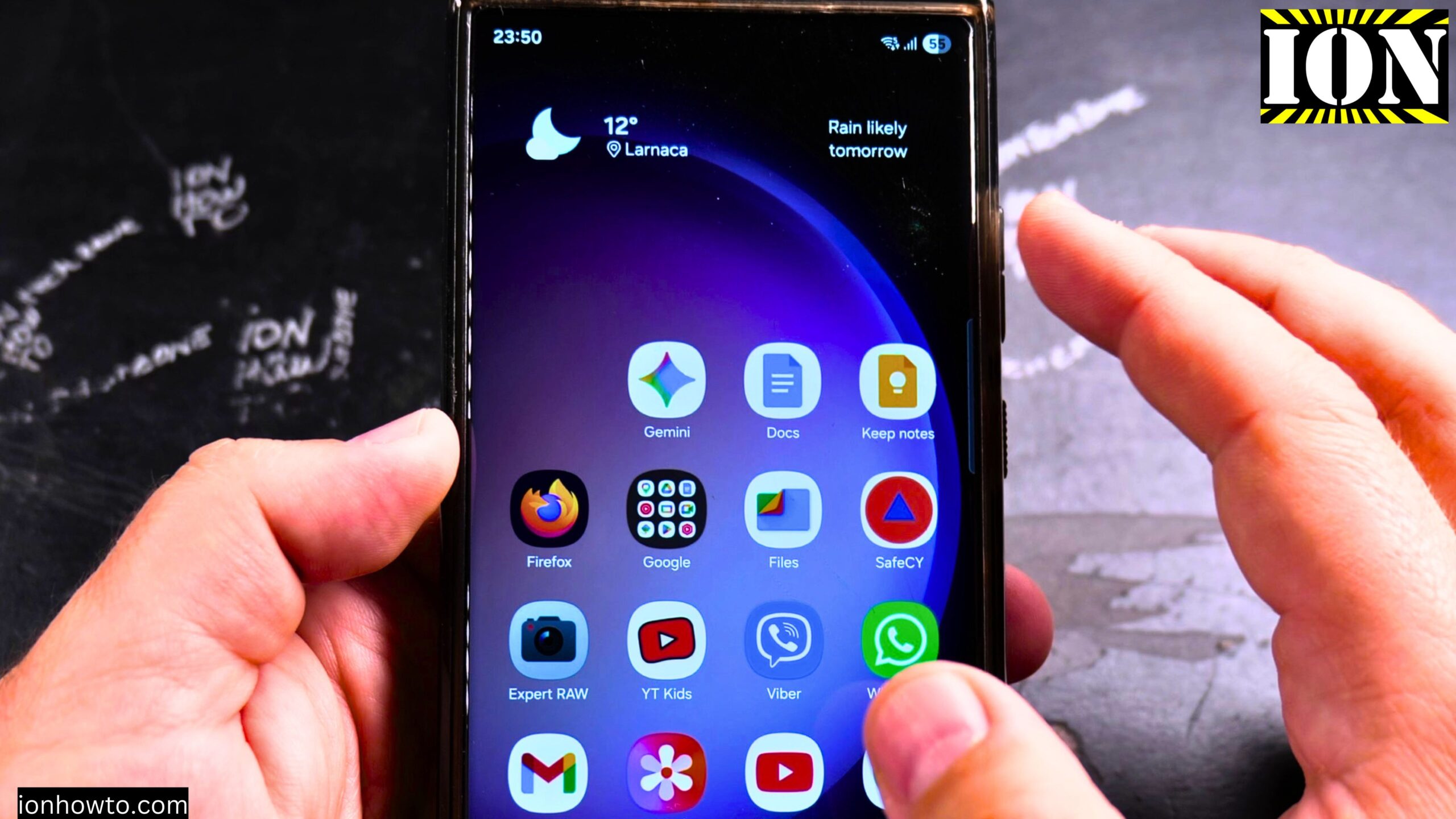
Is your Samsung Galaxy home screen starting to look like a big mess? I get it. You download apps, and before you know it, everything is all over the place.
The good news is that you can fix that in just a few minutes. Learn how to add folders, change folder colors, and organize your apps so your home screen actually makes sense.
I used a Samsung Galaxy S23 Ultra with Android 14 and OneUI 6.1 for this. But these steps should work on most newer Samsung Galaxy phones.
Quick Steps and Scenarios Overview
| What You Need to Do | Quick Jump |
|---|---|
| Why Bother with Folders? | Jump to Step 1 |
| How to Name Your Folder | Jump to Step 2 |
| How to Change the Folder Color | Jump to Step 3 |
| How to Move Apps Out of a Folder | Jump to Step 4 |
| How to Move Folders Around on Your Home Screen | Jump to Step 5 |
| Quick Tips for Keeping Things Organized | Jump to Step 6 |
Recommended Amazon Gear and Accessories
Disclosure: This article contains Amazon affiliate links. As an Amazon Associate, we earn from qualifying purchases at no extra cost to you.
- Phone Accessories
- Android Phone Case
- USB-C Charger
- USB-C Cable
- Wireless Charger Stand
- Wireless Car Charger
Why Bother with Folders?
Folders help you group similar apps together. Think about it – all your social media apps in one folder, all your work apps in another, and your entertainment apps somewhere else. No more swiping through five screens just to find the calculator.
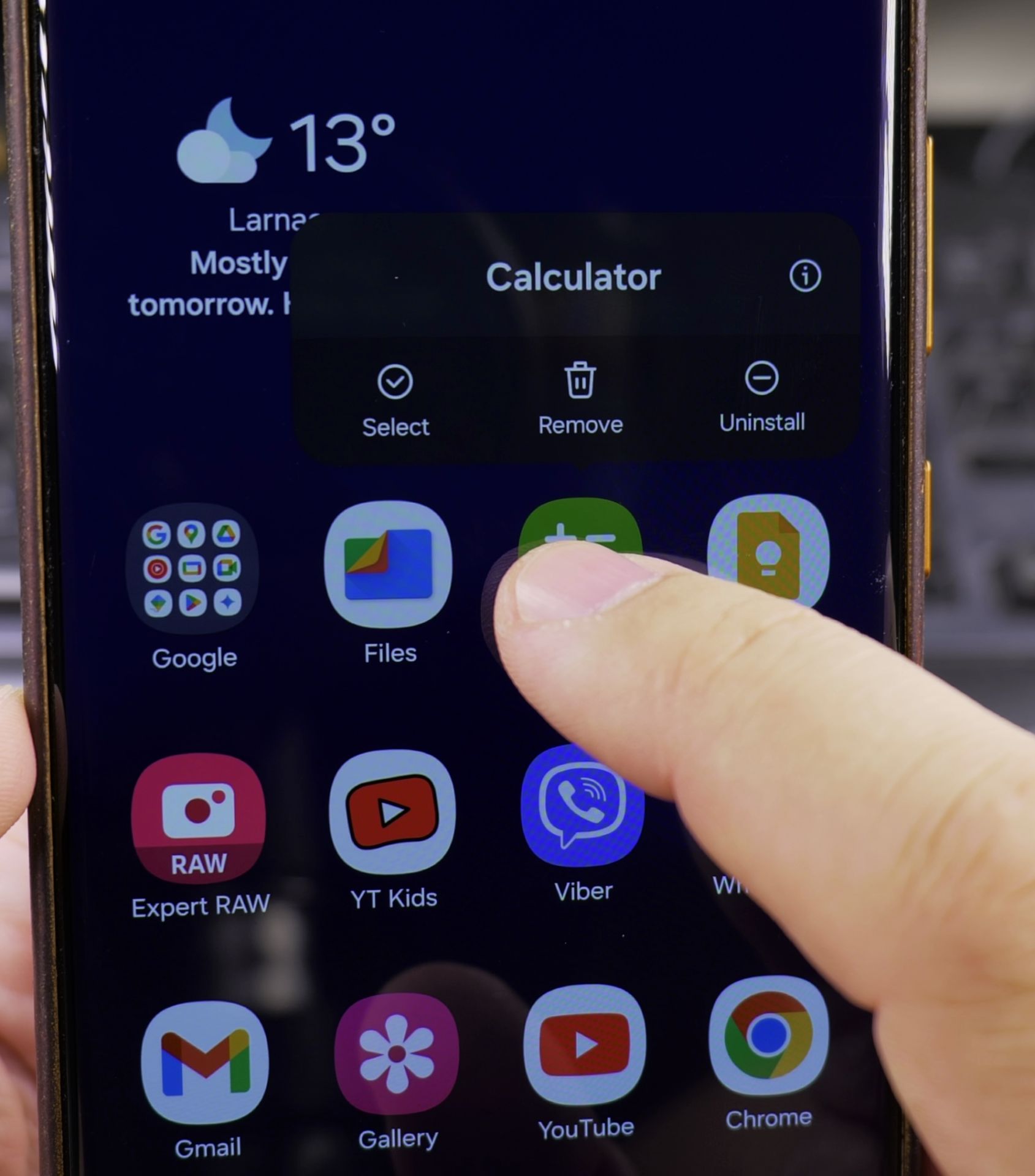
How to Create a Folder on Your Home Screen
This is really easy. Here is how you do it:
- Find two apps on your home screen that you want to put together
- Press and hold one of the apps with your finger
- While still holding, drag it on top of the other app
- Let go when you see a little outline or circle appear around the second app
That is it. The folder gets created automatically. You will see both apps sitting inside a little bubble.
How to Name Your Folder
When you first create a folder, a pop-up screen will appear. This lets you name it right away.
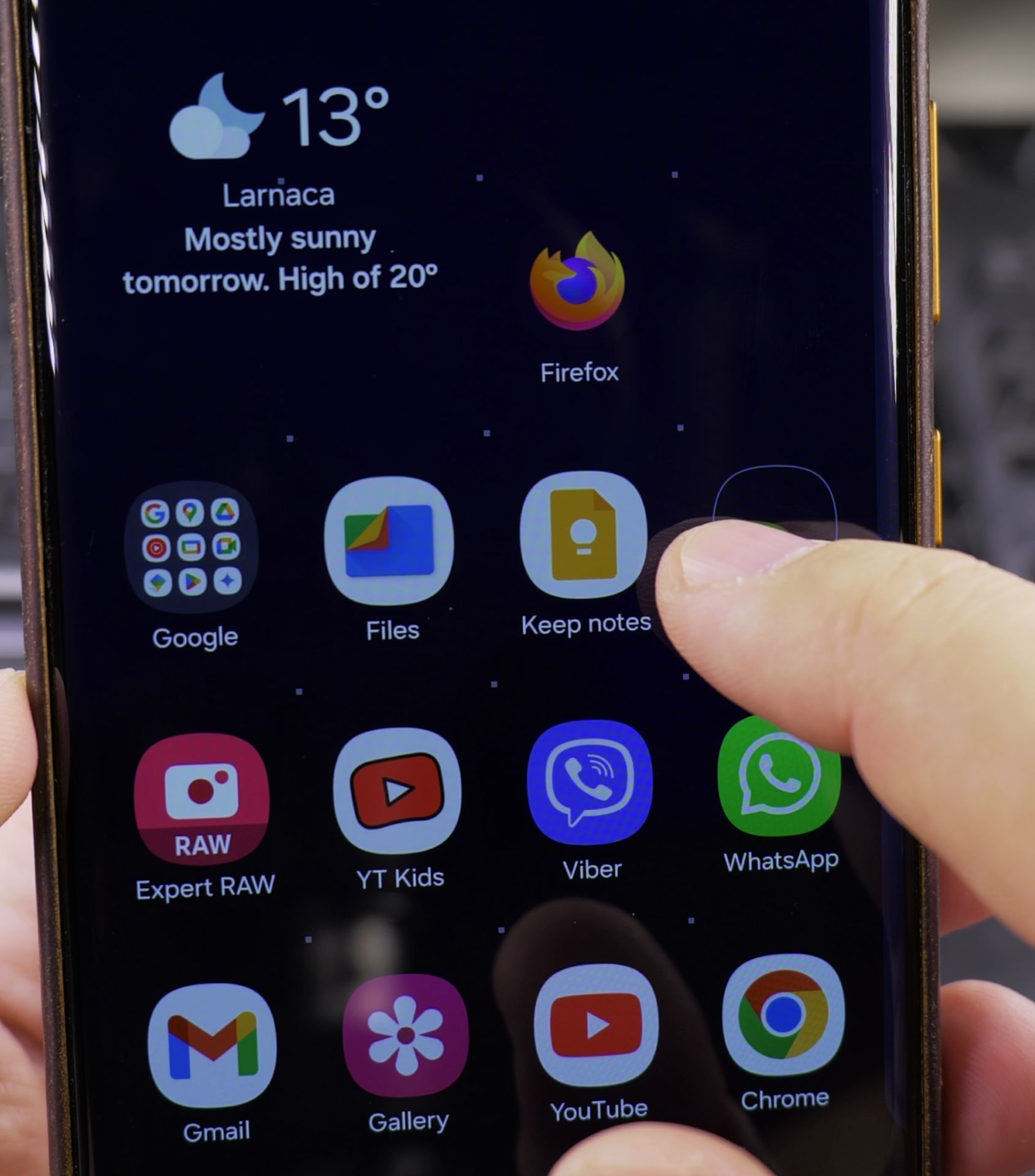
To rename a folder later:
- Tap the folder to open it
- Tap the folder name at the top
- Type whatever you want
- Tap outside the folder or press the back button
Give it something simple like “Social” or “Work” or “Games.” You will thank yourself later when you can actually find things.
How to Change the Folder Color
On Samsung Galaxy phones, you can change the folder background color. This makes folders easier to spot.
When you create a new folder:
- After dragging the apps together, the folder settings pop up
- Look for the color options at the bottom
- Tap different colors to see what you like
- Your folder background changes right away
You can also turn the color off completely if you do not want any background. Just tap the remove option.
How to Add More Apps to an Existing Folder
Got a folder already made and want to add another app? Simple:
- Find the app on your home screen (not in the folder yet)
- Press and hold that app
- Drag it on top of the folder
- Let go when the folder opens up or highlights
The app drops right in. You can do this with as many apps as you want.
How to Move Apps Out of a Folder
Changed your mind? No problem. Here is how to take an app back out:
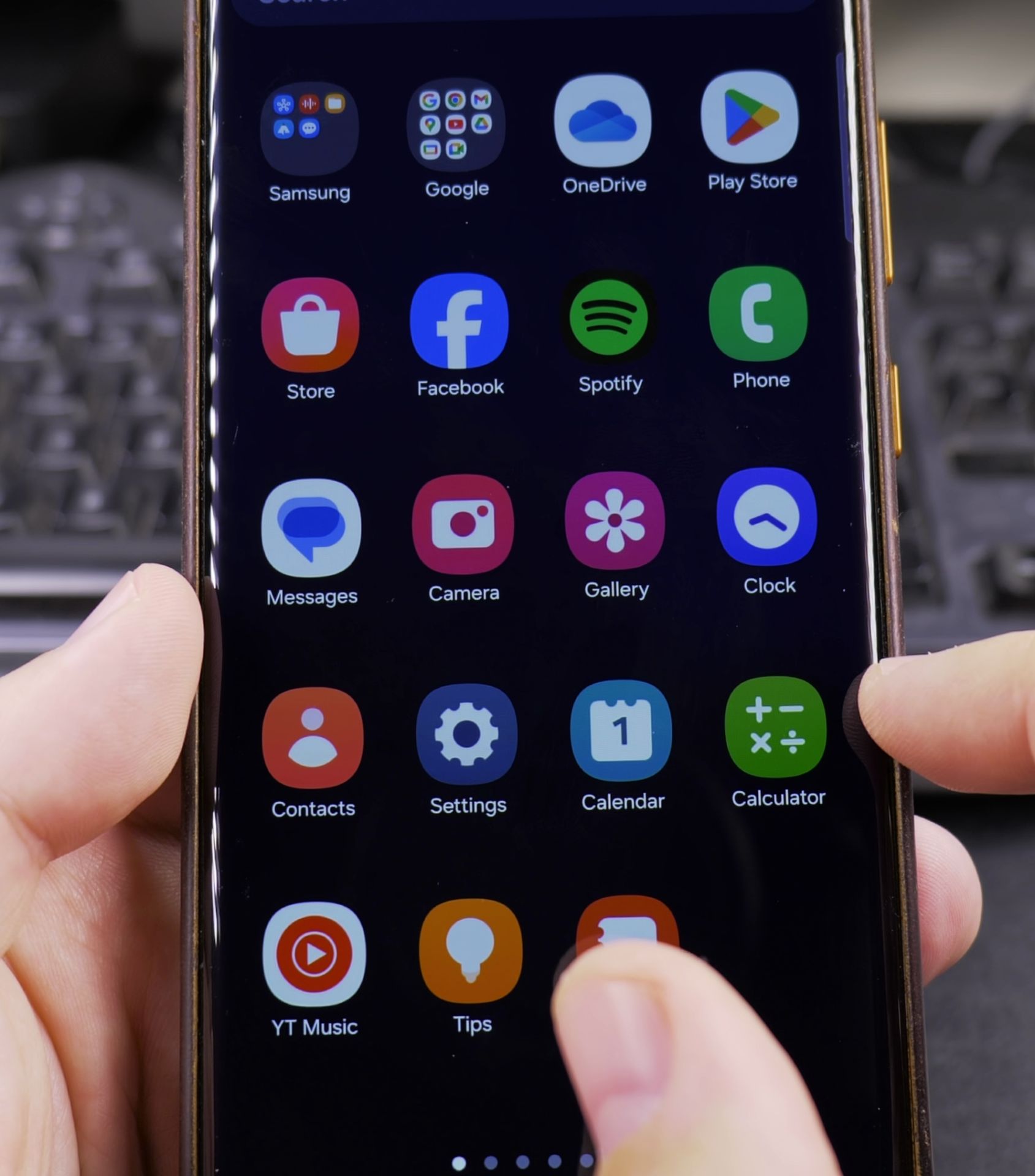
- Tap the folder to open it
- Press and hold the app you want to remove
- Drag it out of the folder and onto the home screen
- Let go
The app now lives on its own again. Do this for every app inside the folder, and the folder will disappear on its own when only one app is left. A folder with one app does not make sense, so Samsung removes it for you.
How to Move Folders Around on Your Home Screen
Folders move just like regular app icons:
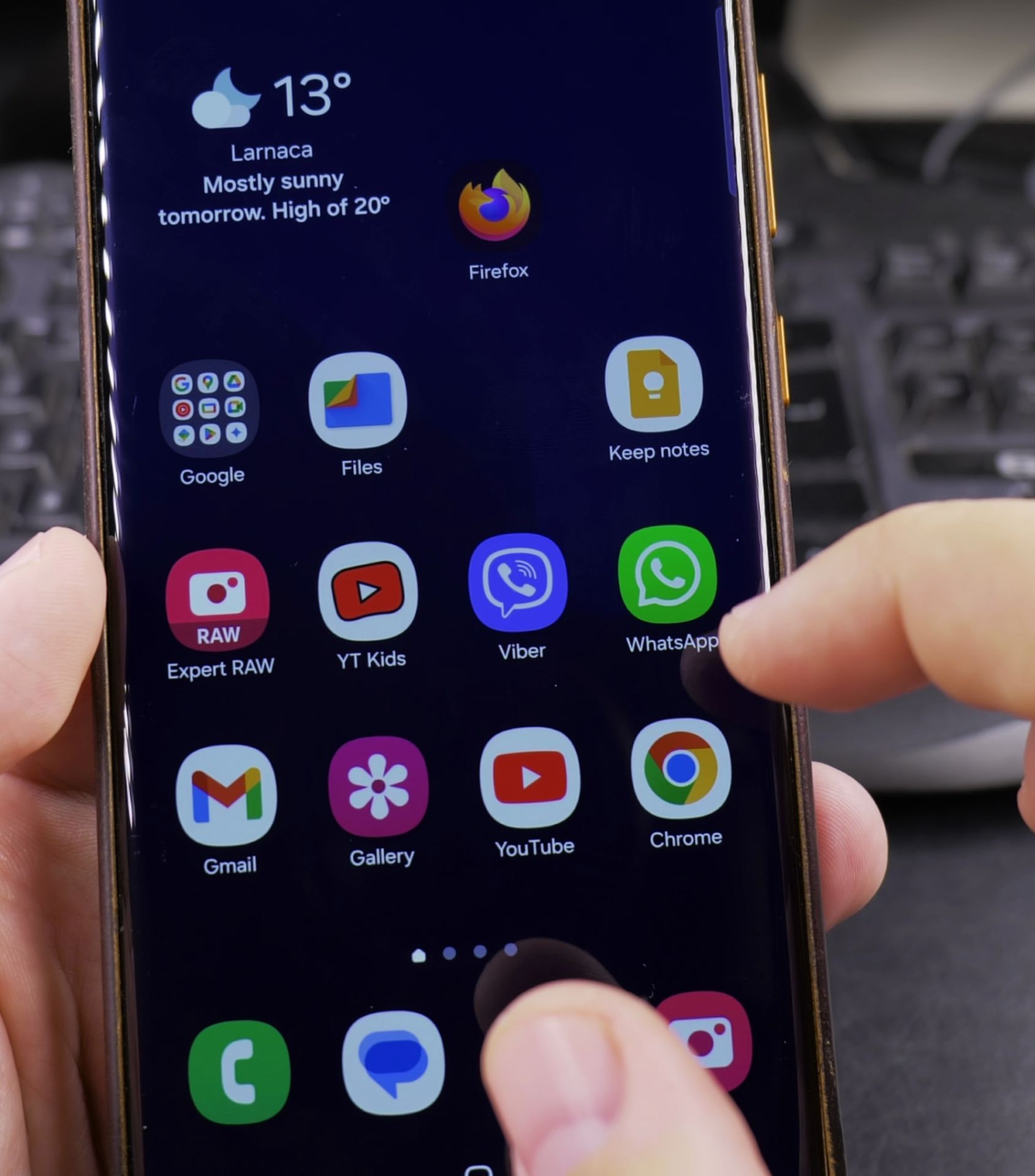
- Press and hold the folder
- Drag it to any empty spot on your home screen
- Let go
You can move it to a different screen too. Just drag it to the left or right edge of the screen and hold it there for a second. The screen will switch, and you can drop it there.
Quick Tips for Keeping Things Organized
· Put your most used apps on the first home screen
· Move less used apps into folders on the second or third screen
· You can delete a folder by dragging every app out of it
· Removing an app from the home screen does not delete it from your phone – it is still in your app drawer
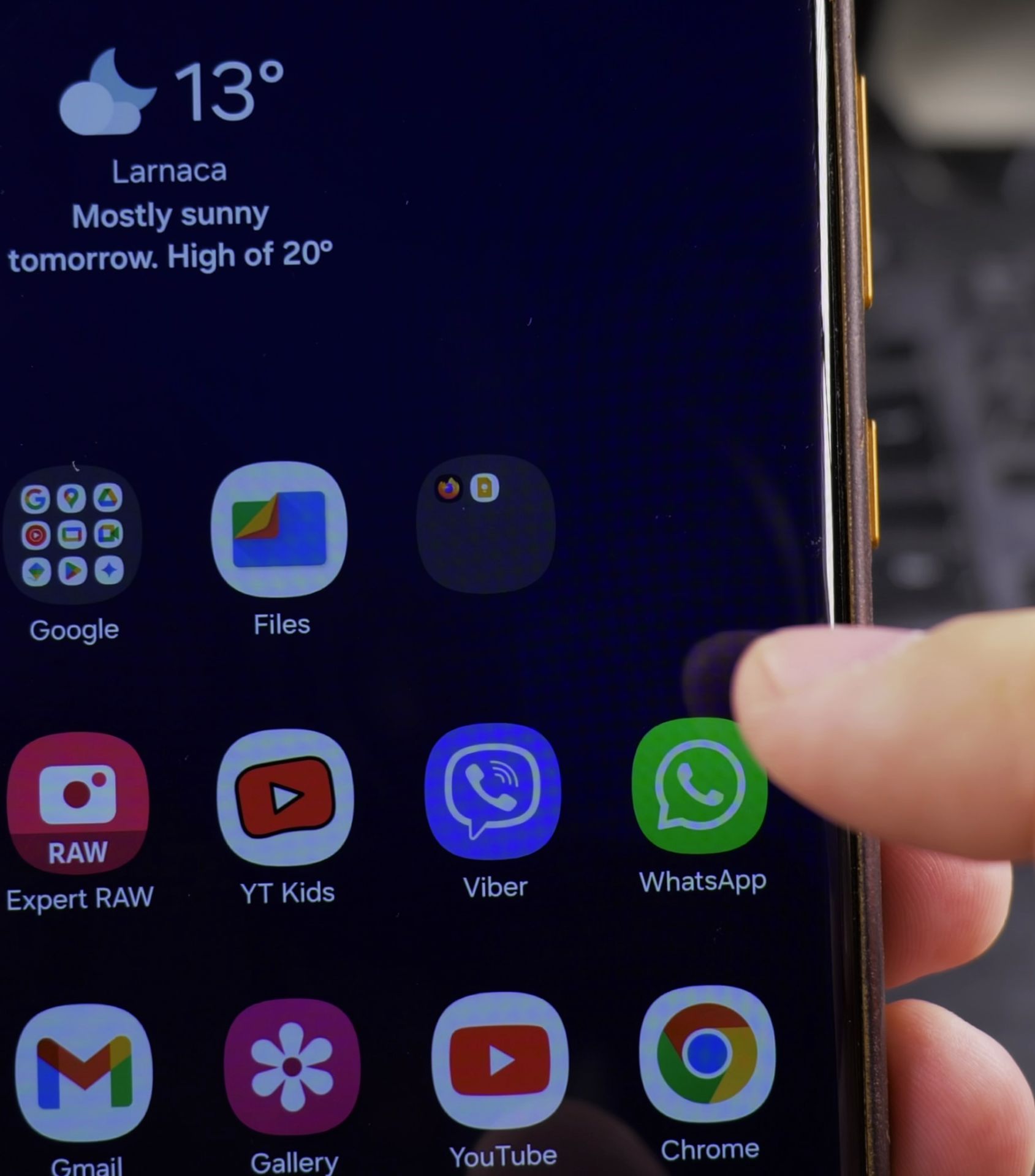
A Note About Moving Apps
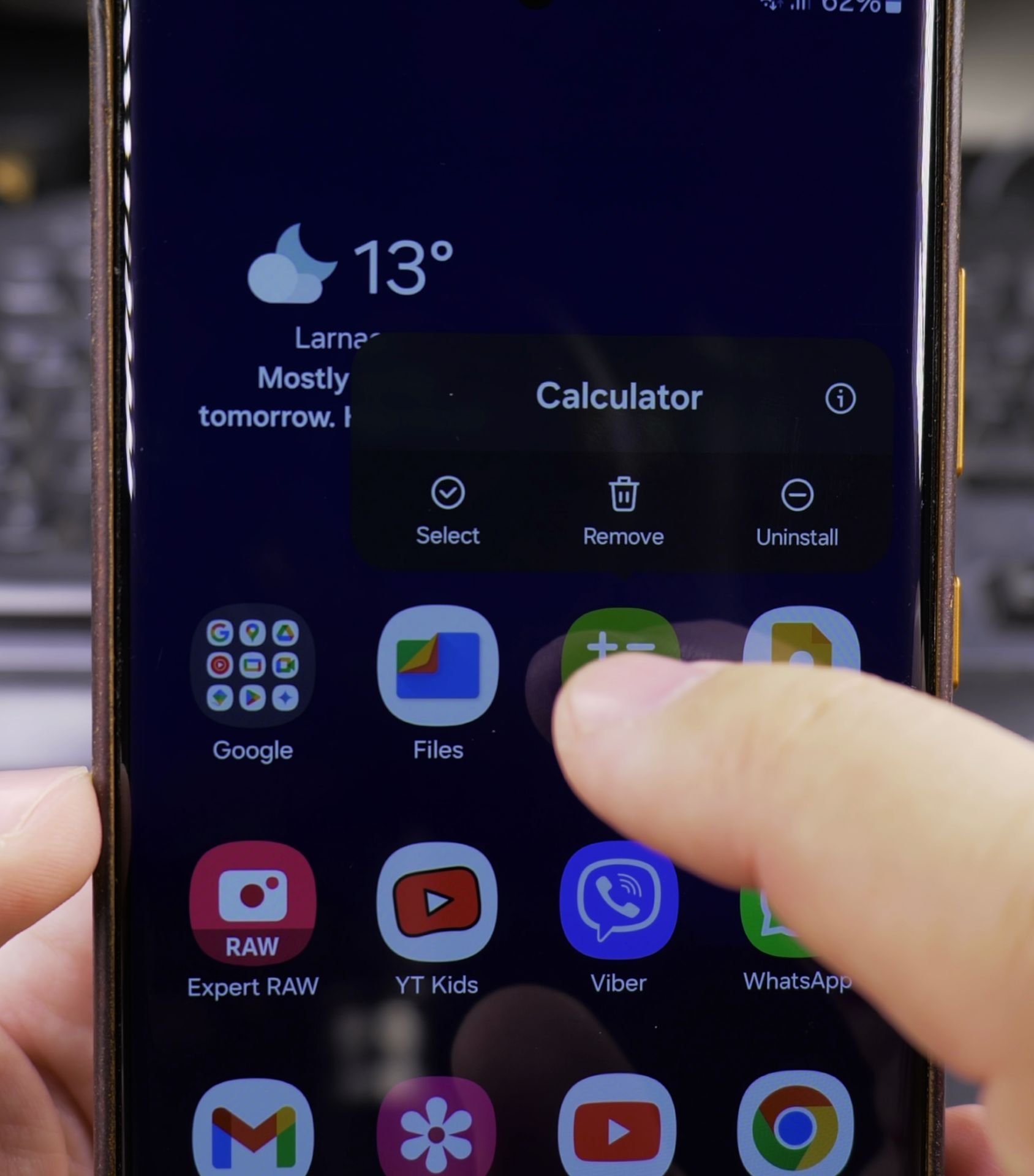
Some apps behave a little differently. If you long press an app and it gives you options like “Uninstall” or “Remove” right away, just choose “Remove” to take it off the home screen. Then you can add it back from the app drawer if you want.
The app drawer is all your apps in one place. Swipe up from the bottom of your screen to see it.
Final Thoughts
Organizing your home screen with folders takes maybe five minutes. But it saves you time every single day after that. No more hunting for apps. No more swiping past stuff you never use.
I show you how to create folders, give them names, change their colors, move them around, and add or remove apps whenever you want. Try making one folder today and see if it helps. You can always undo everything in a few seconds if you do not like it.
Helpful Tips
Take your time and check the screen carefully after each tap so you can confirm the setting changed as expected. If an option appears in a slightly different spot on your device, watch the embedded video above for a closer look.
Related Guides
- Remove Apps from Samsung Android Home Screen – How to Remove Apps from Home Screen on Samsung Android.
- Add Apps to Samsung Android Home Screen – How to Add Apps to Home Screen on Samsung Android.
- Remove Weather Widget from Samsung Home Screen – How to Remove the Weather Widget from Your Samsung Home Screen.
- Samsung Android Guides – Browse more tutorials and practical guides in this section.


Leave a Reply