

Ever glance at your phone and wish you knew the exact battery number instead of just guessing from that little icon icon? You’re not alone.
Learn how to turn on the battery percentage display on your Samsung Galaxy phone. It takes about 10 seconds, and it works on almost every Samsung Galaxy model out there – from the S23 to the S24, S25, or even older phones.
Let me show you exactly how to do it.
Quick Steps and Scenarios Overview
| What You Need to Do | Quick Jump |
|---|---|
| Why You Want the Battery Percentage Visible | Jump to Step 1 |
| Should You Keep It On? | Jump to Step 2 |
Recommended Amazon Gear and Accessories
Disclosure: This article contains Amazon affiliate links. As an Amazon Associate, we earn from qualifying purchases at no extra cost to you.
- Phone Accessories
- Android Phone Case
- USB-C Charger
- USB-C Cable
- Wireless Charger Stand
- Wireless Car Charger
Why You Want the Battery Percentage Visible
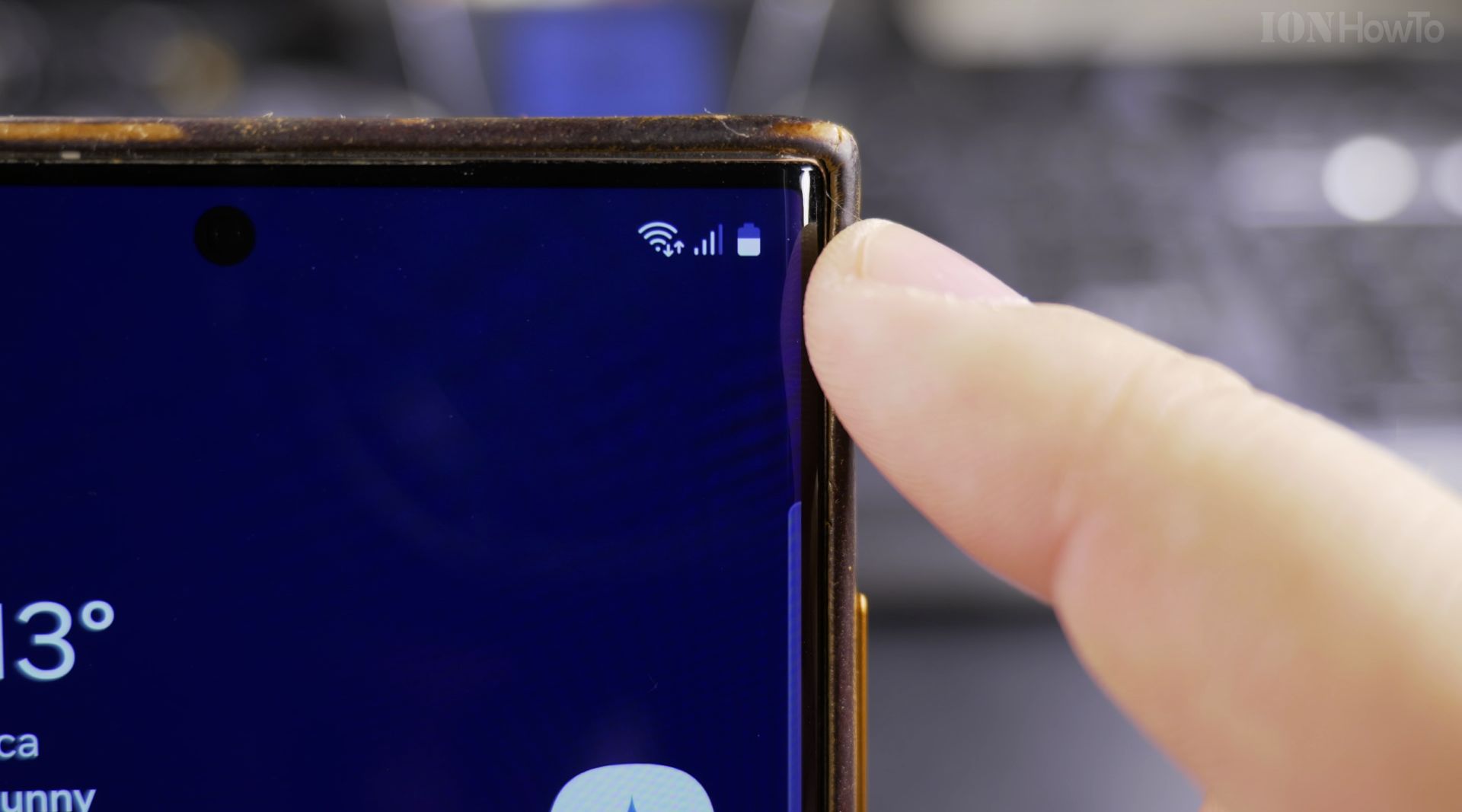
That little battery icon at the top of your screen is helpful, but it doesn’t tell you the full story. A half-full icon could mean 50% or maybe 40%. When you see the actual number, you know precisely how much juice you have left. This helps you decide if you need to charge now or if you can wait a few more hours.
Steps to Show Battery Percentage on Samsung Galaxy
Here is what you need to do. The steps are the same on most Samsung Galaxy phones running Android.
Step 1: Open your Settings app. You can find the gear icon either in your app drawer or by swiping down from the top of your screen and tapping the gear in the corner.
Step 2: Scroll down and tap on Battery. On some phones, you might need to tap Device Care first, then Battery. But on most newer Galaxy phones, Battery is right there in the main Settings list.
Step 3: Look for a toggle switch that says Show Battery Percentage. It is usually near the top of the Battery screen.
Step 4: Turn the toggle on. That is it.
Once you enable it, the number will appear right next to or inside the battery icon in the top corner of your screen.
Here is a quick example of how it works:
· Toggle off – you only see the battery icon
· Toggle on – you see the icon plus the percentage number right next to it
What If You Don’t See the Setting?
On some older Samsung Galaxy phones, the battery percentage setting might be in a slightly different spot. Learn how to find it by checking these places instead:
· Settings > Display > Status Bar
· Settings > Notifications > Status Bar
Samsung has moved this setting around in different software updates. But on most phones released in the last few years, it lives inside Settings > Battery.
Extra Battery Info You Can Find in the Same Menu
While you are in the Battery settings, take a look around. You can see:
· Which apps are using the most battery
· How much screen time you have gotten since your last charge
· Estimated battery life left based on your usage
· Power saving modes you can turn on
For example, on a Samsung Galaxy S23 Ultra, the battery capacity is 5,000 mAh. That is a large battery that lasts most people a full day. Seeing the percentage helps you know exactly when it is time to plug in.
Should You Keep It On?
I suggest keeping the battery percentage turned on. The icon alone is small and hard to read accurately. With the number right there, you know at a glance if you have 15% left (time to charge) or 45% (you are fine for a few more hours).
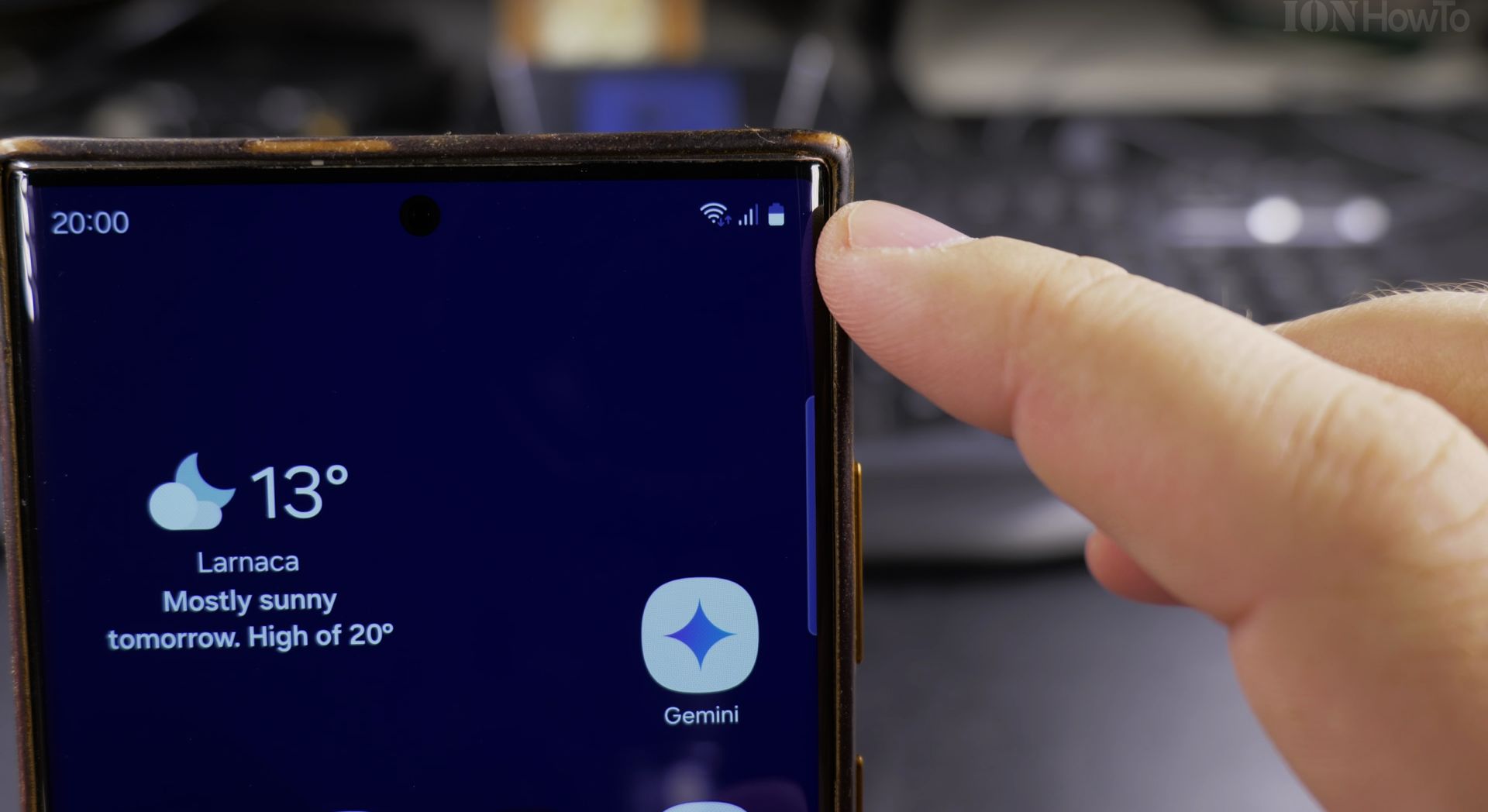
If you ever want to turn it off, just go back to the same screen and flip the toggle off.
A Quick Note on Battery Life
Having the percentage visible does not drain your battery. It is just a number on your screen. It uses no extra power to speak of.
If you want to actually save battery life, try turning on Power Saving mode in the same Battery settings menu. That makes a real difference. But showing the percentage? Keep it on. It only helps you.
Helpful Tips
Take your time and check the screen carefully after each tap so you can confirm the setting changed as expected. If an option appears in a slightly different spot on your device, watch the embedded video above for a closer look.
Related Guides
- Add Widgets to Samsung Galaxy Home Screen – How to Add Widgets to the Home Screen on Samsung Galaxy.
- Customize Samsung Galaxy Home Screen Widgets – How to Customize Samsung Galaxy Home Screen Widgets.
- Remove Apps from Samsung Android Home Screen – How to Remove Apps from Home Screen on Samsung Android.
- Samsung Android Guides – Browse more tutorials and practical guides in this section.


Leave a Reply