
Amazon links
As an Amazon Associate I earn from qualifying purchases:
- Phone Cases
- Mobile Tripods
- Usb-c charger
- Usb-c cable
- Docking stations
- Wireless car chargers
- Wireless charger stand
- SIM card removal tool
- SIM card holder
Learn how to use a USB to USB-C adapter on your Android phone for fast data transfers. If you have an external SSD, flash drive, or hard drive with a regular USB Type-A cable, you can connect it to your USB-C Android device. I tested the Ugreen USB to USB-C adapter on my Sony Xperia 1 V running Android 15, and I’ll show you what happened.
What I Tested and How
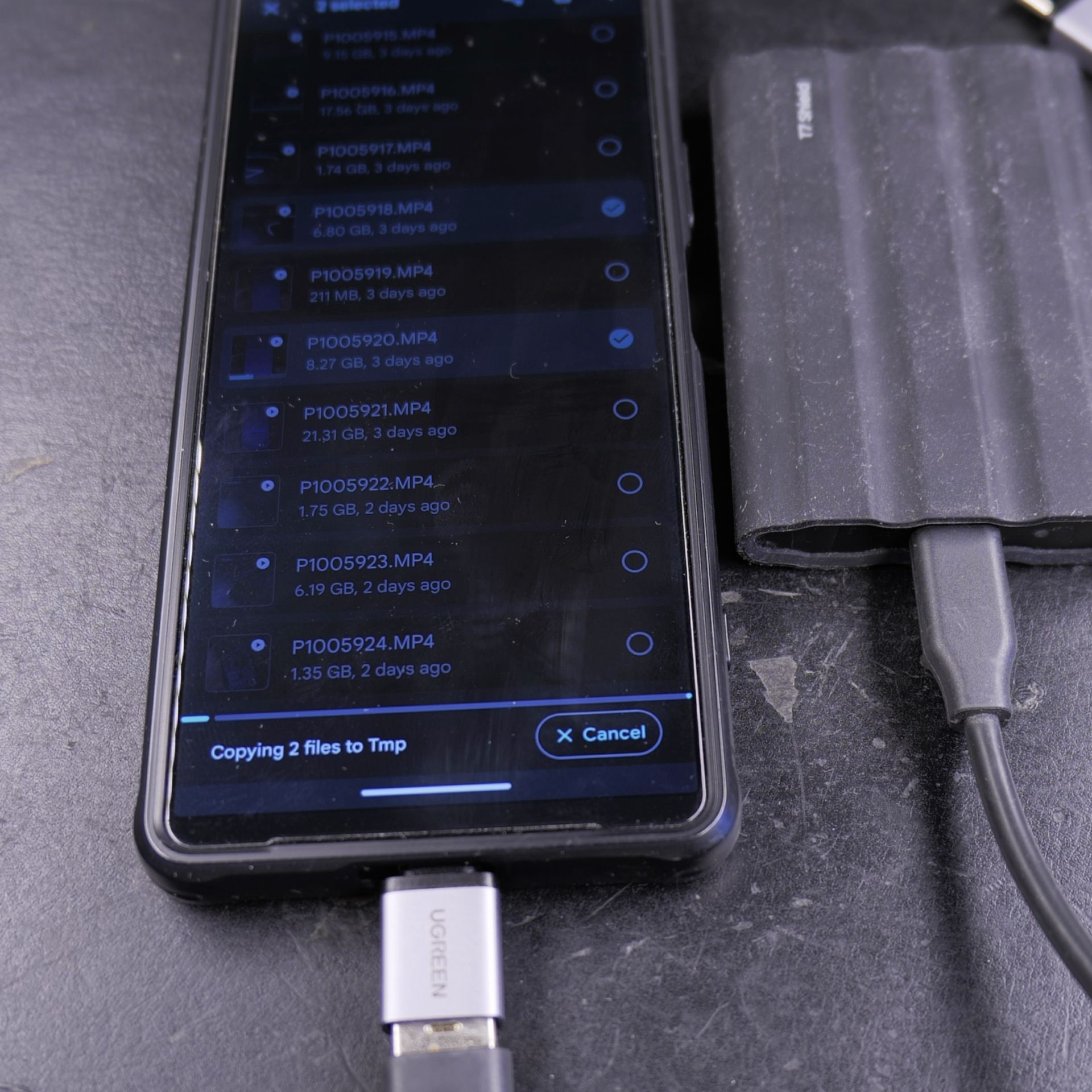
I used the Ugreen USB adapter (USB 3.2 Gen 2) with a Samsung T7 Shield portable SSD. The adapter supports speeds up to 10 Gbps, which is great for moving large files like videos or photo backups. Maximum charging is 18W, so these are not for fast charging your phone. They are meant for high speed data transfer.
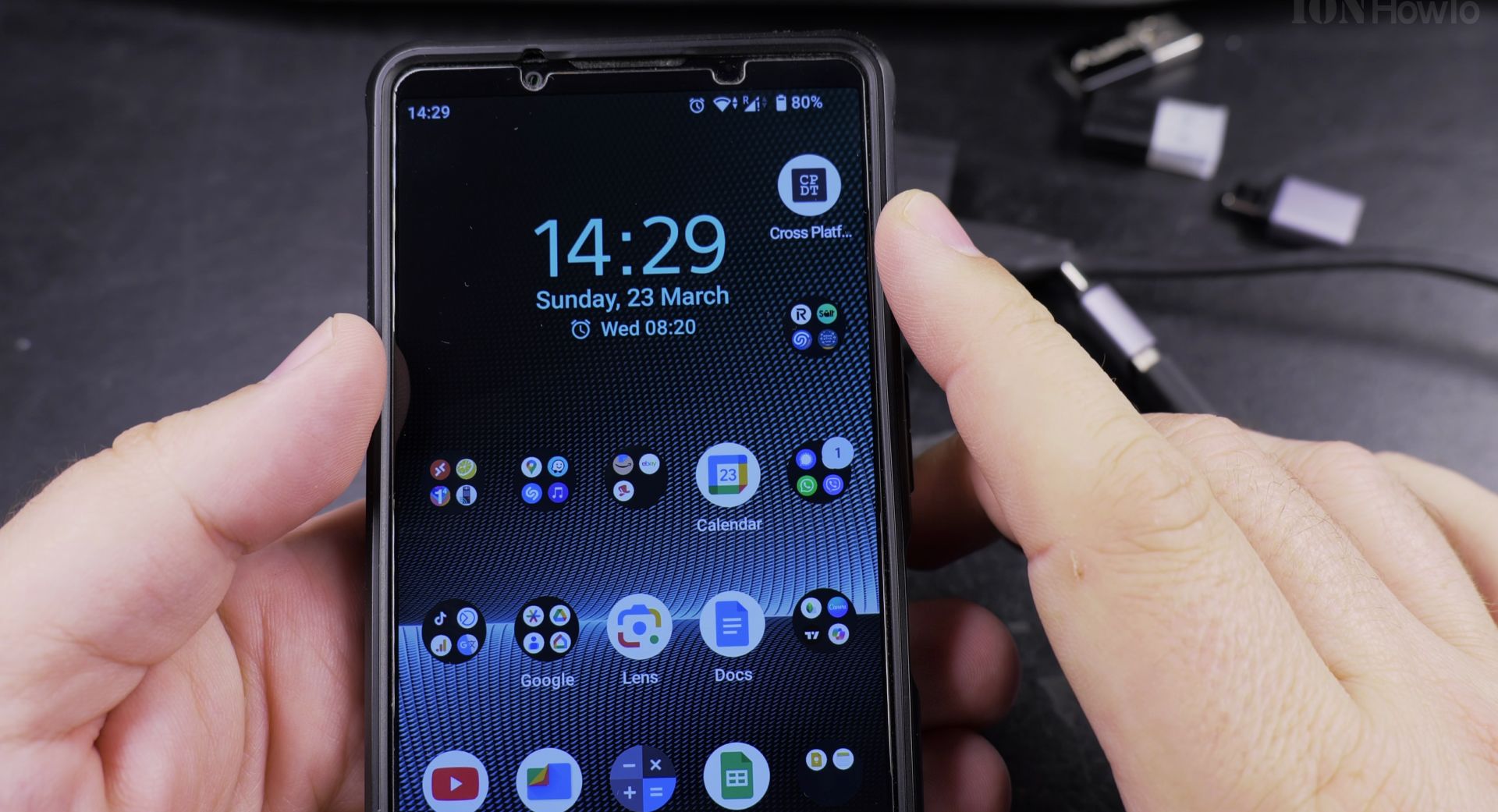
Here is what I did step by step:
- Plugged the USB-A end of the Samsung T7 Shield cable into the Ugreen adapter
- Plugged the USB-C end of the adapter into my Sony Xperia 1 V
- Opened the file manager to see if the SSD showed up
- Copied about 10 GB of video files from the SSD to the phone’s internal storage
The Results
The SSD showed up correctly on the phone. The file transfer worked without any errors. I tried copying files in both orientations of the USB-C connector (flipping it over), and the speed looked the same as when I plug the SSD directly into the phone without the adapter. That means the adapter did not slow down my transfer speed noticeably.
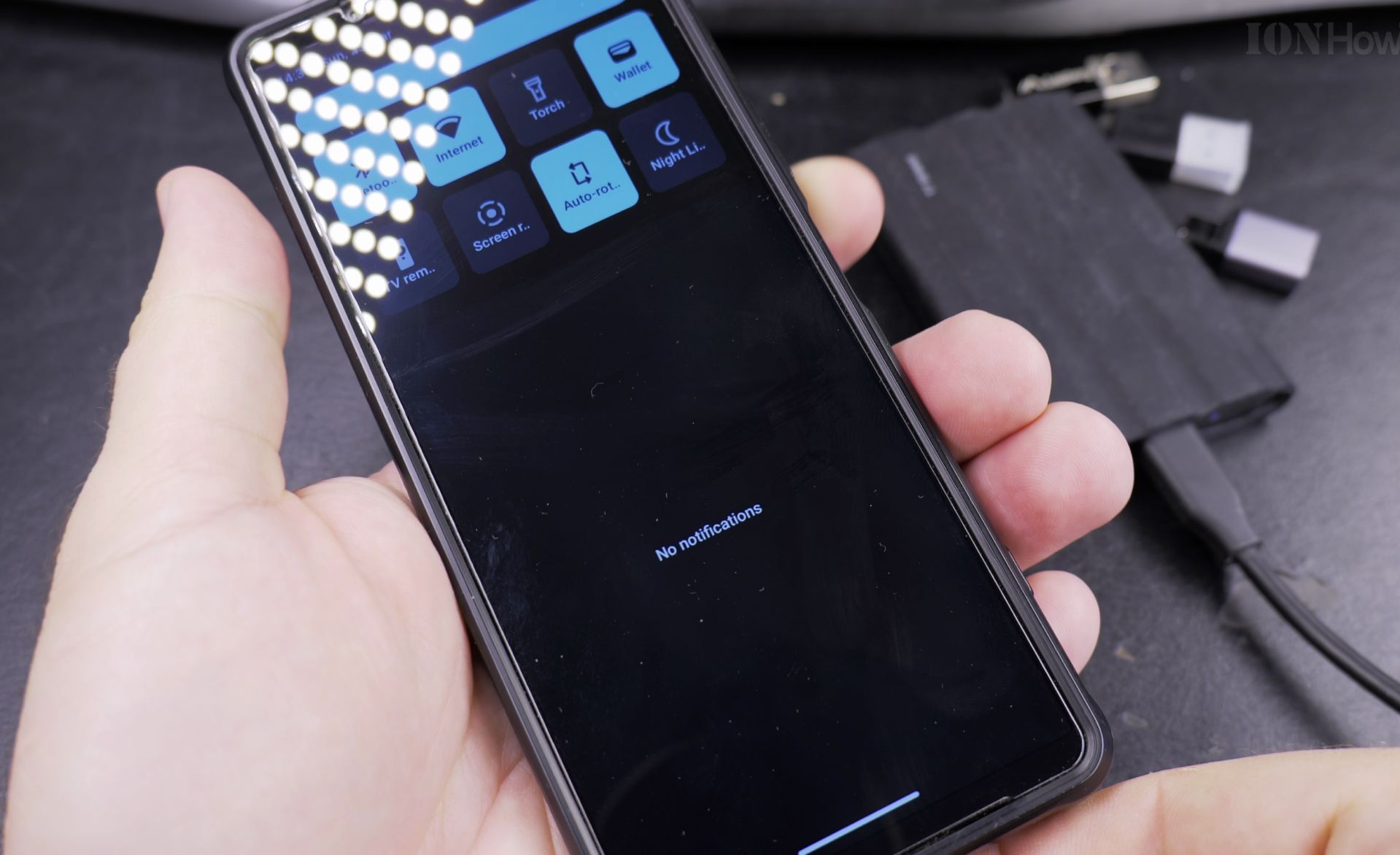
One thing to note: the speed test app I used before did not work this time. So I relied on watching the actual file copy progress. The transfer felt like the usual speed I get with the T7 Shield connected directly.
Quick Steps and Scenarios Overview
| What You Need to Do | Quick Jump |
|---|---|
| What I Tested and How | Jump to Step 1 |
| The Results | Jump to Step 2 |
| Why Some Adapters Are Slow | Jump to Step 3 |
| Learn How to Check If Your Adapter Is USB 3.0 Compatible | Jump to Step 4 |
Why Some Adapters Are Slow
I have owned a few cheap USB-C to USB-A adapters in the past. Most of them were really slow. Only one worked well. With some adapter and phone combinations, the speed can drop to USB 2.0 speeds for no obvious reason.
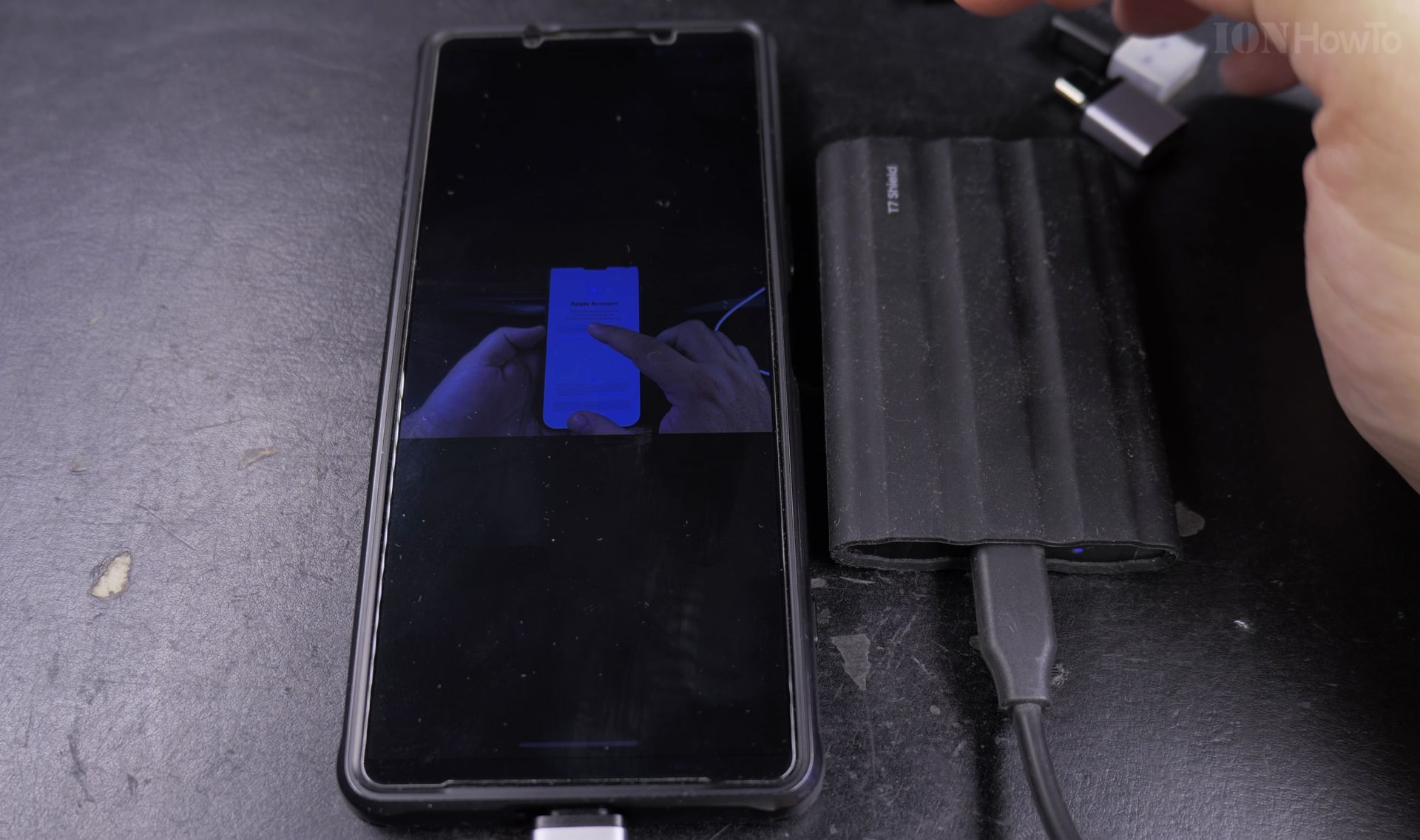
If that happens to you, try these fixes:
- Reverse the USB-C connector (flip it over and plug it back in)
- Remove any USB extension cable you might be using
- Try a different adapter if you have one
Learn How to Check If Your Adapter Is USB 3.0 Compatible
Not all USB adapters and cables are the same. A simple way to check USB 3.0 compatibility is by looking at the metal connectors inside the USB-A port.
Here is what to look for:
- USB 2.0 has 4 pins (small metal strips) at the back of the connector
- USB 3.0 and above has the same 4 pins plus an extra row of 5 pins toward the front
So if you look inside the USB-A end of your adapter or cable and see 4 pins only, it is USB 2.0. If you see 4 pins at the back and 5 pins in front (or on the other side), it is USB 3.0 or higher. This helps you know if you are getting the best possible speed for data transfer.
Final Thoughts
The Ugreen USB to USB-C adapter worked fine for my use case. It did not slow down my Samsung T7 Shield SSD compared to a direct connection. If you need to connect older USB-A devices or cables to your USB-C Android phone, this type of adapter is a good tool to have. Just make sure you get a USB 3.x rated adapter if you care about speed. And if your transfer seems slow, try flipping the connector before giving up.
Helpful Tips
Take your time and check the screen carefully after each tap so you can confirm the setting changed as expected. If an option appears in a slightly different spot on your device, watch the embedded video above for a closer look.
Related Guides
- Use Wired Headphones with USB-C to 3.5mm Adapter on Android – How to Use Wired Headphones with a USB-C Adapter on Android.
- How to Tell Genuine Apple vs Fake USB C to Lightning Adapter – Counterfeit phone adapters look convincing on online storefronts but often fail to charge or support high-speed data.
- USB-A to USB-C Adapter Ugreen – USB-A to USB-C Adapter Ugreen Unboxing.
- Android & Mobile Guides – Browse more tutorials and practical guides in this section.


Leave a Reply