
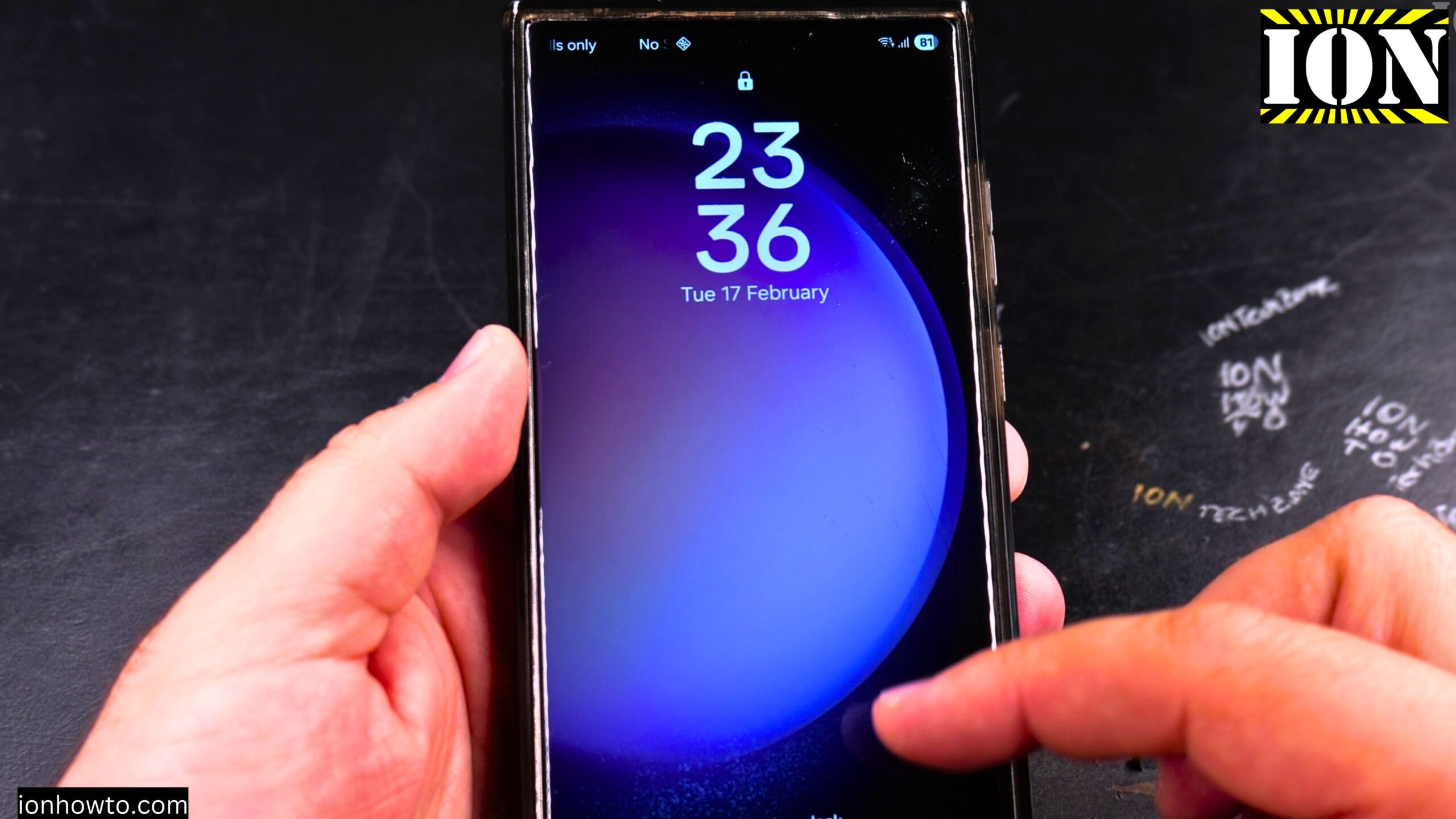
How to Change Alarm Ringtone on Samsung Android Devices.
Amazon links
As an Amazon Associate I earn from qualifying purchases:
- Phone Accessories
- Screen protectors
- Phone Cases
- Mobile Tripods
- Usb-c charger
- Usb-c cable
- Docking stations
- Wireless car chargers
- Wireless charger stand
- SIM card removal tool
- SIM card holder
Learn how to change the alarm sound on your Samsung Galaxy phone. If you want to wake up to a different tone or even a song from your music library, it is quick to set up.
I will show you this on a Samsung Galaxy S23 Ultra running Android 14 with OneUI 6.1. The steps are very similar on most Samsung phones and tablets.
Where to find alarm settings
The alarm settings are inside the Clock app. This is the same app where you check the time, set timers, and use a stopwatch.
Step 1: Find and open the Clock app. Look for the icon that looks like a white clock face on a colored background.
Step 2: Tap on “”Alarm”” at the bottom of the screen (usually the second tab).
Step 3: You will see your existing alarms. To create a new alarm, tap the plus icon (+) at the bottom.
How to change the alarm sound for an existing alarm
Step 1: Open the Clock app and go to the Alarm tab
Step 2: Tap on the alarm you want to change (not the toggle switch, but the text or the area with the time)
Step 3: Look for “”Alarm sound”” or the musical note icon. Tap on it.
Step 4: You will see several options for alarm sounds
Step 5: Tap on any sound to preview it
Step 6: Once you find one you like, just go back. The sound is saved automatically.
How to set a custom alarm sound from your music
You can use any song or audio file on your phone as an alarm.
Step 1: Follow steps 1-3 above to get to the alarm sound selection screen
Step 2: Look for an option like “”Add from phone”” or a plus icon. On Samsung phones, you may see “”Ringtone”” as an option that lets you browse your files.
Step 3: Navigate to where your music or audio files are stored (Music folder, Downloads, etc.)
Step 4: Tap on the song or file you want to use
Step 5: The sound is now set as your alarm tone
Alarm sound options on Samsung
Samsung’s Clock app gives you several choices for alarm sounds:
- Ringtone – Standard alarm tones that come with the phone
- Music – Songs from your music library
- Spotify – If you have Spotify installed, you can pick a song or playlist
- Bixby alarm – Bixby tells you the current time and weather forecast when the alarm goes off
How to set a Bixby alarm
Bixby alarm is a unique Samsung feature. Instead of just playing a sound, Bixby speaks to you when the alarm goes off.
Step 1: When editing an alarm, tap on “”Alarm sound””
Step 2: Tap on “”Bixby alarm””
Step 3: Bixby will tell you the current time and weather forecast when the alarm rings
This can be a nicer way to wake up than a loud beeping sound.
How to set different sounds for different alarms
You can have multiple alarms with different sounds. This is useful if you want a gentle sound for your first alarm and a louder one for your final wake-up alarm.
Step 1: Create or edit your first alarm and set its sound
Step 2: Create or edit your second alarm
Step 3: Before saving, tap on “”Alarm sound”” and pick a different sound
Step 4: Save the alarm
Each alarm will play its own unique sound.
How to set alarm vibration
You can also control whether your phone vibrates when the alarm goes off.
Step 1: When editing an alarm, look for “”Vibration”” or a vibration icon
Step 2: Tap to turn vibration on or off
Some people prefer vibration on so they feel the alarm even if they sleep through the sound. Others prefer vibration off for a gentler wake-up.
How to set a snooze
Snooze lets you delay the alarm for a few minutes.
Step 1: When editing an alarm, look for “”Snooze””
Step 2: Tap to turn it on
Step 3: You can often change how long the snooze lasts (5 minutes, 10 minutes, etc.)
When the alarm rings, you will see a Snooze button. Tap it and the alarm will ring again after the snooze time.
How to set alarm days
You can choose which days of the week each alarm goes off.
Step 1: When editing an alarm, look for “”Repeat”” or the days of the week
Step 2: Tap on the days you want the alarm to ring (Monday, Tuesday, etc.)
Step 3: Blue or colored days are selected. Gray days are not selected.
Common patterns:
- Weekdays only – Select Monday through Friday
- Every day – Select all days
- Weekends only – Select Saturday and Sunday
Quick summary
To change an alarm sound on Samsung:
- Open the Clock app
- Tap on Alarm
- Tap on the alarm you want to change
- Tap on “”Alarm sound””
- Pick a new sound from the list
- Go back to save
To use a custom song as an alarm:
- Follow steps 1-4 above
- Look for “”Ringtone”” or “”Add from phone””
- Find your song file
- Tap to select it
To set a Bixby alarm:
- Tap on “”Alarm sound””
- Tap on “”Bixby alarm””
- Bixby will read the time and weather when the alarm rings
To set different sounds for different alarms:
- Set each alarm separately with its own sound
- Save each alarm before creating the next one
Other alarm settings you might want to change
When you edit an alarm, you can also adjust:
- Time – When the alarm goes off
- Repeat days – Which days the alarm is active
- Alarm name – Give it a name like “”Work”” or “”Weekend””
- Volume – How loud the alarm plays (use the volume buttons)
- Snooze – Turn on/off and adjust duration
Thanks for watching. Now you can wake up to any sound you like on your Samsung phone.


Leave a Reply