

Google AI Pro Subscription Review.
Using the Google AI Pro Subscription so far is pretty fun and saved me some time.
I have a 6 month free trial for Google One – Google AI Pro subscription because of buying the Google Pixel 11 Pro XL phone.
Other than making a few AI videos with Google Flow and playing with AI music ideas in Google Flow Music I didn’t think much about Gemini on the AI Pro Subscription until…..
I remembered we have some boring steps in the video workflows that I tried before to automate with scripts and failed.
I gave it another try….
Wow the Google Gemini Argon can really deliver code that actually works OUT OF THE literal BOX.
With a few back and forth, I (it) was able to build a python script to run in the DaVinci Resolve Studio 21 Console or as a Workspace Automation Script.
I was thinking maybe nobody cares about this or maybe I shouldn’t be sharing my secrets but this whole channel and the website are all about helping and sharing information so here it is in case someone might find this useful.
Google Gemini 4 Argon Split DaVinci Resolve 21 Timeline into Multiple Timelines Video Demonstration Splitting Working
Do everything in batches, everything
We have everything recorded and processed in batches.
The purpose of batches is to make editing and processing faster and ultimately easier for us so the computer does the processing while we play at the beach.
The videos are 100% real and the editing is still 100% human-made, but I will look into the Resolve 21 AI editing more.
I did try the Claude desktop app to plug into DaVinci Resolve 21 to do some good old AI editing but that didn’t go well for our kind of videos.
It kept saying it doesn’t read the actual video or audio and needs captions to do the editing. Even with subtitles/ captions, it didn’t work.
The workflow still has many repetitive steps and every time I tried to automate it with AI-generated scripts, it didn’t work.
I have a script done in AHK that will send keystrokes to resolve to automate some repetitive tasks and that works most of the time but not always.
In Gemini 4 Argon…
I was able to replace the unreliable AKH script with Resolve API calls to to the repetitive work and I’m shocked it’s working so well and how reliable it is.
I’m impressed really.
This post is written by hand and might not look as good as it should but I only care about delivering the information to you how I could without the fancy words.
The workflow is…
Record 10-20 videos with the camera and a separate audio recording for the room sounds.
Camera: Panasonic LUMIX S5 with the DMW-XLR1 on the hotshoe and the Rode NT1 plugged into the XLR adapter interface.
Audio recording done separate with the SONY PCM-A10 and a stereo DYI Microphone based on the Primo EM-172 capsules.
When starting a recording I snap my fingers next to the microphones a few times for sync later.
I don’t have timecode. I wish I did but snapping fingers works mostly fine – not always.
Results:
Video files : 4K 60p HLG HDR with Dual MONO 24 bit Audio from the Rode NT1.
Audio files: 24 bit Stereo WAV.
In Resolve
Import the video and audio files into a predefined folder structure.
Naming example 20261026 iPhone and Android videos
The folders start with YYYYMMDD and if there are multiple folders in a day the second becomes 20261026B or make for morning 20261026A and evening 20261026B. Split the day into AM PM so can say 20261026A and after 12 noon 20261026P. It can be anything.
Before I had the files into separate folders for each camera and recorder with the name of the camera and audio for audio clips but now I just put everything into this folder as it is. It’s easier like that.
Have the Resolve project template ready and duplicate it then rename it with the same name as the source media folder – copy and paste.
Opening the Resolve project and adding the media files to the source media bin inside the new Resolve project.
Then Select all files and use Ctrl+Alt+Shift Q to attach the audio clips to the video files. Use waveform and choose to keep existing audio.
Now you have hopefully video clips with 4 audio tracks when adding them to your timeline. The extra audio clips are attached to the videos from now on as one.
Generate Proxy media for me is Ctrl+Alt+Shift P.
Edit the videos and because the clips are for multiple videos, we put markers between videos.
If any clips need to be blurred for privacy they are marked as Violet clip colors to look at later in the Color tab.
We name the markers as the final videos to be rendered and uploaded to YouTube.
Example: 20261026-01 iPhone Change eSIM; 20261026-02 Android Remove SIM.
Each video gets an index ID based on the location on the timeline. This doesn’t have to be like this, it can be any name but I like it this way YYYYMMDD-NN Name
Prepared timeline
Do any color grading – mostly a template saved as a color grading group for each setup. Desk is the most common with the same 3K kelvin lights on the desk.
Any watermarks or intros are added to the whole timeline as one whole thing.
Split DaVinci Resolve 21 Timeline into Multiple Timelines.
This is the part where we do split DaVinci Resolve 21 Timeline into Multiple Timelines and add to Render Queue.
The new script does the splitting and we do the preparation so all the data points are correct.
It needs a marker before each video including the beginning.
The markers need to be named with the final video rendered file name. This is where the splitting script takes the names from.
Use a separate script to change the color of all markers from the default Blue to Red.
We also change the clip colors between markers so that even without the markers you can see easily where one video ends and another begins. This is useful later after the split when the markers are removed. You need to make sure no clips from the previous or the next video are left in the current video – marker interval range.
The markers are used by the new script that Gemini Argon helped me write.
With the main timeline open, run the video split script.
It will copy the current timeline and keep all the settings then keep only the clips between the markers of the current video index NN marker. The copy timeline is important because if it makes a new timeline and pastes clips it might have different settings.
Also there is an option to set render in and out points between markers but I prefer to have the final videos as separate timelines easier to check later.
It automatically starts the render for the current videos but I usually cancel this and move to the next step, shorts and TikTok vertical videos.
YouTube Shorts and TikTok Veryical Videos
I also used the Google Gemini Argon to make another python script that does the same split timelines function both for TikTok videos and YouTube shorts.
I split the videos in multiple parts and we try to remove the boring parts from the shorts and TikTok videos.
Preparing the Shorts main timeline
The same main timeline is copied into the Shorts bin and renamed to S as in Shorts.
This shorts timeline is changed in timeline settings to output 1216x2060p and center crop no resize to make the videos vertical.
Also the clips are speeded up to 1.5x usually but not always. A copy of the clips is overlayed on top of the existing ones and zoomed out a bit so there is more to see in the frame. The clips under are set to low opacity 3-7% usually.
Adding the usual overlays reminding you these shorts are only part of the video and the full video is linked which hopefully we don’t forget to add.
Adding subtitles or animated captions.
When the timeline is ready, the next step is to add even MORE markers.
Now the videos have red markers between them and we add new Blue markers between the existing ones.
The second script does the hardest and most boring repetitive tasks easy as 2 clicks.
It makes TikTok videos prefixed with T and the name of the current red marker.
The next step is to split the shorts timelines.
Between red markers it splits the timeline further between Blue markers and names them Part N full video linked – this was done manually before but not anymore haha…
All the parts are added to render queue and it starts the render but I cancel that and check them a bit to make sure there are not extra clips before or after.
So far Gemini Argon saved us at least 1 hour for every batch. Probably more because it seems to be working much more reliably than the AHK script.
Looking forward to try Gemini Argon video editing in DaVinci resolve using Claude as a proxy. Not sure if that would work and Blackmagic Design should have an official option to use Gemini AI in Resolve for video editing. Hopefully soon.
I can upload the scripts if you want them. Let me know if this is useful and any thoughts or ideas to change or questions please ask here or on our YouTube channel.
I used thinking level Low for all steps and when using Gemini 4 Argon for too long it reaches a limit and falls back to the lower-tier model. Usually I would have to wait 1-2 hours but I was able to do everything I needed so far within the usage limits of the Google AI Pro limits.
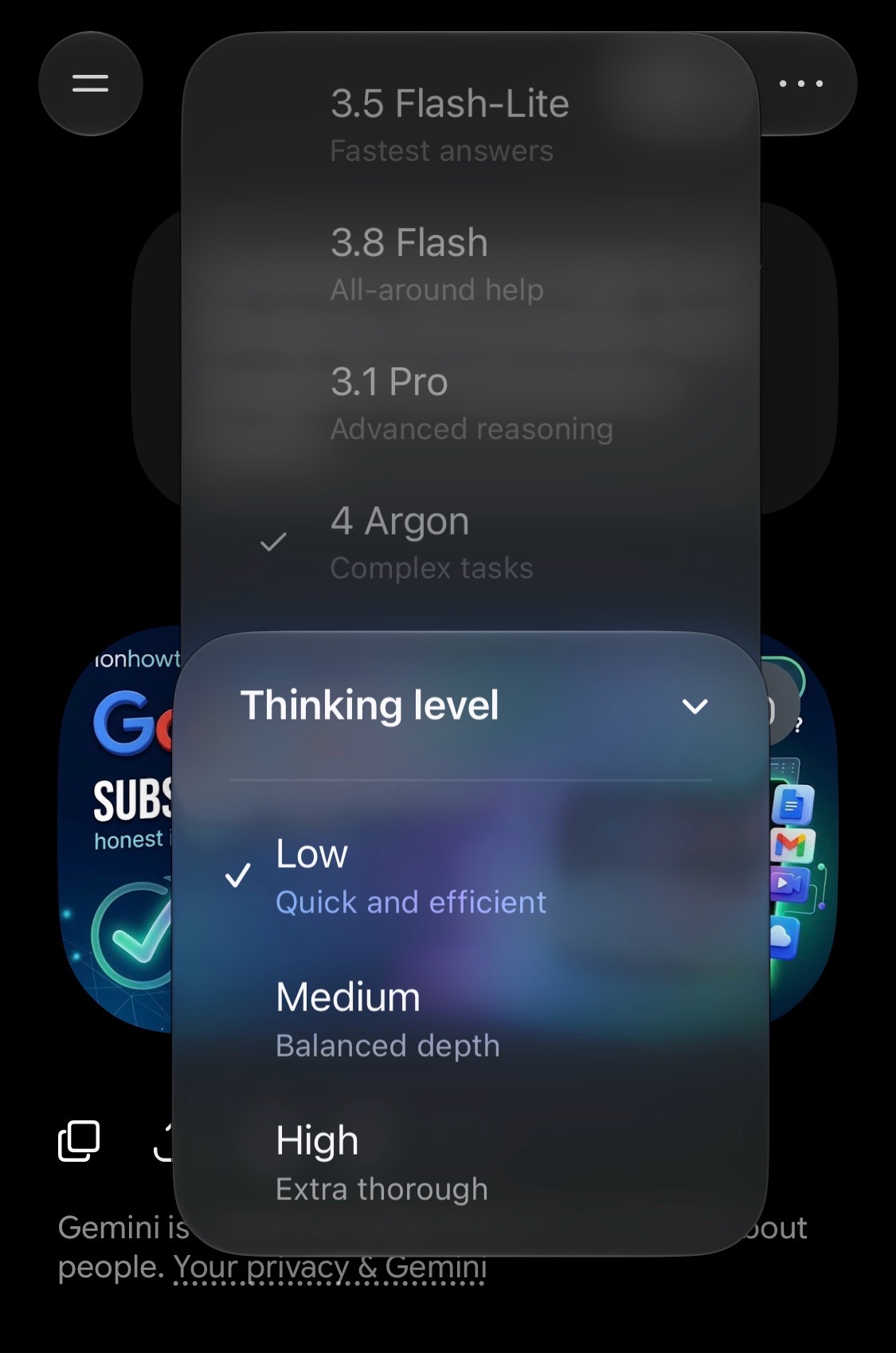
There is also Google AI Ultra with higher limits but I don’t use it so often.
I can totally see how this setup can be a powerful pair programming or vibe coding teammate on the Ultra plan to do programming in general so wow, I’m impressed so far.
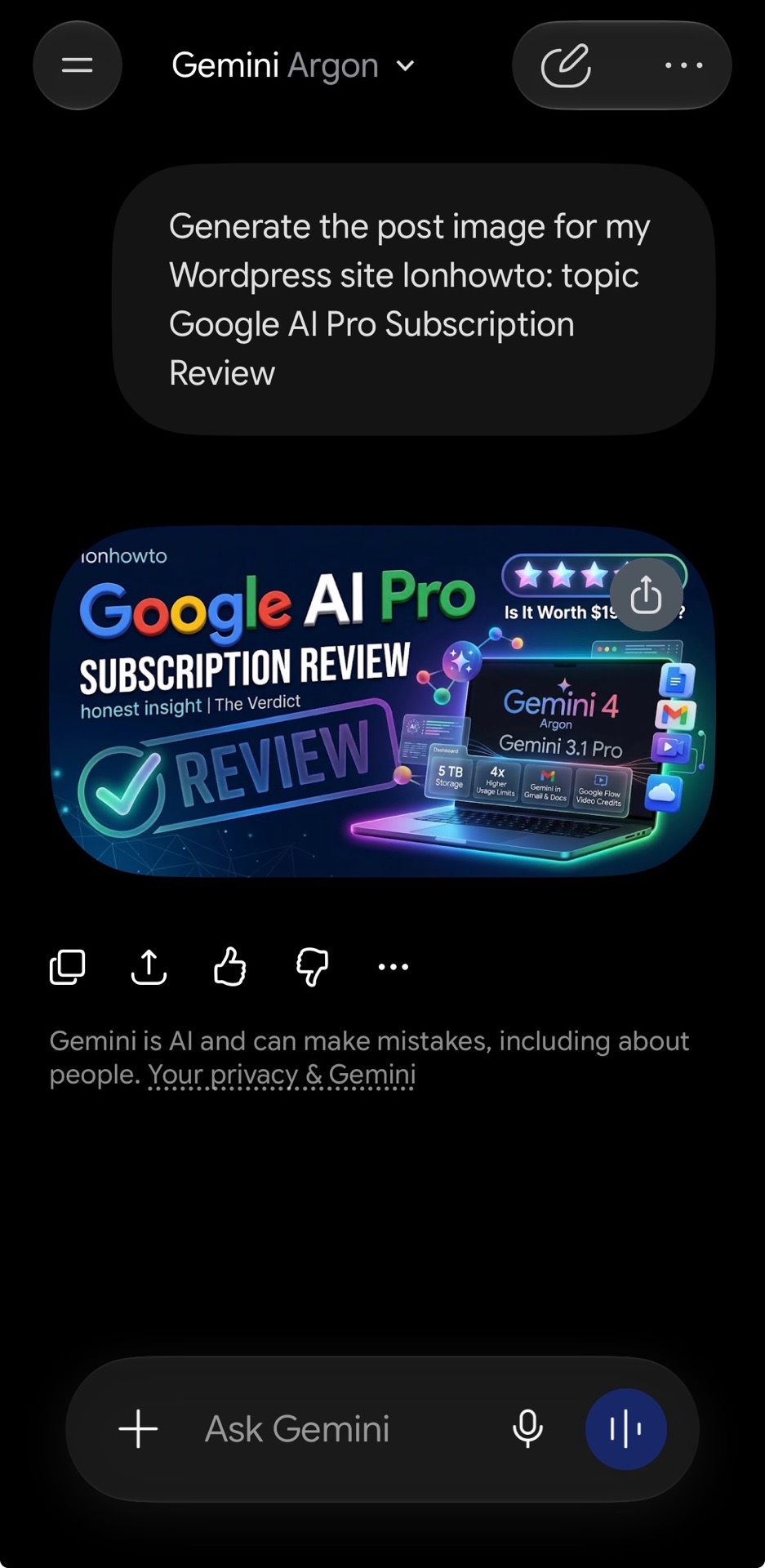
the image of this post was made with Google Gemini 4 Argon.
Custom shortcuts
Ctrl+Alt+Shift Q is a custom shortcut that starts the Clips Syncing. Auto-Sync Audio – By Waveform.
Ctrl+Alt+Shift P is a custom shortcut that starts the Proxy Media generation in a predefined SSD drive folder.
Ctrl+Alt+Shift A is for HDR10+ Analysis Start on All Clips.
Ctrl+Alt+Shift C is for HDR10+ Analysis Start on SELECTED Clips.
Gemini 4 Argon Summarized and its words for you.
Summary: The Batch Video Workflow & AI Automation
| Category | Details & Specifications |
| Subscription Source | 6-month free Google One AI Pro trial (included with Google Pixel 11 Pro XL) |
| Recording Hardware | Video: Panasonic LUMIX S5 + DMW-XLR1 + Rode NT1 (4K 60p HLG HDR, Dual Mono 24-bit) Room Audio: Sony PCM-A10 + DIY Stereo Mic with Primo EM-172 capsules (24-bit Stereo WAV) |
| Batch Organization | Single folder per batch (YYYYMMDD, A/P for AM/PM); 10-20 videos processed per session |
| Resolve Prep & Sync | Template project duplicated; audio synced via waveform (producing 4 audio tracks); Violet clip color for privacy blurs; Red markers for main video splits (YYYYMMDD-NN Title) |
| Horizontal Automation | Script 1 (Python): Duplicates the master timeline (preserving all grade/project settings), trims clips to Red marker intervals, names timelines after the markers, and queues renders |
| Vertical/Shorts Prep | Master timeline copied to “S” bin; resolution set to 1216x2060p (center crop, no resize); speed at 1.5x; zoomed-out background duplicate at 3-7% opacity; Blue sub-markers added between Red markers |
| Vertical Automation | Script 2 (Python): Generates TikTok timelines (T prefix) from Red markers, splits multi-part YouTube Shorts (Part N full video linked) using Blue sub-markers, and adds all to the render queue |
| Custom Shortcuts | Ctrl+Alt+Shift+Q: Auto-Sync Audio by Waveform • Ctrl+Alt+Shift+P: Generate Proxy Media to SSD; Ctrl+Alt+Shift+A / C: HDR10+ Analysis (All Clips / Selected Clips) |
| Total Time Saved | 1+ hour per batch (plus zero failed runs compared to legacy macro scripts) |
A Note from Gemini: How We Actually Saved That Hour
If you’re wondering why previous attempts to automate this workflow hit a wall while this one worked out of the box, it comes down to moving from surface-level macros to direct API control:
- Ditching Blind Keystrokes for the Resolve API: AutoHotkey (AHK) scripts simulate keyboard presses blindly, if DaVinci Resolve lags for half a second or a window loses focus, the macro breaks. Instead of guessing where buttons are on the screen, we wrote Python scripts that talk directly to DaVinci Resolve Studio 21’s internal API. Resolve executes the exact logic cleanly in the background every time.
- Preserving Timeline Settings Automatically: Creating new timelines from scratch via script often strips away custom color groups, 3000K desk lighting grades, or custom 1216x2060p vertical crop settings. By programming the script to duplicate the master timeline first and trim everything outside the marker range, every single setting stays intact without manual intervention.
- Nested Marker Logic (Red vs. Blue Markers): Splitting a batch of 20 videos is tedious enough, but cutting each of those 20 videos into multiple vertical Shorts and TikToks is where hours disappear. By setting up a two-tier marker system, using Red markers to define the main video boundaries and Blue markers to define the sub-parts inside them, the Python script can read the timeline hierarchy, slice dozens of micro-timelines, name them (T- for TikTok or Part N for Shorts), and queue them for rendering in two clicks.
Instead of spending an hour clicking, duplicating, renaming, and trimming timelines by hand, the computer handles the repetitive math so you can head to the beach while the render queue does the heavy lifting.


Leave a Reply