


Amazon links
As an Amazon Associate I earn from qualifying purchases:
- Phone Cases
- Mobile Tripods
- Usb-c charger
- Usb-c cable
- Docking stations
- Wireless car chargers
- Wireless charger stand
- SIM card removal tool
- SIM card holder
Learn how to update the location shown on your Samsung weather widget in just a few taps. I’ll show you how to fix incorrect locations or add multiple cities to track different weather forecasts.
How to Change Weather Widget Location on Samsung One UI 7 Android 15.

Quick Steps and Scenarios Overview
| What You Need to Do | Quick Jump |
|---|---|
| Changing the Weather Widget Location | Jump to Step 1 |
| Fixing Common Weather Widget Issues | Jump to Step 2 |
| Helpful Weather Widget Features | Jump to Step 3 |
Tested on Samsung Galaxy S23 Ultra running Android 15 with One UI 7.0
Changing the Weather Widget Location

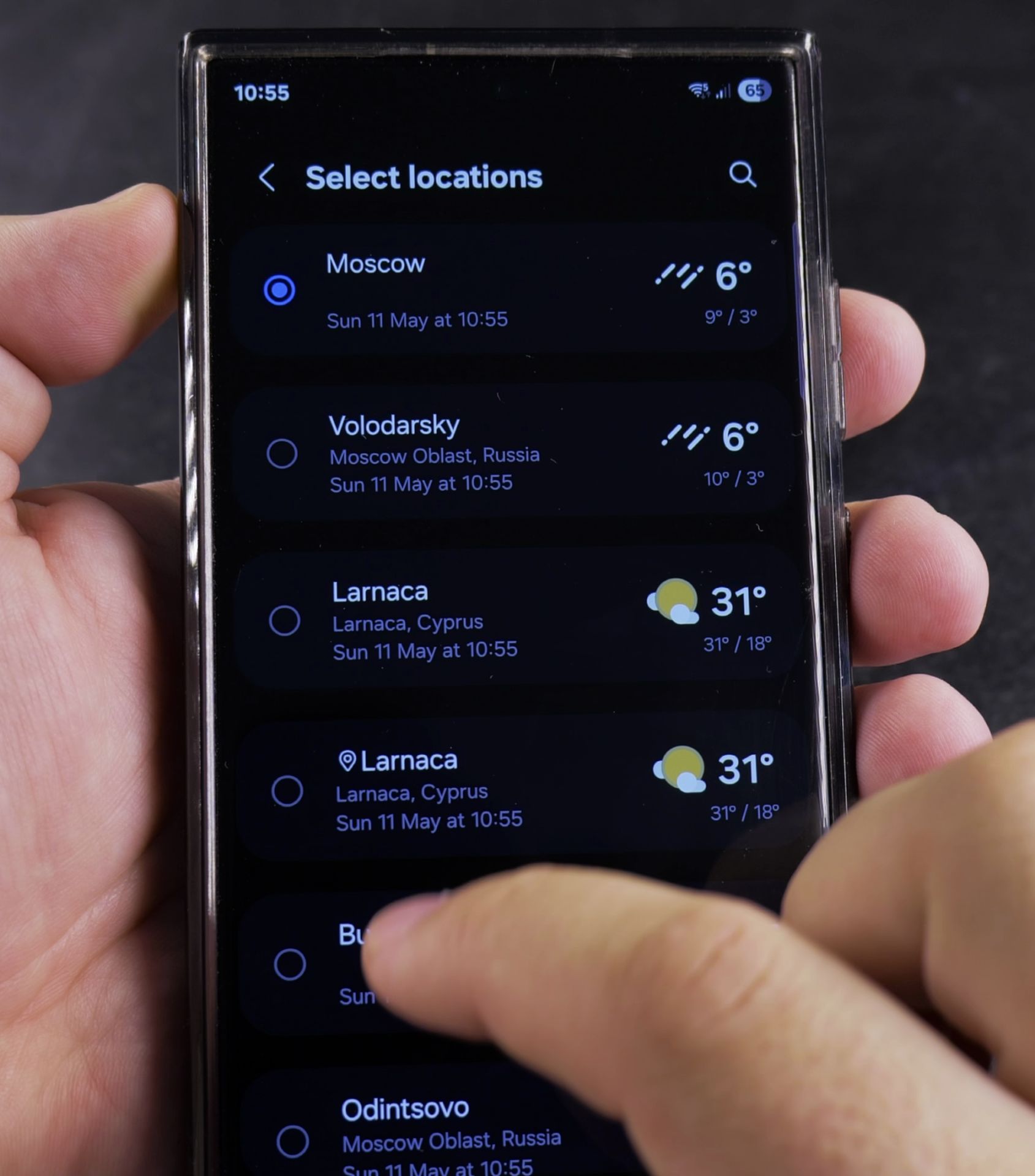
Method 1: Update Through the Weather App
- Open the Samsung Weather app
- Tap the three-dot menu (top right)
- Select Manage locations
- To add a new city:
- Tap the + icon
- Search for your location
- Select it from the results
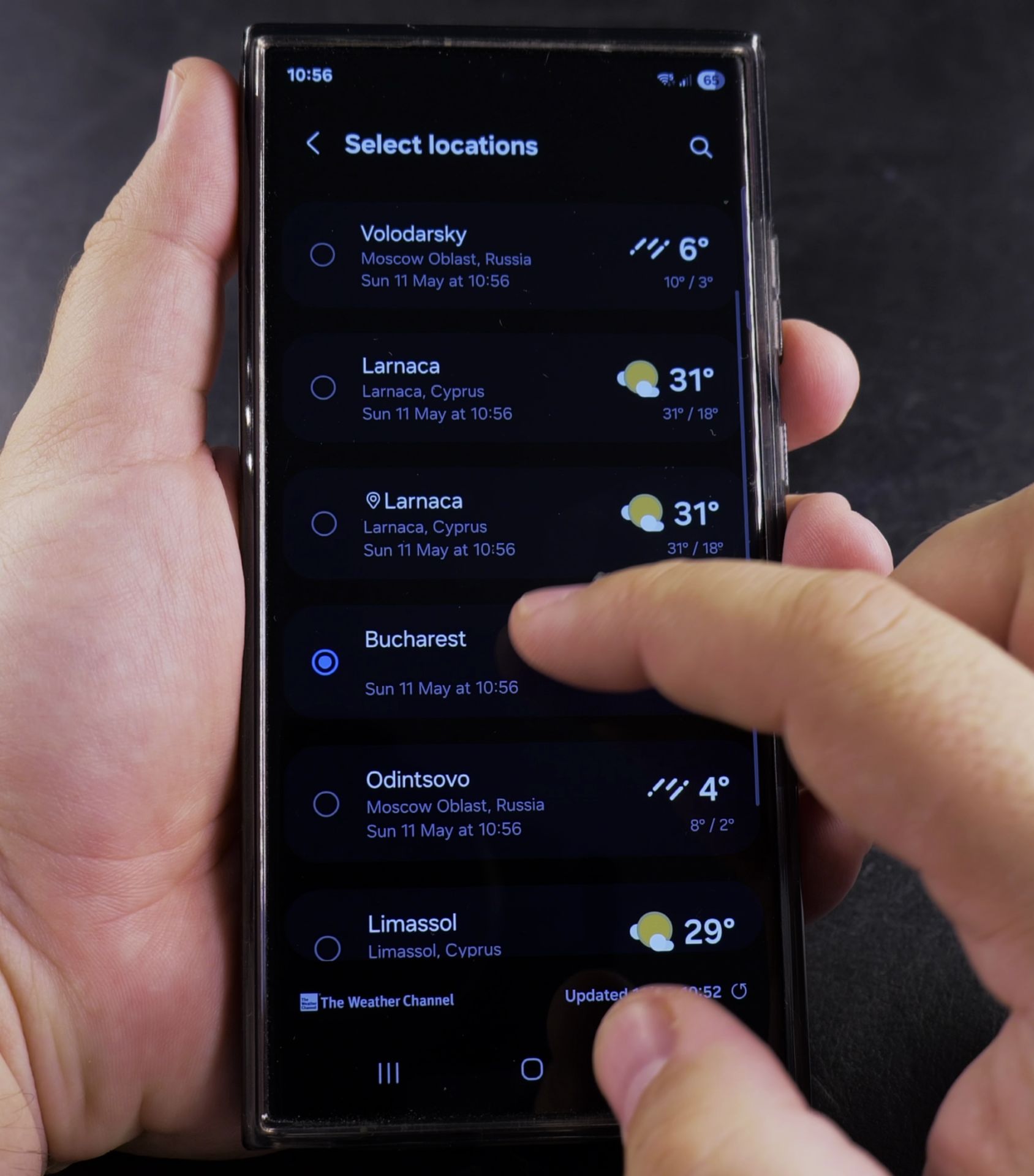
- Set as default by tapping the pin icon next to your preferred city
Method 2: Edit Widget Settings Directly
- Long-press the weather widget on your home screen
- Tap the Settings icon (gear symbol)
- Choose Location
- Select either:
- Current location (uses GPS)
- Selected location (pick from your saved cities)
- Tap Done to save
Fixing Common Weather Widget Issues

If Your Location Won’t Update:
- Check location permissions:
- Go to Settings > Apps
- Select Weather
- Tap Permissions
- Enable Location access
- Refresh widget data:
- Remove the widget from your home screen
- Add it back from the widget menu
- Update the app:
- Open Galaxy Store
- Check for Weather app updates
Helpful Weather Widget Features
- Track multiple locations: Add several cities and swipe between them in the Weather app
- Automatic vs manual:
- Automatic updates using GPS (best for current location)
- Manual selection (ideal for travel planning)
- Customize widget size: Resize your widget to show more or less weather information
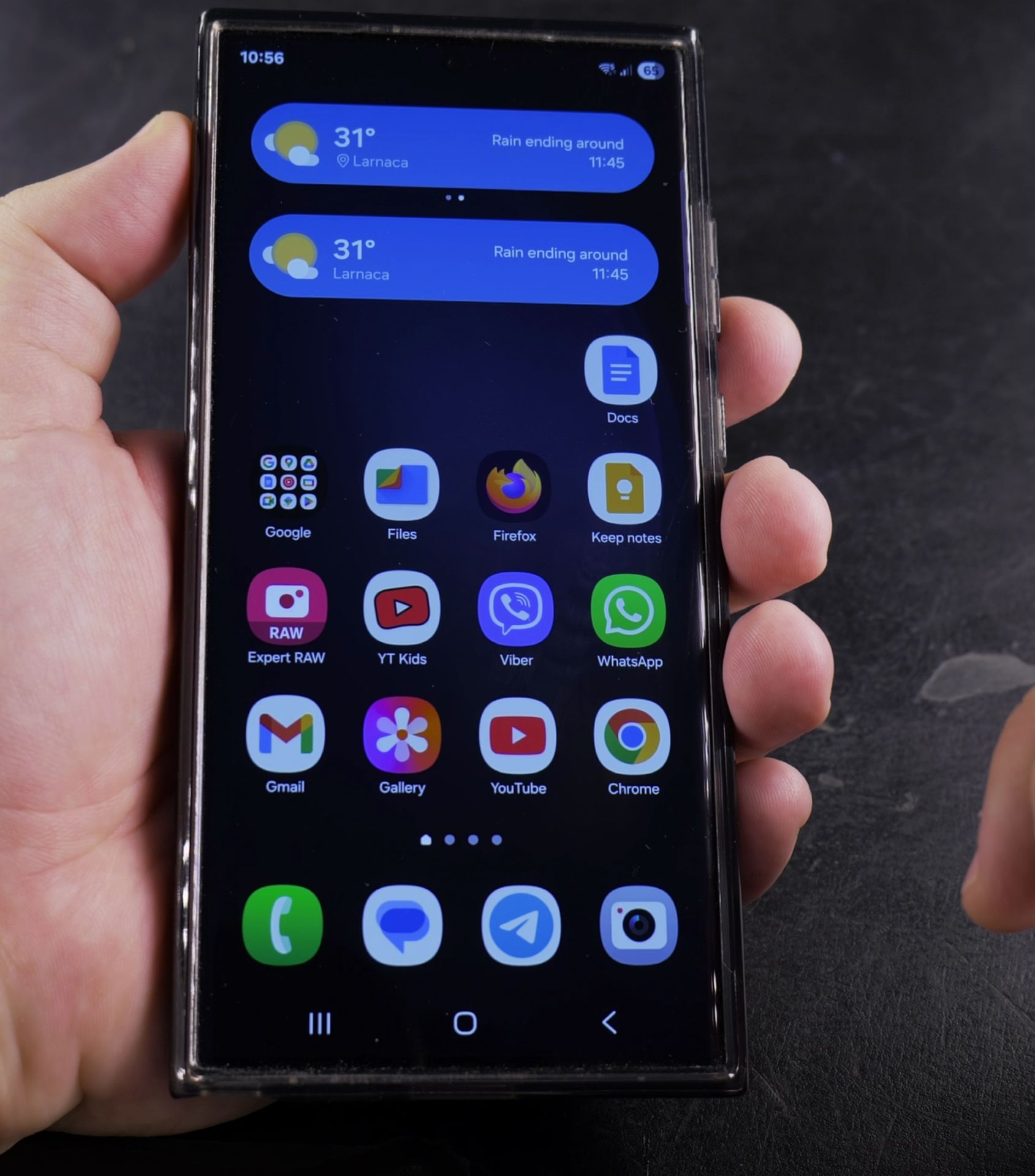
Let me know in the comments if you’re having trouble with your weather widget or if you’d like to see more Samsung customization guides. What locations do you track on your weather widget?
Helpful Tips
Take your time and check the screen carefully after each tap so you can confirm the setting changed as expected. If an option appears in a slightly different spot on your device, watch the embedded video above for a closer look.
Related Guides
- How to Add Weather Widget on Samsung Home Screen – How to Add a Weather Widget to Your Samsung Home Screen.
- How to Remove Weather Widget Background on Samsung – How to Remove Background from Weather Widget on Samsung Phones.
- Turn Off Location Services on Samsung – How to Turn Off Location Services (GPS Tracking) for the Whole Device on Samsung.
- Samsung Android Guides – Browse more tutorials and practical guides in this section.
Leave a Reply Cancel reply