



Amazon links
As an Amazon Associate I earn from qualifying purchases:
- Phone Cases
- Mobile Tripods
- Usb-c charger
- Usb-c cable
- Docking stations
- Wireless car chargers
- Wireless charger stand
- SIM card removal tool
- SIM card holder
Learn how to remove the clock widget from your Samsung home screen to free up space or customize your layout. I’ll show you the steps to delete default widgets while keeping your other icons and widgets intact.

Quick Steps and Scenarios Overview
| What You Need to Do | Quick Jump |
|---|---|
| Steps to Remove the Clock Widget | Jump to Step 1 |
| Press and hold the clock widget | Jump to Step 1 |
| Wait for the editing menu | Jump to Step 2 |
| Look for one of these options | Jump to Step 3 |
| What You Should Know | Jump to Step 2 |
| How to Add the Clock Widget Back | Jump to Step 3 |
Demonstrated on Samsung Galaxy S23 Ultra running Android 15 with One UI 7.0
Steps to Remove the Clock Widget
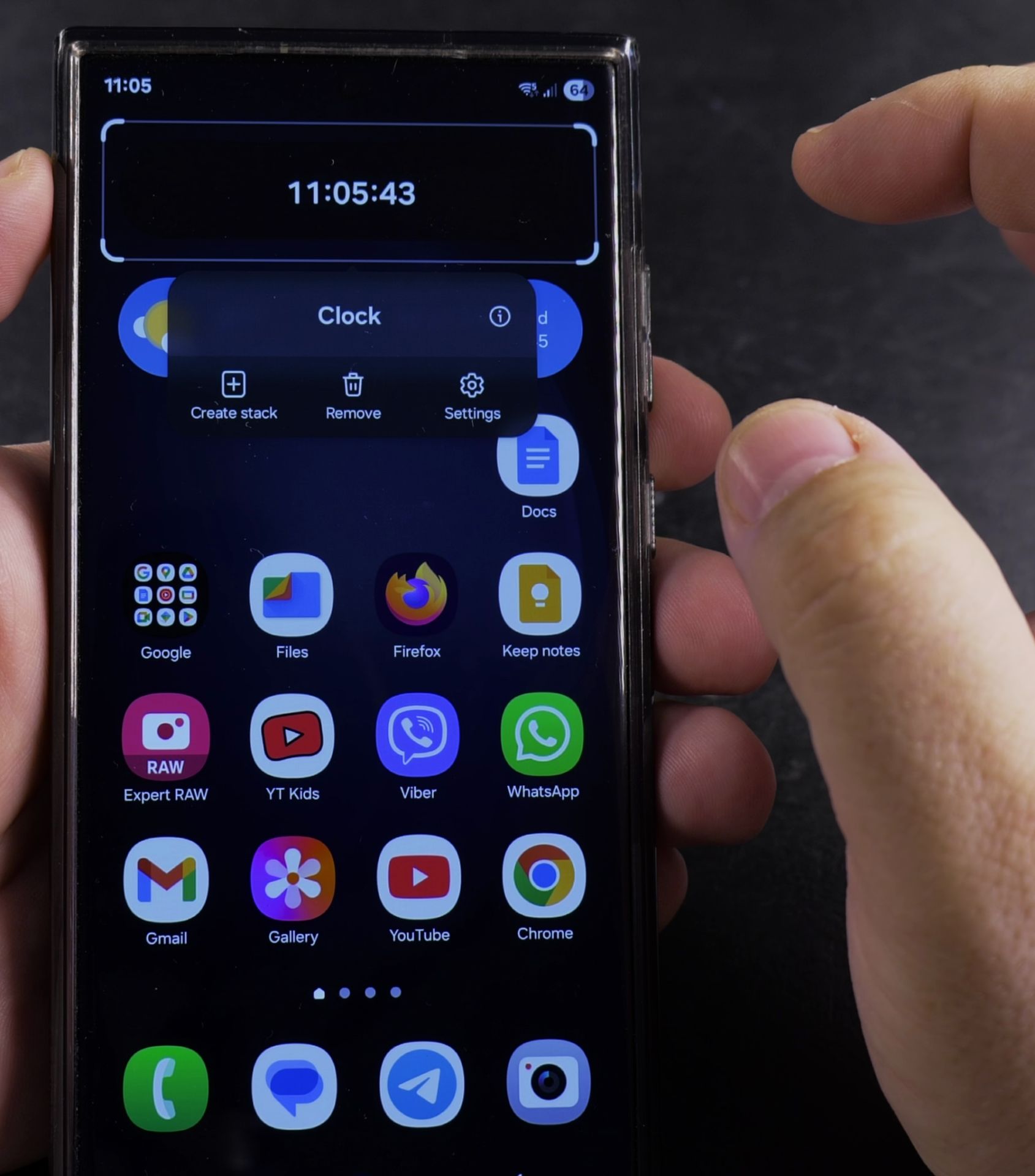
1. Press and hold the clock widget
Press and hold the clock widget on your home screen.

2. Wait for the editing menu
Wait for the editing menu to appear.

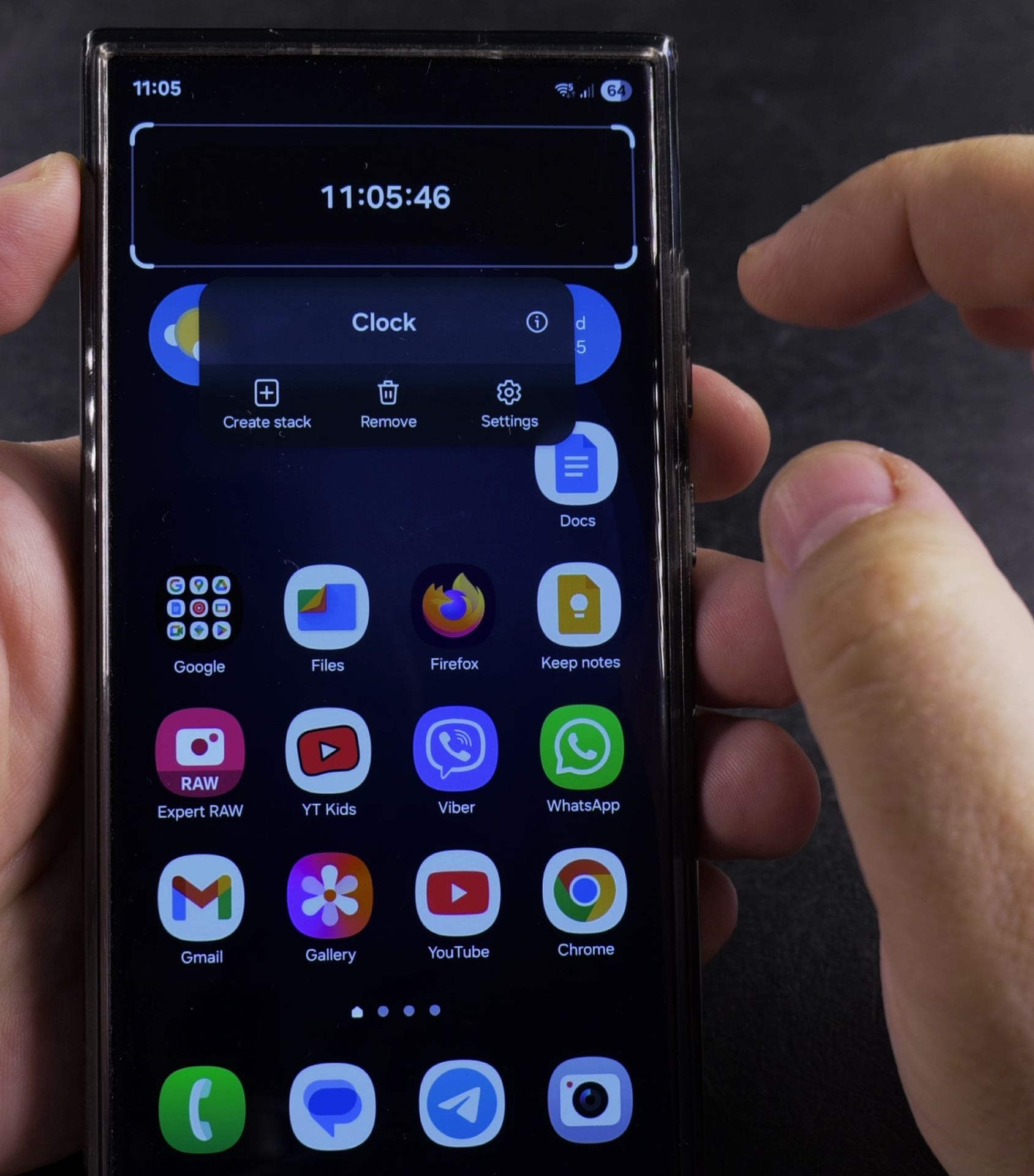
3. Look for one of these options
Look for one of these options:.
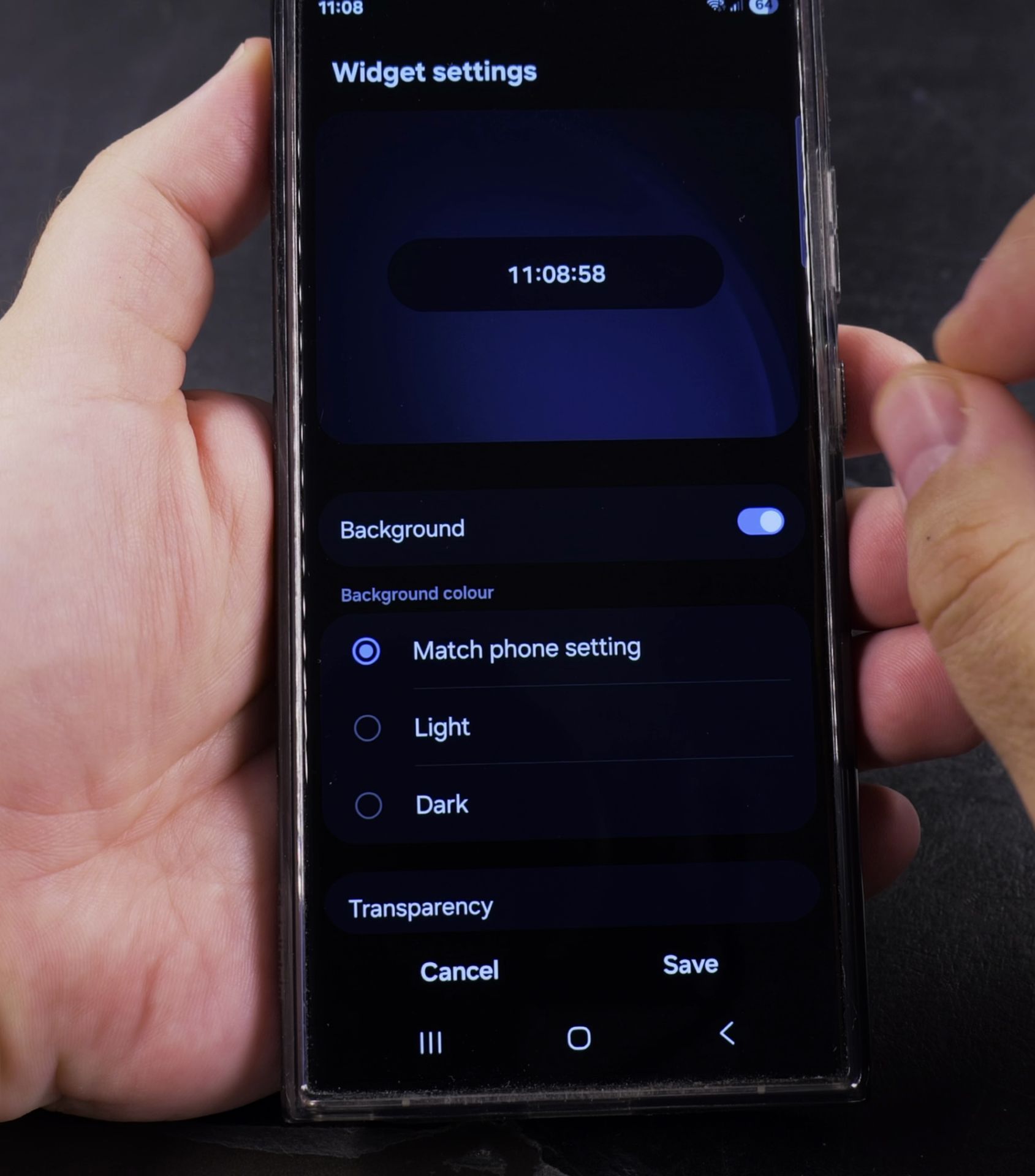
- Remove (may appear at the top of the screen)
- Delete (trash can icon)
- Widget settings (gear icon) with remove option
- Drag the widget to the remove option and release
What You Should Know
- Removing the widget won’t delete the clock app
- Your lock screen clock and status bar clock remain unchanged
- You can always add the clock widget back later
How to Add the Clock Widget Back
If you change your mind:
- Pinch inward on your home screen
- Tap Widgets
- Scroll to Clock options
- Select your preferred clock style
- Drag it to your wanted home screen location
Managing Other Widgets
The same removal process works for:
- Weather widgets
- Calendar widgets
- Music player widgets
- Any third-party widgets
Customization Tips
- Try different widget sizes by pressing and holding, then selecting resize
- Rearrange widgets by dragging them to new locations
- Create blank home screens by removing all widgets
Troubleshooting
If you can’t remove the widget:
- Check if your home screen is locked in settings
- Restart your phone and try again
- Make sure you’re using the stock One UI launcher
Let me know in the comments if you’re customizing your home screen or if you have questions about other One UI 7 features. What’s your favorite home screen layout?
Helpful Tips
Take your time and check the screen carefully after each tap so you can confirm the setting changed as expected. If an option appears in a slightly different spot on your device, watch the embedded video above for a closer look.
Related Guides
- Make Clock Bigger on Samsung Home Screen – Learn how to make the clock bigger on your Samsung phone running One UI 7 with Android 15.
- Remove Apps from Samsung Android Home Screen – How to Remove Apps from Home Screen on Samsung Android.
- Add Apps to Samsung Android Home Screen – How to Add Apps to Home Screen on Samsung Android.
- Samsung Android Guides – Browse more tutorials and practical guides in this section.
Leave a Reply Cancel reply