
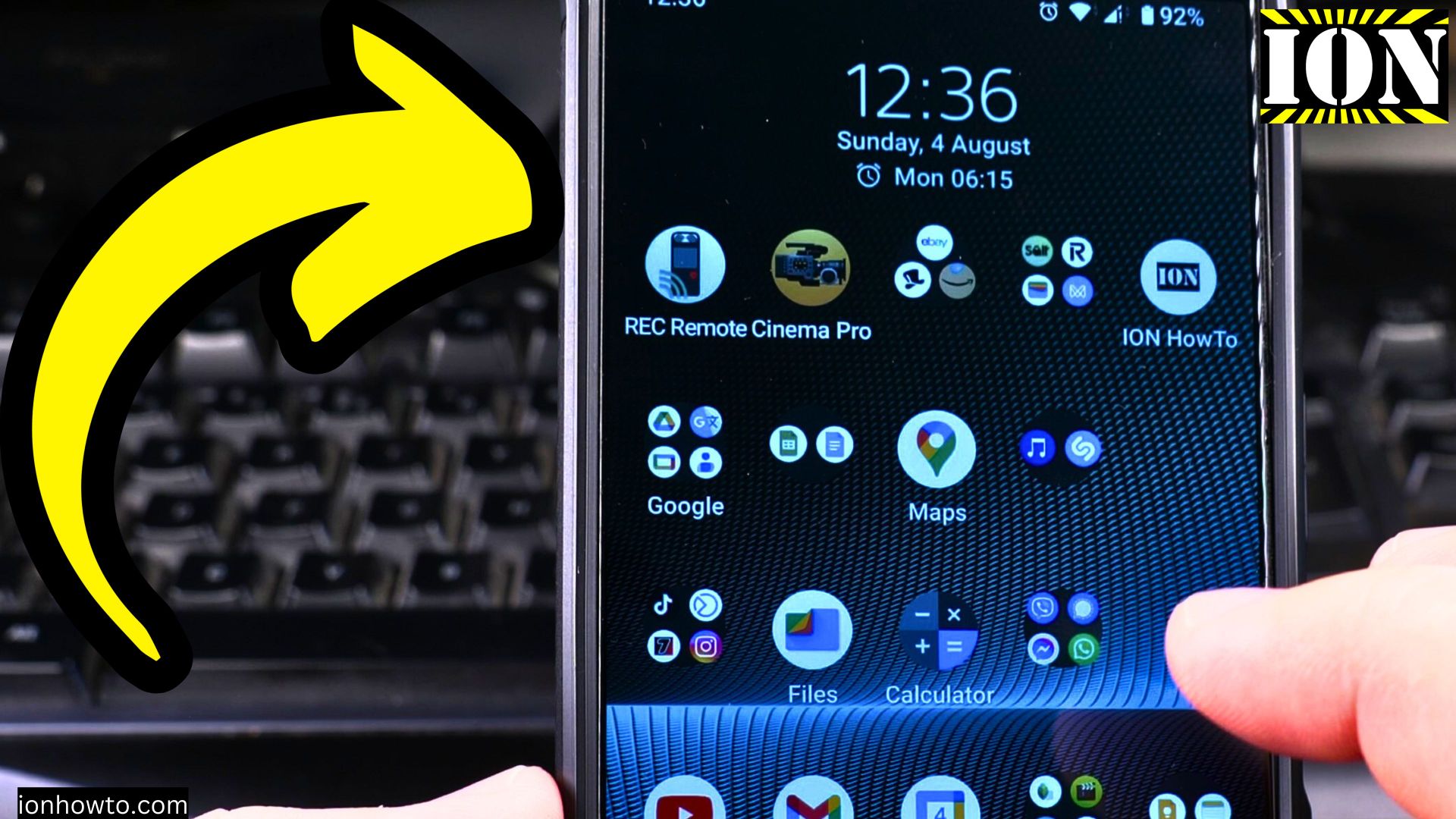
How to Fit More Apps on Your Android Home Screen.
Learn how to organize your Android home screen to fit more apps while keeping it clean and functional. I’ll show you several ways to maximize space without clutter.
Amazon links
As an Amazon Associate I earn from qualifying purchases:
- Phone Accessories
- Screen protectors
- Phone Cases
- Mobile Tripods
- Usb-c charger
- Usb-c cable
- Docking stations
- Wireless car chargers
- Wireless charger stand
- SIM card removal tool
- SIM card holder
Video Step-by-step Guide
Demonstrated on Sony Xperia 1V running Android 15
Increase Grid Size for More Apps
- Long-press on an empty home screen area
- Select “Home settings” or “Wallpaper & style”
- Look for “Grid size” or “Home screen grid”
- Choose a larger grid (like 5×5 or 5×6)
- More icons will now fit on each screen
Create App Folders
- Drag one app icon onto another
- This automatically creates a folder
- Tap the folder to rename it (e.g., “Social”, “Games”)
- Add more apps by dragging them into the folder
- Tap outside to save
Resize Widgets to Save Space
- Long-press any widget
- Drag the resize handles (blue dots) inward
- Release when it’s the right size
- Widgets can often be made much smaller
Additional Space-Saving Tips
Change Icon Size
- Go to Settings > Display
- Look for “Display size” or “Font size”
- Adjust the slider to make everything smaller
- More icons will fit at smaller sizes
Use Multiple Home Screens
- Swipe left/right to access blank screens
- Long-press and drag apps to spread them out
- Keep related apps together on each screen
Try a Different Launcher
Popular options include:
- Nova Launcher (highly customizable)
- Microsoft Launcher (good organization)
- Smart Launcher (auto-categorization)
Keep Your Home Screen Organized
- Group similar apps together
- Keep most-used apps on the main screen
- Use folders for less-used apps
- Limit widgets to essentials
- Keep some empty space for visual comfort
Final Thoughts
With these simple adjustments, you can fit many more apps on your home screen while keeping everything accessible. The grid size change makes the biggest difference, while folders help maintain organization.
Remember that every Android version and phone model has slightly different options. If you can’t find a specific setting, check your manufacturer’s support site for your exact model.


Leave a Reply