
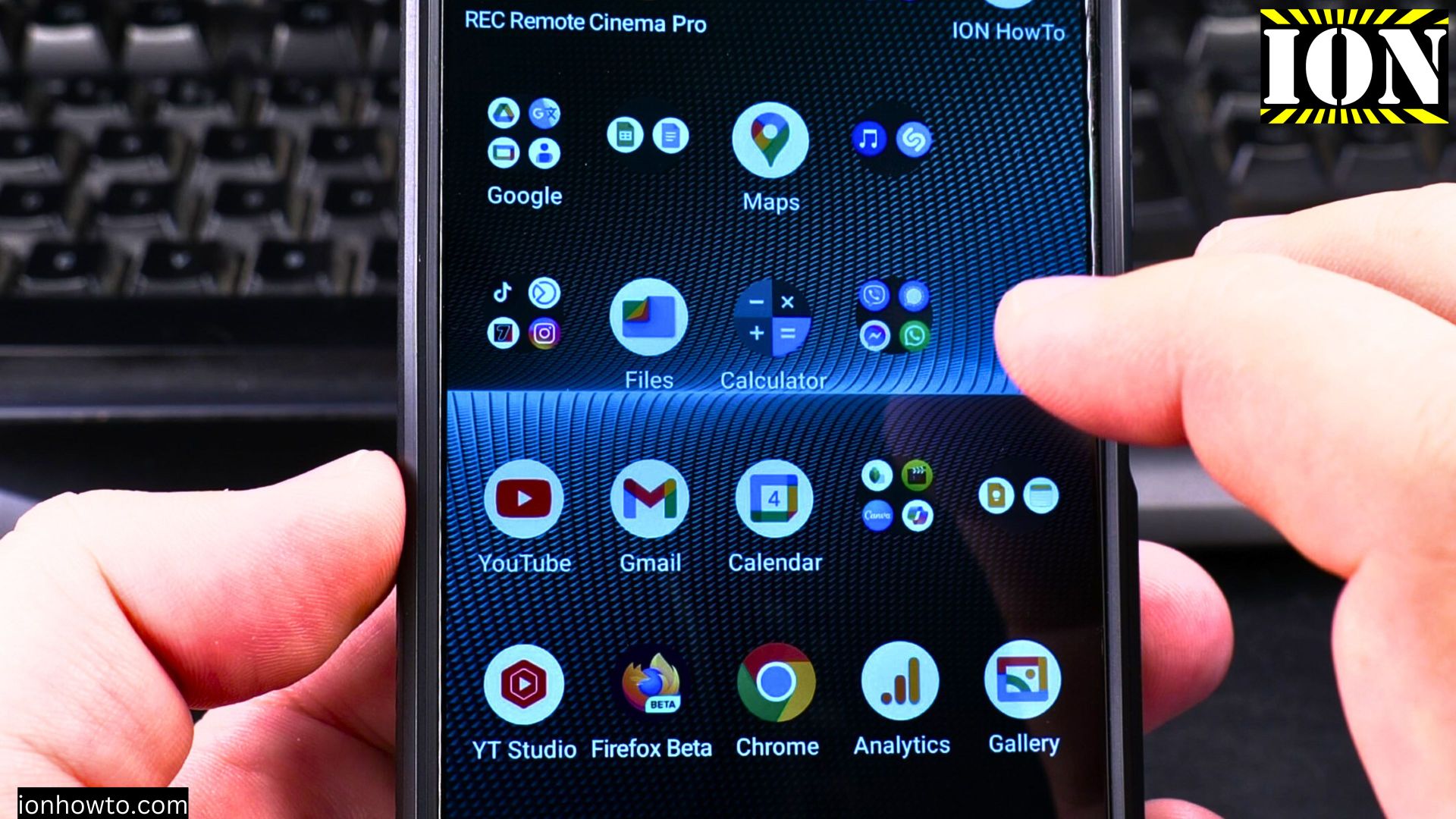
Learn how to add a convenient flashlight shortcut to your Android lock screen for quick access without unlocking your phone. I’ll show you the steps to enable this useful feature.
Amazon links
As an Amazon Associate I earn from qualifying purchases:
- Phone Cases
- Mobile Tripods
- Usb-c charger
- Usb-c cable
- Docking stations
- Wireless car chargers
- Wireless charger stand
- SIM card removal tool
- SIM card holder
Quick Steps and Scenarios Overview
| What You Need to Do | Quick Jump |
|---|---|
| How to Add Flashlight Shortcut | Jump to Step 1 |
| Customizing Your Lock Screen | Jump to Step 2 |
| Alternative Methods | Jump to Step 3 |
Demonstrated on Sony Xperia 1V running Android 15
Why Add Flashlight to Lock Screen?
- Access light instantly in emergencies
- No need to unlock your phone first
- Works even with screen off
- Saves time when you need light quickly
How to Add Flashlight Shortcut
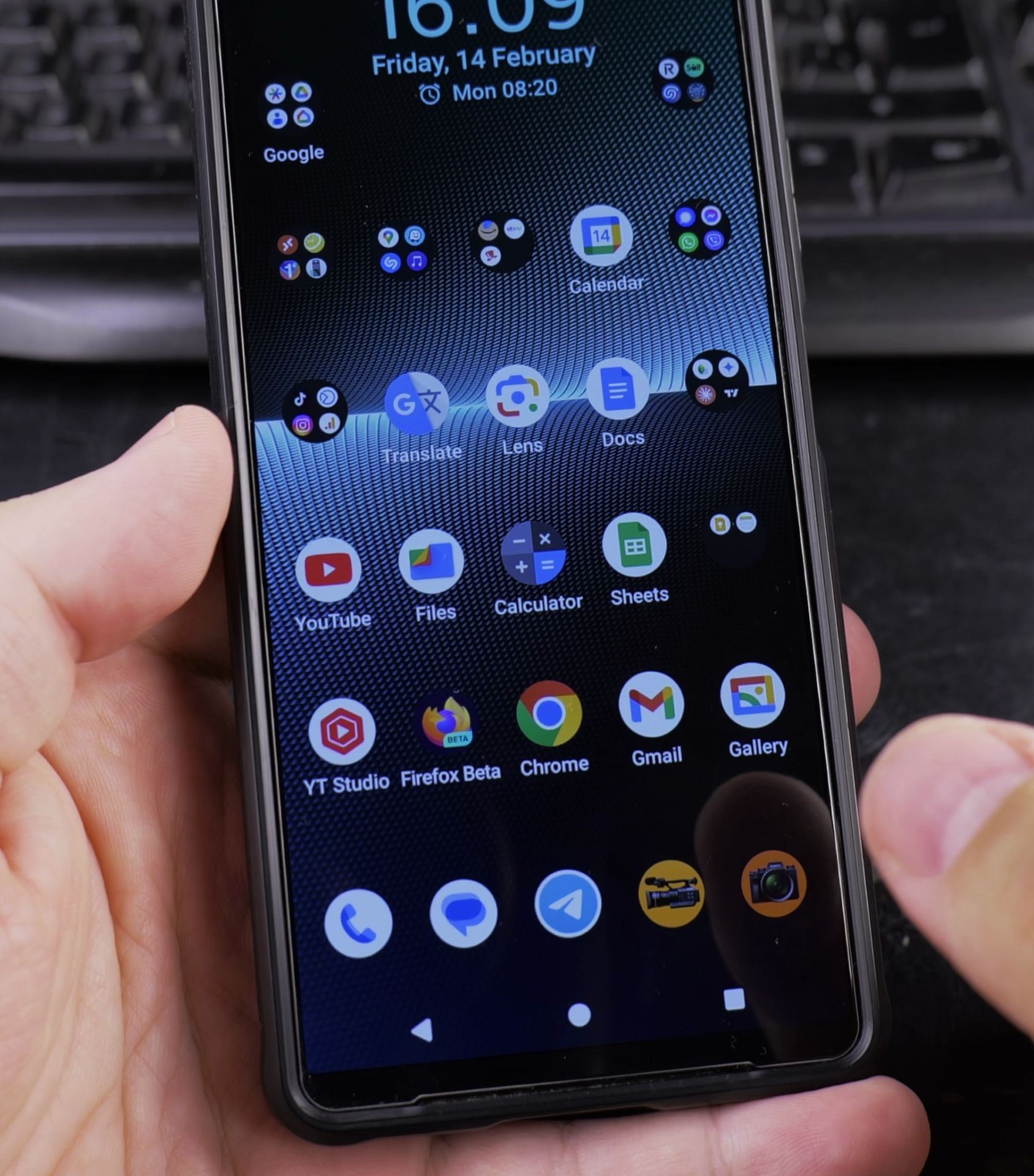
Method 1: Using Default Lock Screen Shortcuts
- Open Settings > Display
- Tap “Lock screen”
- Select “Shortcuts”
- Choose flashlight as one of your shortcuts
- The icon will now appear on your lock screen
Method 2: Using Quick Settings
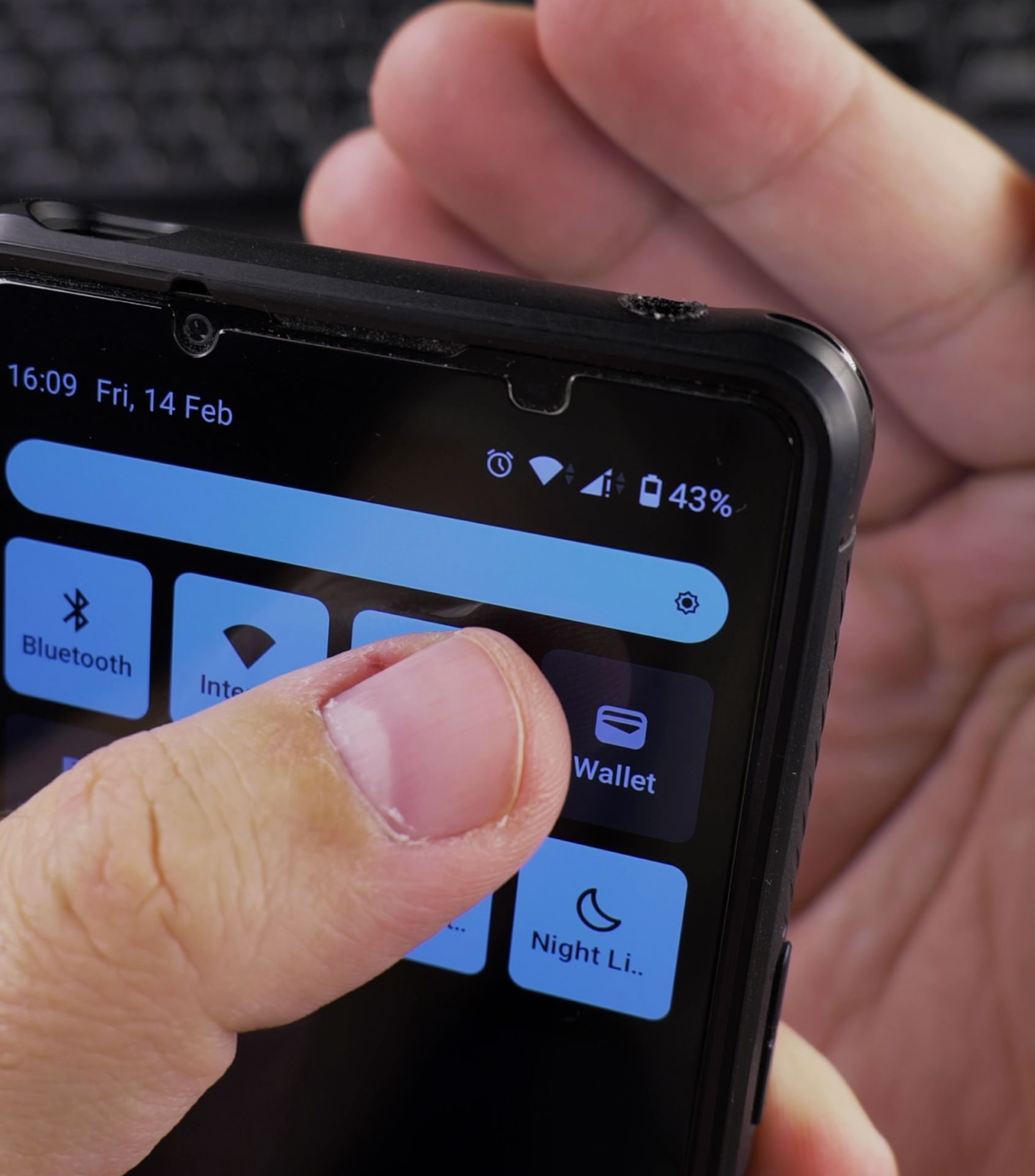
- Swipe down from the top of your screen
- Find and tap the flashlight icon
- The light will stay on until you turn it off
- Works from lock screen if quick settings are enabled
Customizing Your Lock Screen
Change Shortcut Position
- Go to Settings > Display > Lock screen
- Select “Shortcut layout”
- Choose where you want the flashlight icon
Enable Quick Settings on Lock Screen
- Open Settings > Security & privacy
- Tap “Device controls”
- Toggle “Show device controls” on
- Now access flashlight from locked screen
Troubleshooting Tips
If flashlight isn’t working:
- Check your phone’s flashlight hardware
- Restart your device
- Update your Android version
- Try a third-party flashlight app
Alternative Methods
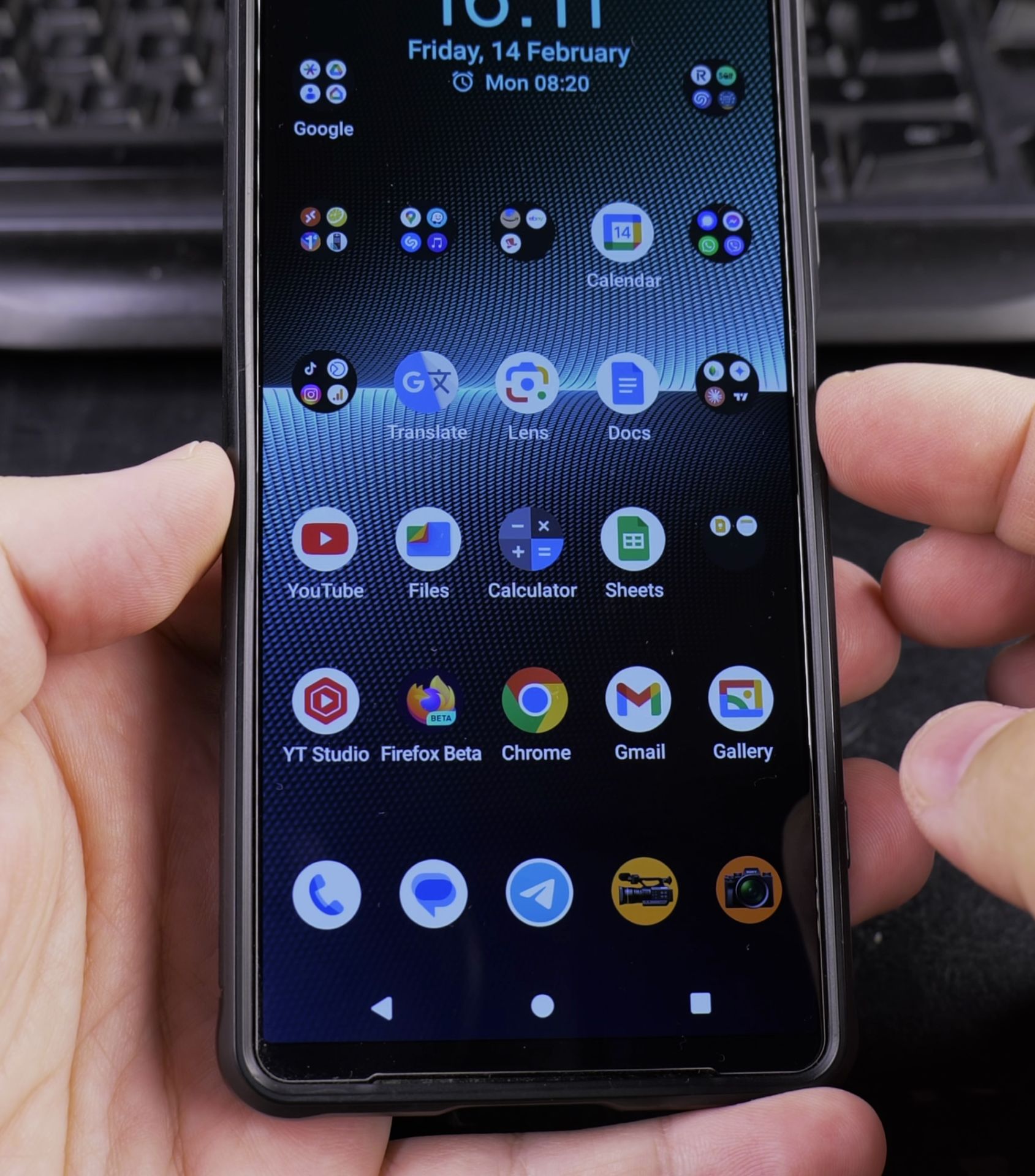
Use Power Button Shortcut
Some Android phones let you:
- Press power button twice quickly
- Or press and hold power button
- To activate flashlight without unlocking
Voice Command
Say “Ok Google, turn on flashlight”
(Requires Google Assistant enabled)
Final Thoughts
Adding flashlight access to your lock screen is one of those small changes that can make your phone much more convenient to use. The exact steps might vary slightly depending on your Android version and phone model, but most modern Android devices support this feature.
Remember that keeping the flashlight on for long periods can drain your battery, so use it only when needed. These methods work across most Android devices including Sony Xperia, Google Pixel, and Samsung Galaxy models.
Helpful Tips
Take your time and check the screen carefully after each tap so you can confirm the setting changed as expected. If an option appears in a slightly different spot on your device, watch the embedded video above for a closer look.
Related Guides
- Change Wallpaper on Android Lock Screen and Home Screen – How to Change Wallpaper on Android Lock Screen and Home Screen.
- How to Customize Android Lock Screen Widgets – How to Customize Your Android Lock Screen.
- Remove Wallpaper on Android Lock Screen – How to Remove Wallpaper on Android Lock Screen & Home Screen
- Android Useful Apps – Browse more tutorials and practical guides in this section.


Leave a Reply