


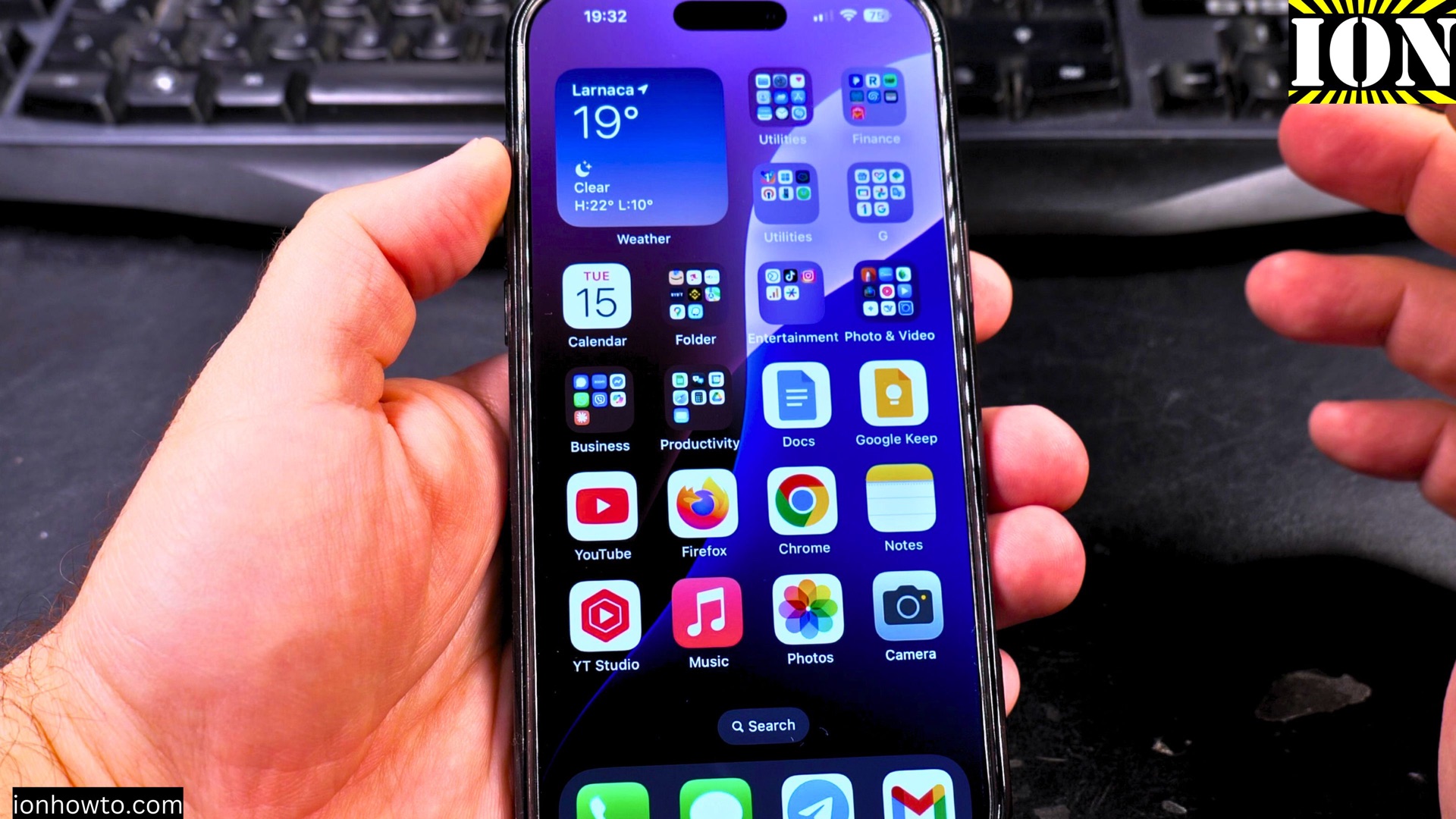
How to Delete Apps on iPhone.
If you’re running out of storage or just want to clean up your home screen? Deleting apps you don’t use is the best way to free up space.
Amazon links
As an Amazon Associate I earn from qualifying purchases:
- iPhone Accessories
- iPhone Charger
- iPhone Cases
- iPhone Screen protector
- iPhone Magsafe
- iPhone Wallet
- iPhone Usb c cable
Here’s how to remove apps from your iPhone.
How to Delete Apps on iPhone.

Tested on iOS 18.4.1 with iPhone 16 Pro Max Titanium Black (256GB, Global Model A3296 – MYWV3ZD/A).
Delete Apps Directly From Your Home Screen
This is the fastest way to remove apps:
- Find the app you want to delete on your home screen
- Press and hold the app icon until a menu appears
- Tap Remove App
- Select Delete App to confirm
- Choose Delete to permanently remove the app and its data
The app will immediately disappear from your home screen.
Delete Apps Through iPhone Settings
If you prefer managing apps in Settings:
- Open Settings
- Tap General
- Select iPhone Storage
- Find the app you want to remove in the list
- Tap the app name
- Select Delete App
- Confirm by tapping Delete App again
This method shows you how much space each app is using before you delete it.
What You Should Know
- Deleting an app removes both the app and all its data
- Some apps (like Apple’s default apps) can’t be fully deleted
- You can always reinstall deleted apps from the App Store later
- Your purchased apps remain in your App Store account even after deletion
Need Help?
If you’re having trouble removing an app or have questions about managing your iPhone storage, leave a comment below. I’m happy to help if I can!
For more simple iPhone tips like this, check out our other easy-to-follow guides. Keep your iPhone clutter-free and running smoothly!
Related Guides and Helpful Resources
If you found this guide helpful, check out these related step-by-step tutorials and category resources on ION HowTo:
- Disable iPhone eSIM Instead of Deleting: Learn how to temporarily toggle off an electronic SIM without deleting cellular plans.
- Turn Off Siri Caller Name Announcement: Silence Siri from announcing incoming caller names aloud through headphones.
- How to Remove an Apple AirTag Speaker: Step-by-step guide to silencing an AirTag for specialized anti-theft item tracking.
- Apple iPhone Guides: Explore our full collection of tutorials and step-by-step articles in this category.
Leave a Reply Cancel reply