
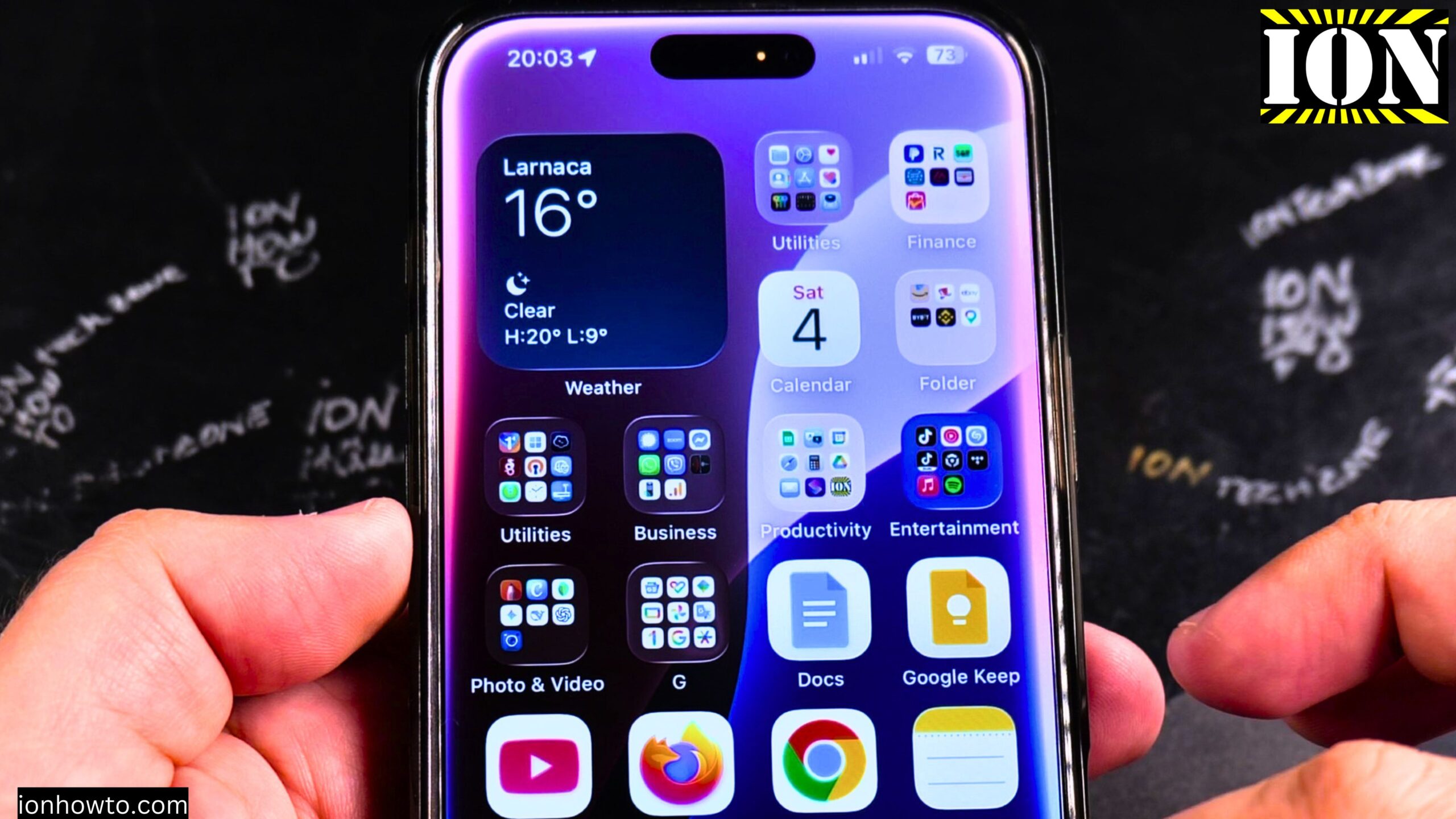
iPhone Display Settings – Dark Mode, True Tone, Night Shift & Always On Display.
Learn how to set up the display settings on your iPhone to optimize screen comfort and battery life. I’ll cover Dark Mode, text size adjustments, True Tone, Night Shift, and Always On Display.
Amazon links
As an Amazon Associate I earn from qualifying purchases:
- iPhone Accessories
- iPhone Charger
- iPhone Cases
- iPhone Screen protector
- iPhone Magsafe
- iPhone Wallet
- iPhone Usb c cable
This guide is demonstrated on an iPhone 16 Pro Max running iOS 18.3.2. But these settings work on most modern iPhones.
Why change your display settings?
Different times of day need different screen settings. At night, a bright blue screen can keep you awake. During the day, you might want brighter, cooler colors. Your iPhone has several settings to help with this.
How to find Display settings
Step 1: Open the Settings app (gray gear icon)
Step 2: Tap “”Display & Brightness””
This is where all the screen settings live.
Dark Mode vs Light Mode
This is probably the most obvious display setting. You have three choices:
- Light – White background, dark text. The classic iPhone look.
- Dark – Black background, light text. Easier on the eyes at night.
- Automatic – Switches between Light and Dark based on the time of day
What I recommend: Set it to Automatic. Your iPhone will switch to Dark Mode after sunset and back to Light Mode after sunrise. You don’t have to think about it.
How to set it up:
- Go to Settings > Display & Brightness
- Tap “”Automatic”” under Appearance
- Your iPhone will now switch modes on its own
Text Size and Bold Text
If you find yourself squinting to read your screen, you can make text larger.
To adjust text size:
- Settings > Display & Brightness
- Tap “”Text Size””
- Drag the slider up or down to make text larger or smaller
- The preview at the top shows how it will look
To make text bold:
- Settings > Display & Brightness
- Turn on “”Bold Text””
- Your iPhone will restart to apply the change
This is great for people with older eyes or anyone who prefers larger, easier-to-read text.
What is True Tone?
True Tone is a clever feature. It uses sensors on your iPhone to detect the color of light around you. Then it adjusts your screen’s colors to match.
Example: If you’re in a room with warm yellow light bulbs, your screen will look slightly warmer. If you’re outside in blue daylight, your screen will look cooler.
Why use it: Your screen looks more natural, like a piece of paper would look in that room. It’s easier on your eyes.
How to turn it on/off:
- Settings > Display & Brightness
- Toggle “”True Tone”” on or off
Most people leave this on all the time. Try it for a few days and see if you like it.
What is Night Shift?
Night Shift is different from True Tone. While True Tone matches your environment, Night Shift actively removes blue light from your screen.
Blue light can mess with your sleep. Your brain thinks blue light means daytime. By reducing blue light at night, your screen looks more yellow or orange. This helps your body prepare for sleep.
How to set up Night Shift:
- Settings > Display & Brightness
- Tap “”Night Shift””
- Turn on “”Scheduled”” (or “”Manually Enable Until Tomorrow”” for one-time use)
- Set the schedule – usually “”Sunset to Sunrise”” works best
- Adjust the color temperature slider:
- Less warm – less yellow, more blue
- More warm – more yellow, less blue (better for sleep)
What I recommend: Set Night Shift to turn on automatically from sunset to sunrise. Keep the color temperature around the middle or slightly toward “”More Warm.””
True Tone vs Night Shift – which one should you use?
Use both. They do different things:
| Feature | What it does | When to use |
|---|---|---|
| True Tone | Matches screen to room lighting | All day, every day |
| Night Shift | Removes blue light for better sleep | At night, especially before bed |
You can leave True Tone on 24/7. Night Shift should turn on automatically at sunset. They work together perfectly fine.
Always On Display (iPhone 14 Pro, 15 Pro, 16 Pro models only)
The Always On Display keeps your screen dimly lit to show:
- The time
- Your wallpaper (dimmed)
- Notifications
- Widgets
Some people love it. Some people find it distracting.
How to turn Always On Display on/off:
- Settings > Display & Brightness
- Tap “”Always On Display”” (if your iPhone supports it)
- Toggle it on or off
What it shows when enabled:
- Your wallpaper (very dim)
- The clock
- Recent notifications
- Widgets you’ve added to your Lock Screen
Does it affect battery life? Yes. The Always On Display uses battery power. Not a huge amount, but it adds up. If battery life is very important to you, turn it off.
My opinion: I prefer to turn it off. When I press the power button, I want the screen completely off. The Always On Display feels distracting to me. But many people really like it.
How to save battery with display settings
Your screen is one of the biggest battery drains on your iPhone. Here’s how to reduce that:
Turn off Always On Display – If you have it on, turn it off
Use Dark Mode – On OLED screens (iPhone models from X onward), black pixels are actually off. Dark Mode saves battery.
Reduce screen brightness – Lower brightness uses less power. Use Auto-Brightness (Settings > Accessibility > Display & Text Size > Auto-Brightness)
Turn off True Tone if you don’t need it – The sensors use a tiny bit of power
Set a shorter Auto-Lock – Settings > Display & Brightness > Auto-Lock > 30 seconds or 1 minute
Reduce eye strain tips
If your eyes feel tired after using your iPhone, try these:
Enable Dark Mode at night – Less bright white light in your face
Turn on Night Shift – Reduces blue light that can cause eye fatigue
Increase text size – Less squinting
Enable Bold Text – Makes letters easier to distinguish
Turn down brightness – A dimmer screen is gentler on eyes
Use the 20-20-20 rule – Every 20 minutes, look at something 20 feet away for 20 seconds
Quick reference – best settings for most people
| Setting | Recommendation |
|---|---|
| Appearance | Automatic (switches Light/Dark based on time) |
| True Tone | ON |
| Night Shift | Scheduled from sunset to sunrise, middle warmth |
| Text Size | As large as comfortable for you |
| Bold Text | ON if you want clearer letters |
| Always On Display | OFF (saves battery, less distracting) |
| Auto-Lock | 1 minute |
| Auto-Brightness | ON |
How to quickly toggle Dark Mode from Control Center
You don’t need to go into Settings every time.
Step 1: Swipe down from the top right corner to open Control Center
Step 2: Press and hold on the Brightness slider
Step 3: Tap the Dark Mode button (circle with half black, half white)
This is a quick way to switch modes without digging through menus.
Summary
Your iPhone has several display settings to make the screen easier on your eyes and save battery:
- Dark Mode – Switch to black backgrounds at night
- True Tone – Match screen color to your room lighting (leave it on)
- Night Shift – Remove blue light for better sleep (schedule it)
- Always On Display – Keep screen dimly lit (turn off to save battery)
- Text Size & Bold – Make text easier to read
The best setup for most people:
- Automatic Dark/Light Mode
- True Tone ON
- Night Shift scheduled sunset to sunrise
- Always On Display OFF
- Text size increased to comfortable level
Thanks for reading. Let me know in the comments – do you prefer Dark Mode or Light Mode?


Leave a Reply