


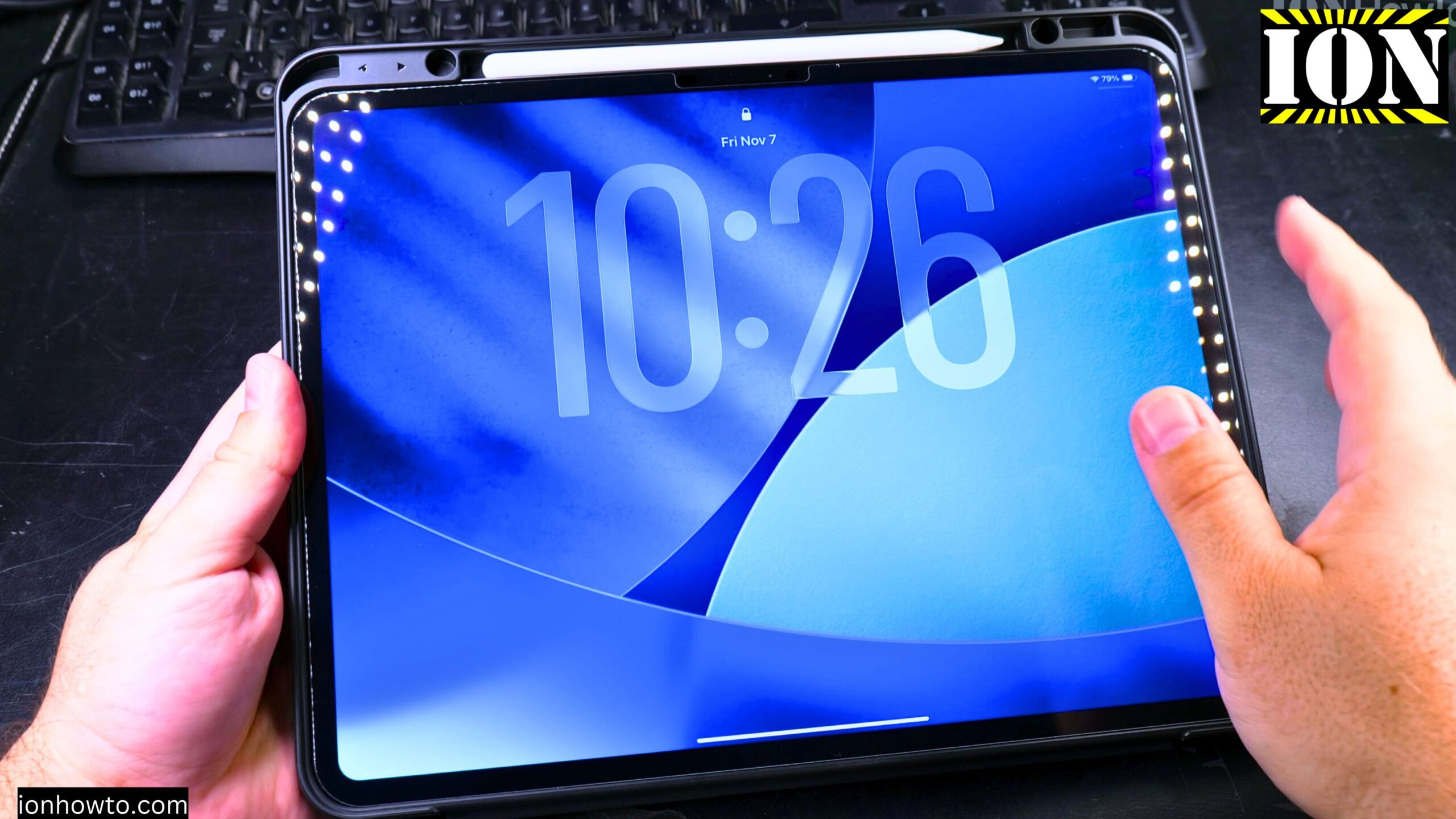
How to Remove iCloud Activation Lock on Your iPad After a Remote Erase
If you’ve remotely erased your iPad using Find My and now it’s asking for an old Apple ID password, you’re seeing iCloud Activation Lock. This guide is based on iPadOS 26 running on a 13-inch iPad Pro M5. Let’s break down what this lock is and the steps to get past it.
Amazon links
As an Amazon Associate I earn from qualifying purchases:
- iPad Pro M5 13 inch
- Apple Pencil Pro
- iPad Pro M5 Folio Case
- iPad Pro M5 Screen Protector
- iPhone Accessories
- iPhone Charger
- iPhone Cases
- iPhone Screen protector
- iPhone Magsafe
- iPhone Wallet
- iPhone Usb c cable
What is iCloud Activation Lock?
Activation Lock is a security feature from Apple. It’s designed to keep your iPad safe if it’s ever lost or stolen. When Find My is turned on, this lock stays on the device even after you erase it remotely. During the new setup, the iPad will ask for the Apple ID and password that was last used on the device. This proves you are the rightful owner.

If you see a screen asking for an Apple ID during setup, that’s Activation Lock. You need specific information to remove it.
The Only Official Way to Remove the Lock
Learn how to unlock your iPad the right way. There is only one official method to remove this lock.
Step 1: Gather Your Information
You will need the Apple ID email address and the exact password for the account that was signed into the iPad before it was erased. Have this information ready.
Step 2: Enter the Credentials on the Lock Screen
On the Activation Lock screen during setup, carefully type in that Apple ID email and password. This is the account that was linked to the iPad via Find My.
Step 3: Complete Setup
Once you enter the correct details, the lock will be removed immediately. You can then set up your iPad as new or from a backup.
If You Are Not the Original Owner
I show you what to do if you bought the iPad from someone else and see this lock.
This situation is very common. The lock is tied to the previous owner’s Apple ID. For you to use the iPad, they must remove it.
Step 1: Contact the Seller
Reach out to the person who sold you the iPad. Politely explain that the iPad is still linked to their Apple ID and is activation locked.
Step 2: Ask Them to Remove It Remotely
The previous owner needs to follow these steps on their own iPhone, iPad, or computer:
- Go to iCloud.com/find or use the Find My app.
- Sign in with their Apple ID.
- Click “All Devices” and select the iPad in question.
- Choose “Remove from Account.”
Step 3: Restart Your iPad Setup
After they do this, you can start the setup process on the iPad again. The Activation Lock screen should now be gone.
Important Things to Know
Learn how to avoid problems and understand what won’t work.
- There is No Official Bypass: Apple designed this for security. No secret code, software, or website can remove this lock without the original Apple ID password. Anyone claiming they can is not following Apple’s official process.
- Proof of Purchase is Key: If you are the original owner but forgot your password, Apple Support may ask for your original sales receipt to help verify ownership. Keep your receipt safe.
- It’s a Security Feature, Not a Bug: While frustrating if you’re locked out, this feature is why stolen Apple devices are much harder to resell and use. It protects your data.
Summary of the Steps to Unlock
To make it super clear, here are the steps again:
- Identify the Account: Figure out which Apple ID was last on the iPad.
- Enter the Password: If it’s yours, enter that account’s password on the lock screen.
- Contact the Seller: If it’s not yours, you must get the seller to remove it from their iCloud account online.
- Beware of Scams: Do not pay for “unlocking services” that promise to remove Activation Lock. The only ways are the two listed above.
If you follow these steps, you’ll be able to get your iPad up and running. The process is straightforward when you have the right information.
Leave a Reply Cancel reply