
Learn how to remove stickers from your photos on iPhone using the Photos app. I show you the steps to delete stickers you have added to images, if they are custom stickers or Apple’s built-in sticker collection.
I am showing you on iOS 26 Beta 4 on an iPhone 16 Pro Max. This method works on all iPhones running recent iOS versions.
Quick Steps and Scenarios Overview
| What You Need to Do | Quick Jump |
|---|---|
| How Stickers Work on iPhone Photos | Jump to Step 1 |
| How to Remove Stickers Using Revert to Original | Jump to Step 2 |
| Important Note About Revert to Original | Jump to Step 3 |
| How to Remove Stickers Immediately After Adding Them | Jump to Step 4 |
| How to Remove Stickers From Photos Sent in Messages | Jump to Step 5 |
| Final Tip | Jump to Step 7 |
Recommended Amazon Gear and Accessories
Disclosure: This article contains Amazon affiliate links. As an Amazon Associate, we earn from qualifying purchases at no extra cost to you.
- iPhone Accessories
- iPhone Charger
- iPhone USB-C Cable
- iPhone MagSafe Accessories
- iPhone Case
- iPhone Screen Protector
In this guide, you will learn how to take stickers off photos in iOS. If you have accidentally added a sticker or want to clean up an edited image, these steps will help you undo the changes and restore your original photo.
How Stickers Work on iPhone Photos
When you add a sticker to a photo in the Photos app, your iPhone saves the edited version. But the original photo is still there underneath. This means you can remove stickers even after you have saved the edited picture. You do not have to undo the change right away.
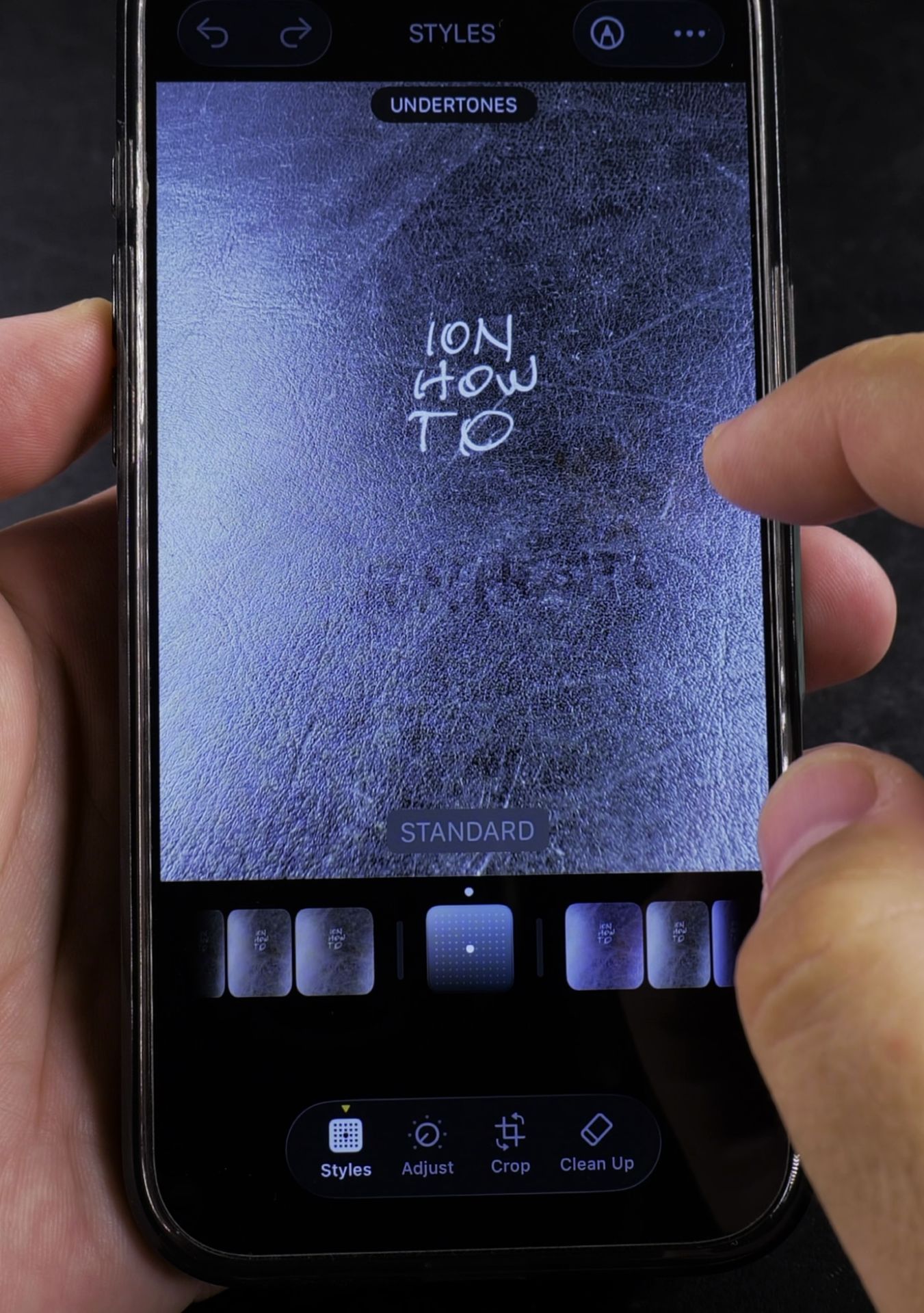
How to Remove Stickers Using Revert to Original
This is the main method to remove stickers from a photo.
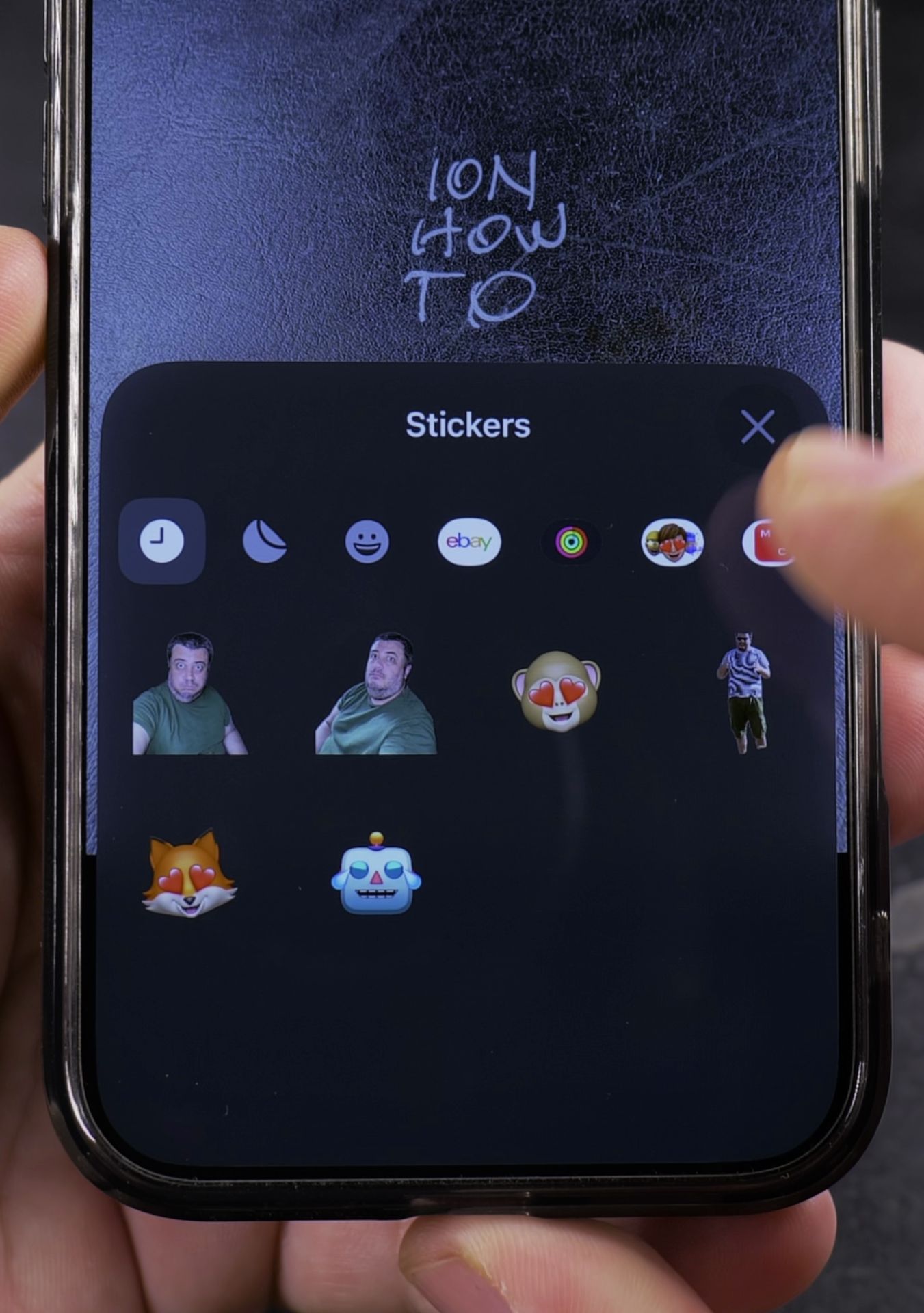
Here are the steps:
- Open the Photos app on your iPhone
- Find the photo that has the sticker you want to remove
- Tap on the photo to open it full screen
- Tap Edit in the top right corner
- Look at the bottom or top of the screen – you may see the sticker still on the image
- Tap on Revert or Revert to Original
- Confirm by tapping Revert to Original again
After you do this, the photo goes back to how it looked before you added any stickers or other edits. All stickers, drawings, and adjustments are removed at once.
Important Note About Revert to Original
The Revert to Original button removes all edits you have made to a photo. It does not remove just one sticker while keeping other changes. If you added a sticker but also adjusted the lighting or cropped the image, reverting will undo everything.
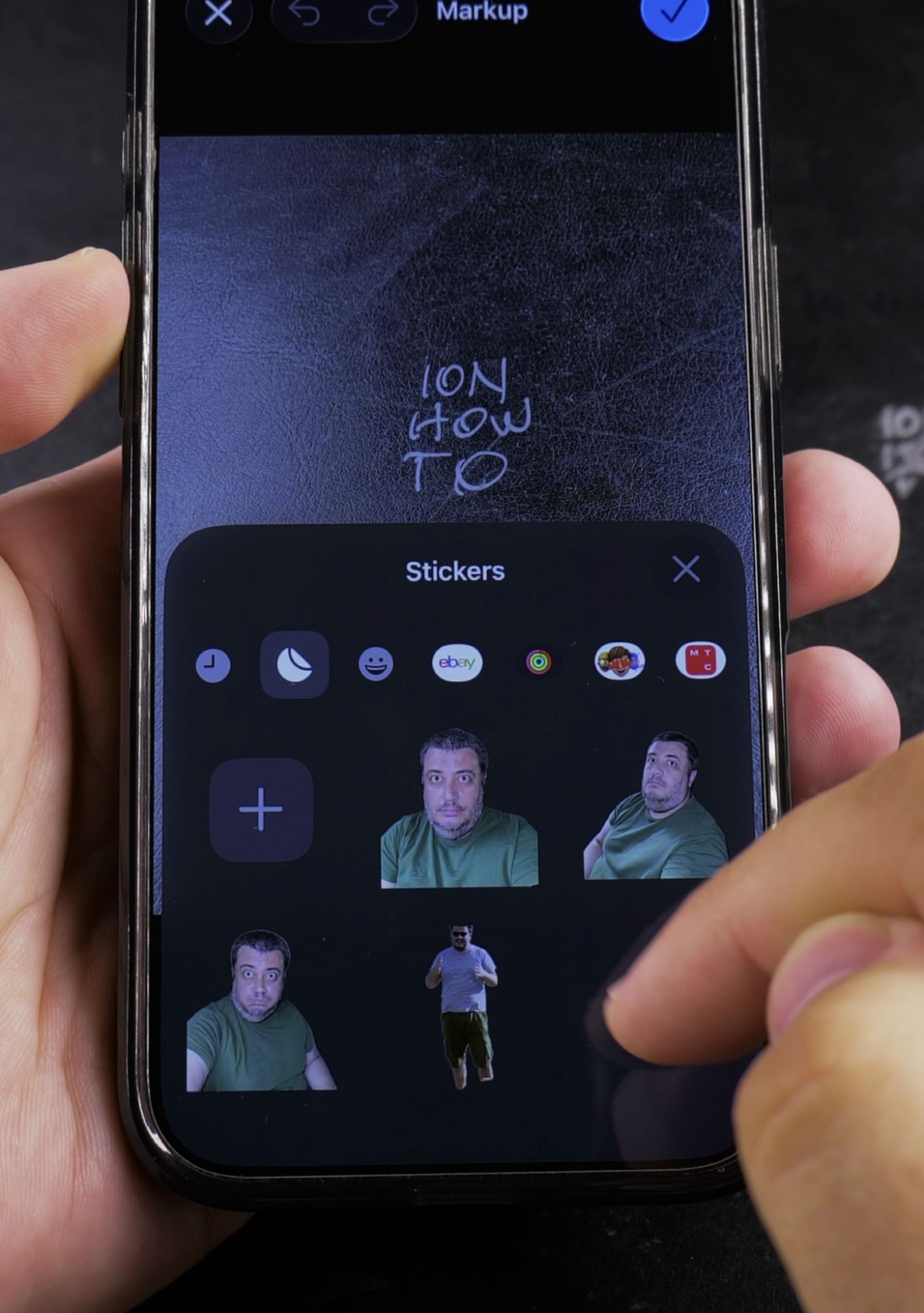
If you want to keep your other edits and only remove the sticker, you will need to use a different method. Unfortunately, the built-in Photos app does not let you remove individual stickers while keeping other changes. You would have to start over with the original photo and reapply your other edits.
How to Remove Stickers Immediately After Adding Them
If you just added a sticker and have not pressed Done yet, you can remove it without using Revert.
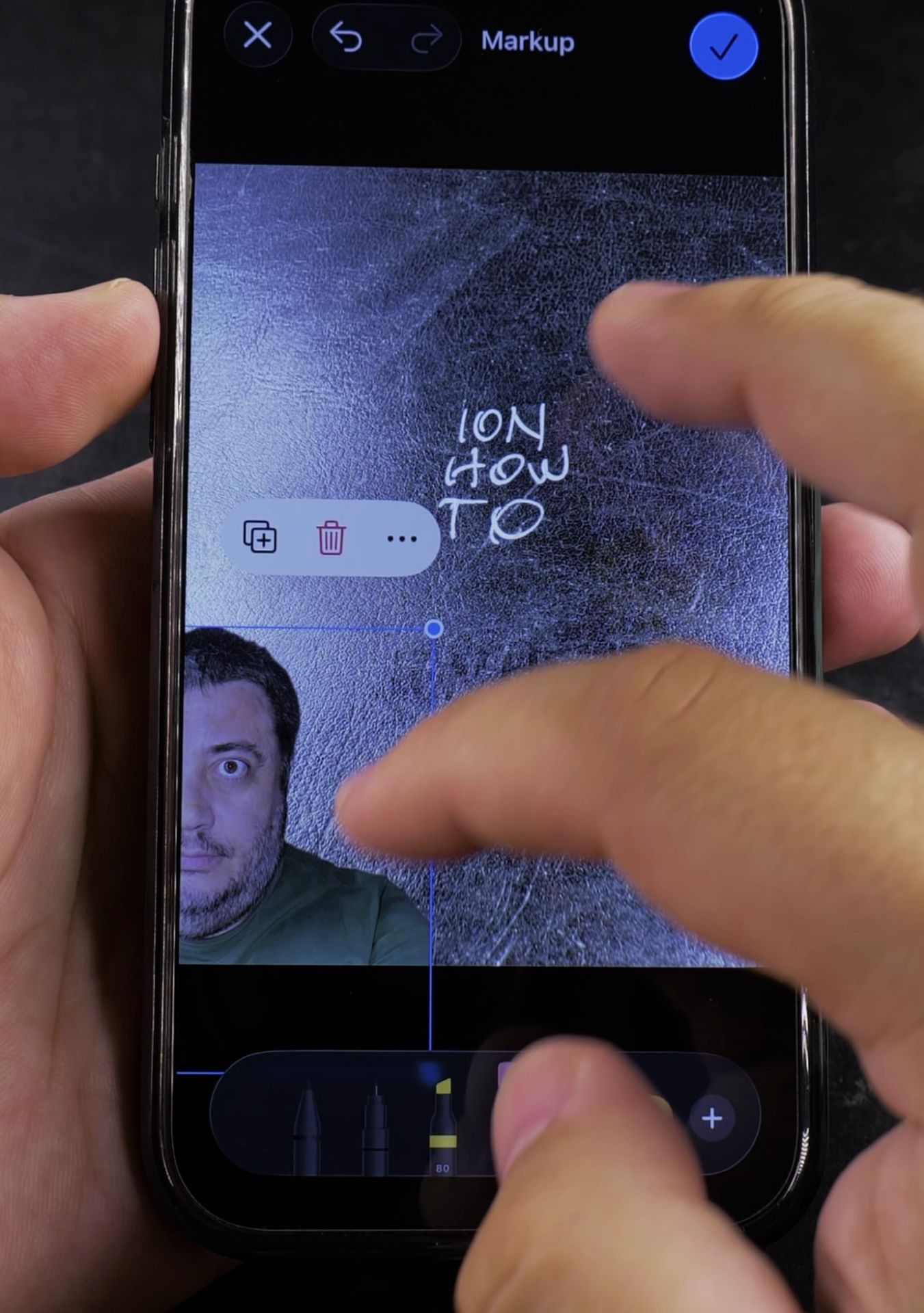
Here is what to do while still in edit mode:
- Tap on the sticker you want to remove
- Look for a delete option (usually a trash can icon or a small X)
- Tap Delete or simply drag the sticker off the screen
- You can also tap Undo right after placing the sticker
This removes just that sticker without affecting anything else.
How to Remove Stickers From Photos Sent in Messages
If someone sent you a photo with a sticker on it in the Messages app, the process is a bit different.
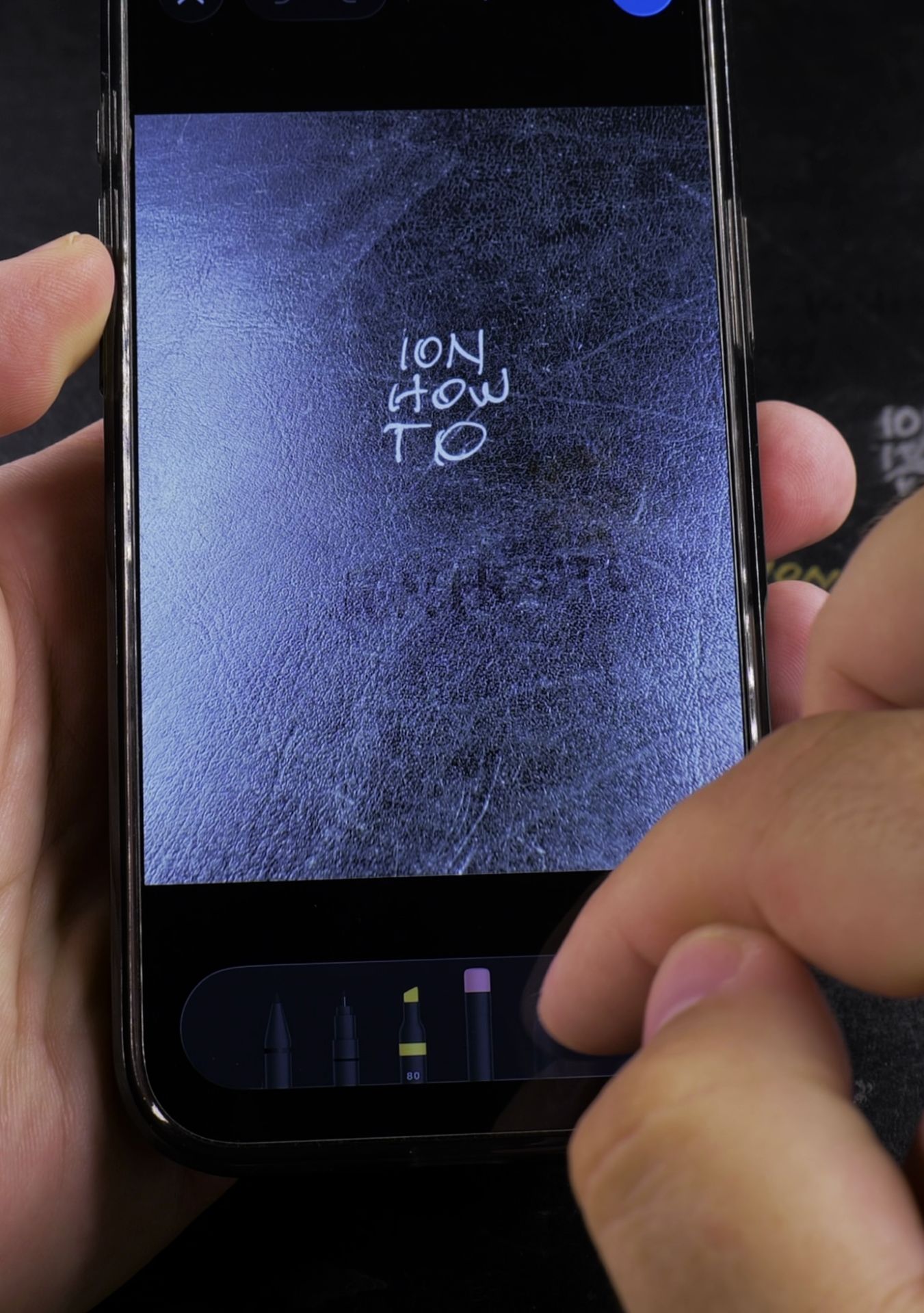
Here is what to try:
- Tap on the photo in the conversation to open it full screen
- Look for an Edit button
- If you see Revert to Original, tap it
- If not, save the photo to your Photos app first, then follow the steps above
Quick Summary
Here is how to remove stickers from a photo on your iPhone:
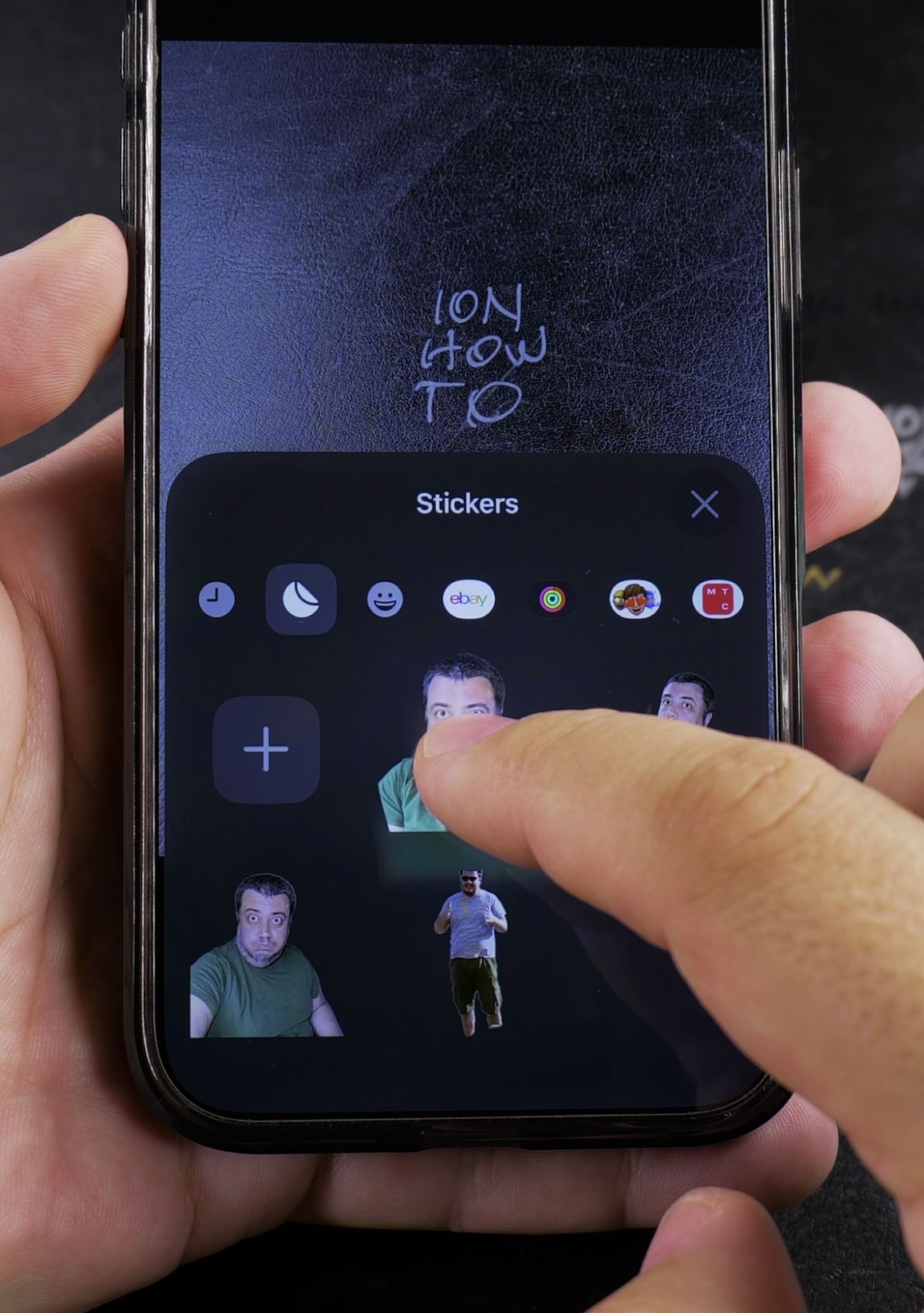
- Open the Photos app and find your picture
- Tap Edit in the top right corner
- Tap Revert or Revert to Original
- Confirm by tapping Revert to Original again
That is all there is to it. Your photo goes back to its original state without any stickers.
Final Tip
Before you add stickers to a photo, keep in mind that removing them means removing all your other edits too. If you plan to do multiple types of edits, consider adding stickers last. That way, if you change your mind about a sticker, you only lose the sticker work and not your other adjustments. Or you can duplicate the photo first and edit the copy. To duplicate, tap the three dots menu on the photo and select Duplicate. Then add stickers to the duplicate while keeping the original safe.
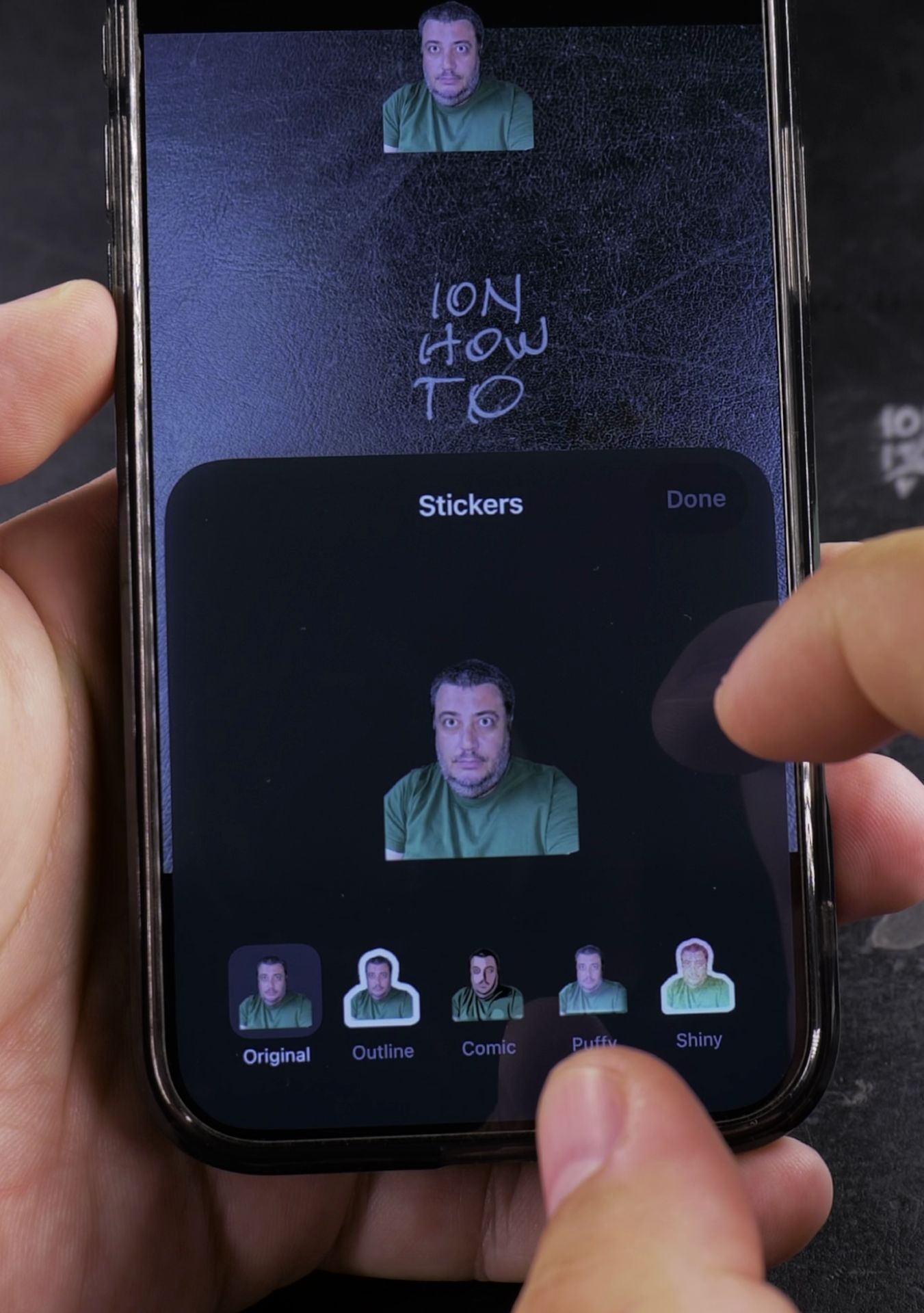
Helpful Tips
Take your time and check the screen carefully after each tap so you can confirm the setting changed as expected. If an option appears in a slightly different spot on your device, watch the embedded video above for a closer look.
Related Guides
- How to Remove iPhone Photos Stickers – How to Remove Stickers from Photos on iPhone.
- Add Stickers to iPhone Photos – Add Stickers to iPhone Photos.
- iPhone How-To Guides – Browse more tutorials and practical guides in this section.


Leave a Reply