


Losing your phone can be stressful but thanks to Android’s Find My Device app, you can quickly find and secure your phone
If it’s hiding under a blanket at home or lost in a public place, you can still use the Android Find My Network to Find the phone and play a loud beep.
Amazon links
As an Amazon Associate I earn from qualifying purchases:
- Phone Cases
- Mobile Tripods
- Usb-c charger
- Usb-c cable
- Docking stations
- Wireless car chargers
- Wireless charger stand
- SIM card removal tool
- SIM card holder

Quick Steps and Scenarios Overview
| What You Need to Do | Quick Jump |
|---|---|
| Find My Device | Jump to Step 1 |
| Set Up Find My Device | Jump to Step 2 |
| Find Your Phone with Find My Device | Jump to Step 3 |
| How to Play a Sound to Find Your Phone | Jump to Step 4 |
| Remotely Lock a Lost Phone | Jump to Step 5 |
| Tips to Keep Your Phone Ready to Be Found | Jump to Step 6 |
I’m using a Sony Xperia 1V running Android 14, but the steps will be similar for most Android devices.
Find My Device
Find My Device is a free service by Google that helps you Find your Android phone or tablet. It uses the Google Find My Network to Find your device’s position on a map.
It’s not just about finding your phone it also lets you:

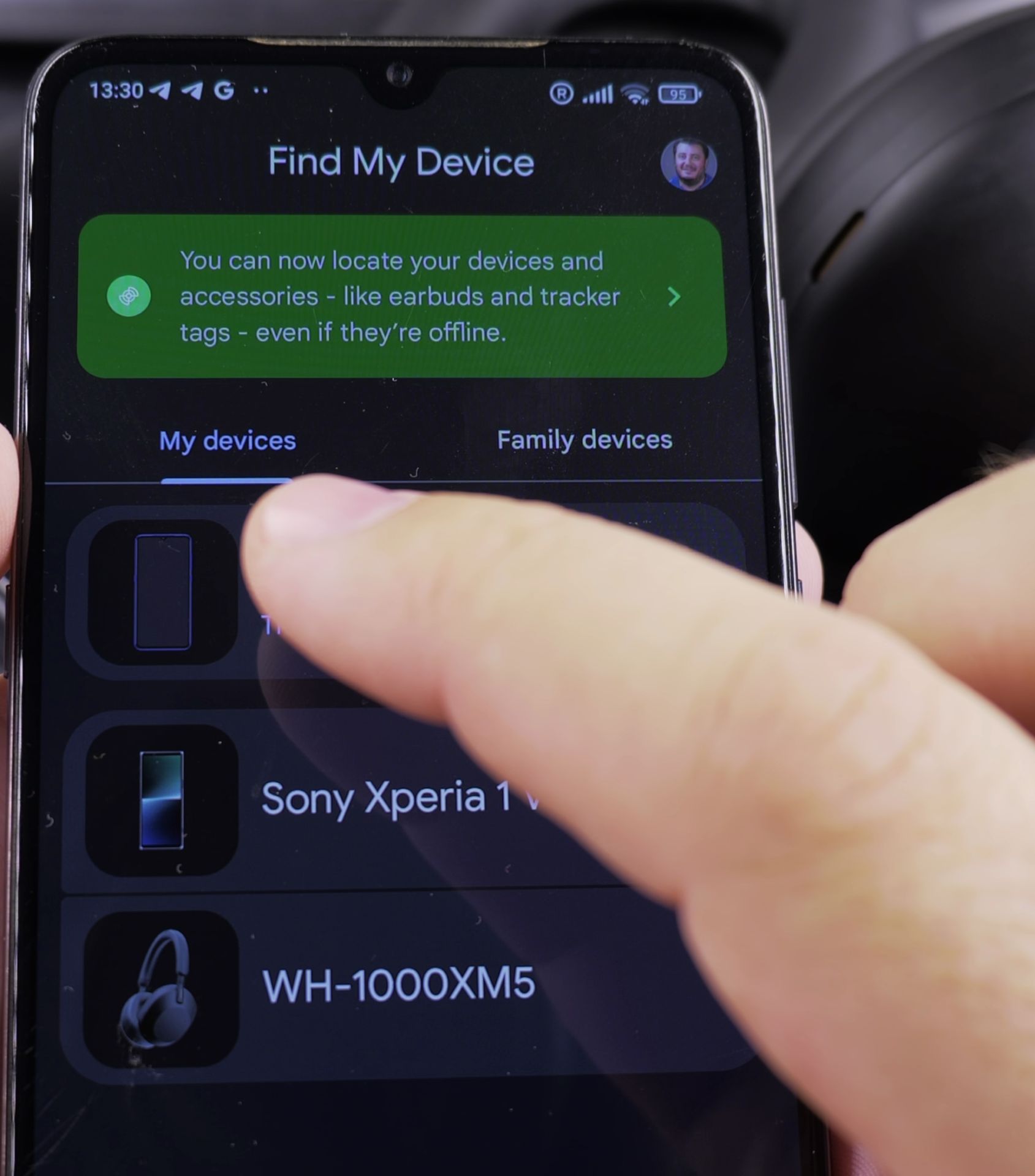
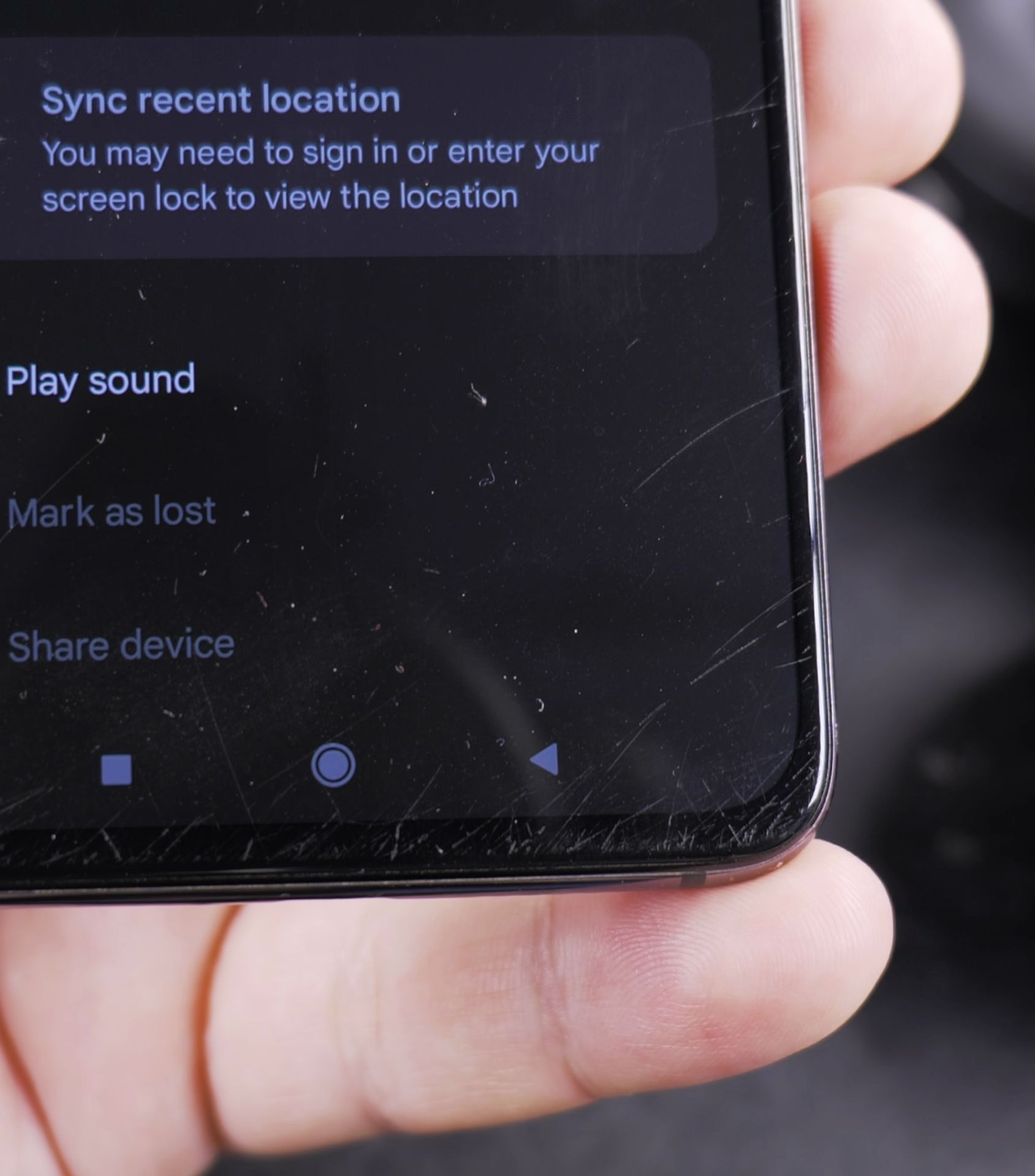
- Play a loud beeping sound to help you Find it, even if it’s on silent.
- Remotely lock your device to protect your data.
- Display a message on the lock screen with your contact information, so someone can return it to you.
This tool is really useful for anyone who lost their phone in a public place or under the bed.
Set Up Find My Device
Before using Find My Device, you need to make sure it’s enabled on your device:
- Enable Location Services:
- Go to Settings > Location.
- Toggle the switch to turn on location services.
- Turn On Find My Device:
- Open Settings > Security & Privacy > Find My Device.
- Toggle the switch to enable it.
- Ensure Your Device Is Connected to Google:
- Make sure your phone is signed in to your Google account.
- Keep Your Phone Charged:
- Find My Device works best when your phone has battery life, so try to keep it charged.
Find Your Phone with Find My Device
If you don’t know your where your phone is:

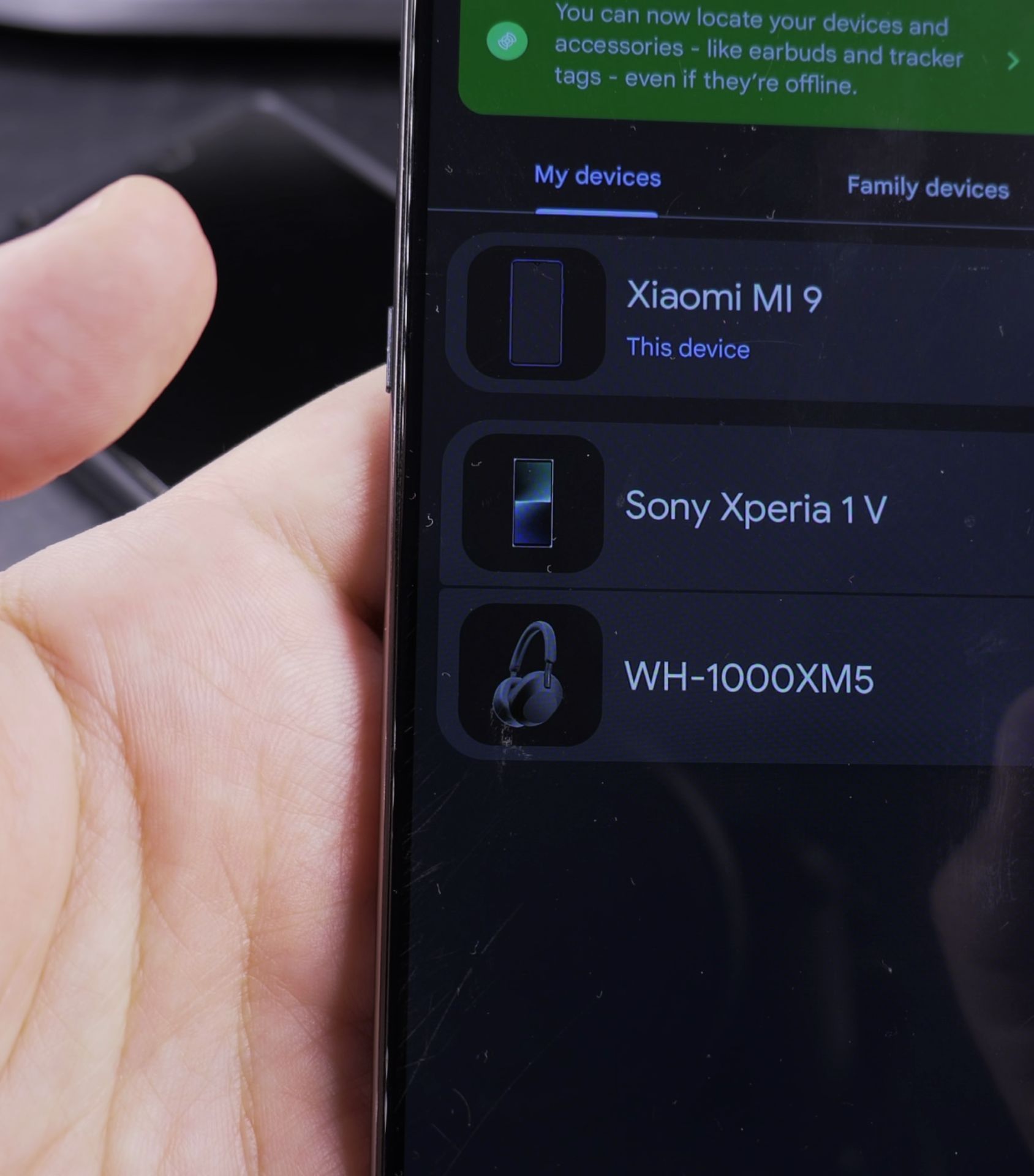
- Open Find My Device:
- On another device (a computer or another phone), go to Find My Device or download the Find My Device app from the Google Play Store.
- Sign In to Your Google Account:
- Use the same Google account that’s linked to your missing phone.
- Find The Phone:
- Once signed in, you’ll see a map with your phone’s location. If it’s nearby, you can play a sound to help you find it.
How to Play a Sound to Find Your Phone
If your phone is “lost” under a blanket, pillow, or somewhere nearby, you can make it ring loudly – even if it’s on silent:
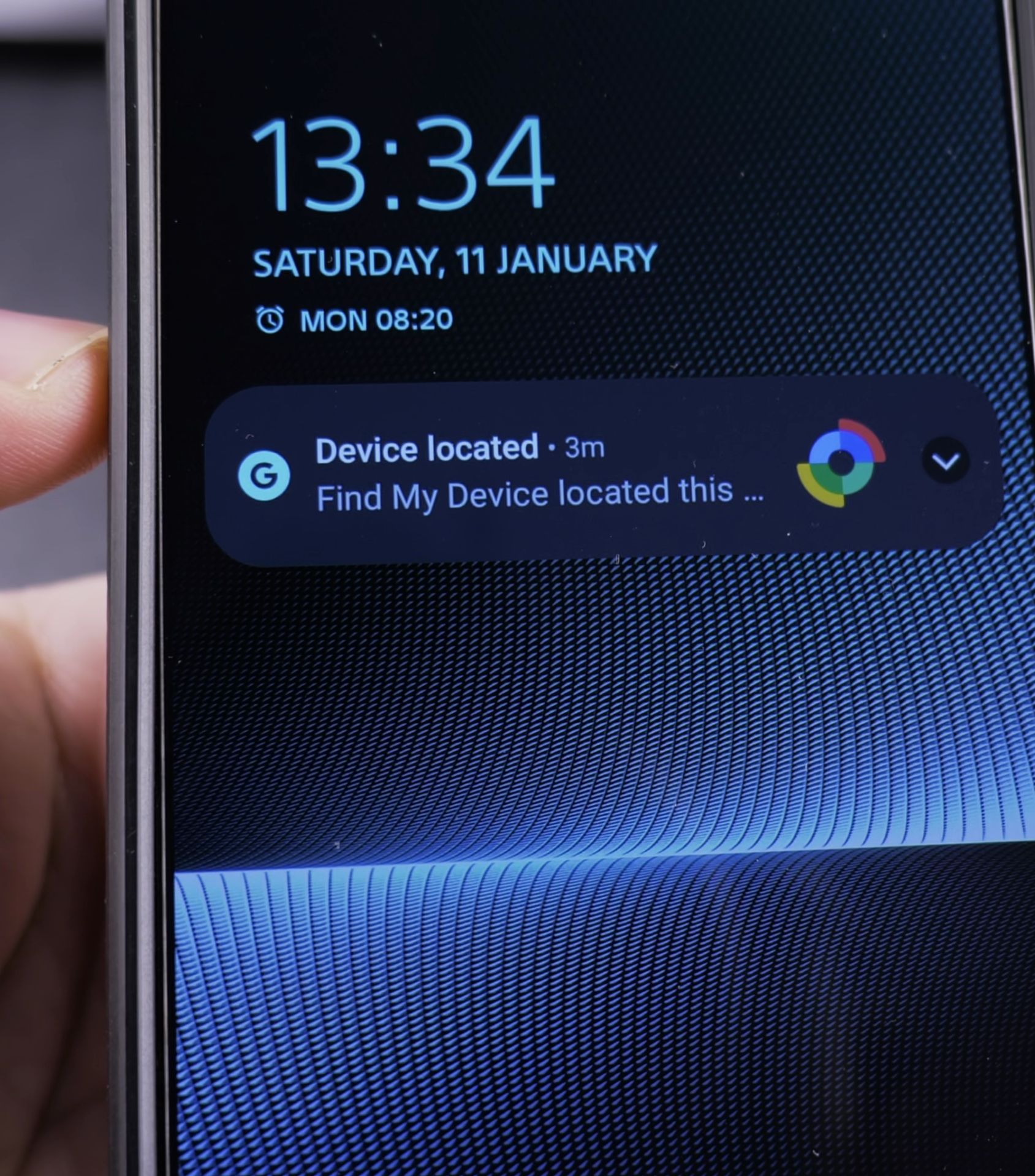
- Open Find My Device and select your lost phone.
- Click Play Sound.
- Your phone will ring at full volume for 5 minutes, making it easier to Find.
Remotely Lock a Lost Phone
If your phone is lost in a public place, you can lock it remotely to protect your data on the device:
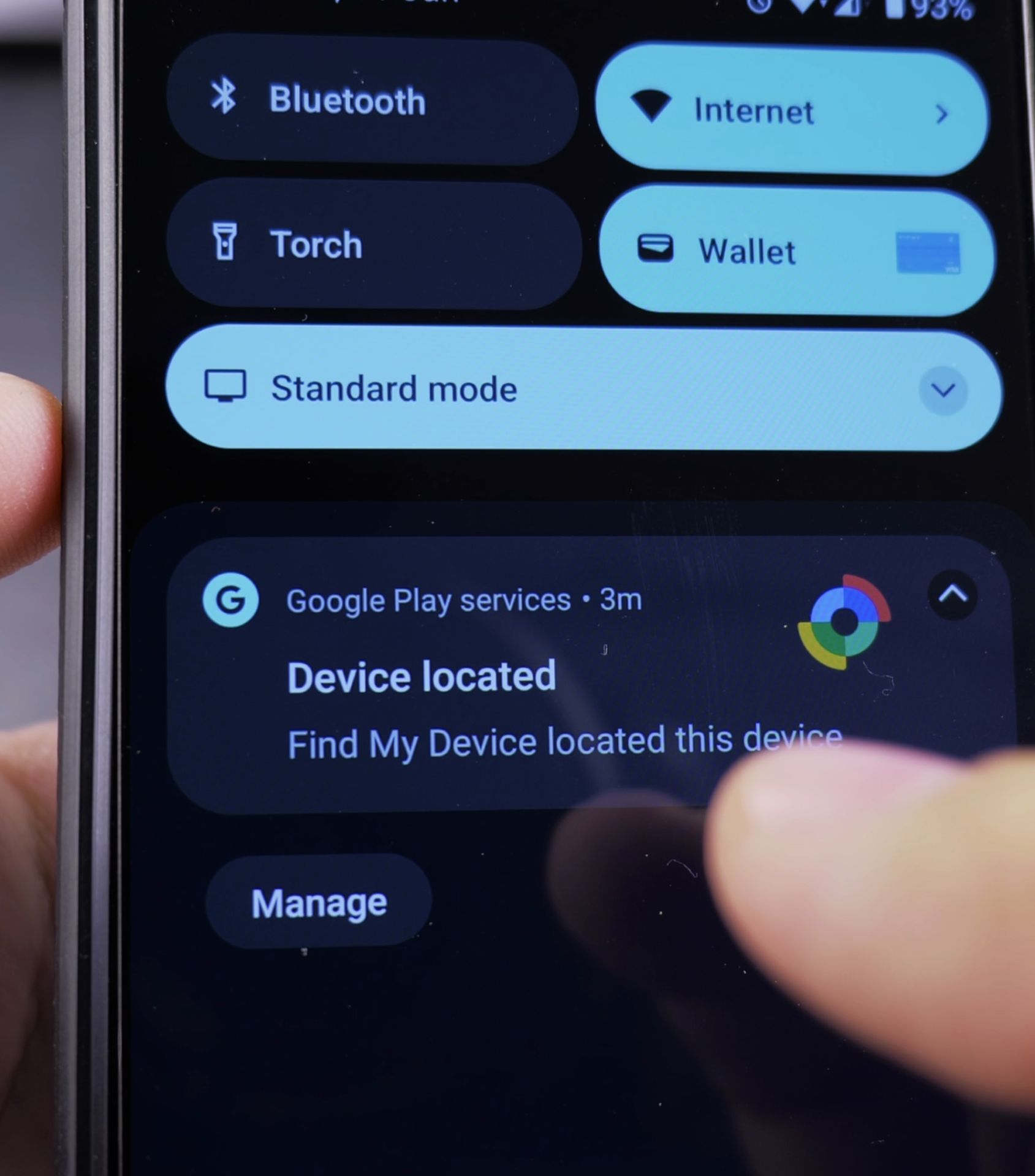
- Open Find My Device and select your lost phone.
- Click Secure Device.
- Enter a temporary message and phone number to display on the lock screen. Like this, if someone finds your phone, they can contact you.
- Click Secure Device to lock your phone.
Tips to Keep Your Phone Ready to Be Found
To make sure Find My Device works when you need it:
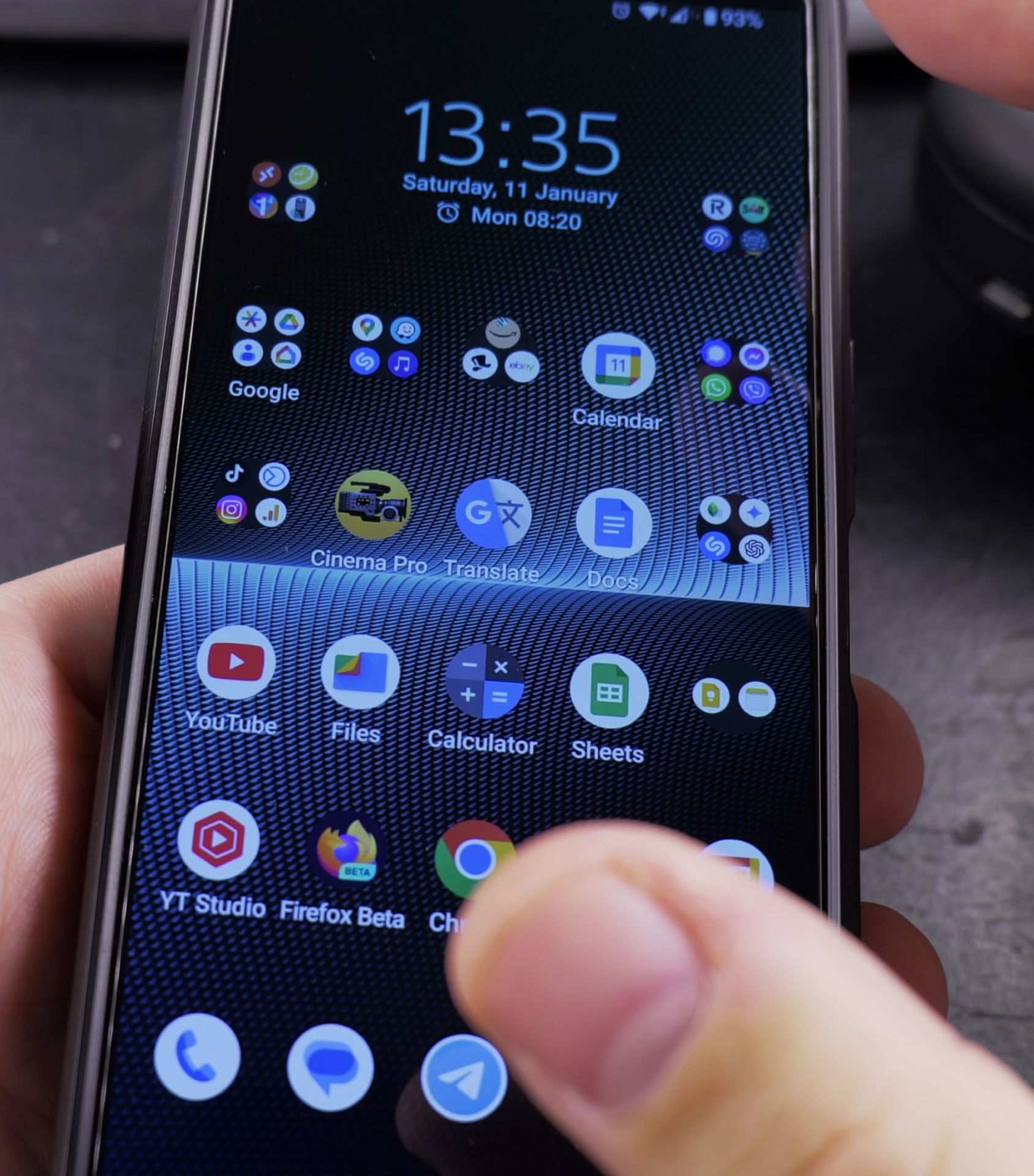
- Keep Location Services On: This keeps your phone’s location is always available if needed.
- Keep The Phone Charged: A phone that’s turned off can’t be located until it’s turned back on.
- Enable Wi-Fi and Mobile Data: Find My Device needs an internet connection to work. Use either Wi-Fi or 5G mobile data but it’s better to have both enabled.
- Check Find My Device Regularly: Make sure it’s still working.
Conclusions
Losing your phone is not a big problem anymore. With Find My Device, you can quickly Find your phone, play a sound to find it, or lock it to protect your data. Make sure to set it up and keep your phone charged and connected to the internet.
Next time you lose your phone, try Find My Device play sound feature and you might find it in your jacket.
Did you ever use Find My Device to Find your phone? Share your experience in the comments below!
I used it to find a missing phone indoor where it was under a blanket.
For me the play sound function is really the most valuable.
Helpful Tips
Take your time and check the screen carefully after each tap so you can confirm the setting changed as expected. If an option appears in a slightly different spot on your device, watch the embedded video above for a closer look.
Related Guides
- Remove Apps from Samsung Android Home Screen – How to Remove Apps from Home Screen on Samsung Android.
- Add Apps to Samsung Android Home Screen – How to Add Apps to Home Screen on Samsung Android.
- Remove App From Android Home Screen – How to Remove an App from Your Home Screen on Android.
- Android & Mobile Guides – Browse more tutorials and practical guides in this section.
Leave a Reply Cancel reply