
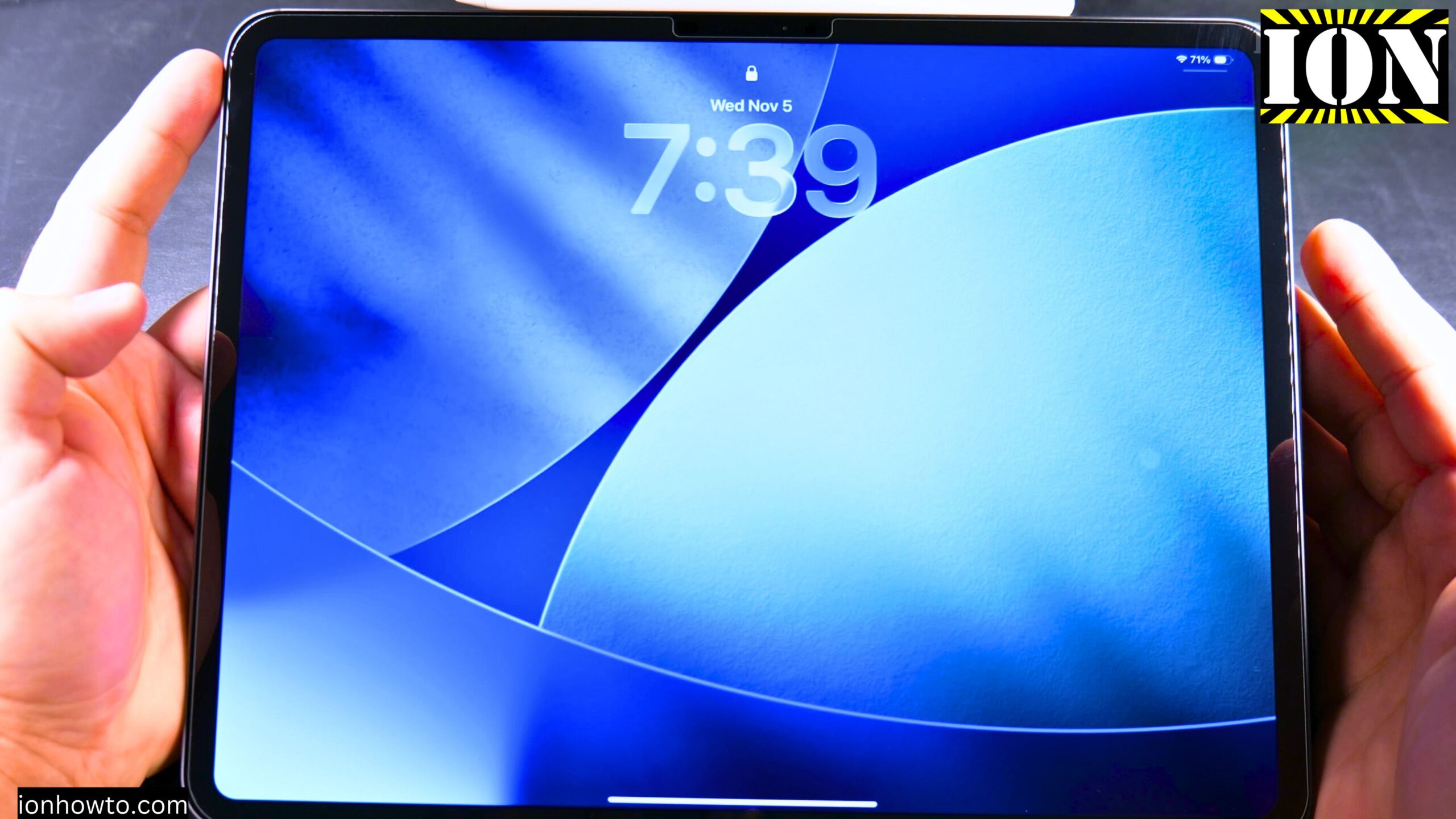
How to Reduce Clock Liquid Glass Transparency on iPad Lock Screen.
Learn how to reduce transparency on your iPad lock screen clock. I show you on iPadOS 26.2 running on an iPad Pro M5 13 Inch 2025 model. The steps work the same on most newer iPads running recent versions of iPadOS.
Before we start, know that there are actually two different transparency settings. One controls the overall Liquid Glass effect across the whole system. The other one is just for your lock screen clock. I show you both below.
The Main Liquid Glass Setting (Whole Screen)
This setting changes the transparency effect for things like the Control Center and other system panels. Here is how to find it:
- Open the Settings app on your iPad.
- Tap on Display and Brightness.
- Look for and tap on Liquid Glass.
- You will see two options:
- Clear – This is the default, more transparent look.
- Tinted – This reduces the transparency a little.
To be honest, the difference between Clear and Tinted can be hard to see. On some screens it looks almost the same. I personally keep mine set to Clear because I like the Liquid Glass effect. But you can try both and see which one you prefer.
The Lock Screen Clock Transparency Setting (What You Really Want)
If you want to make the clock on your lock screen less transparent – or even completely solid – this is the setting you need. It works even if you keep the main Liquid Glass setting on Clear. Here are the steps:
- Go to your lock screen. Wake up your iPad so you see the lock screen with the clock.
- Long press on the lock screen. Touch and hold your finger anywhere on the lock screen (not on the clock itself). Keep holding until the screen changes.
- Authenticate. Your iPad will ask for Face ID or your passcode. Go ahead and do that.
- Tap Customize. A menu will appear at the bottom. Tap the Customize button.
- Tap on the clock. Now you are in edit mode. Tap directly on the clock widget on your screen.
- Adjust the transparency slider. A small popup will appear with options. Look for the slider that controls transparency. Drag it to the left or right:
- Drag left (toward Solid) to make the clock less transparent. All the way left makes it completely solid with no glass effect.
- Drag right (toward Glass) to make it more transparent.
- Tap Done. Once you are happy with how it looks, tap Done in the top right corner.
Your lock screen clock will now stay at the transparency level you chose.
A Few Extra Tips
- You can also change the width (thickness) of the clock font using the other slider in the same popup.
- You can change the font style as well if you want a different look.
- If you tap on the clock again later, the transparency slider might reset to a middle position. Just move it back to where you liked it.
Wrapping Up
That is all there is to it. Most people want to make the lock screen clock less transparent so it is easier to read at a glance. Now you know how to do that in just a few taps. Try both settings and see what looks best to you.


Leave a Reply