



How to Manage App Permissions on Samsung Android.
Want more control over what apps can access on your Samsung phone? I’ll show you how to easily add or remove app permissions to protect your privacy.
Amazon links
As an Amazon Associate I earn from qualifying purchases:
- Phone Cases
- Mobile Tripods
- Usb-c charger
- Usb-c cable
- Docking stations
- Wireless car chargers
- Wireless charger stand
- SIM card removal tool
- SIM card holder
How to Check and Change App Permissions

Quick Steps and Scenarios Overview
| What You Need to Do | Quick Jump |
|---|---|
| How to Check and Change App Permissions | Jump to Step 1 |
| How to Manage Permissions by Category | Jump to Step 2 |
| Important Permissions to Review | Jump to Step 3 |
| Why Manage App Permissions? | Jump to Step 4 |
| When to Change Permissions | Jump to Step 5 |
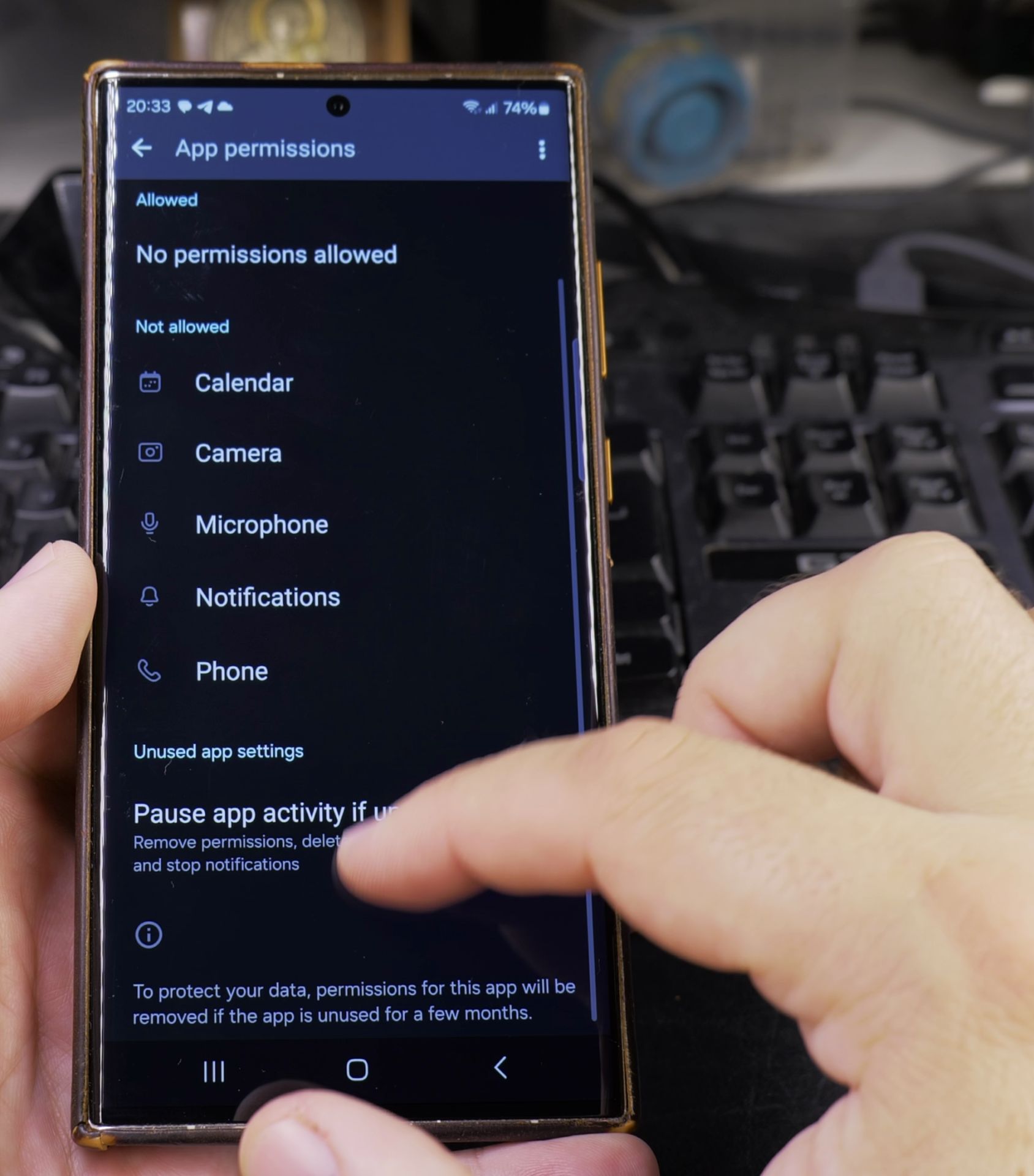
Follow these steps to manage permissions for any app:

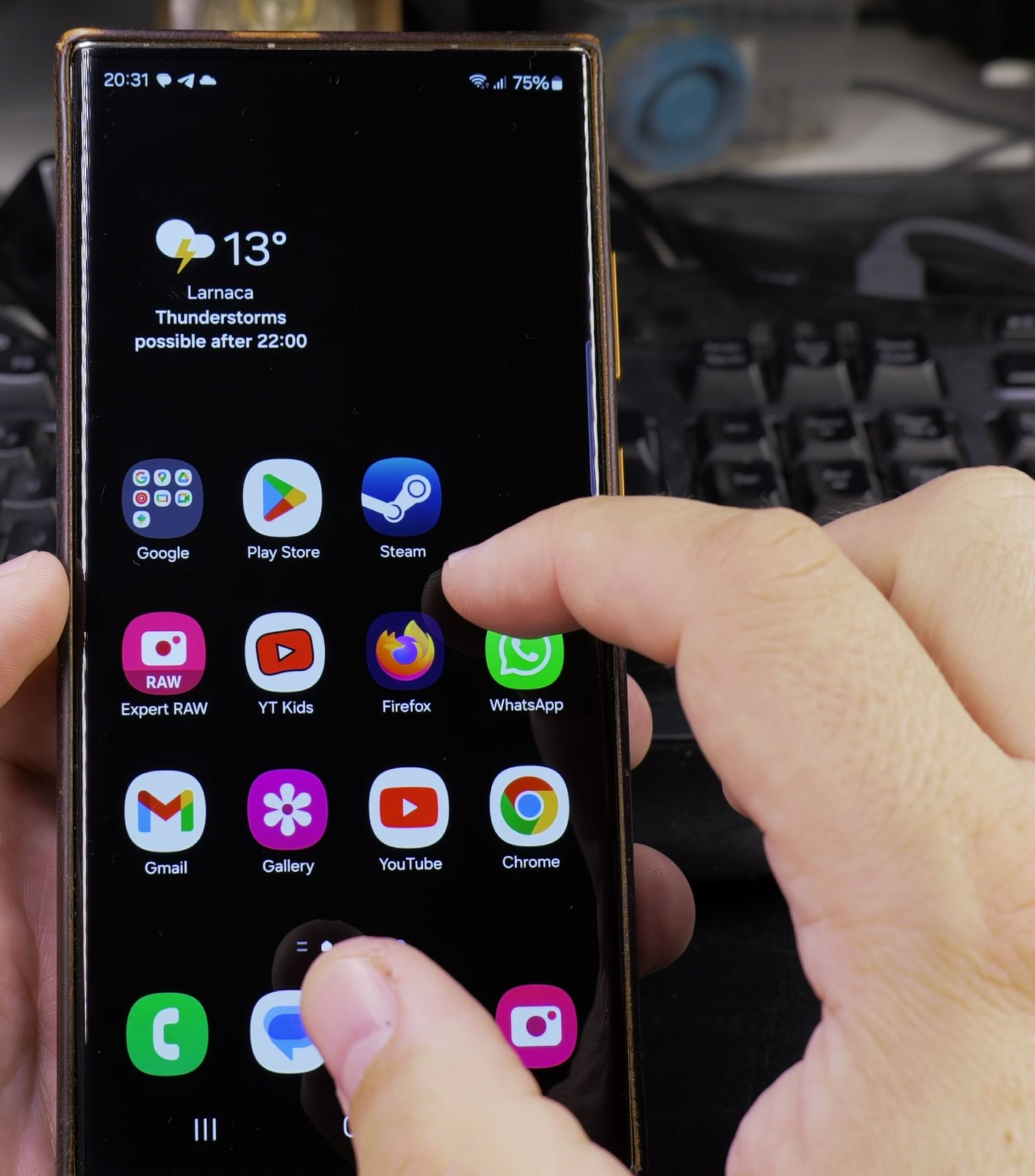
- Open Settings on your Samsung phone
- Tap “Apps”
- Select the app you want to manage
- Tap “Permissions”
- View current permissions – See what the app can access
- Toggle permissions ON or OFF as needed
How to Manage Permissions by Category
If you want to see all apps that use a specific permission (like location or camera):

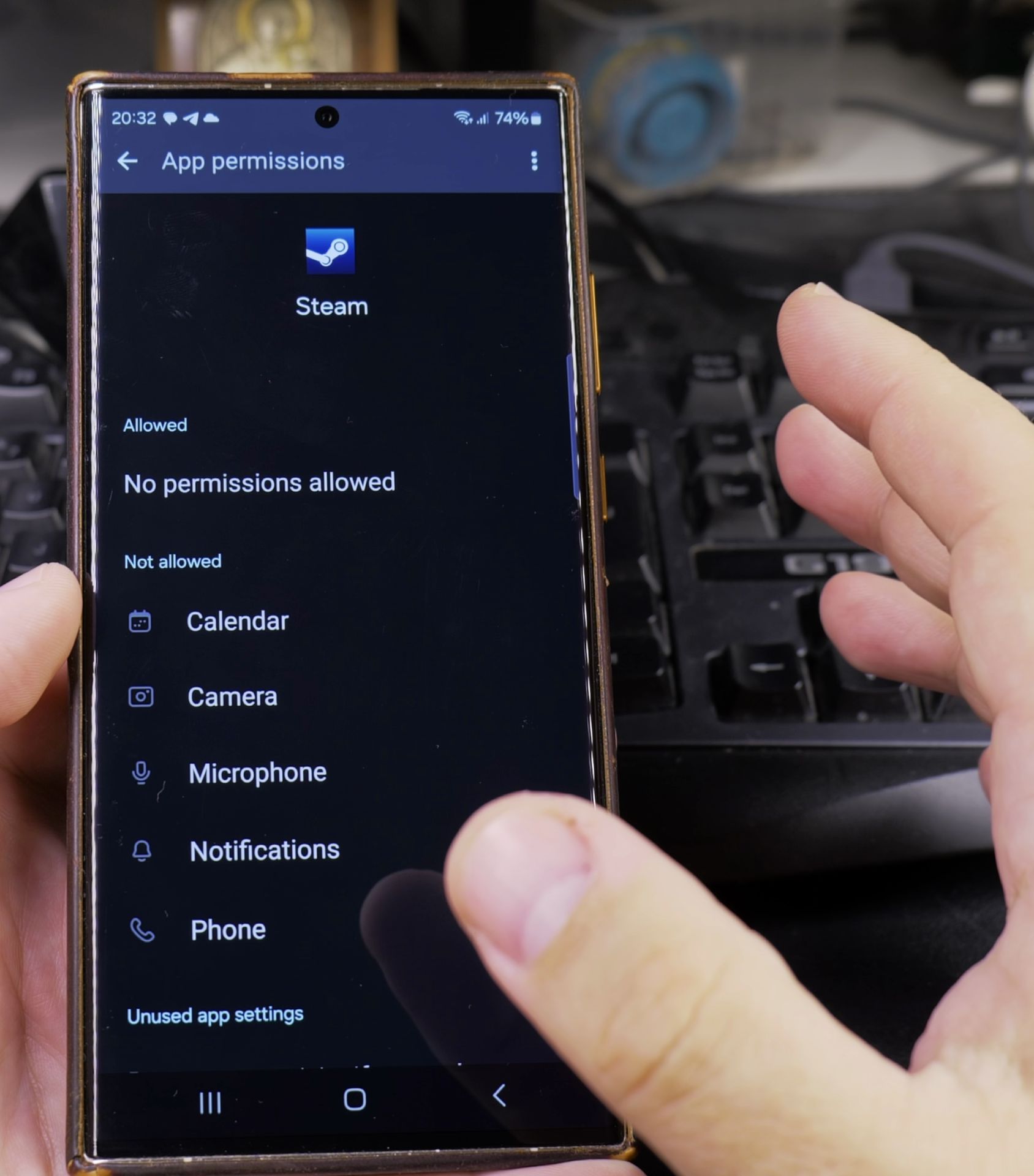
- Go to Settings
- Tap “Privacy”
- Select “Permission manager”
- Choose a permission type (Camera, Microphone, etc.)
- View apps with that permission
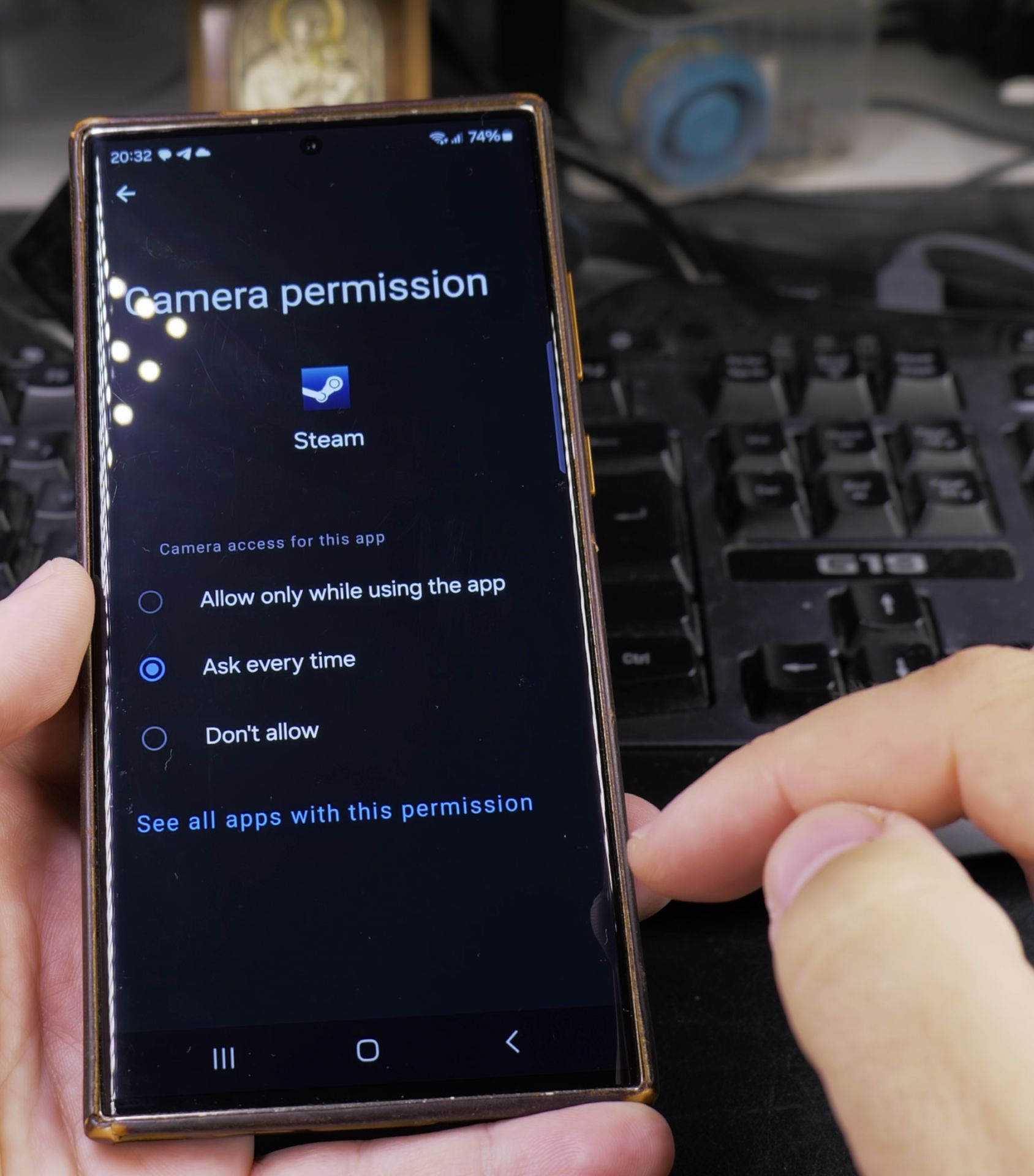
- Change access for each app:
- Allow all the time
- Allow only while using the app
- Ask every time
- Don’t allow
Important Permissions to Review
These permissions often affect privacy the most:
- Location – Controls GPS access
- Camera – Allows taking photos/videos
- Microphone – Enables audio recording
- Contacts – Accesses your address book
- Storage – Reads/saves files on your device
Why Manage App Permissions?
Taking control helps:
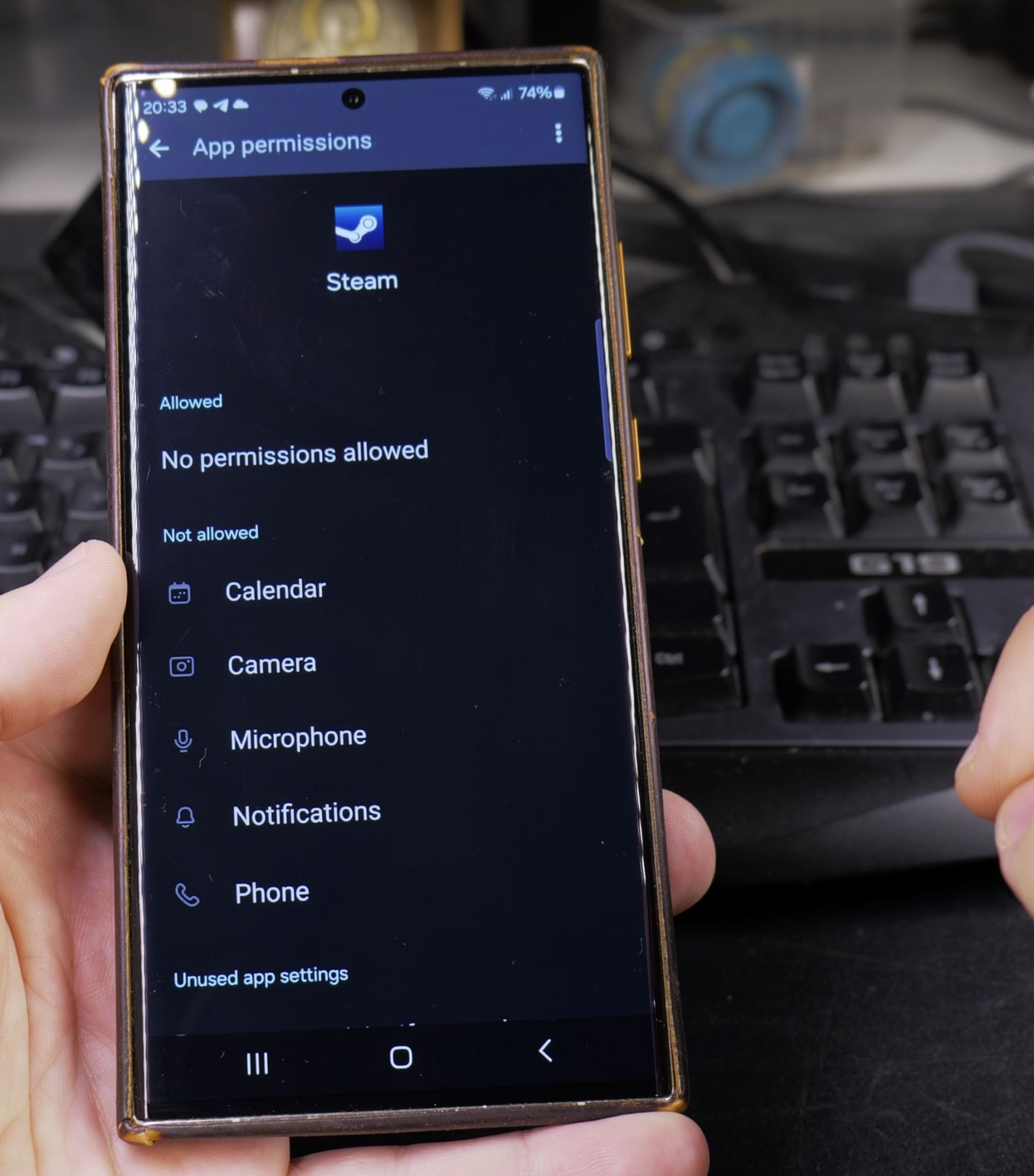
- Protect your personal information
- Save battery life (some permissions drain battery)
- Prevent apps from accessing features they don’t need
- Reduce unwanted ads and tracking
When to Change Permissions
You might want to adjust permissions when:
- An app asks for unnecessary access
- You stop using certain app features
- You notice battery drain from an app
- Privacy concerns arise
Now you can easily check and control what each app can access on your Samsung Galaxy. Remember to review permissions occasionally – especially after installing new apps.
Helpful Tips
Take your time and check the screen carefully after each tap so you can confirm the setting changed as expected. If an option appears in a slightly different spot on your device, watch the embedded video above for a closer look.
Related Guides
- How to Access Network Share on Samsung Galaxy Android Phone – If you have movies, photos, or documents on your home computer or network drive, you can open them right from your phone.
- Set Default USB Mode File Transfer on Samsung Android – How to Set Default USB Mode to File Transfer on Samsung Galaxy.
- Check App Cloud on Samsung Android Phone – How to Check for the App Cloud on Your Samsung Galaxy Phone.
- Samsung Android Guides – Browse more tutorials and practical guides in this section.
Leave a Reply Cancel reply