


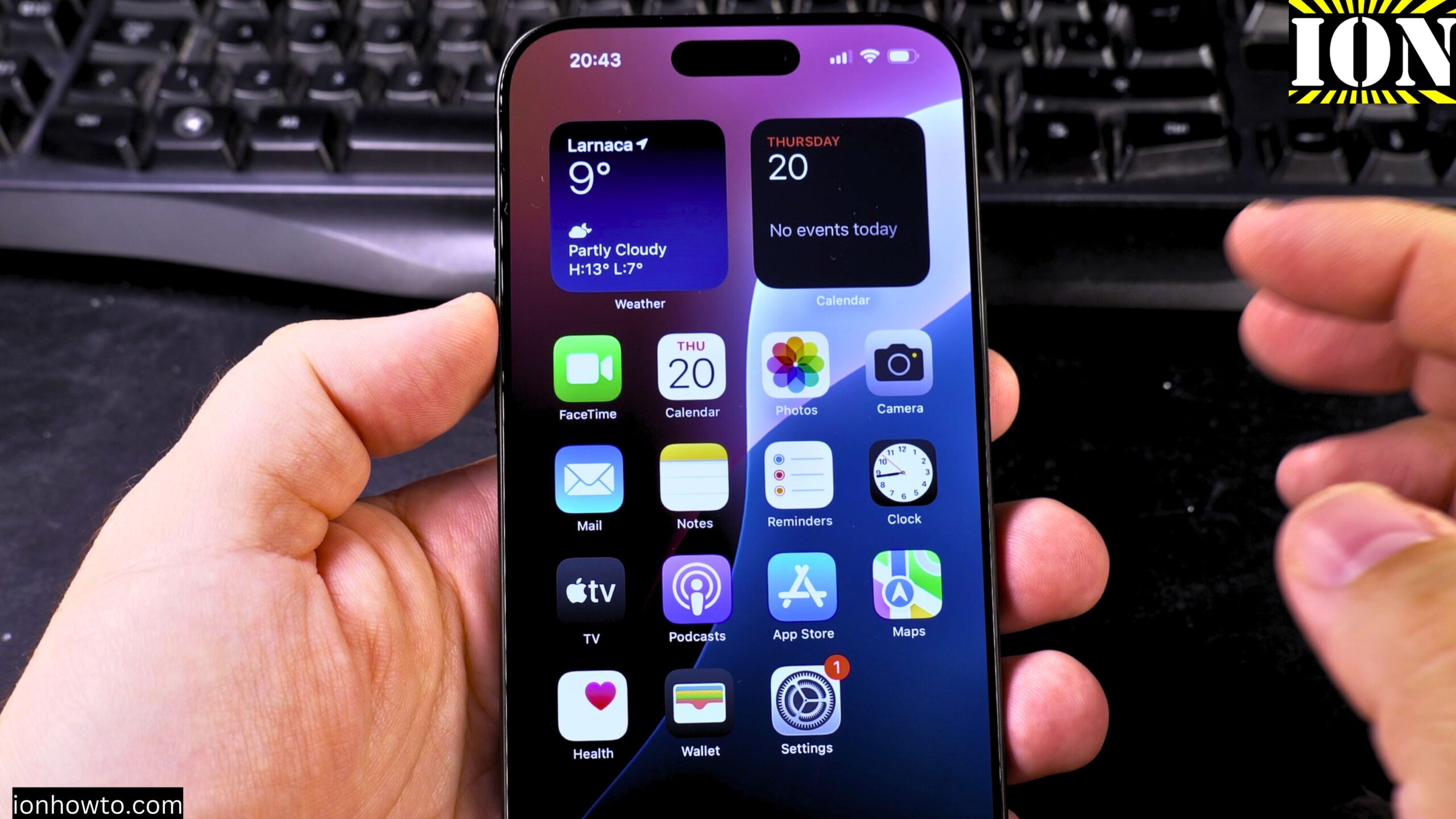
How to Change iPhone App Icons with Your Own Pictures.
Tired of the same old app icons on your iPhone? You can give your home screen a whole new look using just your own photos and an app that’s already on your phone.
Learn how to create custom app icons. I’ll show you how to use the free Shortcuts app to replace any icon with a picture from your camera roll. This is all done on an iPhone running iOS 26, but the steps are almost identical for earlier versions.
Amazon links
As an Amazon Associate I earn from qualifying purchases:
- iPhone Accessories
- iPhone Charger
- iPhone Cases
- iPhone Screen protector
- iPhone Magsafe
- iPhone Wallet
- iPhone Usb c cable
What You Need to Get Started
Here’s the good news: you don’t need to buy any special apps. The only two things you need are already on your iPhone:
- The Shortcuts app (it comes pre-installed).
- A photo you want to use as your new icon.
The Steps to Create a Custom Icon
Follow these steps for each app you want to change. I’ll use the Photos app as an example, but this works for almost any app on your phone.
Step 1: Create a New Shortcut
First, we’ll make a shortcut that opens your app.
- Open the Shortcuts app on your iPhone.
- Tap the + button in the top-right corner to create a new shortcut.
- Tap Add Action.
- In the search bar, type “Open App” and select the Open App action from the list.
- A blue box that says “Open App” will appear. Tap on the word “App” inside that blue box.
- A menu will pop up. Find and select the app you want to make a new icon for (for example, Photos).
Step 2: Add the Shortcut to Your Home Screen
Now, we’ll turn that shortcut into a home screen icon.
- Tap the Settings icon (it looks like three sliders) at the bottom of the shortcut screen.
- Tap Add to Home Screen.
- On the next screen, you can customize your new icon:
- Home Screen Name: This is the label under the icon. You can type anything here, like “Photos” or “Pics.” Many people leave it blank for a cleaner look.
- Icon: Tap the small icon image next to the name. Select Choose Photo and pick the image you want to use from your camera roll.
- Once you’re happy, tap Add in the top-right corner.
You’ll be taken to your home screen, and your brand new custom icon will be there!
Step 3: Hide the Original App Icon
You now have two icons for the same app: your beautiful new one and the old original. To clean up, you should hide the original.
- Press and hold on the original app’s icon (the one that came with your iPhone).
- Tap Remove App from the menu.
- Tap Move to App Library. This doesn’t delete the app; it just tucks the original icon away in a folder you can access by swiping all the way to the last page of your home screen.
Now, only your custom icon is on the main home screen.
Tips for a Great Custom Home Screen
Here’s how to make your setup look amazing.
- Find Your Style: Look for “iOS icon packs” or “aesthetic iPhone icons” online. You can download sets of matching images to use for all your apps.
- Use a Transparent Background: For the cleanest look, use icon images with a transparent background (PNG files). This makes them look like they’re part of your wallpaper.
- Make Icons in Batches: Changing all your icons takes time. Pick a style, gather your images, and then run through the Shortcuts steps for each app you want to change.
- It’s a Shortcut, Not the App: Remember, your new icon is a shortcut that opens the real app. This means a notification banner might briefly appear at the top of your screen when you tap it. This is normal and can’t be turned off.
Creating a custom home screen is a fun way to make your iPhone truly yours. Once you get the hang of making one shortcut, you can change as many icons as you want.
Leave a Reply Cancel reply