


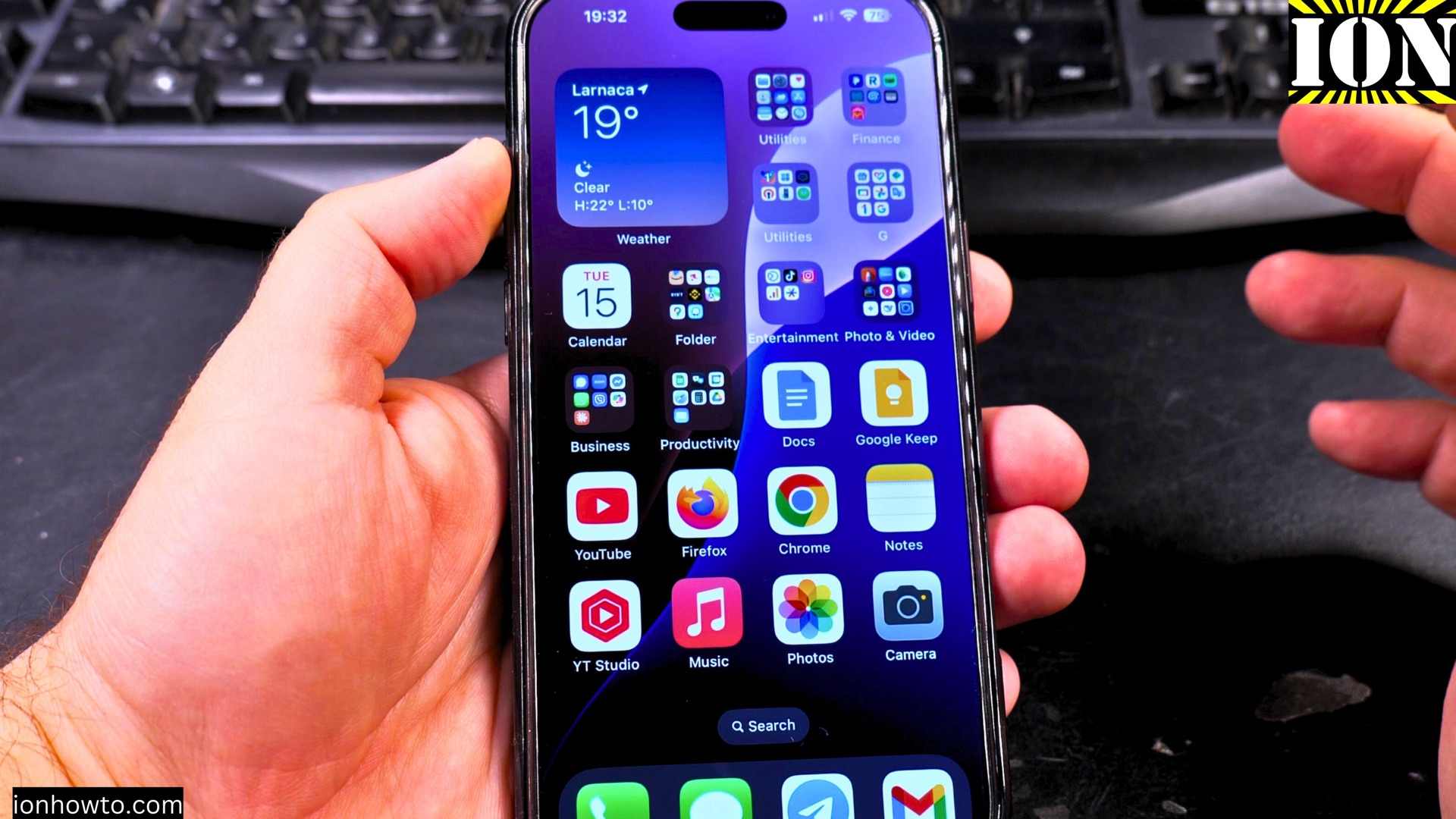
How to Move Your eSIM from Android to iPhone.
Switching from an Android phone to a new iPhone? Welcome! One of the first things you’ll want to do is move your phone number and cellular plan over. Since you can’t just copy an eSIM from one type of phone to another, you need to take a specific path.
Amazon links
As an Amazon Associate I earn from qualifying purchases:
- Phone Accessories
- Screen protectors
- Phone Cases
- Mobile Tripods
- Usb-c charger
- Usb-c cable
- Docking stations
- Wireless car chargers
- Wireless charger stand
- SIM card removal tool
- SIM card holder
Learn how to get your mobile service onto your new iPhone. I’ll show you the only correct way to do it, which involves working with your carrier.
Why You Can’t Just Transfer the eSIM

Think of an eSIM like a digital key. It’s not just a file; it’s a unique digital certificate that is locked to the specific phone it was first set up on. Your Android phone’s “key” won’t unlock service on your iPhone.
Because of this, you need a brand new “key” made for your iPhone. Your mobile carrier is the only one who can provide this.
The Steps to Get Your eSIM on Your iPhone
Forget trying to transfer files. The entire process happens through your carrier. Follow these steps.
Step 1: Contact Your Mobile Carrier
This is the most important step. You must call your carrier’s customer service or visit one of their stores.
What to tell them: “I just switched from an Android phone to an iPhone, and I need to activate my existing phone number and plan on it using eSIM.”
They will start the process to issue a new eSIM profile for your iPhone.
Step 2: Activate the New eSIM on Your iPhone
Your carrier will give you instructions. Usually, they will do one of two things:
- Send a QR Code: They might text or email you a QR code.
- Use Their App: Some carriers have an app (like the AT&T or T-Mobile app) that can set up the eSIM for you.
To activate it on your iPhone:
- Make sure your iPhone is connected to Wi-Fi.
- Go to Settings > Cellular.
- Tap Add Cellular Plan.
- Use your iPhone’s camera to scan the QR code your carrier sent, or follow the in-app prompts.
- Follow the on-screen instructions to complete the setup.
Step 3: Remove the eSIM from Your Old Android Phone
Once your number is fully working on your new iPhone, you should remove the old eSIM from your Android device. This prevents any confusion for the network.
- On your Android phone, go to Settings > Network & Internet > SIMs.
- Find the eSIM plan and look for an option to Remove or Delete it.
Tips for a Smooth Switch
A little preparation makes everything easier.
- Have Your Info Ready: Before you call your carrier, have your account password and possibly your account PIN ready. They will ask for this to verify your identity.
- Do It Over Wi-Fi: Always activate the new eSIM while your iPhone is on a Wi-Fi network. It needs an internet connection to complete the setup.
- Keep Your Android On: Don’t turn off or reset your old Android phone until your new iPhone is making and receiving calls perfectly. You might need it to receive the carrier’s activation text or call.
Moving your service is a simple process once you know the right path. The key is to let your carrier handle the technical part. They do this every day and will guide you through it.
Leave a Reply Cancel reply