
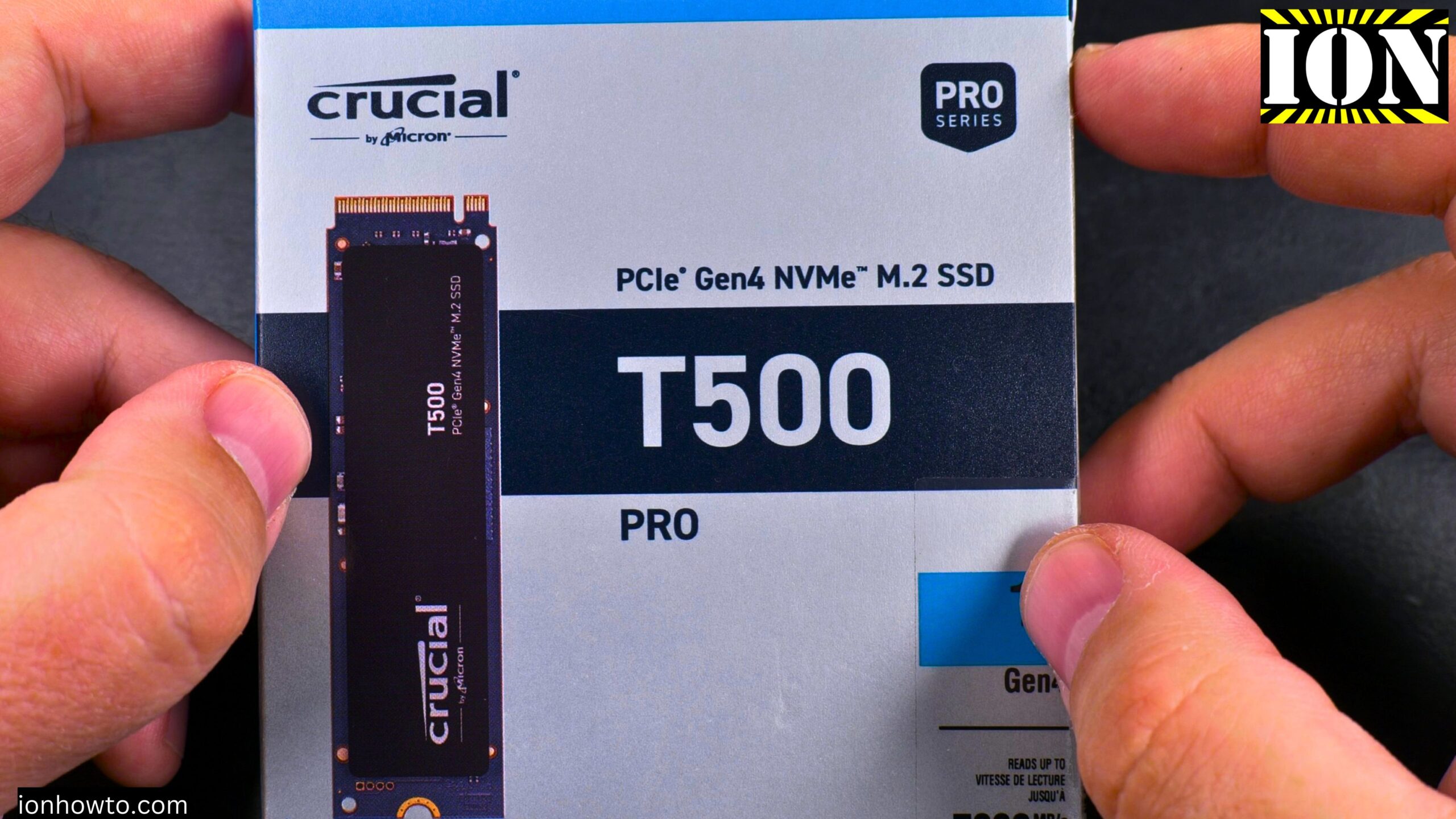
Crucial T500 Pro NVMe M.2 SSD 1TB Gen 4 Unboxing.
Learn what comes in the box with the Crucial T500 Pro NVMe SSD. I bought this drive for fast file moving and copying on my computer. This is a PCIe Gen 4 NVMe M.2 SSD.
PCIe 4.0 drives are slower than the newer PCIe 5.0 SSDs. But for most people, Gen 4 is more than fast enough. My motherboard doesn’t support Gen 5 anyway, so this works perfectly for me.
Why I chose the Crucial T500 Pro
I was trying to decide between a few cheaper options:
- Kingston NV3 – Not great performance
- Crucial P3 Plus – Also not great performance
- Crucial T500 Pro – More expensive but better performance
I decided to spend a bit more on the T500 Pro. Here’s why:
- TLC NAND instead of QLC – Better quality memory
- Better TBW endurance specs – Should last longer
- Has DRAM cache – The cheaper drives don’t have DRAM. Once their cache fills up, they become very slow
- Can write the whole 1TB capacity without major slowdown – Especially with a heatsink
I also looked at Seagate SSDs but they weren’t available or were too expensive. I’ve had some strange issues with Samsung drives before, so I decided to try Crucial this time.
Unboxing – what’s inside
The box is small and sealed. Here’s what you get:
- The Crucial T500 Pro NVMe SSD itself
- Documentation and warranty information
- Instructions for setup in multiple languages
The drive is tiny. These M.2 SSDs are surprisingly small when you hold them.
Drive details
Specifications:
- Capacity: 1TB (you’ll see slightly less in Windows – that’s normal)
- Interface: PCIe Gen 4 x4
- Form factor: M.2 2280
- Read speed: Up to 7,300 MB/s
- Power: 2.5 amps at 3.3 volts
The box advertises “”Blazing Gen 4 performance”” and mentions support for Microsoft Direct Storage for gaming and content creation. It’s backward compatible with Gen 3 motherboards too.
The sticker question – should you remove it?
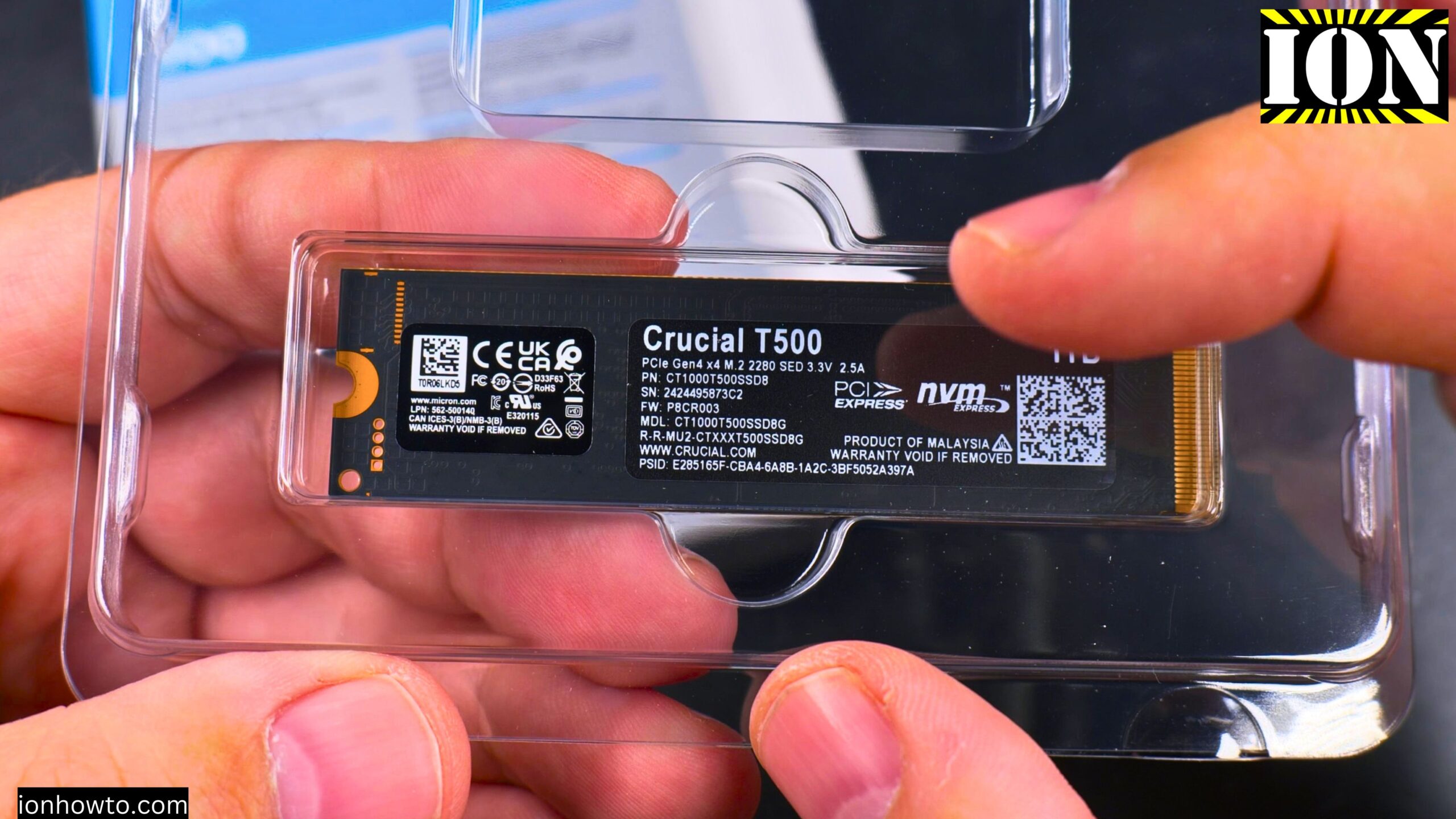
This drive has two stickers:
- Top sticker – Has branding, doesn’t say “”warranty void if removed””
- Bottom sticker – Has serial number and says “”warranty void if removed””
I made a video before about removing a sticker from an NVMe drive. That drive was out of warranty, so it didn’t matter. But for this one, I will NOT remove the sticker.
Here’s why:
- I want to keep the warranty valid
- Some people say these stickers are made of metal (copper or aluminum) and actually help with cooling
- Even with the sticker on, a heatsink still lowers temperatures by about 20°C
If you watch my old Samsung 970 Pro video, that sticker was just plain paper. This one might be different. I’m not going to risk it.
About the heatsink
I wanted to buy the heatsink version of the T500 Pro. The price difference was less than €10. But it was sold out on Amazon when I tried to buy it.
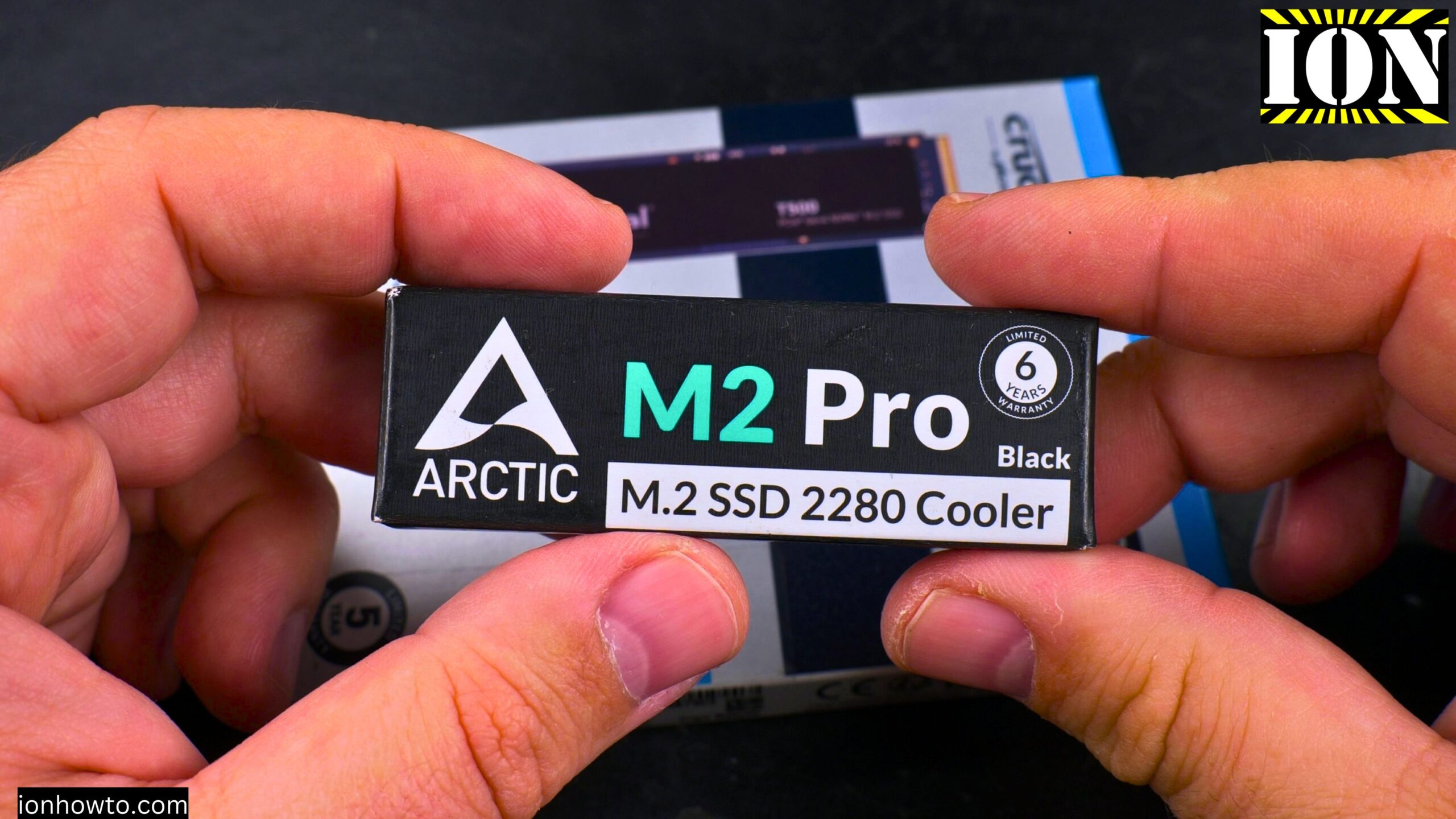
So I bought the drive without a heatsink and also got an Arctic M2 Pro cooler separately for about €5-6. I hope the size is correct (it is – both are 2280 form factor).
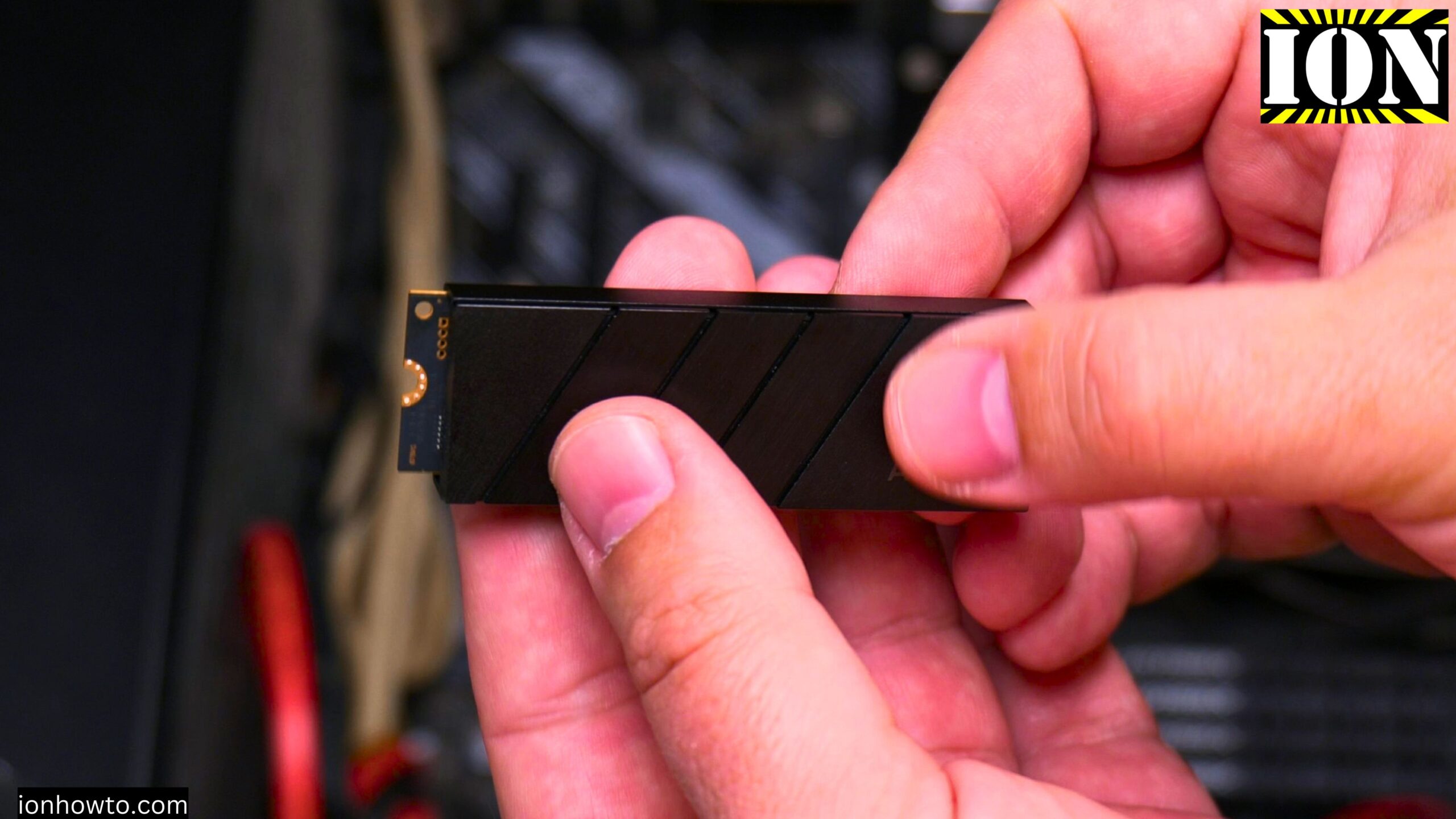
The Arctic M2 Pro is an aftermarket heatsink with double-sided thermal pads. I will install the drive in this cooler for full temperature testing.
Included software
The drive comes with Acronis True Image as a free download. You can use it to:
- Clone your existing Windows SSD to the new drive
- Move your system without reinstalling Windows
There’s also Crucial Storage Executive software for:
- Monitoring the drive
- Firmware updates
- Optimization
But a warning: The Crucial software is not good. It’s very slow to start. Firmware updates are not easy to do from Windows 11. It’s probably the worst SSD software I’ve used for monitoring. I recommend using CrystalDiskInfo or another third-party tool instead.
Cloning vs fresh install
I won’t be using the cloning software for this drive. My system drive is already a Seagate FireCuda NVMe SSD with a heatsink, and it’s working perfectly. This Crucial drive is going to be extra storage for fast file transfers.
If you want to clone your system drive, Crucial provides the software to do it. You don’t have to reinstall Windows.
What about the “”1TB is not really 1TB”” note
The box includes the standard disclaimer that 1TB is not exactly 1TB in Windows. This is normal. All drive manufacturers do this. Most of us are used to it by now.
First impressions
The drive looks good. It’s well packaged. The build quality seems solid. Crucial is owned by Micron, which is a huge and reputable memory manufacturer. I’ve used Crucial memory for laptop upgrades before and everything was fine.
The good:
- TLC NAND instead of QLC
- Has DRAM cache
- Good TBW endurance
- Comes with cloning software
- Competitive price for the performance
The potential issues:
- The monitoring software is very slow
- Firmware updates are not easy on Windows 11
What’s next?
I will do full testing in separate videos:
- Temperature tests without heatsink – Writing large files and checking how hot it gets
- Temperature tests with Arctic M2 Pro heatsink – Same tests to see the difference
- Speed tests – CrystalDiskMark and real-world file transfers
- Full drive write test – Writing the whole 1TB capacity to check for slowdowns
From what I expect based on other reviews:
- Without heatsink: Temperatures will go above 80°C during heavy use
- With heatsink: Temperatures will stay around 50-63°C
- The heatsink helps a lot when writing and reading large files
Recommendation so far
If you can find the heatsink version of the T500 Pro, get it. The price difference is small and it really helps with temperatures.
If you already bought the drive without a heatsink (like me), get an aftermarket cooler like the Arctic M2 Pro. It’s cheap and works well.
If you’re worried about warranty, keep the sticker on. Even with the sticker on, the heatsink still lowers temperatures significantly.
Update after use
I’ve been using this drive daily. So far, no problems. The price was good and the performance is great.
If you get this drive, take the version with the heatsink unless the price difference is large. It’s worth the extra money.


Leave a Reply