
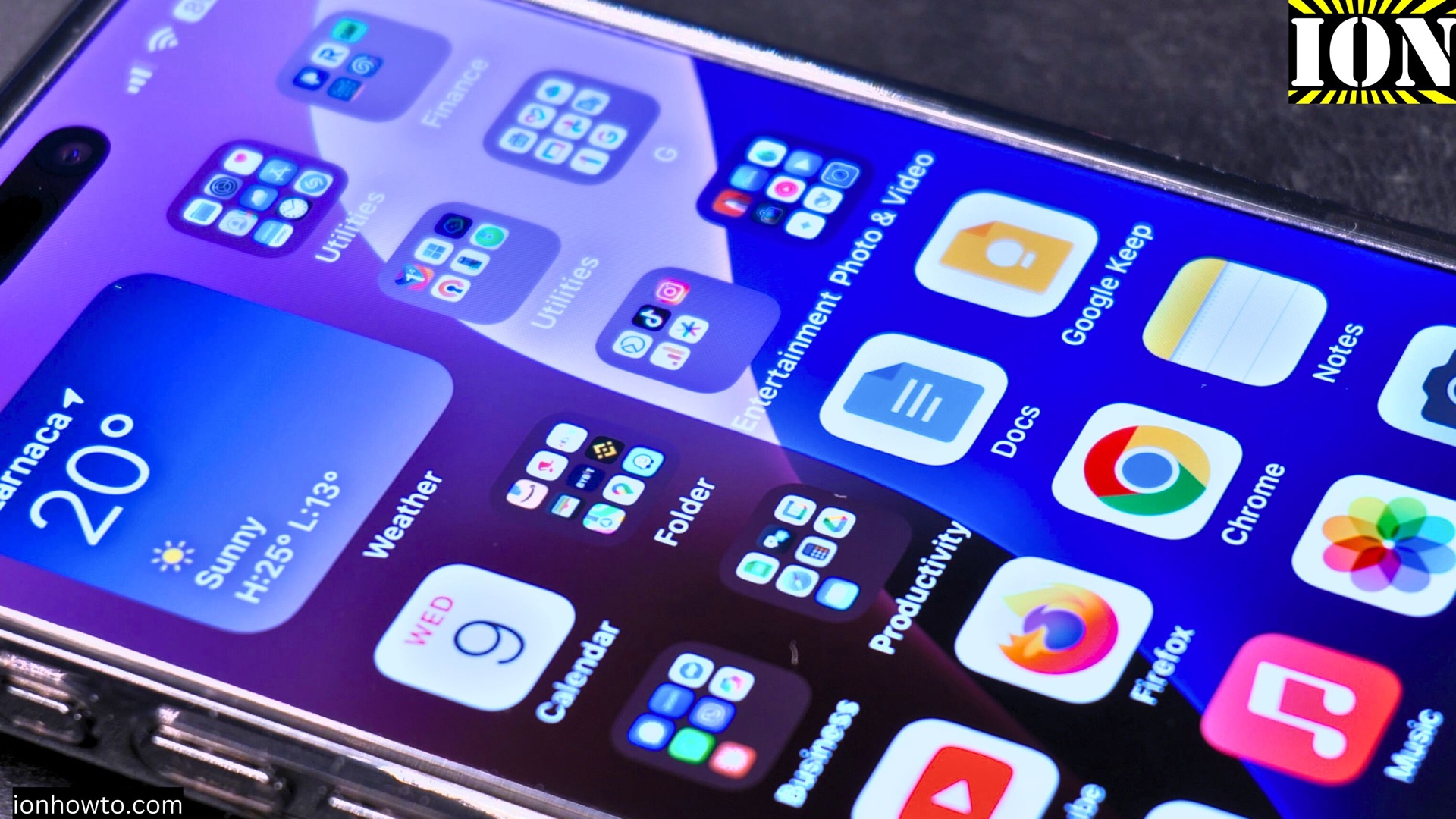
iPhone Adaptive Power, How to Enable and Use It.
Learn how to enable Adaptive Power on your iPhone. This video explains what the Adaptive Power feature does and how it can help manage your battery. I also show you how to turn on the Adaptive Power Notification so you stay informed.
This guide is based on iOS 26 Beta 7, shown on an iPhone 16 Pro Max.
Amazon links
As an Amazon Associate I earn from qualifying purchases:
- iPhone Accessories
- iPhone Charger
- iPhone Cases
- iPhone Screen protector
- iPhone Magsafe
- iPhone Wallet
- iPhone Usb c cable
I start by showing you how to find the Adaptive Power setting in your iPhone’s menu. This is a common search for users who want to improve battery life. I guide you through the steps to activate it correctly. Learn how this feature works to optimize your phone’s performance based on your usage patterns.
Learn how to enable and get the Adaptive Power Notification when apps are being slowed down to save battery life. I show you how to enable these alerts so you know when the feature is active. These notifications can help you understand how your iPhone is saving power throughout the day.
I explain the benefits of using Adaptive Power for your iPhone’s battery health. If you are looking for ways to make your battery last longer, this feature is designed to help. Learn how it adjusts system performance to match your daily needs without you having to do anything.
See if you should keep Adaptive Power on. This video will help you decide if this feature is right for your usage. Understanding these settings is key to getting the most out of your iPhone’s battery.
If you cannot find the Adaptive Power setting on your phone check that you have iOS 26 or newer. This can happen if your software is not updated. Make sure you are running the latest iOS version to access all the newest battery features.
What Is Adaptive Power?
Before we turn it on, let’s understand what it does. Adaptive Power is an intelligent battery management feature in iOS 26.
Think of it as a smart assistant for your iPhone’s battery. It continuously learns from how you use your phone day-to-day. If it notices you have a very busy day ahead with lots of appointments and travel, it might proactively save power in the background to ensure you make it to the end of the day. It does this by making small, smart adjustments to system performance that you likely won’t even notice.
The main goal is to give you more predictable battery life and reduce the chance of your phone shutting down unexpectedly when you need it most.
How to Enable Adaptive Power
Turning on Adaptive Power is a quick process. Follow these steps.
Step 1: Open Your Settings
Find the Settings app on your home screen. It looks like a gray gear icon. Tap to open it.
Step 2: Go to Battery Settings
Scroll down in the Settings menu until you see Battery. Tap on it to open all your battery-related options.
Step 3: Find and Tap Adaptive Power
Inside the Battery menu, look for an option called Adaptive Power. It should be listed among other features like Battery Health, Low Power Mode, and Battery Percentage. Tap on it.
Step 4: Turn On Adaptive Power
On the Adaptive Power screen, you will see a toggle switch at the top. Tap the switch to turn it ON (the switch will move to the right and turn green).
How to Enable Adaptive Power Notifications
It’s helpful to know when this feature is actively working. You can enable notifications for it.
- While you are still on the Adaptive Power settings screen (from Step 3 above), look for the section labeled Notifications.
- You will see an option such as Allow Notifications or Adaptive Power Alerts.
- Tap the toggle switch next to this option to turn it ON.
Now, your iPhone will send you a brief notification when Adaptive Power is making adjustments to save battery. This helps you stay informed about how your phone is managing power throughout your day.
Should You Keep Adaptive Power On?
Is this feature right for you? Here’s a simple guide to help you decide.
Keep It ON If:
- You want the most battery life possible without manually switching to Low Power Mode.
- You have unpredictable days where your phone usage changes a lot.
- You want your iPhone to intelligently manage itself for better long-term battery health.
- You don’t mind if certain background tasks are slightly delayed to save power.
You Might Turn It OFF If:
- You need your iPhone’s performance to be at its absolute peak 100% of the time (for example, for demanding mobile gaming or professional video work).
- You prefer to have complete, manual control over every battery setting.
- You find the notifications unnecessary or distracting.
For most people, keeping Adaptive Power on is a great idea. It works automatically to help you, and the performance adjustments are usually very subtle.
What to Do If You Can’t Find the Setting
If you followed the steps but don’t see “Adaptive Power” in your Battery settings, don’t worry. The most common reason is your software version.
Check Your iOS Version:
- Go to Settings > General > About.
- Look at the line that says Software Version.
- Adaptive Power is only available in iOS 26 and newer. If your version number is lower (like iOS 17 or iOS 18), you do not have this feature yet.
To get it, you would need to update your iPhone to the latest version of iOS when Apple releases it publicly. Software updates like iOS 26 are typically announced in the fall.
By enabling Adaptive Power, you’re letting your iPhone use its smarts to help your battery last longer. It’s a simple setting that can make a real difference in your daily routine.
Did you find this guide helpful? Have more questions about your iPhone’s battery? Let us know in the comments below!


Leave a Reply